
Key Takeaways
- Malware is a broad term for any harmful software, while ransomware is a specific type of malware.
- They differ mainly in their goals, attack methods, visibility, and recovery process.
- Regular backups, system & software updates, anti-malware software, and strong passwords can help protect against both malware and ransomware.
What Is Malware
Malware, short for malicious software, is designed by hackers to disrupt or damage your computer or gain unauthorized access to your system.
Once infected, cybercriminals may disrupt system operations, steal sensitive data such as account credentials, damage files, or engage in other malicious activities.
Common Types of Malware
Malware comes in various forms, with each type serving a different malicious purpose. Check the following table to quickly understand them.
| Malware Type | Main Purpose |
| Viruses | Infect and destroy files |
| Worms | Automatically spread across networks by exploiting security vulnerabilities |
| Trojans | Disguise themselves as legitimate software to trick users into downloading them |
| Adware | Display unwanted advertisements, typically in the form of pop-ups |
| Spyware | Collect personal or sensitive information |
| Ransomware | Encrypt or lock data and demand payment |
| Rootkits | Hide malware in a device to steal information and resources |
| Keylogger | Record keystrokes to capture sensitive information |
What Is Ransomware
Ransomware is a type of malware that encrypts files or locks the system, blocks access to them, and demands a ransom in exchange for restoring access. However, paying the ransom does not guarantee recovery.
Cybercriminals often request payment in cryptocurrency that is difficult to trace, promising a decryption key in return.
How Ransomware Works
Ransomware typically follows these steps:
- Infection: Attacks infect a device by using malicious downloads, phishing emails, software vulnerabilities, or compromised credentials.
- Execution: Ransomware runs in the background and spreads to other drives or files.
- Encryption: It locks access to the system or encrypts files, making data unusable.
- Ransom demand: A ransom message demanding payment can appear on the screen, providing instructions on how to restore access to the affected data.
- Recovery: A decryption key may be provided after payment, but recovery is not guaranteed.
What Are Types of Ransomware
Ransomware can come in various types, including:
- Crypto ransomware: Encrypts important files such as documents, media, and databases, and demands payment for a decryption key.
- Locker ransomware: Locks users out of devices or systems without encrypting individual files.
- Scareware: Uses fake security alerts to trick users into paying to remove fake infections.
- Leakware (Doxware): Threatens to leak stolen data if the ransom is not paid.
- Ransomware-as-a-Service (RaaS): Provides ready-made ransomware tools for other hackers to use.
- Double Extortion: Combines file lockouts with leak threats.
Malware vs Ransomware: Key Differences
Malware and ransomware differ in several key aspects, including scope, main goal, attack method, revenue generation, behavior, and recovery.
Refer to the table below for a quick comparison of ransomware vs malware.
| Key Differences | Malware | Ransomware |
| Scope | A broad category of malicious software | A specific type of malware |
| Main goal | Can steal data, damage systems, spy on users, or gain unauthorized access | Mainly locks or encrypts files to demand a ransom |
| Attack method | Spreads via various methods (viruses, worms, Trojans, etc.) | Often uses phishing emails or malicious files |
| Revenue generation | Through data theft, fraud, or unauthorized access | Via ransom payments |
| Behavior & visibility | Operates silently | Usually more visible, displaying a ransom note |
| Recovery | Removes the malware and repairs affected system/files | Removes the ransomware, then recovers affected data from backups or with dedicated recovery tools |
#1. Scope
Malware is a broad term that covers many types, including viruses, Trojans, worms, spyware, ransomware, and adware. Ransomware is a type of malware that focuses on locking the system or encrypting files.
#2. Main Goal
Malware serves various malicious purposes:
- Steal sensitive data
- Damage computer systems
- Simply cause disruption
- Monitor user activity
Ransomware mainly aims to extort money from victims by blocking access to files or systems until a ransom is paid.
#3. Attack Method
The distribution methods of malware vary depending on its type. It mainly spreads via infected files, system or software vulnerabilities, malicious downloads, email attachments, or malicious websites.
Ransomware primarily spreads through phishing emails containing malicious attachments or links, compromised RDP credentials, and unpatched software vulnerabilities.
#4. Revenue Generation
Malware is not always financially driven. It generates revenue indirectly and quietly through background activities:
- Indirect profits from selling stolen data on underground markets
- Continuous, low-volume revenue through fraudulent ad views or forced click-throughs.
- Unauthorized cryptocurrency mining using the computer’s processing power.
Ransomware is usually designed to generate revenue by demanding payment from victims, often in cryptocurrency.
#5. Behavior and Visibility
General malware often operates quietly, maintains long-term access, and attempts to blend into normal user or administrative activity to avoid detection.
Ransomware is visible and forces immediate attention. It often leaves a conspicuous ransom message, changes the desktop background, and locks the screen.
#6. Recovery
General malware recovery often involves scanning the system with anti-malware tools to delete malicious files and uninstalling problematic programs. Detecting it early can help minimize long-term damage.
Ransomware requires ransom to restore data access, which is not recommended as it doesn’t guarantee data recovery. If available, use offline backups or a verified decryption tool.
Unlike other types of malware, by the time a user gets the ransom demand, irreversible damage has already been done.
Malware vs Ransomware: Similarities
Understanding the difference between malware and ransomware is important, but knowing their similarities can also help you better prevent these threats.
- Both can spread through phishing emails, malicious links, or infected attachments.
- Both may exploit security weaknesses in operating systems.
- Both can be removed from security tools.
- Both may cause data corruption or loss.
How to Protect Against Malware and Ransomware
Because malware and ransomware can cause serious data loss and system damage, protecting against these threats is essential.
Core prevention measures include file backups, system and software updates, anti-malware software, and other security best practices.
#1. Back Up Important Files Regularly
Malware and ransomware can put your important data at risk. To prevent data loss, regularly back up important files and store at least one copy to an external hard drive, cloud, or another separate location.
For data backup, professional backup software for Windows 11/10, such as MiniTool ShadowMaker, can help. It supports disk/partition/folder/file/system backup and recovery with advanced options like automatic, differential, and incremental schemes.
It allows you to store backups to external hard drives, USB drives, NAS, DAS, and network locations.
MiniTool ShadowMaker TrialClick to Download100%Clean & Safe
Follow these steps:
Step 1: Connect your external or USB drive to a computer.
Step 2: Launch MiniTool ShadowMaker.
Step 3: Navigate to Backup > SOURCE > Folders and Files and select the items you want to back up.
Step 4: Click DESTINATION under Backup to choose the connected drive.
Step 5: Go to Options > Schedule Settings, enable this feature, and set up a plan.
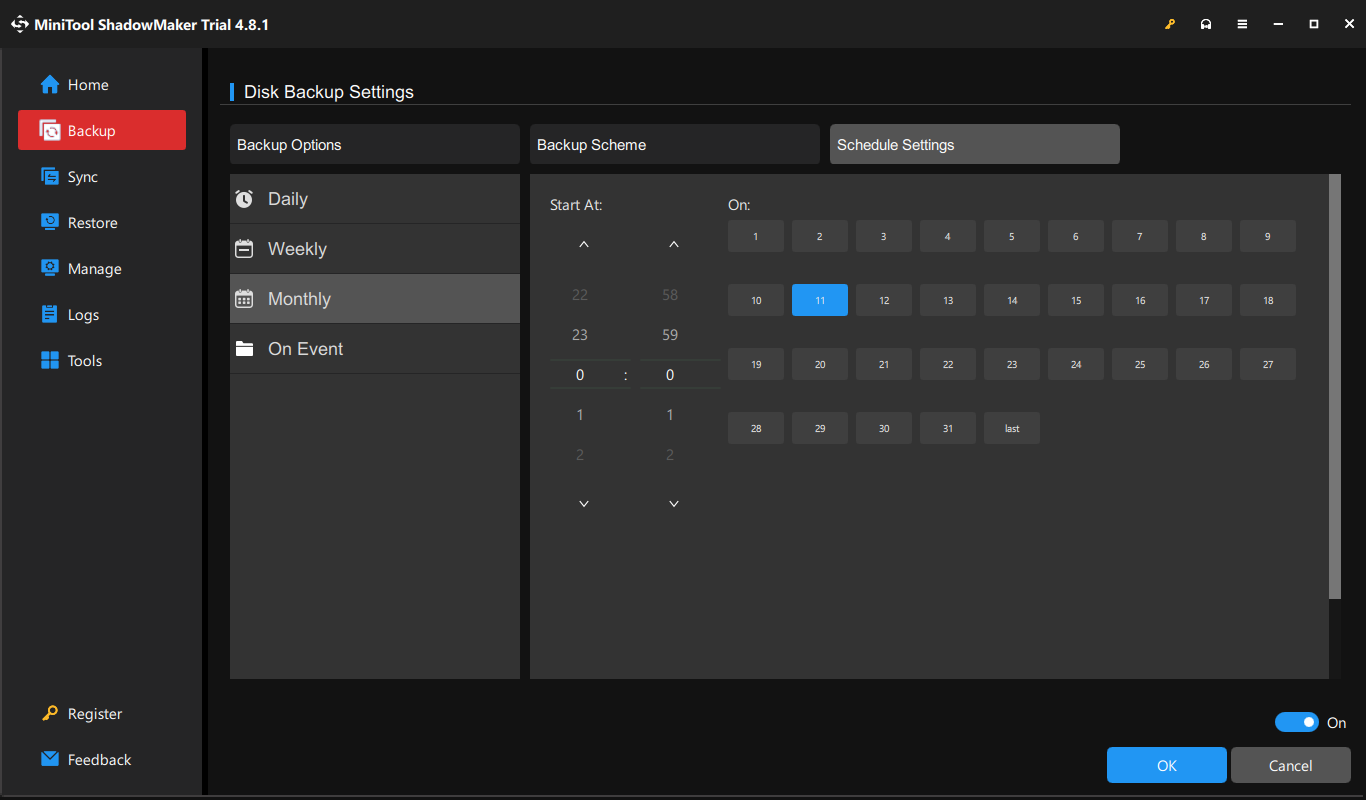
Step 6: Click Back Up Now.
MiniTool ShadowMaker starts creating a full backup immediately and then automatically creates backups at the scheduled times.
#2. Keep Windows and Software Updated
Install the latest updates for your system and programs once they are available. Updates often include security patches that fix security flaws and protect your PC from potential attacks.
Step 1: Go to Settings > System > Windows Update.
Step 2: Click Check for updates.
Step 3: If new updates are available, click Download and install.
Step 4: Restart your PC when prompted to finish the installation.
To update an app:
Step 1: Go to the About or Help menu in the app.
Step 2: Click Check for updates to download and install an available update.
#3. Use Reliable Anti-Malware Software
Reliable security software can offer real-time protection against various threats. In Windows 11/10, use the built-in Windows Security to protect against malware and ransomware.
- Ensure Windows Security is always enabled. If not, run this app through Search, click Virus & threat protection > Manage settings, and enable Real-time protection.
- Keep this security tool up to date by clicking Check for updates under Virus & threat protection updates to protect against new threats.
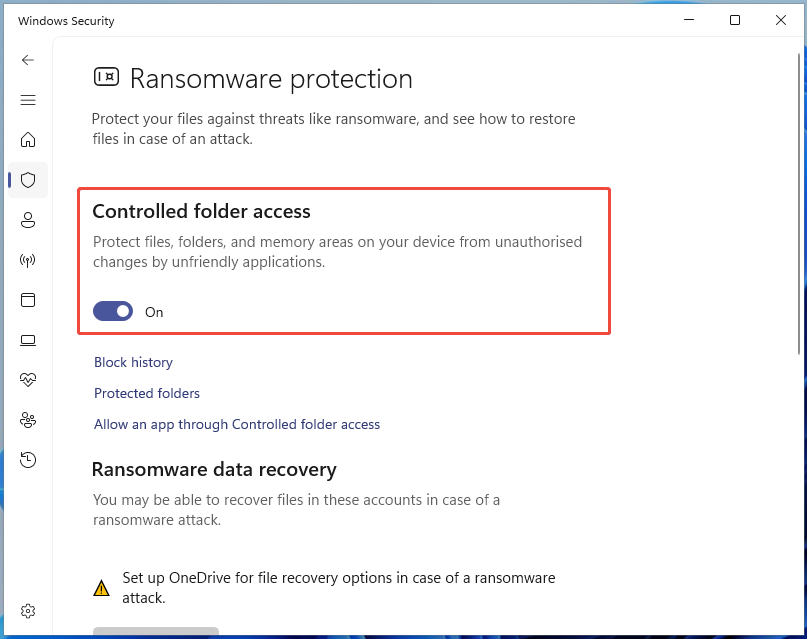
- Turn on the Controlled folder access option to block unauthorized changes by malicious software.
#4. Avoid Suspicious Links and Downloads
Avoid opening unexpected email attachments or clicking strange links, especially from unknown senders. Download software only from trusted sources.
#5. Use Strong, Unique Passwords
Use strong, long passwords of at least 12 characters (combining letters, numbers, and symbols) to protect your accounts against ransomware and malware. Also, ensure the passwords are unique for each account.
If possible, enable multi-factor authentication (MFA) to add an extra layer of protection.
How Malware and Ransomware Get on Your Computer
After exploring malware vs ransomware and prevention tips, understanding how they infect your PC is essential.
Common infection methods include:
- Phishing links and emails
- Malicious websites
- Fake software or downloads
- Unpatched software vulnerabilities
- Stolen or weak passwords
- Infected USB devices
What to Do if You Suspect Malware or Ransomware
If you suspect malware or ransomware has infected your computer, follow these steps:
- Disconnect the device from the network by turning off Wi-Fi or unplugging Ethernet cables.
- Unplug peripherals including external hard drives, USB drives, and SD cards.
- Turn off Bluetooth to block device-to-device transmission.
- Run your security software to remove detected threats. If needed, enter Safe Mode to perform this task.
- Wipe the device if the infection is deep.
- Reset all important account passwords from a clean device.
- Check available backups to restore encrypted, corrupted, or lost files.
Malware vs Ransomware FAQ
DoS/DDoS can overwhelm a server or network by flooding it with excessive traffic, causing it to slow down or crash.
Conclusion
Understanding ransomware vs malware helps you recognize their key differences and potential impact on your PC. To reduce the risk, back up files regularly, update Windows & apps, run reliable security software, and use strong passwords.
If you have issues with MiniTool software during backup, contact us at [email protected].
About The Author

Position: Columnist
Vera has been working at the MiniTool Team for over 10 years as a technical editor and content writer. She mainly focuses on disk and partition management, data recovery, Windows backup and restore, and PC troubleshooting. Through in-depth software testing and hands-on experience, she has helped users solve a wide range of computer problems and better protect their data on Windows devices.
User Comments :