
Microsoft Office not opening is a common issue in Windows 11/10. When running Word, Excel, PowerPoint, or Outlook, one or more Office applications fail to launch properly.
Fortunately, you can effectively resolve it through several fixes.
Quick Fixes for Microsoft Office Not Opening
| Cause | Solution |
| Corrupted Office installation | Repair Microsoft Office |
| Add-ins conflicts | —Open Office in Safe Mode —Disable Office add-ins |
| Compatibility problems | Update Windows and Office |
| Incorrect file associations | Reset file associations |
| Damaged Windows system files | Run SFC |
| Severe Office corruption | Reinstall Microsoft Office |
Common Symptoms of Microsoft Office Not Launching
Many users on Microsoft forums and Reddit report issues where Microsoft Office apps such as Word, Excel, PowerPoint, and Outlook fail to open or stop responding unexpectedly.
Common symptoms include:
- Microsoft Office is not opening after the update.
- Double-clicking Office files does nothing.
- Office refuses to respond or stops working.
- Excel opens with a blank screen.
- Word opens and closes immediately.
- Office files are opening in the wrong app.
- Microsoft Office does not open with a file association error.
Why Won’t Microsoft Office Open on Windows 11/10
Common reasons for Microsoft Office apps not opening include:
- Faulty add-ins
- Corrupted Office installation
- Incorrect file associations
- Outdated Office version
- Damaged system files
- Windows update issues
How to Fix Office Not Opening Windows 11/10
Most Effective Solutions to Microsoft Office Not Opening
For most users, the following methods address the problem quickly:
- Repair Microsoft Office
- Open Office in Safe Mode
- Disable problematic add-ins
- Update Windows and Office
Fix 1: Repair Microsoft Office
When to use:
- Word, Excel, PowerPoint, Outlook, or other Office apps crash immediately.
- Office won’t open after an update.
- Office installation files may be corrupted.
No matter which Office application you are using, you can make use of the Microsoft repair feature to repair the issue. This method helps fix damaged Office installation files without deleting your documents.
Step 1. Type control panel in Search and open Windows Control Panel.
Step 2. Select Uninstall Programs under the Programs section.
Step 3. In the programs list, right-click on Microsoft Office and choose Change.
Step 4. In the next pop-up new window, select either of the repair types (Quick Repair or Online Repair) and click Repair to start.
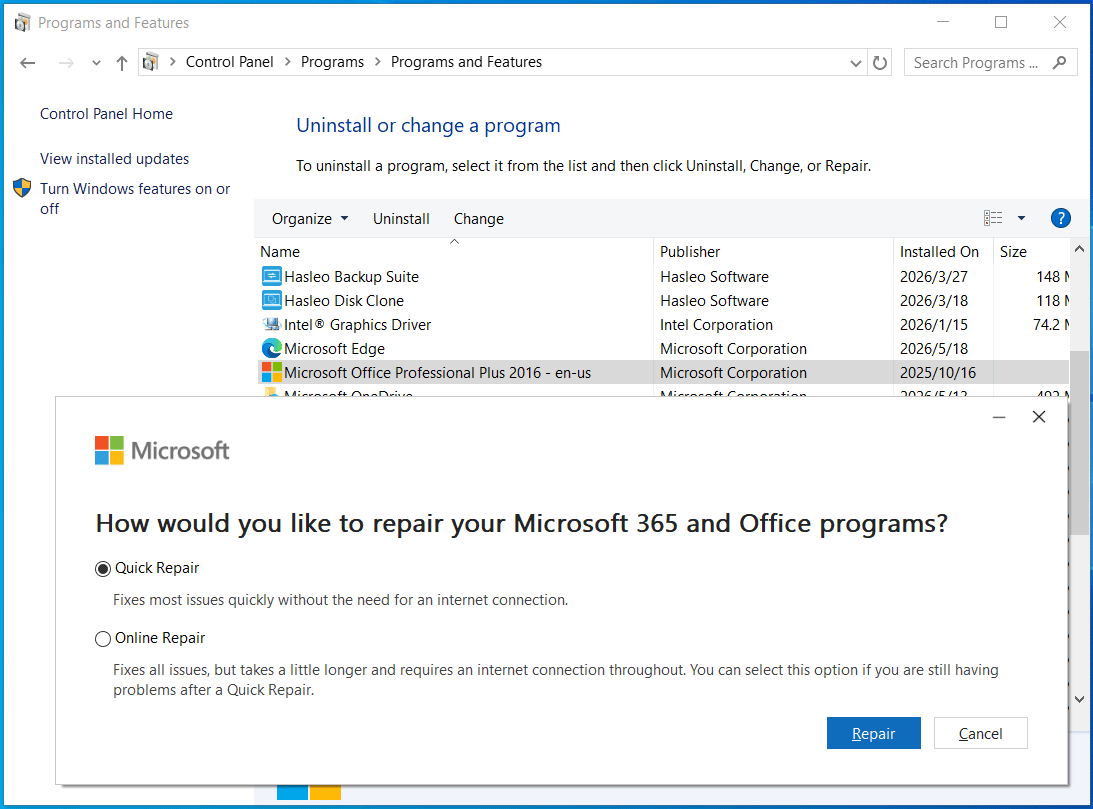
Then, try to open your Microsoft Office apps to see whether you can open them or not.
Fix 2: Open Office in Safe Mode
When to Use
- Office freezes during startup.
- Microsoft Office not opening starts after installing add-ins.
- Word or Excel opens briefly and then closes.
Safe Mode starts Office without add-ins, helping resolve freezing or crashing issues.
Do this for one app, for example, Word:
Step 1. Open Windows Run box by pressing Windows + R.
Step 2. Type winword /safe and press Enter.
Step 3. Then, you will see the Word opens in safe mode.
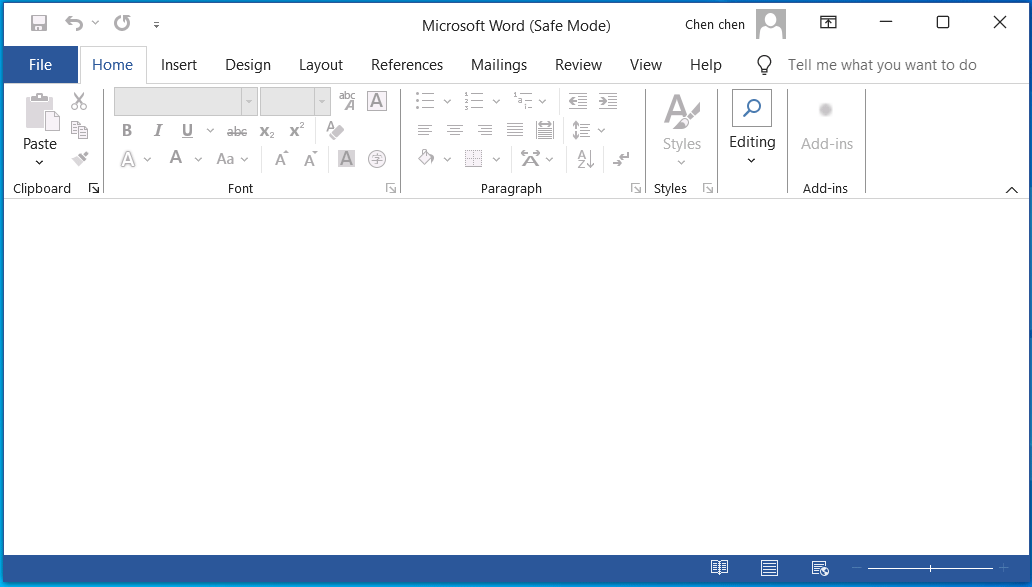
The following are the commands for opening other Office programs in Safe Mode via Run box. They are all based on Microsoft Office Professional Plus 2016 on Windows 10/11.
| Office App | Command |
| Excel | excel /safe |
| PowerPoint | powerpnt /safe |
| Outlook | outlook /safe |
| Access | msaccess /safe |
| Publisher | mspub /safe |
| OneNote | onenote /safe |
Fix 3: Disable Office Add-ins
When to Use
- Office opens in Safe Mode but not in normal mode.
- Office crashes during startup.
- The problem appears after installing plugins.
Sometimes, damaged add-ins may prevent your Office files from opening or opening without showing contents. Removing problematic add-ins can be an effective solution.
Follow these steps:
Step 1. Open any Office application in Safe Mode.
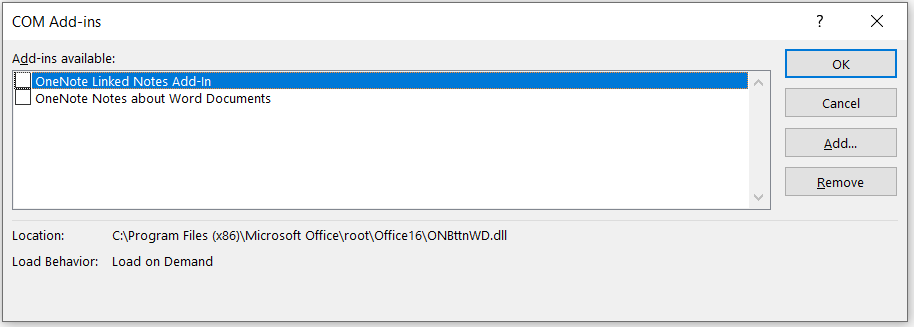
Then, reopen your Word document to see the result. You can also uncheck one add-in at one time to figure out which add-in is the culprit.
If you can’t locate the problematic add-in, it is possible that more than one add-ins together cause Office not launching.
Fix 4. Update Windows and Microsoft Office
When to Use
- Microsoft Office is not opening after a Windows update.
- Office apps are outdated.
- Compatibility issues occur frequently.
Installing the latest update can fix bugs, improve the compatibility between the system and apps, and resolve Office startup issues.
Update Windows 10/11
Step 1. Go to Settings > Windows Update.
Step 2. Click Check for updates.
Step 3. Install available updates.
Update Office
Step 1. Open any Office app.
Step 2. Navigate to File > Account.
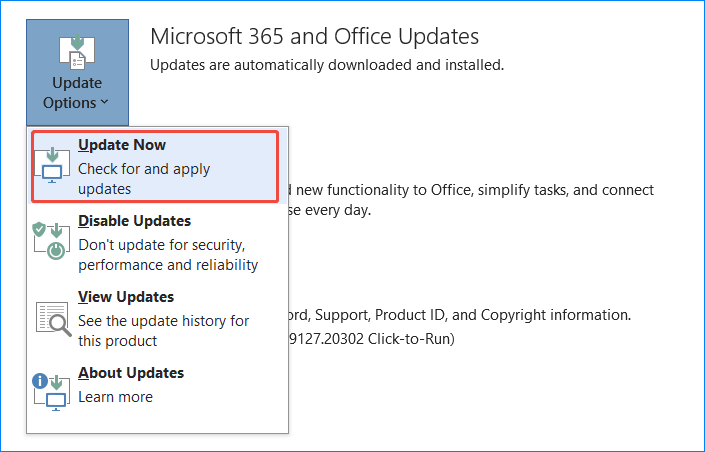
Step 3. Click Update Options and choose Update Now.
Fix 5. Run SFC Scan
When to Use
- Windows system files are corrupted.
- Other applications also fail to open.
- Office crashes randomly.
SFC and DISM can effectively repair damaged Windows system files that may stop Office apps from opening in Windows 11/10.
Step 1. Open Command Prompt as an administrator.
Step 2. Type DISM /Online /Cleanup-Image /RestoreHealth and press Enter.
Sep 3. Execute the sfc /scannow command.
Check if the issue of Excel/PowerPoint/Outlook/Word not opening is resolved.
Fix 6. Reset Office File Associations
When to Use
- Nothing happens after double-clicking Word or Excel files.
- Office documents open in the wrong application.
Step 1. In Windows 10/11, click Start in the bottom left corner and select Settings.
Step 2. In the Windows Settings window, choose the Apps option.
Step 3. On the Apps & Features screen, select Default apps tab in the left menu.
Step 4. Scroll down to find “Set defaults by app” and click it.
Step 5. On the next screen, find the problematic Microsoft Office app, click on it, and select Manage.
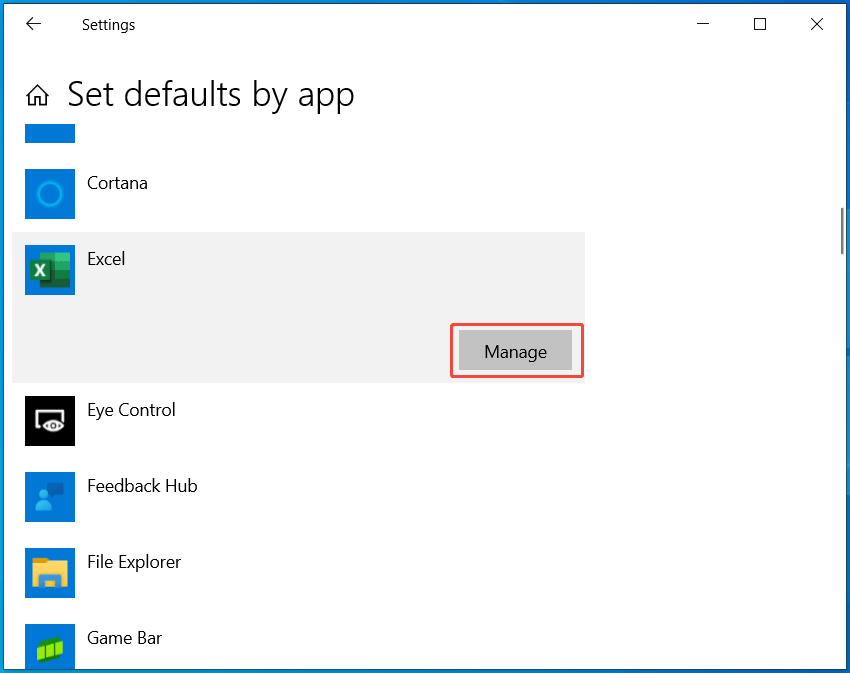
Step 6. Find the file extension you failed to open and set its default app as the Office program.
Fix 7. Reinstall Microsoft Office
When to Use
- None of the above solutions works.
- The Office installation is severely corrupted.
- Office apps cannot open at all.
Reinstalling Office can replace damaged program files and restore default settings.
Step 1. Uninstall Microsoft Office from Control Panel.
Step 2. Restart the computer and download the latest installer from the Microsoft website.
Step 3. Run the downloaded file and follow the on-screen instructions to install Microsoft Office.
After installation, Office apps should open properly.
Community-Verified Fixes for Microsoft Office Not Opening
The following fixes from Reddit users helped resolve the startup issue in some cases.
Fix 1: Uninstall Windhawk
If Microsoft Office won’t start after installing Windhawk, try to uninstall this software.
Step 1. Open Control Panel and set View by to Category.
Step 2. Click Uninstall a program under Programs and Features.
Step 3: Select Windhawk and click Uninstall to remove this app.
Fix 2: Delete the Usefilter Key
Word/PowerPoint/Outlook/Excel not opening can be solved by deleting the Usefilter key in Windows registry.
Step 1. Open Registry Editor through Windows 11/10 Search.
Step 2. Go to the path:
Computer\HKEY_LOCAL_MACHINE\SOFTWARE\Microsoft\Windows NT\CurrentVersion\Image File Execution Options
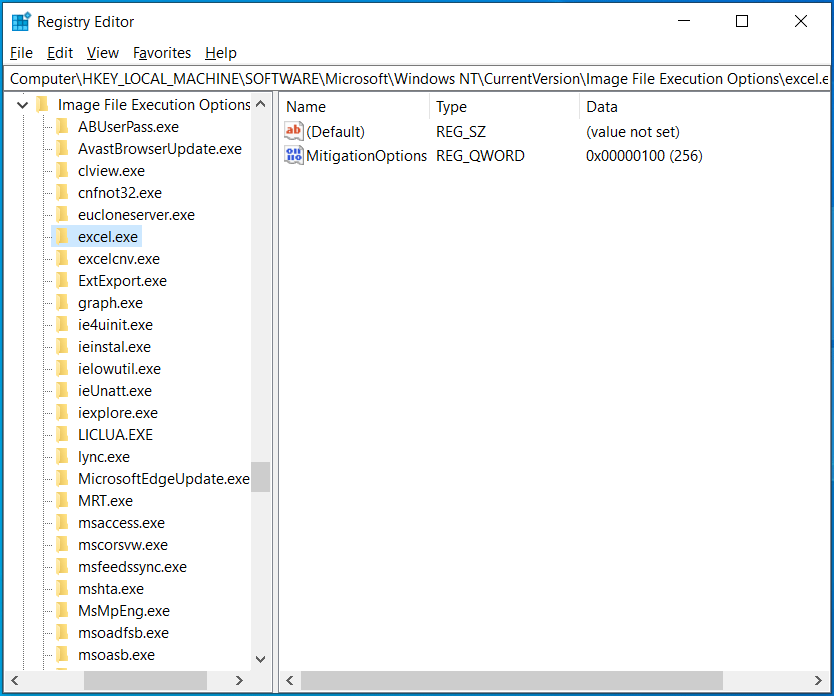
Step 3. At subkeys, such as winword.exe, excel.exe, powerpnt.exe, mspub.exe, and msaccess.exe, delete the Usefilter key.
Step 4. Restart Windows 11/10 and launch any Office app.
Back Up Important Office Files
It is recommended to back up important Word, Excel, and PowerPoint documents to avoid accidental deletion.
For document backup, try MiniTool ShadowMaker, professional backup software for Windows. It offers flexible options for you to regularly back up data.
MiniTool ShadowMaker TrialClick to Download100%Clean & Safe
Step 1. Launch MiniTool ShadowMaker on your machine and click Keep Trial on its first screen.
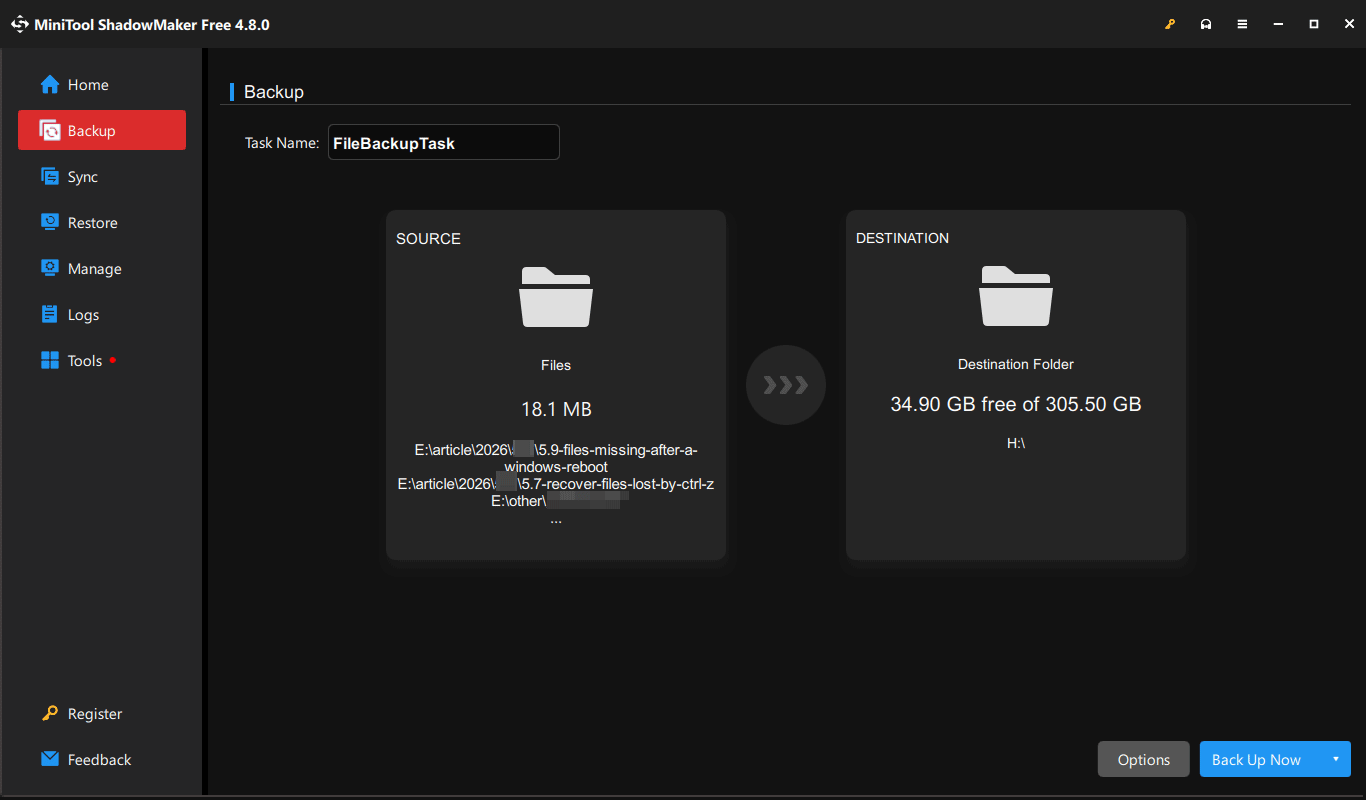
Step 2. On its second screen, switch to Backup.
Step 3. Click the SOURCE module to choose the Microsoft Office files or the folder containing Office files.
Step 4. Click the DESTINATION module to select the backup target place. You can choose another local disk or external hard drive.
Step 5. If everything is right, just click Back Up Now to start the process immediately.
Bottom Line
When Microsoft Office won’t open in Windows 11/10, follow the instructions above to easily fix the issue. If the standard fixes do not work, community-reported solutions such as uninstalling Windhawk or removing the Usefilter key may also help in specific situations.
To protect your documents, use MiniTool ShadowMaker to back up them. If you have any issues with this software, feel free to contact [email protected].
Microsoft Office Not Opening FAQ
About The Author

Position: Columnist
Vera has been working at the MiniTool Team for over 10 years as a technical editor and content writer. She mainly focuses on disk and partition management, data recovery, Windows backup and restore, and PC troubleshooting. Through in-depth software testing and hands-on experience, she has helped users solve a wide range of computer problems and better protect their data on Windows devices.
User Comments :