
The PC stuck on ASRock screen issue may be caused by incorrect BIOS settings, a failing SSD, boot configuration errors, damaged system files, or faulty hardware. Here, MiniTool explains the most common causes and provides some useful solutions to fix the issue.
Quick Answer: Why Is My PC Stuck on the ASRock Screen
A PC stuck on the ASRock logo screen is typically caused by incorrect BIOS settings, wrong boot order, failing RAM, USB device conflicts, corrupted Windows boot files, or a faulty SSD/HDD.
Most cases can be resolved by disconnecting peripherals, resetting BIOS settings, correcting the boot order, and running Windows Startup Repair.
Why Your PC Gets Stuck on ASRock Logo Screen
The ASRock logo appears during POST as the motherboard checks hardware and gets ready to load the OS. If this process fails, the system might freeze at the logo screen and never boot into Windows.
The most common causes are listed below.
- BIOS misconfiguration (including boot order)
- Corrupted system or boot files
- Storage or hardware failure (SSD/HDD, RAM, etc.)
- Loose connections or external device conflicts
- Failed Windows update
How to Fix PC Stuck on ASRock Screen on Windows 10/11?
Fix 1. Disconnect All USB Devices and Peripherals
External devices can interrupt the boot process and cause the system to freeze on the ASRock logo screen.
Step 1. Shut down the computer completely.
Step 2. Disconnect all USB devices, including:
- USB flash drives
- External hard drives
- Printers
- Docking stations
- Game controllers
Step 3. Restart the PC and check if the issue is fixed.
If Windows boots successfully, reconnect devices one by one to identify the problematic device.
Fix 2. Reset BIOS Settings or Clear CMOS
CMOS is a small amount of memory on the motherboard that stores the Basic Input/Output System (BIOS) setting. The BIOS can be used for identifying and configuring hardware in your computer. When encountering boot issues like computer stuck on the ASRock logo, you can consider clearing the CMOS to restore the BIOS settings to the factory defaults. To do so:
Option 1: Reset BIOS Settings (If you can access BIOS)
- Enter BIOS by pressing F2 or Delete during startup.
- Locate Load Optimized Defaults or Load Setup Defaults.
- Select the option and confirm.
- Save changes and exit.
Option 2: Clear CMOS (If you cannot access BIOS)
If you cannot enter BIOS, you can reset CMOS to restore default BIOS settings.
- Turn off the PC and unplug power.
- Remove the CMOS battery from the motherboard.
- Wait 5–10 minutes.
- Reinsert the battery and restart.
Fix 3. Check Boot Order
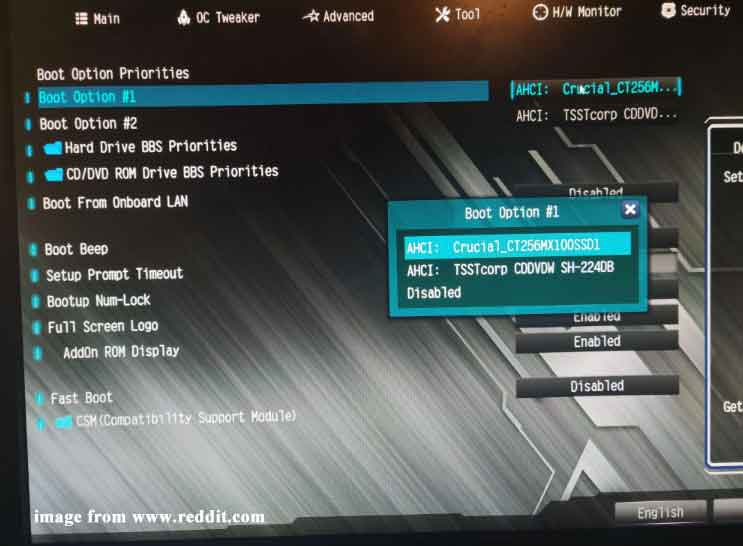
Incorrect boot sequence can also lead to some system or boot issues including PC stuck on ASRock screen. Therefore, you need to enter the BIOS menu to check if your default boot device is right. Here’s how to do it:
Step 1. Shut down your computer and then restart it.
Step 2. Press F2 or Del repeatedly when the system starts.
Step 3. Use the arrow keys to locate the Boot tab > set your system disk as the first boot device > hit Enter > press F10 to save the change.
Step 4. Restart your computer.
Fix 4. Check the RAM Modules & Slots
If your RAMs are not installed properly, PC won’t go past ASRock screen, either. Here’s how to check your RAMs:
Step 1. Power off your computer.
Step 2. Locate RAMs on the motherboard and remove them from the slots.
Step 3. Insert one RAM at one time while trying to boot each time. Also, you can place them in different slots to inspect if some slots are damaged. If any RAM modules or RAM slots are faulty, you need to replace them in time.
Fix 5. Test Your SSD/HDD
A failing storage drive can cause ASRock boot screen freezes.
How to check:
Step 1. Enter the BIOS and check whether the SSD/HDD is detected.
Step 2. If detected, check SMART status in Windows Recovery or another system.
Step 3. Use disk health tools to review:
- Bad sectors
- Lifespan
- Read/write errors
Warning signs:
- Drive not detected in BIOS
- Slow boot followed by a freeze
- Clicking sounds (HDD)
If the drive is failing, replacement is usually required.
Fix 6. Perform Startup Repair
When your computer experiences consecutive boot issues like PC stuck on splash screen, you can turn to Startup Repair to diagnose and handle them. Here’s how to do it:
Step 1. Shut down your computer > reboot it > press the Power button to turn it off when the Windows logo appear on the screen.
Step 2. Repeat the process for 2 or more times until prompted by the Automatic Repair screen.
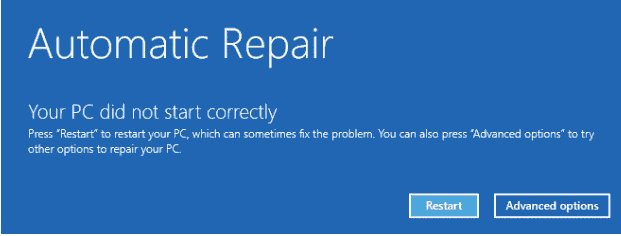
Step 3. Click on Advanced options to enter Windows Recovery Environment.
Step 4. Navigate to Troubleshoot > Advanced options > Startup Repair.
Fix 7. Rebuild Boot Configuration
Use this method if your PC is stuck in a boot loop at the ASRock logo, shows a missing boot device error, or fails to boot after a Windows update. These issues are often caused by corrupted boot files.
Step 1. Boot into Windows Recovery.
Step 2. Open Command Prompt and run the following commands:
- bootrec /fixmbr
- bootrec /fixboot
- bootrec /scanos
- bootrec /rebuildbcd
Step 3. Restart the PC.
Fix 8. Reset This PC
If none of the solutions above work for you, the last surefire method is to reset your computer. Follow these steps:
MiniTool ShadowMaker TrialClick to Download100%Clean & Safe
Step 1. Boot your computer into Windows Recovery Environment.
Step 2. Tap on Troubleshoot and then hit Reset this PC.
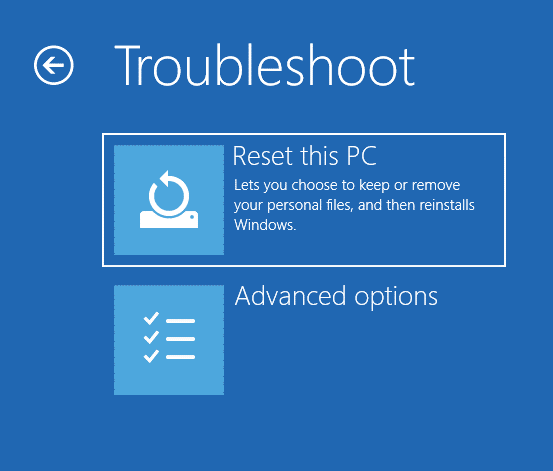
Step 3. Either select Keep my files or Remove everything.
Step 4. Choose Cloud download or Local reinstall.
Step 5. Follow the on-screen instructions to complete the rest process.
Optional Optimization Tip
If the issue happens frequently, consider:
- Upgrading to SSD if using HDD
- Enabling UEFI mode instead of Legacy BIOS
- Keeping BIOS updated
- Using reliable backup tools like system image backups
Suggestions: Create a System Image with MiniTool ShadowMaker
By now, you might manage to solve PC stuck on ASRock screen. Obviously, it will take much time to troubleshoot this problem because you don’t know the root cause. Is there a better way to deal with the similar boot or system issue?
The answer is definitely yes. You can back up your operating system in advance. With a system image in hand, you can restore your system to a working state when the OS goes wrong. To do so, MiniTool ShadowMaker is a good option.
This free PC backup software supports file backup, system backup, disk backup, partition backup, and disk backup. What’s more, it provides a one-click system backup solution that enables you to back up the system drive with just a few clicks.
Here’s how to perform one-click system backup with it:
Step 1. Launch MiniTool ShadowMaker and go to the Backup page.
MiniTool ShadowMaker TrialClick to Download100%Clean & Safe
Step 2. As you can see, the operating system is selected as the default backup source, so you only need to pick a storage path for the system image in DESTINATION.
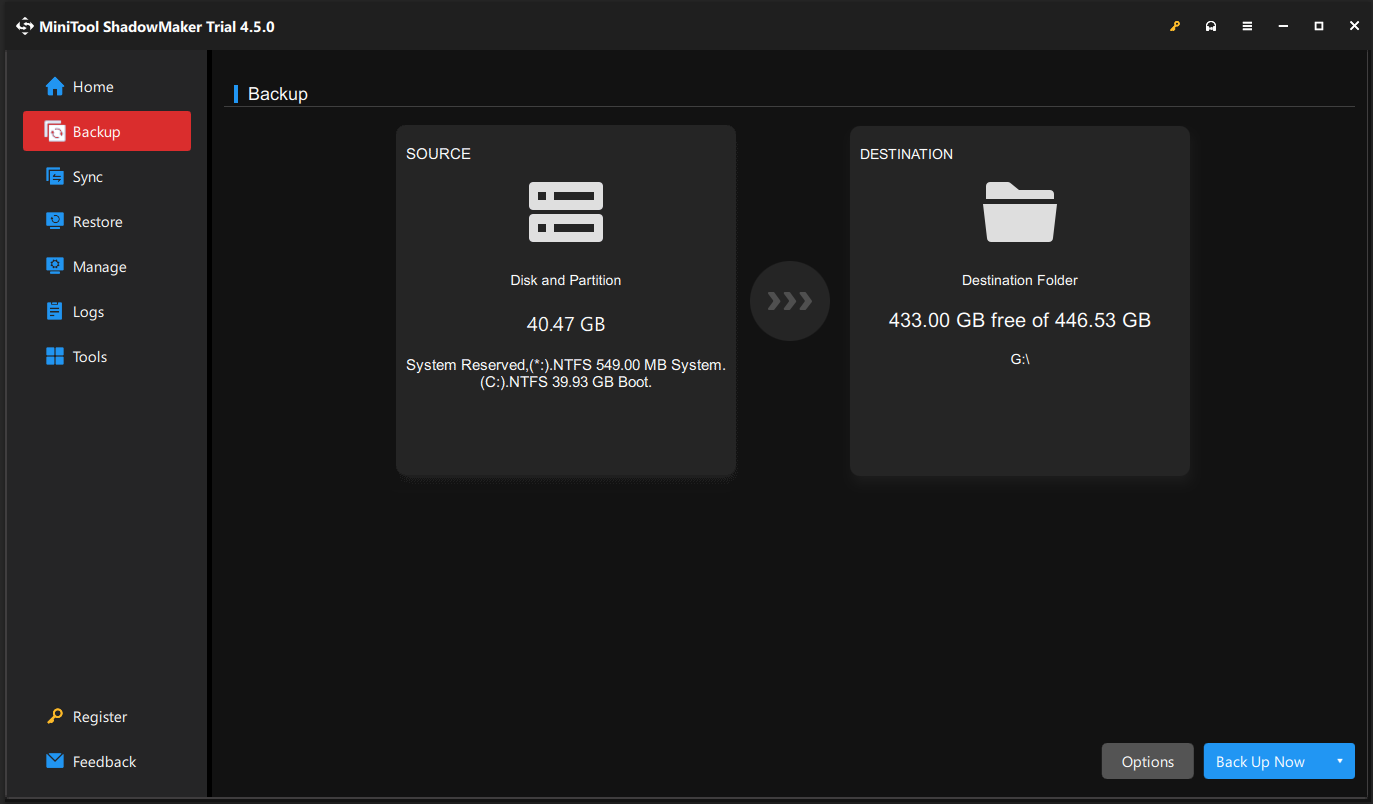
Step 3. Click on Back Up Now to start the process immediately.
After creating a system image, you can go to Media Builder in the Tools page to create a bootable USB drive. Once your computer fails to access the desktop, you can boot it from this drive and perform system recovery with it.
PC Stuck on the ASRock Screen FAQ
For a full hard reset, unplug the monitor’s power cable for about 60 seconds before plugging it back in.
Final Thoughts
A PC stuck on the ASRock logo screen is usually caused by incorrect BIOS settings, boot order issues, or a failing storage drive. In most cases, resetting the BIOS, verifying the boot priority, or repairing startup files can resolve the problem.
To reduce the risk of data loss, it’s recommended to create a system image and a bootable USB using MiniTool ShadowMaker, so you can restore your system if needed. For further questions about the product, you can contact [email protected].
About The Author

Position: Columnist
Charlotte is a technology columnist with a strong focus on the Windows operating system, specializing in disk management, backup, and data recovery. She is passionate about analyzing computer errors, identifying root causes, and delivering practical solutions. In her free time, she stays updated on the latest developments in computer systems and hardware while continuously learning new technologies to broaden her expertise. Her writing style is clear and easy to understand, making complex technical topics accessible even to users with limited computer knowledge.
User Comments :