
Is your screen going black randomly on Windows? This guide from MiniTool discusses common causes and offers practical solutions, such as checking connections, updating graphics drivers, adjusting display settings, and troubleshooting hardware issues.
Quick Answer: Why Does My Screen Go Black Randomly
A screen that goes black randomly is usually triggered by loose cables, outdated or corrupted graphics drivers, incorrect display settings, overheating, power issues, or hardware failures. First, restart your PC, check connections, update drivers, and adjust your display settings.
Why Does My Monitor Keep Going Black
Windows 10/11 screen goes black randomly doesn’t necessarily mean your monitor is malfunctioning. In many instances, Windows may temporarily lose the display signal because of software or hardware problems.
Common causes include:
- Loose or damaged HDMI, DisplayPort, or power cables
- Outdated, corrupted, or incompatible graphics driver
- Incorrect display or power settings
- Overheating of the GPU or CPU
- Problematic applications or background processes
Faulty monitor, graphics card, RAM, or other hardware
Suggestion: Back up Data
If your computer screen randomly goes black for a few seconds, it doesn’t necessarily mean your data is at risk. However, creating a backup of your important files is a smart precaution to prevent potential data loss.
How can you back up data on your computer?
MiniTool ShadowMaker is a reliable backup tool. Designed to be compatible with Windows 11/10/8/7, this free backup software offers comprehensive backup and recovery solutions.
It enables you to effectively backup files, folders, systems, partitions, and disks, and perform a quick recovery in case of data loss or system crashes.
Importantly, MiniTool ShadowMaker supports automatic, incremental, and differential backup. By flexibly creating backups for your PC, you can easily and seamlessly safeguard the device.
Here are the steps for a data backup.
Step 1: Connect a USB drive or external hard drive to your PC.
Step 2: Download MiniTool ShadowMaker, install, and launch it.
MiniTool ShadowMaker TrialClick to Download100%Clean & Safe
Step 3: Head to the Backup page and select the backup source and target.
Backup source: Hit SOURCE > Folders and Files, tick the items you wish to back up, and click OK to confirm.
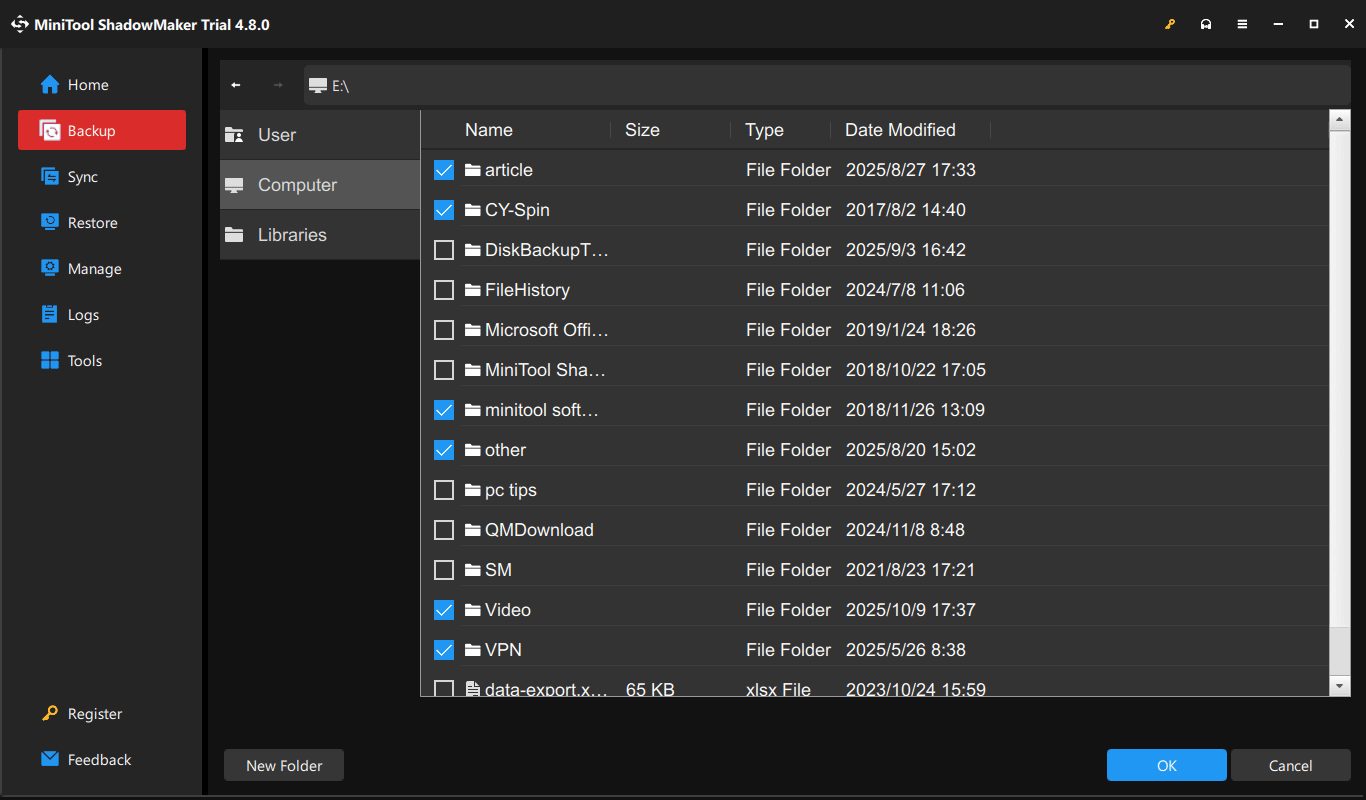
Backup target: We recommend selecting an external hard drive or USB flash drive to save the backups. Just hit DESTINATION and choose one.
Step 4: Immediately execute the backup task by clicking Back Up Now. Then, check the backup process on the Manage page.
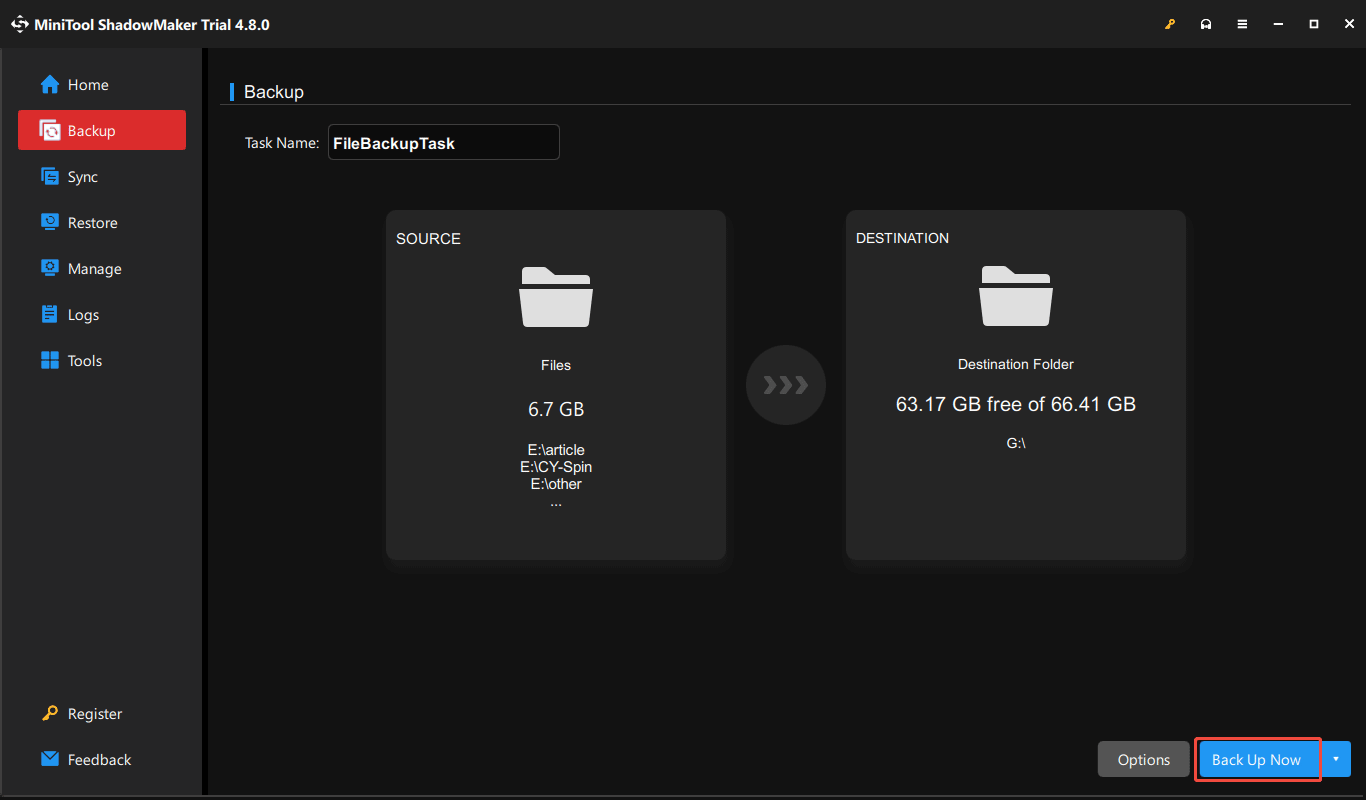
Now, you have made a data backup as a precautionary step.
Next, let’s explore how to fix the issue when the Windows 10/Windows 11 screen goes black randomly for a second or a few seconds.
How to Fix Screen Goes Black Randomly on Windows
Try the following fixes one by one to fix the issue.
Fix 1. Check Monitor and Cable Connections
A loose connection is the leading cause of sudden black screens. To isolate and fix the issue, follow these quick hardware checks:
- Make sure the monitor power cable is securely connected on both ends.
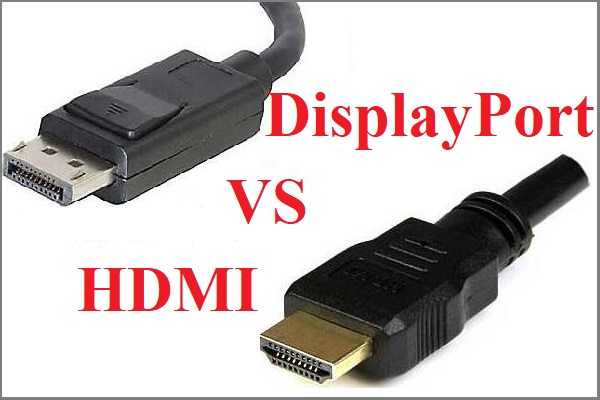
- Unplug and firmly reconnect your HDMI, DisplayPort, or VGA cable.
- Try a different cable to rule out wire damage.
- Switch to an alternate port on your graphics card.
- Test your PC on a TV or secondary monitor to isolate the hardware.
If the screen works normally after changing the cable or monitor, the issue is likely related to the connection.
Fix 2. Restart the Graphics Driver
If the monitor randomly goes black and comes back on, Windows includes a built-in shortcut to restart your graphics driver instantly.
Simultaneously press Win + Ctrl + Shift + B. Your monitor will flash briefly and beep as Windows reloads the display system, allowing you to resolve temporary graphics crashes without losing your work or rebooting your PC.
Fix 3. Update or Reinstall Graphics Driver
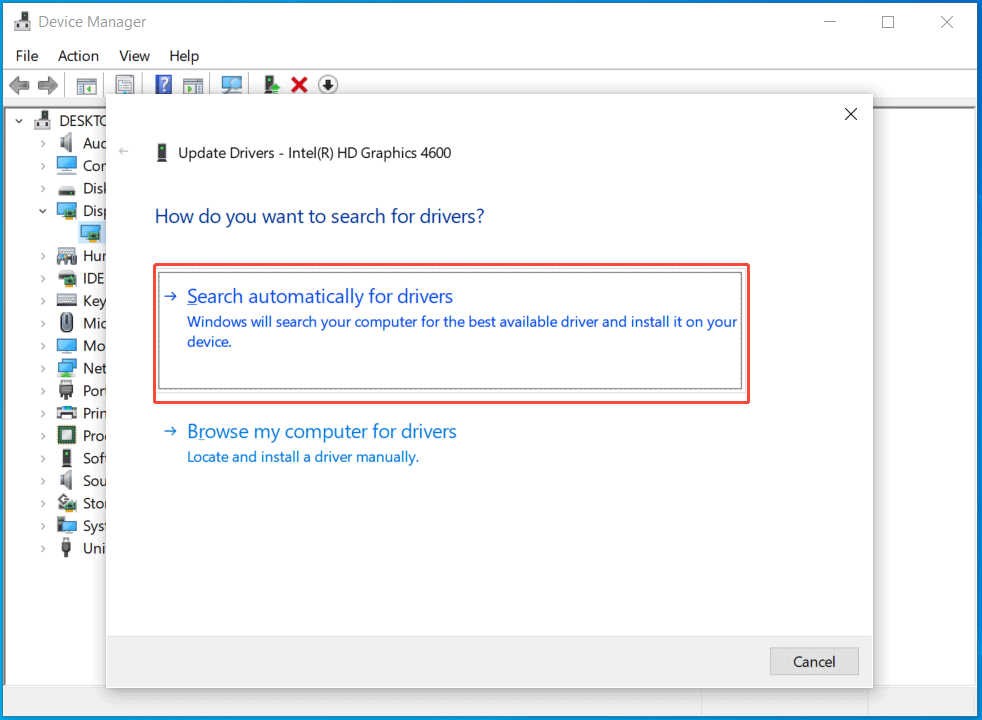
Graphics drivers connect your operating system to your graphics card. If these drivers are old or not working properly, communication can break down. This may cause random temporary black screens. Do the following steps to update the graphics driver:
- Right-click the Start menu and select Device Manager.
- Expand Display adapters.
- Right-click your graphics card.
- Select Update driver.
- Choose Search automatically for drivers.
If updating does not help, reinstall the graphics driver with these steps:
- Open Device Manager.
- Right-click your graphics card.
- Select Uninstall device.
- Restart your computer.
Now, Windows will automatically reinstall the driver.
Fix 4. Adjust Display Settings
It is necessary to make sure the refresh rate and resolution match your monitor to avoid conflicts. Otherwise, the monitor may go black to change modes.
When your computer screen keeps going black, check the refresh rate & resolution and adjust them.
Step 1: Right-click on the desktop and choose Display settings to access the Display page in Settings.
Step 2: Under Scale and layout, go to Display resolution, and select the recommended resolution.
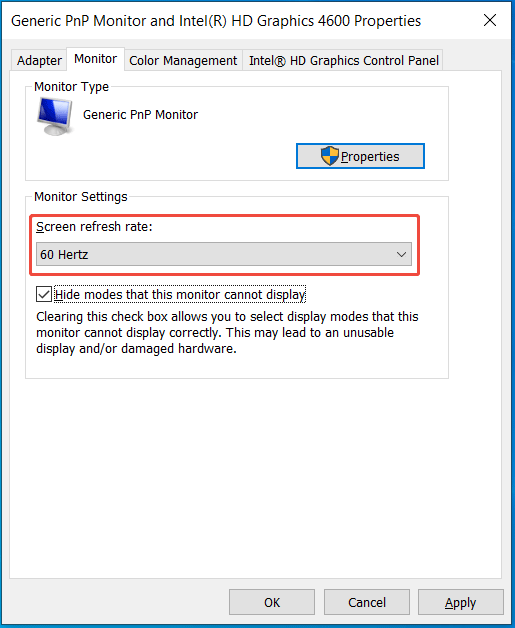
Step 3: In Windows 10, hit Advanced display settings and click Display adapter properties for Display 1.
Step 4: In the Monitor tab, set the refresh rate to a stable value like 60 Hertz and save the change.
Then, your monitor may not go black randomly.
Fix 5. Check Power Settings
Improperly configured power settings can be another cause if your monitor keeps going black for a second. Make sure you don’t set the computer to turn off the display after a long period of inactivity.
Step 1: In Windows 11, go to Settings > System > Power & battery, expand Screen and sleep, and set all the options to Never.
In Windows 10, navigate to Settings > System > Power & sleep. Under Screen and Sleep, choose Never.
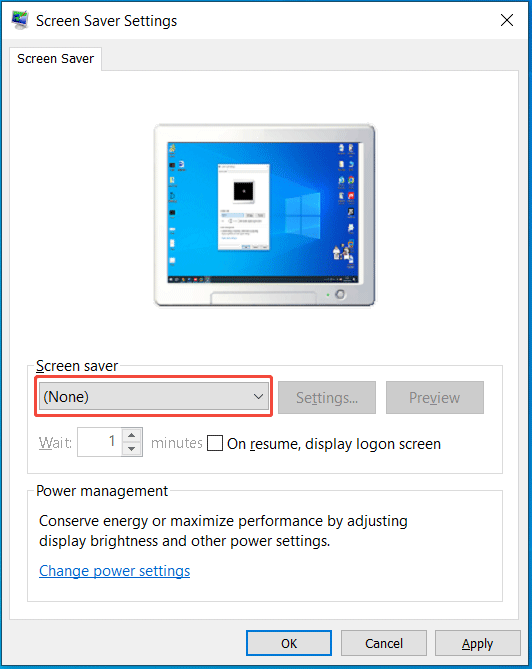
Step 2: Type screen saver and hit Enter.
Step 3: Ensure Screen saver is set to None and save the change.
Fix 6. Disable Sync
Features like G-Sync and FreeSync synchronize a monitor’s refresh rate with a graphics card’s frame rate to prevent screen tearing & stuttering for smoother gaming.
However, an incompatibility issue between the graphics driver or monitor and the sync feature can cause the screen to turn black.
Many users recommend turning off features to resolve the issue. Now, try this way.
For AMD
Step 1: Right-click on the desktop and select AMD Radeon Software.
Step 2: Click the gear icon and go to Gaming > Display.
Step 3: Find the AMD FreeSync item and set it to Disabled.
For NVIDIA
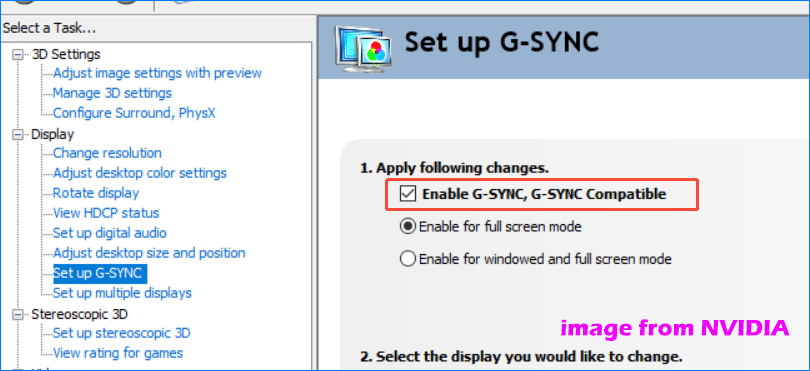
Step 1: Right-click on your desktop and choose NVIDIA Control Panel.
Step 2: On the left side, expand Display and hit Set up G-SYNC.
Step 3: Uncheck the box of Enable G-SYNC, G-SYNC Compatible to disable G-Sync for all programs.
Step 4: Click Apply in the bottom-right corner to save the change.
Fix 7. Perform a Clean Boot
A clean boot runs Windows with the minimum of drivers and startup services. It can be helpful to troubleshoot software conflicts that result in random black screens.
To do a clean boot:
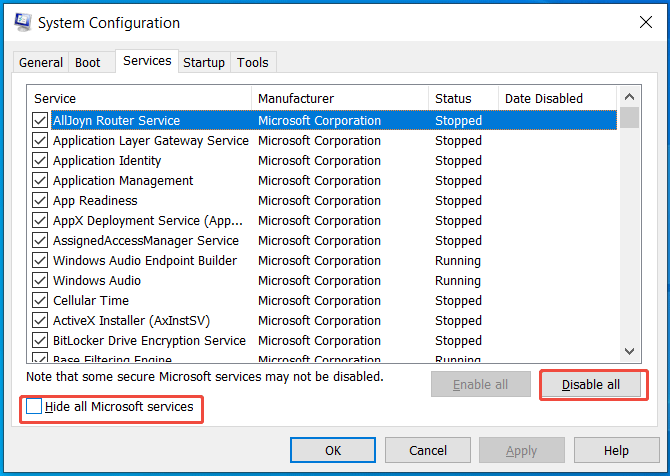
Step 1: Press Win + R, type msconfig, and press Enter.
Step 2: Go to Services, tick Hide all Microsoft services, and click Disable all.
Step 3: Navigate to Startup to open Task Manager and disable individual programs.
Step 4: Save the changes in System Configuration and restart the computer.
Step 5: In the clean boot environment, find the culprit that cause the issue, and uninstall that program.
Step 6: Reset the computer to start normally.
For exact steps, refer to this guide on how to clean boot Windows.
Fix 8. Factory Reset Monitor
While the desktop/laptop screen goes black randomly, your monitor may go wrong. Resetting the monitor to default settings sometimes fixes your issue.
Step 1: Press the Menu button on your monitor.
Step 2: Navigate to the Setup option, Reset, or a similar one.
Step 3: Hit the Reset button.
Fix 9. Disable Hardware Acceleration and Check for Overheating
Hardware acceleration or overheating can cause random black screen issues, especially during heavy workloads.
Try disabling hardware acceleration in apps like Chrome, Edge, or other graphics-related programs. Also, clean dust from fans and vents, ensure proper airflow, and check CPU/GPU temperatures to rule out overheating.
If the black screen only happens during gaming or high usage, overheating may be the cause.
Fix 10. Use System Restore or Reset Windows
If the black screen started after installing a driver, update, or application, System Restore may help. To use System Restore:
- Search for Create a restore point
- Open System Properties
- Select System Restore
- Follow the instructions
If nothing works, consider resetting Windows.
Fix 11. Check Monitor, Graphics Card, or PSU
If none of the methods above works, the monitor, power supply, or graphics card is likely to get faulty. We suggest that you take the computer to a repair shop. If you don’t have computer skills, do not check your PC components by yourself to prevent further damage.
What to Do If Screen Goes Black but Computer Is Still Running
If your PC is still running but the monitor shows a black screen:
- Press Win + Ctrl + Shift + B to restart the graphics driver
- Check monitor and cable connections
- Disconnect unnecessary peripherals
- Try another display
- Restart Windows Explorer (If you see a mouse cursor)
- Force a hard restart
This usually points to a temporary graphics driver glitch, a loose cable, or a hardware issue.
How to Prevent Screen from Going Black Randomly Again
To minimize the risk of future black screen issues, consider the following tips:
- Keep your Windows operating system and graphics drivers updated.
- Prevent overheating by regularly cleaning out dust.
- Use reliable display cables.
- Avoid installing unknown or unstable software.
- Regularly check the health of your hardware.
- Ensure that your power settings are properly configured.
Screen Goes Black Randomly FAQ
Conclusion
A screen that goes black randomly may result from display connections, drivers, Windows settings, overheating, or hardware issues. Begin with simple fixes like checking cables and restarting the graphics driver. If the problem continues, try advanced solutions such as Safe Mode or hardware tests.
To protect your important data, use MiniTool ShadowMaker for backups. For any software issues, contact us at [email protected], and we will respond promptly.
About The Author

Position: Columnist
Charlotte is a technology columnist with a strong focus on the Windows operating system, specializing in disk management, backup, and data recovery. She is passionate about analyzing computer errors, identifying root causes, and delivering practical solutions. In her free time, she stays updated on the latest developments in computer systems and hardware while continuously learning new technologies to broaden her expertise. Her writing style is clear and easy to understand, making complex technical topics accessible even to users with limited computer knowledge.
User Comments :