
When the dash cam keeps saying format SD card, hold off on formatting, as this causes data loss. Follow this MiniTool guide to fix the issue by running CHKDSK or updating the dash cam firmware. If all methods fail, recover your files before formatting the drive.
The dash cam is an essential device for drivers, providing reassurance and proof in the event of accidents. However, like other camera equipment, these devices are also susceptible to glitches.
Imagine that when you want to look at your driving record, the dash cam keeps popping up a message asking to format the SD card.
Actual User Case:
“Every time I turn on my car, I get the same pop-up asking format the SD card. How do I fix it? I’ve taken it and reformatted it with my computer, and I’ve also reformatted it with the dashcam, and I still get that every time I drive. Please help.”reddit.com
What a terrible situation!
This error indicates that the dash cam recognizes the SD card but is unable to identify or read its file system. In simpler terms, the SD card is connected physically, but cannot be accessed normally.
Why does the dash cam display this error? Continue reading to learn the potential causes.
Why Does Cash Cam Keep Saying Format SD Card
The issue that the dash cam keeps requiring to format SD card often stems from compatibility or operational problems between the device and the card.
Here are the common reasons why this might happen:
- Incorrect Insertion: The SD card is not placed correctly, which prevents the device from recognizing it or fully reading the card’s information, leading to a dash cam SD card error.
- Incompatible File System: Dash cams typically accept FAT32 or exFAT formats. If the SD card is formatted as NTFS, it may not be detected, prompting a formatting request.
- Full SD Card: If loop recording is disabled, the dash cam may be unable to overwrite previous recordings, leading to insufficient storage and a formatting alert.
- SD Card Damage: Physical harm, bad sectors, or logical issues can prevent the SD card from functioning correctly and trigger error notifications.
- Firmware Issue: Corrupted dash cam firmware may lead to operational problems, such as inability to record videos, frequent restarts, or error messages appearing.
After identifying the reasons for this error, don’t rush to format just yet! Here are some must-do preparations you can follow.
Immediate Steps to Improve the Success Rate of Rescuing the SD Card.
1. Stop any further writing immediately. Remove the SD card and avoid adding more data to prevent further damage.
2. Reconnect the device and check for recognition. A dash cam may prompt for SD card formatting due to a poor connection, so try unplugging and reinserting the card to ensure good contact.
3. Try connecting the SD card to a PC. If issues persist, use a card reader to connect the SD card to a computer.
- Case 1. If the computer recognizes it, back up the SD card data, then reinsert the card into the dash cam to check for formatting prompts.
- Case 2. If the SD card is not accessible on the computer, consider using a professional data recovery tool to scan the card for recovering important videos.
How to Fix Dash Cam Keeps Saying Format SD Card
When faced with the issue that the dash cam keeps saying format SD card, formatting the memory card shouldn’t be your only option.
Before you decide to format, consider trying some simple solutions:
- Connect the disk to your PC and run a CHKDSK repair to address any possible logical errors.
- Update the dash cam firmware to ensure it detects the SD card correctly.
If it ultimately becomes necessary to format the disk, be sure to recover files beforehand to avoid permanent data loss.
Now, follow the solutions below step by step.
Fix 1. Run CHKDSK
CHKDSK is a command-line utility designed to identify and fix file system issues and bad sectors. Many users have found that executing CHKDSK resolves disk formatting problems.
How do you run CHKDSK? Follow these steps:
Step 1. Launch Command Prompt as an Administrator
Type cmd into the Windows search bar. Next, right-click on Command Prompt and select Run as administrator.
Step 2. Run CHKDSK [Drive Letter]: /f
In the command window, type CHKDSK [drive letter]: /f and press Enter.
The /f option is employed to fix file system issues on the disk.
Make sure to substitute the [drive letter]: part with the actual letter of the affected disk.
For example, to repair the I: drive, type CHKDSK I: /f and press Enter.
![run CHKDSK [drive letter]: /f to fix the file system issue on the SD card](https://images.minitool.com/minitool.com/images/uploads/2025/10/fix-dash-cam-keeps-saying-format-sd-card-1.png)
After it finishes, check File Explorer to see if the disk is functioning normally. If it isn’t, run CHKDSK with the /r option.
Step 3. Run CHKDSK [Drive Letter]: /r
Type CHKDSK [drive letter]: /r and press Enter.
The /r option is used to look for bad sectors, mark them, and attempt to recover any readable data. It encompasses the functionality of /f and provides a more comprehensive analysis than /f.
For example, to identify and isolate bad sectors on the I: drive, type CHKDSK I: /r and press Enter.
![type CHKDSK [drive letter]: /r to identify the bad sectors on the SD card](https://images.minitool.com/minitool.com/images/uploads/2025/10/fix-dash-cam-keeps-saying-format-sd-card-2.png)
If both the /f and /r options do not find any file system errors or bad sectors on the dash cam SD card, opt for updating the outdated dash cam firmware to fix the issue.
Fix 2. Update Dash Cam Firmware
Using outdated firmware may cause compatibility problems with SD cards. Sometimes, outdated dash cam firmware might misinterpret an SD card as defective, leading to repeated requests to format the card.
To update to the latest firmware, verify the manufacturer’s website:
- Determine the model of your dash cam.
- Go to the manufacturer’s support page.
- Obtain the most recent firmware and follow the instructions for installing it on your device.
Don’t find any updates for your dash cam firmware? Next, you can try formatting the SD card.
Fix 3. Format the Dash Cam SD Card
As the error message suggests, formatting the disk is the best solution to resolve the issue of the disk asking for formatting. If every other option does not work, formatting may be required.
If the dash cam SD card can be recognized by Windows but is inaccessible, before formatting, we recommend that you promptly recover the data from the SD card.
Advanced Action: Recover Data From a Format-Alerted Dash Cam SD Card
You can effectively recover data from a dash cam SD card if you have the data recovery program MiniTool Power Data Recovery.
Why it? Here are some key features for this free data recovery software:
- Compatible with several types of storage devices: It can scan SD cards, SSDs, HDDs, USB drives, and others.
- Supports a variety of file formats: It supports documents, photos, videos, audio files, emails, archives, and more.
- Works with Windows operating systems: It supports Windows 11/10/8/8.1.
- Addresses different scenarios of data loss: It can deal with unintentional deletion, disk formatting, virus attacks, file system corruption, partition loss, and more.
- Offers free file preview: It allows users to preview videos, documents, images, audio files, and other formats before recovery.
- Free recovery limit: It can restore up to 1 GB of data at no charge.
MiniTool Power Data Recovery FreeClick to Download100%Clean & Safe
Here is the 3-step tutorial for dash cam SD card data recovery:
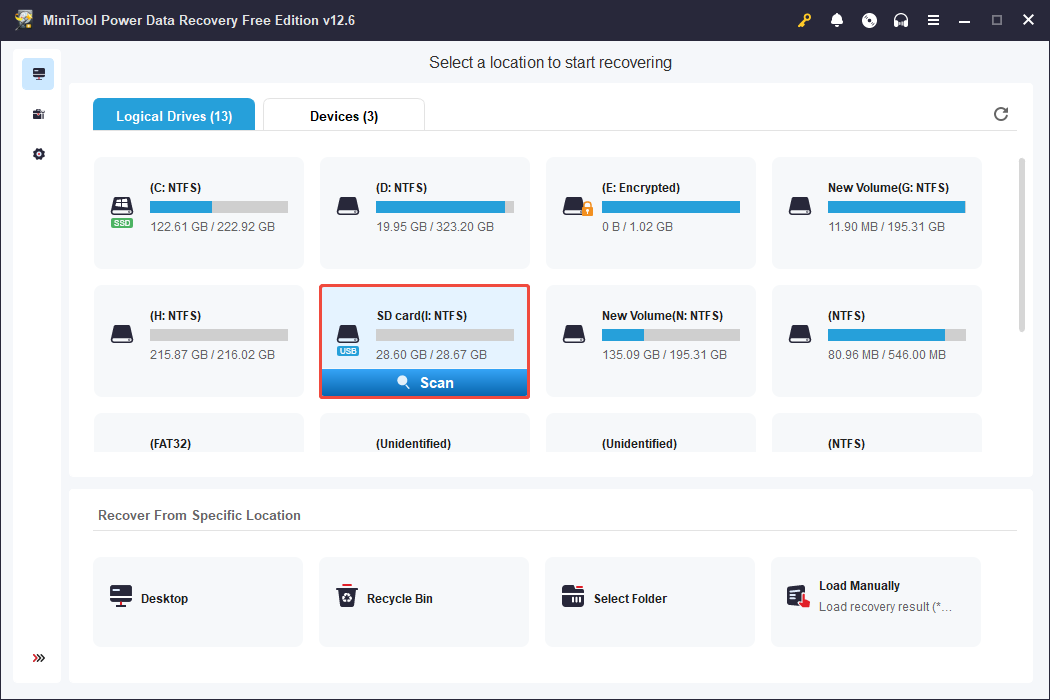
Step 1. Launch the file recovery software and access the home page. Next, choose your SD card from the Logical Drives or Devices options and click Scan to start the file scanning process.
- The Logical Drives section displays all current, deleted, or missing partitions on your disks, with the SD card partition indicated by a USB icon.
- The Devices section shows all the disks connected to your computer. You can identify your SD card by its name and the size of the disk.
Step 2. Once the scan is complete, you can expand the folders under the Path section to view the files organized in their original structure.
Additionally, this data recovery tool also provides other features to help you locate the videos:
- The Type section groups files by category, which helps in locating specific formats like videos.
- Utilize the Filter feature to narrow down results based on criteria such as file type, modification date, or size, making it simpler to find particular files.
- The Search function enables you to locate files by entering keywords or file extensions.
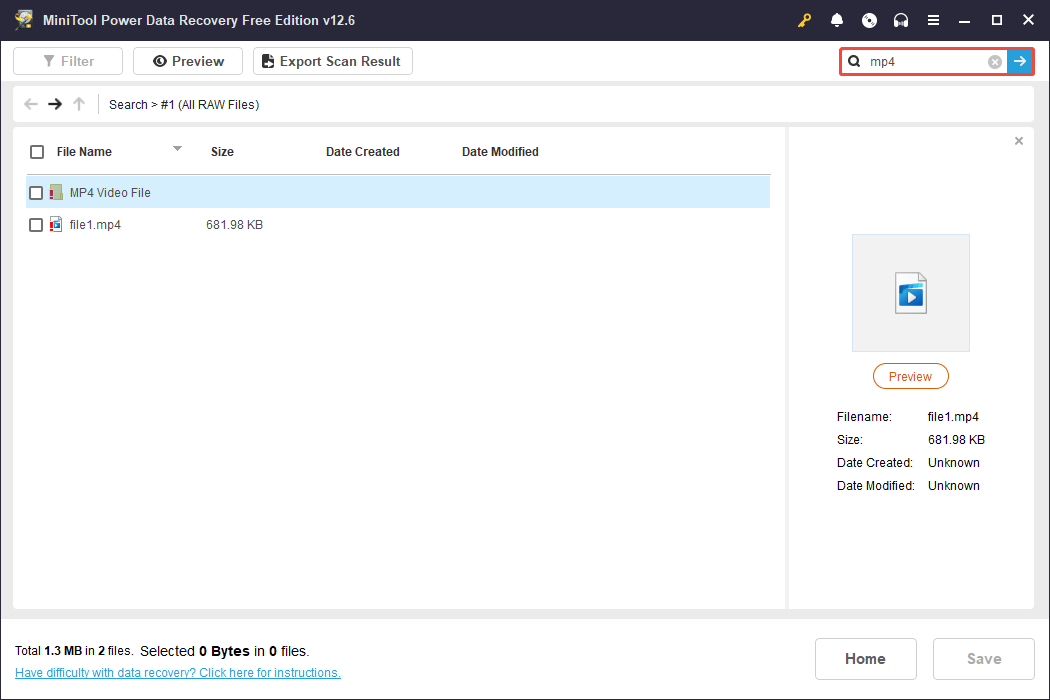
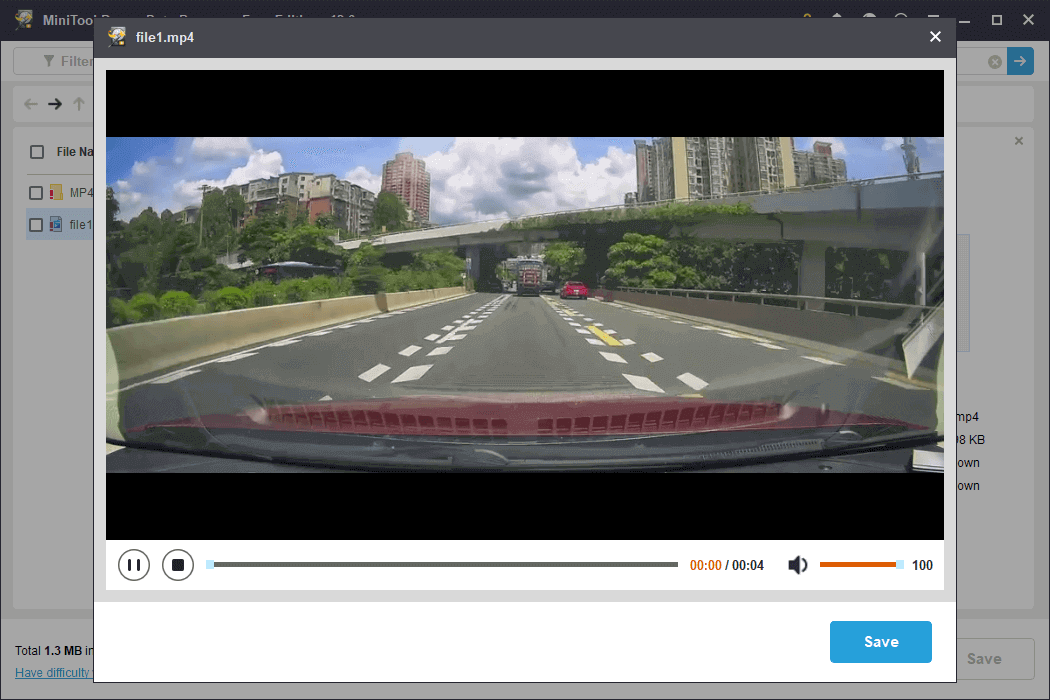
Additionally, the Preview feature allows you to verify if the files are needed before recovery, facilitating selective recovery and ensuring effective use of your free recovery capacity. To preview a file, double-click on it.
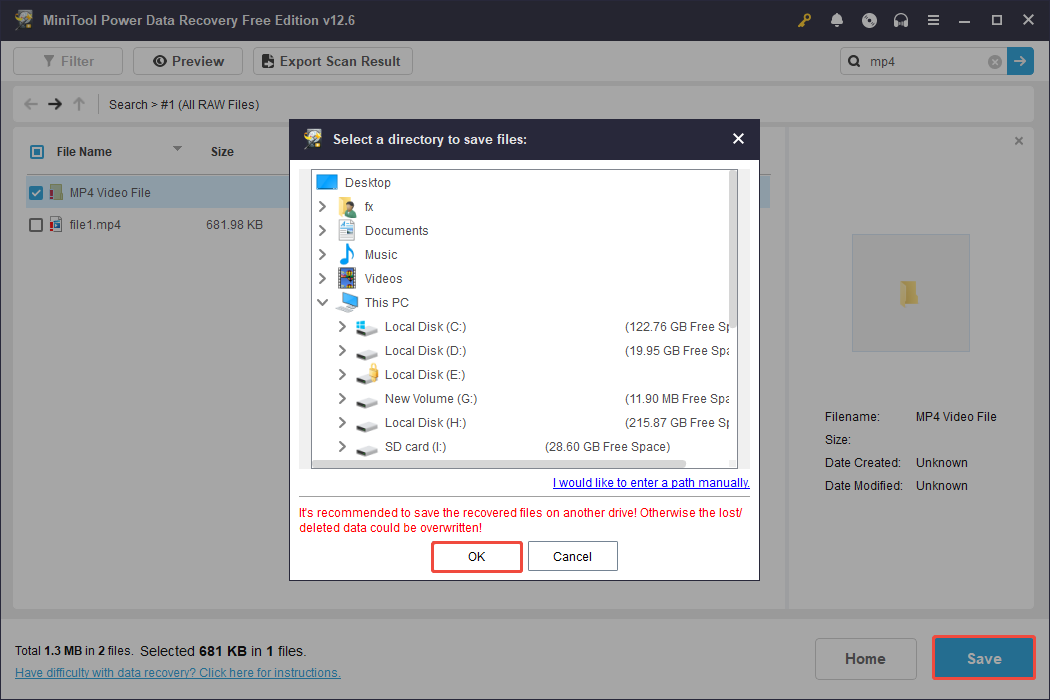
Step 3. Finally, click the Save button and select a destination to store the chosen videos. It is advisable not to save them back to the original SD card, as we will format the SD card after recovering the data.
After recovering the videos, let’s dive into the methods on how to format the dash cam SD card.
How to format the dash cam SD card with the dash cam
Step 1. Insert the SD card into the dash cam.
Step 2. Access the settings menu on your dash cam.
Step 3. Locate the option labeled Format SD Card or something similar and choose it.
Step 4. Confirm your choice to format the card.
The dash cam will then begin formatting the SD card, deleting all existing data.
How to format the dash cam SD card with a computer:
Some users are facing such a problem:
“I had that exact same thing happen with the same stuff. I formatted the SD card on my computer and then used it in the cam, and it was fine. But it did not like being formatted in the cam at all.”reddit.com
If you are in the same boat, you can follow the instructions below to format your SD card on Windows.
Option 1. Format the SD card in File Explorer:
The first place for formatting a disk should be done using File Explorer, as it is the simplest way to format. Here’s how to proceed:
Step 1. Press Win + E to open File Explorer.
Step 2. Navigate to This PC and right-click on the SD card and select Format.
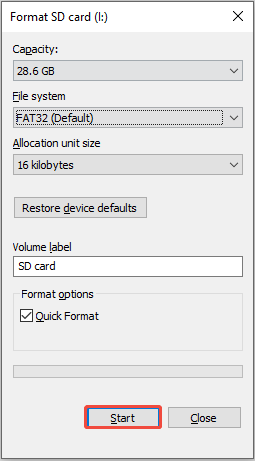
Step 3. Select the file system. For a dash cam SD card, FAT32 or exFAT is the recommended option.
Step 4. Tick the Quick Format option.
Step 5. Click the Start button and then click OK to confirm the formatting process.
Option 2. Format the SD card in Disk Management:
Another way to format an SD card is using Disk Management. Follow the steps here to format your memory card:
Step 1. Press Win + X to open the Power User menu and select Disk Management from the list.
Step 2. Right-click on the SD card’s partition and select Format.
Step 3. Provide a name for the volume, select a file system, check the Perform a quick format option, and click OK.
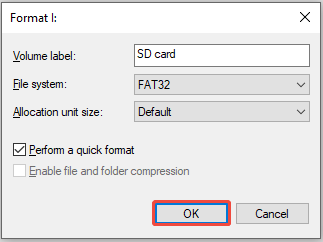
Step 4. Click OK again in the pop-up window.
Option 3. Format the SD card using a card formatter:
What if you receive an error message saying “Windows was unable to complete the format”?
In this case, you can use a third-party professional partition manager to execute the formatting task. MiniTool Partition Wizard is a reliable and easy-to-use application for handling partitions.
MiniTool Partition Wizard FreeClick to Download100%Clean & Safe
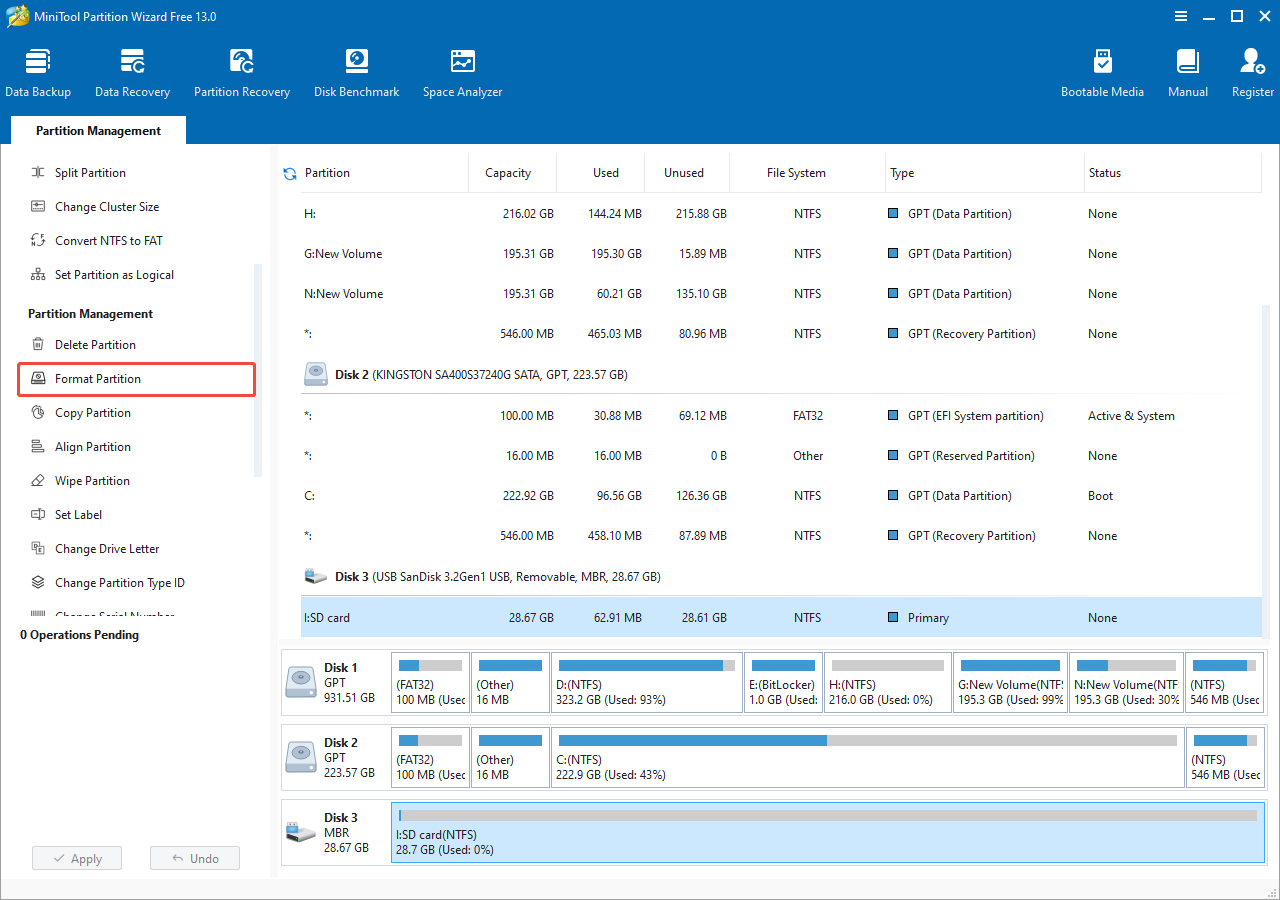
Step 1. Open MiniTool Partition Wizard. Select the SD card’s partition and then scroll down the left menu bar to choose the Format Partition option.
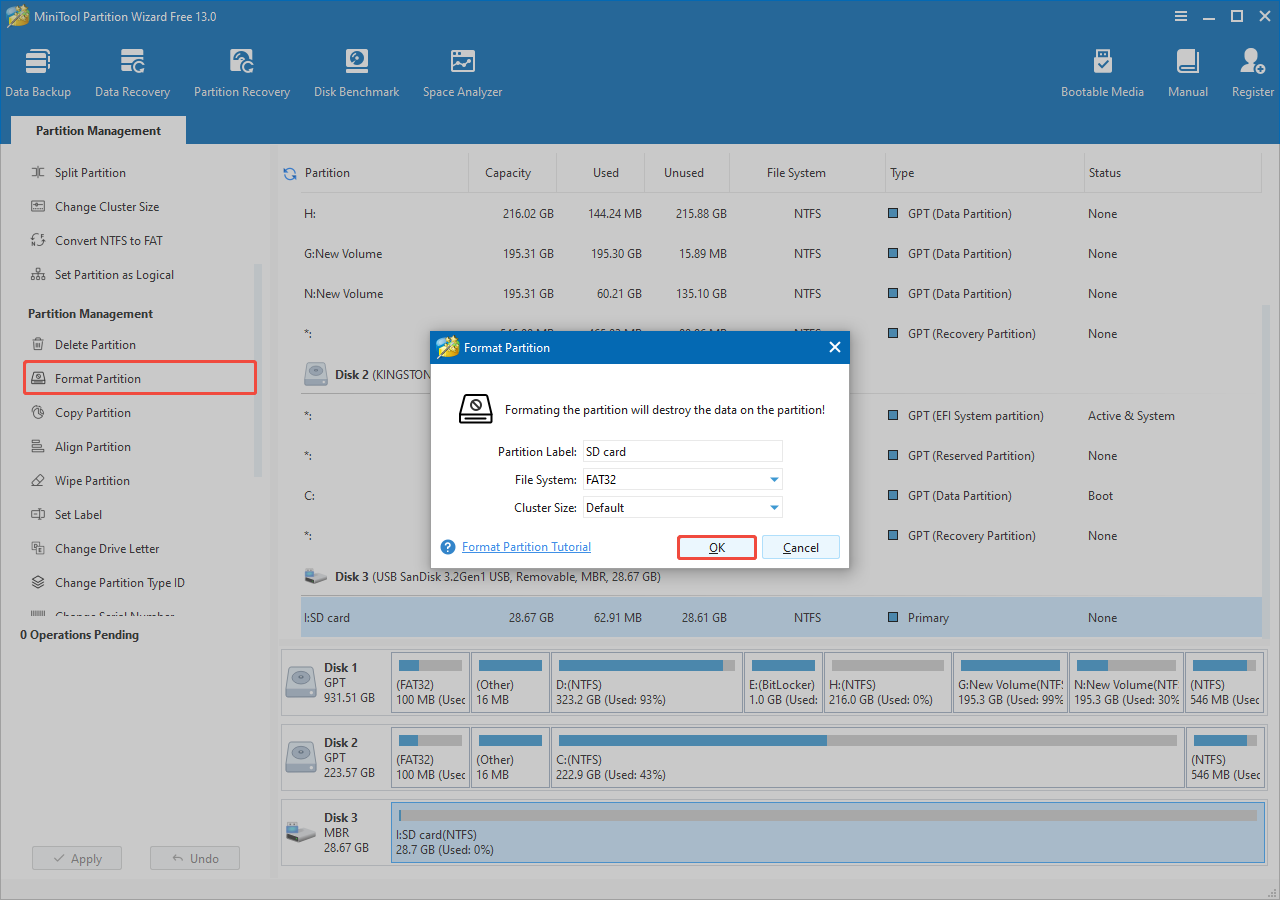
Step 2. In the pop-up window, set the partition label, file system, and cluster size. Then, click OK.
Step 3. Click the Apply button in the lower left corner.
Final Words
To sum up, to fix the issue that the dash cam keeps saying format SD card, you can first run the CHKDSK command tool to see if it has any file system errors or bad sectors.
If it still pops up an error message, check the dash cam firmware update. If there are any available updates, upgrade your firmware.
The last but not least solution is formatting the SD card. However, it is highly recommended to recover your SD card data before formatting to avoid data loss.
We provide three ways to format an SD card on Windows if you can’t format it on the dash cam.
For any issues or questions regarding MiniTool products, please contact the support team at [email protected].
User Comments :