
This post from MiniTool explains where Blink videos are stored and how to recover deleted Blink videos. First, check your local backup or cloud to restore the videos. If the lost videos were backed up on a USB, use professional data recovery software like MiniTool Power Data Recovery.
Blink cameras are budget-friendly and user-friendly smart home security devices, featuring motion detection, HD/2K video quality, and infrared night vision.
While Blink cameras are popular, there are some drawbacks, such as the lack of local backups without the Sync Module or a Blink Subscription.
If you have accidentally deleted your Blink videos, this post will guide you through the instructions to recover them.
Before getting started, it is essential to clarify how Blink cameras store videos. Keep reading to get more details.
Where Are Blink Videos Stored
The Blink camera provides Blink Subscription Plans and secondary processors called “Sync Module 2” and “Sync Module XR”.
The two features determine whether your videos are stored in the cloud or locally on a USB flash drive or a microSD card.
#1 Cloud Storage
If you purchased and used the Blink camera for no more than 30 days, the footage will be automatically saved to the Blink cloud.
After 30 days, this feature will no longer be available, and you will need to subscribe to a Blink plan to maintain cloud backup.
With an active cloud subscription, your clips will be automatically saved to cloud storage.
By default, the videos stored on Blink’s cloud servers have a different retention period:
- In the US/CA/MX/AU/NZ, retention lasts for up to 60 days.
- In the UK and EU, retention lasts for up to 30 days.
After the time limit, the most recent record replaces the older one.
#2 Local Storage
Blink cameras are also able to save videos directly to a flash drive or a microSD card.
If you prefer to avoid a monthly fee, local storage is available with specific hardware:
- Sync Module 2: Compatible with a USB flash drive (1GB to 256GB, exFAT format recommended).
- Sync Module XR: Compatible with a microSD card (1GB to 256GB, exFAT format recommended).
Therefore, you have the option to plug a flash drive or a microSD card into the Sync Module 2 or Sync Module XR to save your video recordings locally.
Every local storage drive is designated by the system it is connected to.
After clips are saved to local storage, they can be accessed in the Blink app from the Storage Switcher menu.
Other Information:
If you have an active subscription plan and a Sync Module with local storage, the cameras will use a hybrid storage method:
- The primary storage is in the cloud, allowing for immediate access through the app.
- A copy of your cloud clips is automatically backed up to the local drive every 24 hours.
Now that you understand how Blink videos are stored, the next question is whether deleted Blink videos can be recovered.
Is It Possible to Recover Deleted Blink Videos
Yes, you can recover deleted videos from the Blink camera in the following situations:
- Situation 1. You have a cloud subscription. If the backed-up videos are deleted from the USB, they can usually be recovered from the cloud.
- Situation 2. You have backed up the cloud videos to the USB flash drive or the microSD card. In this case, you can easily recover them from the local device.
- Situation 3. If you accidentally deleted your Blink videos from a local device, a powerful data recovery tool can help you recover them.
Meanwhile, learning the possible causes of the Blink video loss is also important for Blink video recovery.
Main Reasons for Blink Video Loss
Here are some common factors why your videos are lost from your Blink camera:
1. Automatic Deletion After Retention Period
Blink removes older clips automatically based on its retention policy. With an active subscription, clips generally remain accessible for 30 to 60 days.
Once the retention period is reached, the system will erase them automatically.
Meanwhile, when a Blink subscription ends, clips stored in the cloud may be deleted after a brief grace period.
Any clips that haven’t been downloaded beforehand are lost forever.
2. Accidental Manual Deletion
This is the most frequent situation. A simple tap on Delete within the Blink app permanently deletes the clips on the cloud.
There is no option to undo this action, and Blink does not offer a trash folder.
Sometimes, when you manage your videos in the USB drive or microSD card, you may accidentally delete important videos.

Method 1. Recover Deleted Blink Videos From Cloud Storage
If your local backup is lost, but the videos are still saved in the cloud, consider recovering them from the cloud storage.
To recover videos from the cloud, directly open the Blink app, and then log in to your account.
Next, tap the Clips icon and go to the Cloud section to look for your needed videos.
If a video has been deleted from the Blink cloud, it cannot be retrieved. Even Blink’s customer support cannot assist in recovering deleted videos from the cloud.
Method 2. Recover Deleted Blink Videos From Local Storage
When you store Blink videos on your USB flash drive or a microSD card, make sure to carefully check the folders where your recordings are saved.
If you don’t find them, consider using professional and free data recovery software to recover lost Blink videos.
MiniTool Power Data Recovery is a powerful and reliable data recovery tool. Here are some of its key features:
- Supported data loss scenarios: This tool can help with recovering data lost due to accidental deletions, disk formatting, and other data loss situations.
- Supported storage media: MiniTool data recovery tool can recover data from USB drives, SD cards, and additional types of local storage devices.
- Supported file types for recovery: It can retrieve videos, documents, images, audio files, and more.
- High compatibility: This software works with common file systems like exFAT, FAT32, and NTFS. Additionally, it is compatible with Windows versions 11, 10, 8.1, and 8.
- Easy to use: The software features a user-friendly interface and simple operation, making it accessible even to beginners for deleted file recovery.
This free file recovery tool allows you to recover up to 1GB of files at no cost. Download and install it to restore deleted Blink videos on Windows.
MiniTool Power Data Recovery FreeClick to Download100%Clean & Safe
Step 1: From the Local Storage screen of the Blink app, tap on the Safe Eject USB button and eject your USB.
Then, connect your USB flash drive, or insert the microSD card using a card reader into your PC.
Double-click on MiniTool Power Data Recovery to enter its main interface. Under the Logical Drives tab, all detected partitions will be displayed.
Locate and select your USB or microSD card partition (with a USB icon) and click the Scan button.
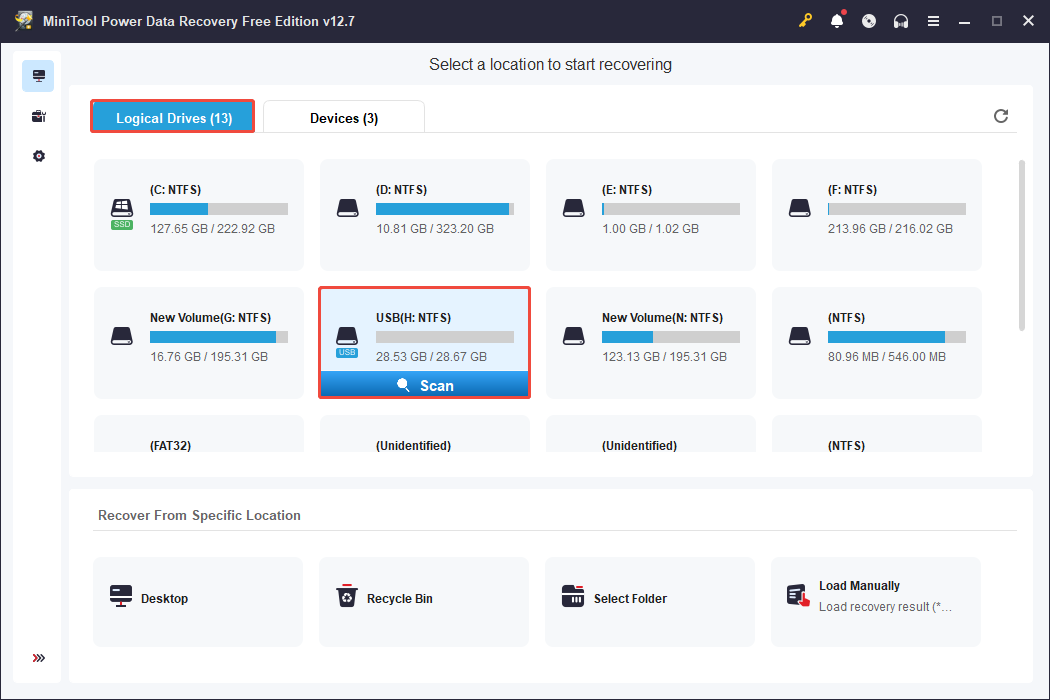
To ensure optimal scanning results, it is highly advisable to be patient until the entire scan finishes.
Step 2: Once the scanning is completed, you will typically see three folders under the Path section: Deleted Files, Lost Files, and Existing Files.
Double-click each folder, then proceed to each subfolder to find the files you need.
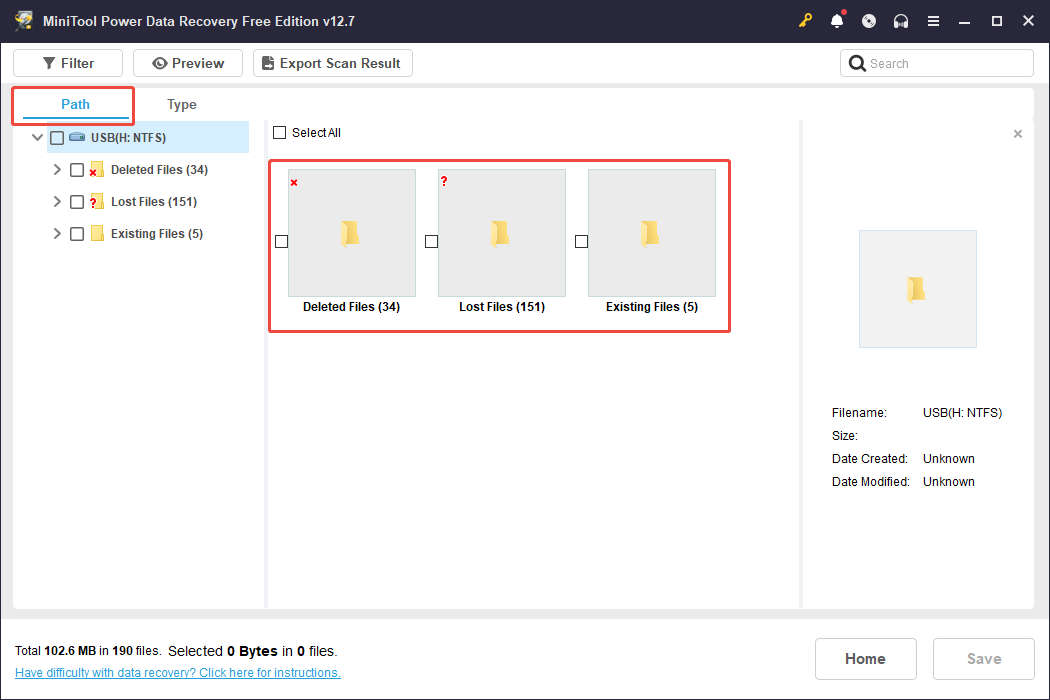
Additionally, you can utilize the Filter, Type, and Search features to make the process of locating files easier.
- Filter: This feature allows you to narrow down the displayed files based on file type, modification date, file size, and file category. Click the Filter button, and you’ll have the option to set specific filtering criteria.
- Type: Switch to the Type tab to check files according to their types. For instance, to locate your Blink videos, select Audio & Video and then choose MP4.
- Search: This function allows you to look for a particular file or folder by its name. Type the relevant file name keywords into the search bar and press Enter to view the matching results.
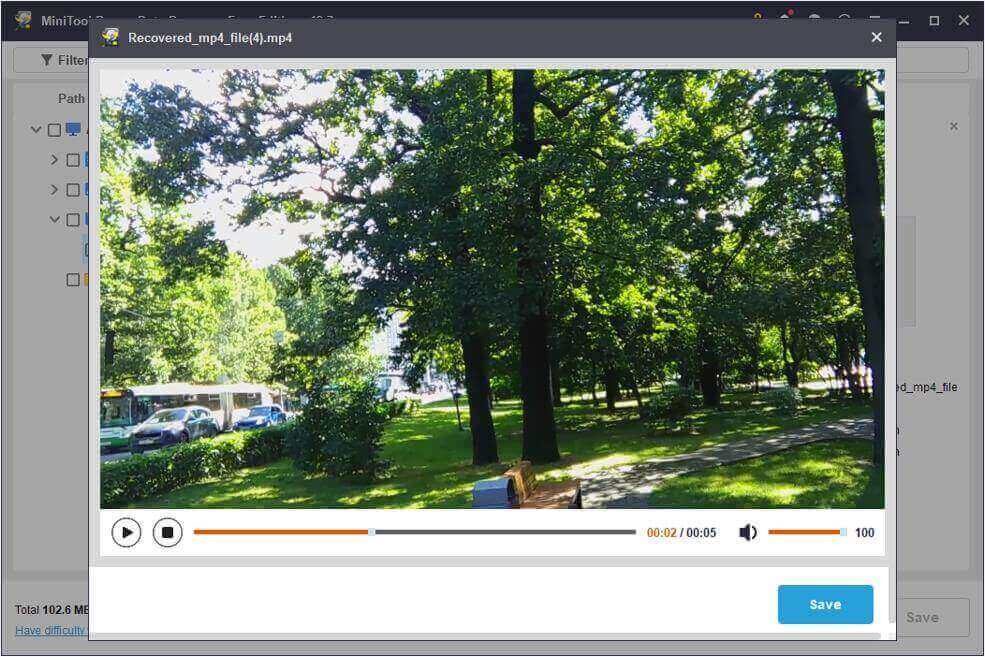
Another function that can enhance the precision of data recovery is the Preview feature.
It allows you to check photos, videos, audio files, documents, and various other file types prior to saving them.
To preview a video, double-click it.
Step 3: Select the files you wish to recover and click the Save button to specify a destination path.
It is advisable not to save files to their original location, as this may overwrite deleted files and compromise further recovery attempts.
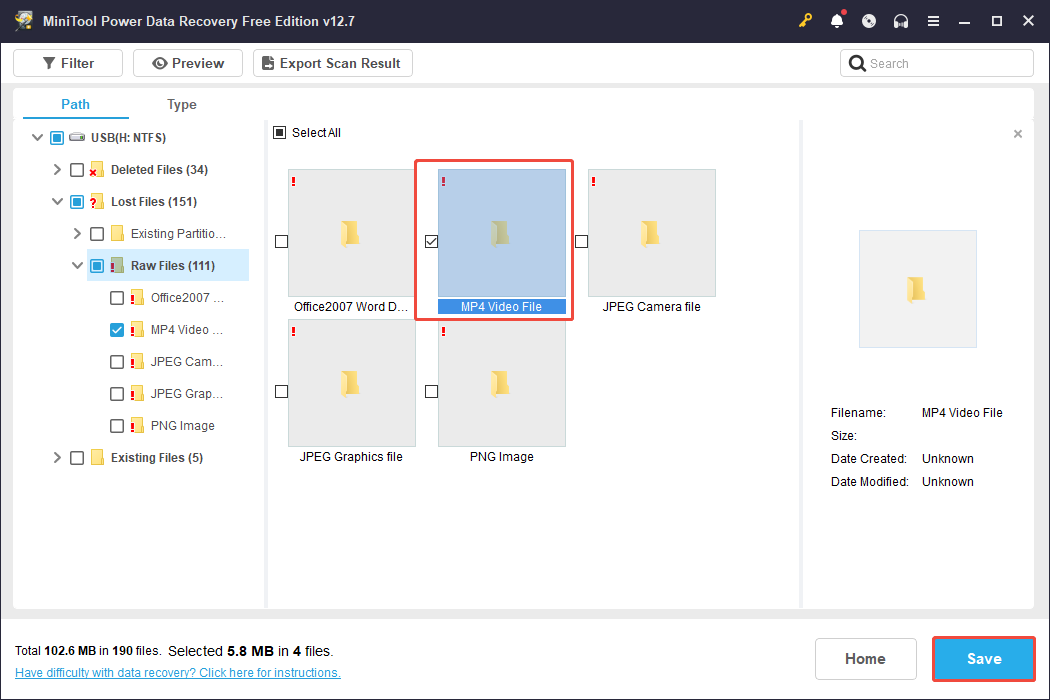
The Free edition of this software offers you 1GB of free file recovery capacity. To remove the capacity limit, purchase a premium edition from the MiniTool Store.
If you are uncertain about which edition to select, the Personal edition is a great choice. This version provides unlimited data recovery capability.
How to Protect Your Blink Videos: Cloud vs. USB Flash Drive/microSD Card
Here is a simple contrast between these two storage methods:
>> Cloud Storage (Subscription Required)
- Pros: Easy access through the Blink app, automatic daily backups of cloud videos to USB (if connected), live streaming during recording, ability to capture photos.
- Cons: Ongoing fees, clips may be automatically deleted, and full features necessitate an active subscription.
- Ideal For: Users who value convenience, instant app access, and advanced functionalities without the need to manage physical storage devices.
>> USB Flash Drive/microSD Card (Local Storage with Sync Module)
- Pros: One-time expense (for the drive), no ongoing charges for basic recording, clips are not automatically deleted, improved battery life for cameras.
- Cons: Clips require manual management of storage.
- Ideal For: Budget-minded users who are comfortable managing files and want to steer clear of subscription fees.
In summary, cloud storage and local storage have pros and cons. Data deleted from cloud storage cannot be recovered, whereas locally stored data can be recovered easily.
Therefore, it is recommended to use both methods for better security. If a USB drive is unavailable, save important videos to your phone or computer.
Also, ensure strong passwords for your Blink account and Wi-Fi and keep your Blink app up to date for the latest security improvements.
Bottom Line
To sum up, this guide introduces how the Blink camera stores videos and how to recover deleted Blink videos.
First, check your cloud storage to recover videos that you have accidentally deleted from your local storage drive.
If you have inadvertently deleted the videos from your USB or microSD card, try using MiniTool Power Data Recovery to rescue them.
Furthermore, should you have any puzzles when using MiniTool data recovery software, please feel free to let us know by email at [email protected].
FAQs About Blink Video Recovery
1. An outdated Blink app: Outdated software may cause compatibility issues with the drive.
2. Active subscription required: To use the Blink clip backup feature, ensure you have an active subscription.
3. USB flash drive/microSD card compatibility: Check that your USB flash drive or microSD card is compatible with Blink.
4. Sync Module needs internet: The Sync Module must be connected to Wi-Fi to upload backups to the USB flash drive.
5. Flash drive/microSD card storage full: If the USB flash drive or the microSD card is full, you won’t be able to save more clips. Remove older clips or use a larger drive.
User Comments :