
In this MiniTool guide, we will discuss how to recover deleted CapCut videos/projects on Windows using CapCut’s built-in features, Windows’ recovery options, and free third-party software. Additionally, we will explore techniques for recovering CapCut videos on phones.
If you use the CapCut app to edit your videos, you may encounter a terrible situation where a CapCut video that spend many time making is lost.
No matter whether your CapCut videos/projects are lost on your PC or phone, you can find some practical solutions to rescue them.
Before proceeding to the solutions, we first explain the common causes of video loss.
Why Are the CapCut Videos/Projects Lost
Generally, your CapCut videos or projects might be deleted or lost for various reasons, including:
- Accidental deletion: You may delete video projects in CapCut to improve app performance. Additionally, you may wrongly delete the important video files when clearing up space on your devices.
- App updates: Sometimes, changes or updates to CapCut could lead to the project deletion, particularly if they are not compatible with the latest version of the app.
- App issues: A bug, error, or glitch within the CapCut app can lead to the loss, damage, or corruption of video data.
- Device issues: If your phone or PC encounters issues, such as a full storage capacity, corruption, or damage, these issues could lead to the loss or inaccessibility of your videos/projects.
Can You Recover Deleted/Lost CapCut Videos or Projects
It is Possible to recover deleted or lost CapCut videos on a PC or phone. However, the possibility of recovering the video files relies on some factors.
CapCut Video Recovery Is Possible When:
- Recently Deleted (Within 30 Days): Check the “Trash” within CapCut or your “Recently Deleted” folder in the device’s Photos/Gallery app to recover your projects or videos.
- Cloud Sync Enabled: If you had the CapCut Cloud Sync feature activated, you can restore projects from your account.
- Still on Device (Not Permanently Deleted): Look in your device’s local storage/gallery for the exported file or local draft files.
- Quick Action: Use professional data recovery software before new data overwrites the deleted files.
CapCut Video Recovery Is Impossible When:
- Trash Emptied: The CapCut “Trash” or “Recently Deleted” folder is cleared, or the 30-day storage period has passed.
- No Cloud/Local Backup: You never used Cloud Sync, and the local files were also permanently deleted.
- Data Overwritten: You’ve used your device heavily, creating new data that overwrote the deleted videos.
- Original Media Lost: The original video linked to the project is also unavailable.
Deleted video files in CapCut might still exist, as projects are moved to temporary storage instead of disappearing immediately. Read on to learn how to recover a deleted video on CapCut.
How to Recover Deleted CapCut Videos/Projects on Windows
Below are five methods on how to recover CapCut videos, including CapCut’s built-in features, Windows’ built-in tools, and a reliable data recovery tool.
Method 1. Check the CapCut’s Trash
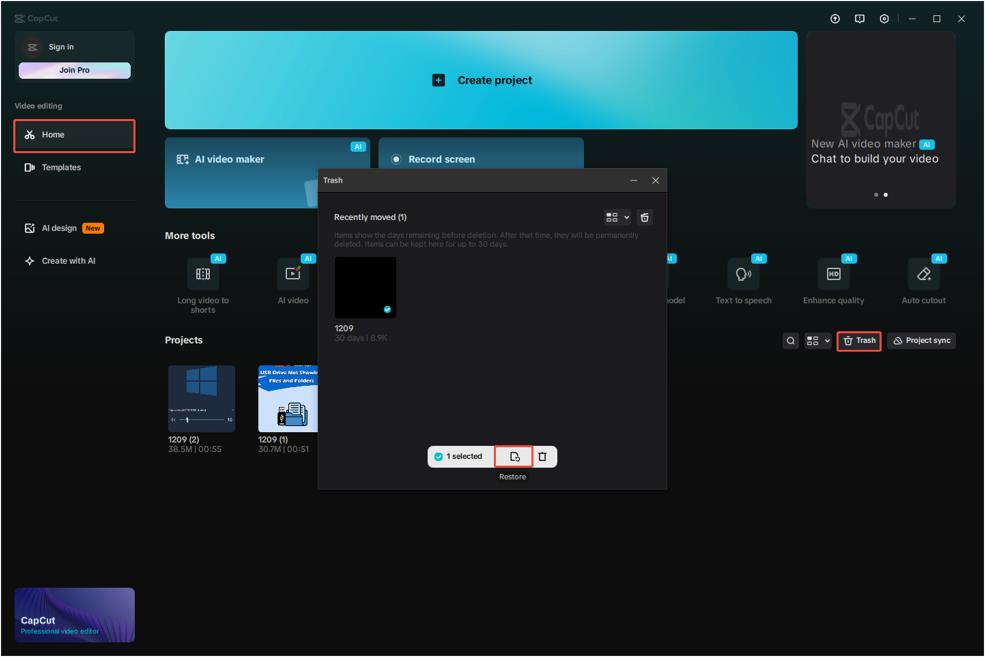
CapCut keeps a temporary area (Trash) for projects that have been deleted. Therefore, the first place for CapCut video recovery is the Trash.
Here’s how to recover deleted CapCut videos from the Trash:
Step 1. Open CapCut and navigate to the Home tab.
Step 2. Proceed to the Projects section and click on the Trash icon located in the top-right corner.
Step 3. Find your deleted video in the Trash window, select it, and then click Restore to return it to your main projects.
Method 2. Restore From My Space/Cloud Backup
If you have enabled the cloud storage feature in CapCut, known as “Space”, check your cloud backup to see if your deleted videos are there.
With the Space feature, CapCut automatically backs up your video edits and drafts and syncs your projects to the cloud.
Now, follow the breakdown to get your video projects back from the cloud:
Step 1. Open CapCut on your computer and log in to your account.
Step 2. Go to the Spaces section. All uploaded videos will be displayed here, and you can browse the list to find the one you need.
Step 3. Select the wanted video and click the three-dot icon. From the options given, choose Download.
Now, go to the Home page to check if your video is back.
Method 3. Check the Recycle Bin
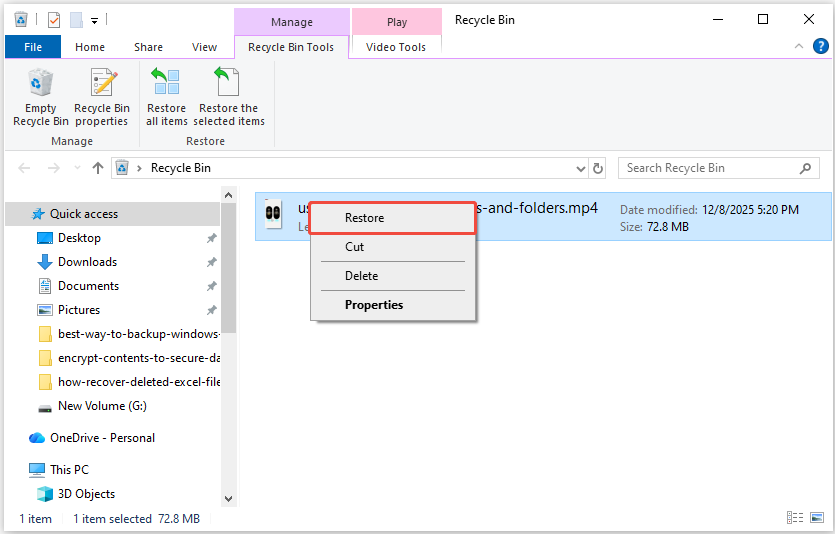
The Recycle Bin is a temporary storage location for files deleted from your local disk. If your saved videos or project files were deleted, check the Recycle Bin to recover them.
To perform a CapCut project recovery/video recovery in the Recycle Bin, follow these steps:
Step 1. Open the Recycle Bin on your desktop.
Step 2. Locate and select your deleted video or project, right-click it, and then select Restore.
Method 4. Use File History
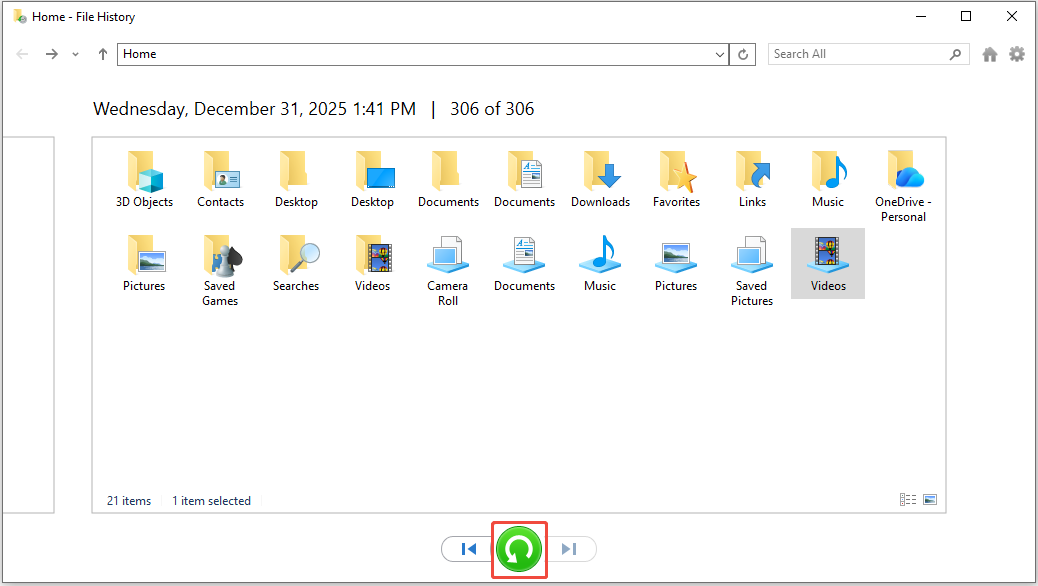
If you have enabled the File History and backed up your CapCut files using this Windows built-in tool, check the File History to recover your videos.
Here’s the breakdown to recover deleted videos or projects using File History:
Step 1. Press Win + S to open the Windows Search box, type Control Panel, and press Enter.
Step 2. Choose Large icons from the View by dropdown menu, then click the File History option.
Step 3. Click on Restore personal files in the left sidebar. In the new window, select a backup version that contains the missing CapCut videos.
To recover CapCut projects, navigate to the Projects folder in C:\Users\username\AppDat a\Local\CapCut\User Data\Projects.
Step 4. Select the required files and click the Restore button.
Method 5. Use MiniTool Power Data Recovery
Here is a quick video guide for video recovery:
If you’ve tried the methods mentioned above but still can’t recover your CapCut videos/projects, consider using trustworthy third-party video recovery software.
MiniTool Power Data Recovery is highly recommended.
It is a free data recovery tool designed for Windows 11/10/8.1/8, capable of securely recovering all file types, including videos, images, documents, and more.
By using this tool, you can restore important data in various data loss scenarios such as unintentional deletion, hardware failures, formatting, and so on.
MiniTool Power Data Recovery provides an exceptional recovery rate, a user-friendly interface, and file filtering features.
Moreover, MiniTool Power Data Recovery Free Edition allows for free scanning and file previewing while enabling the recovery of up to 1 GB of files for free.
Now, download and install MiniTool file recovery software to perform a secure data recovery.
MiniTool Power Data Recovery FreeClick to Download100%Clean & Safe
Follow these steps to recover deleted CapCut videos using MiniTool Power Data Recovery:
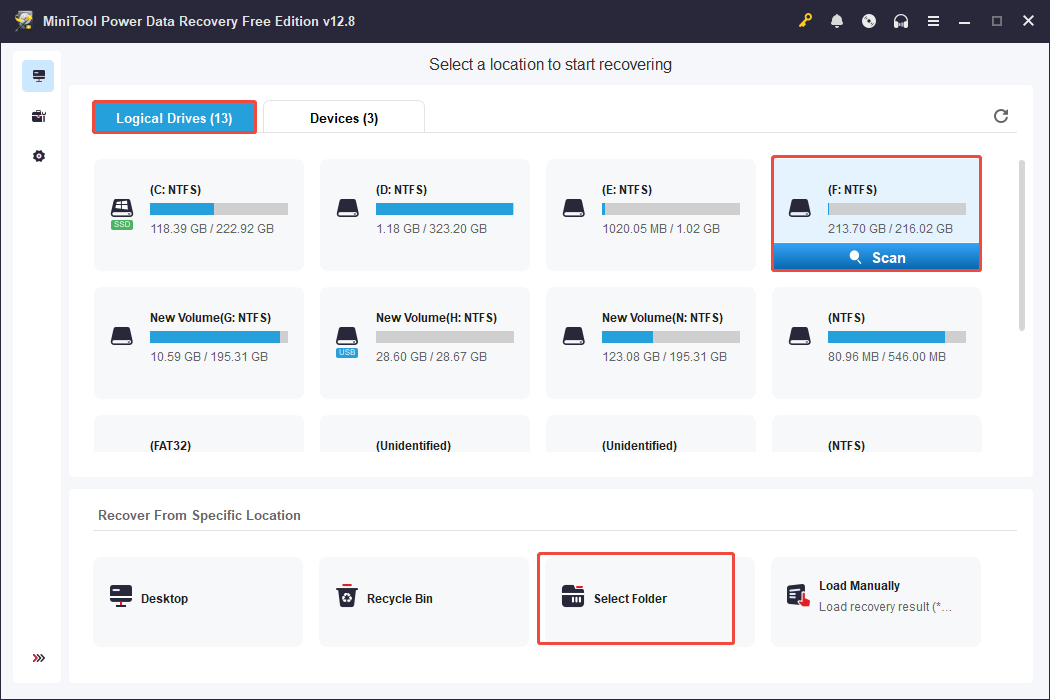
Step 1. Open this data recovery tool to enter its main interface. By default, you will be directed to the Logical Drives recovery module.
In this section, select the target partition where your deleted CapCut video files are stored and click the Scan button.
To recover CapCut projects, choose Select Folder and click Browse.
Next, navigate to C:\Users\username\AppData\Local\CapCut\User Data\Projects\com.lveditor.draft, and then click Select Folder.
To ensure the full scan results, allow the scan process to complete on its own instead of stopping it partway.
Step 2. Once the scan finishes, you will find files arranged in a tree-like format, which includes Lost Files, Deleted Files, and Existing Files under Path. Find your projects folder from this tab.
To recover specific file types, like videos, switch to the Type tab, and then select Audio & Video.
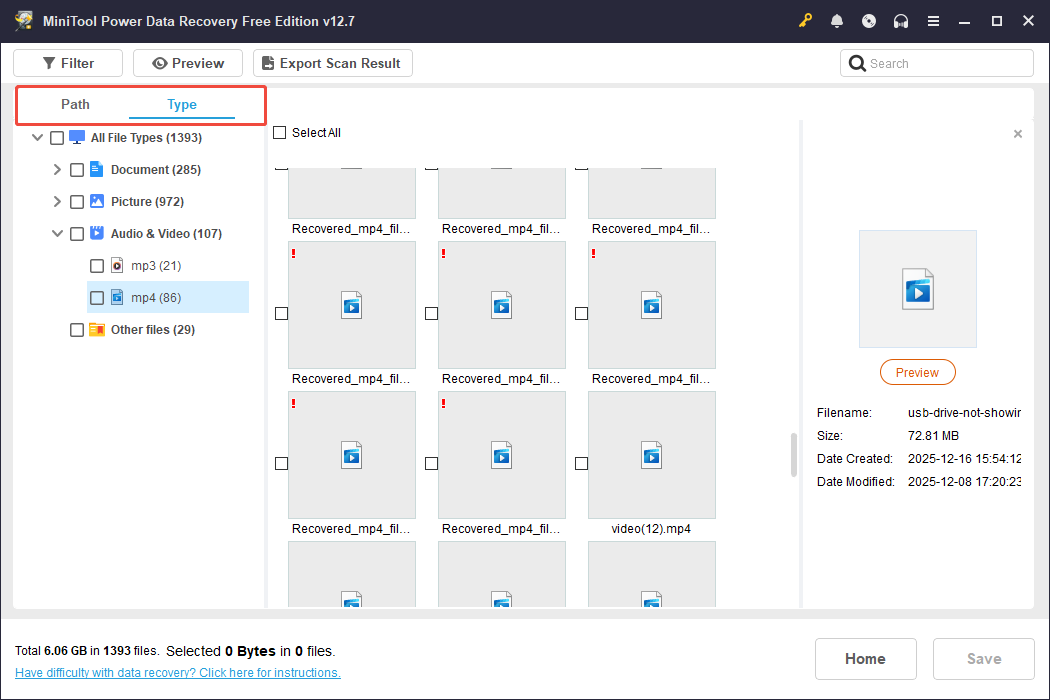
In addition, to effectively filter scanned files, use these two features:
- Filter: Click the Filter button in the top menu to filter out unwanted files based on File Type, Date Modified, File Size, and File Category. Adjust the settings to display only the files that meet your criteria.
- Search: Type a partial or complete file name in the search box and press Enter to find specific files with their original names.
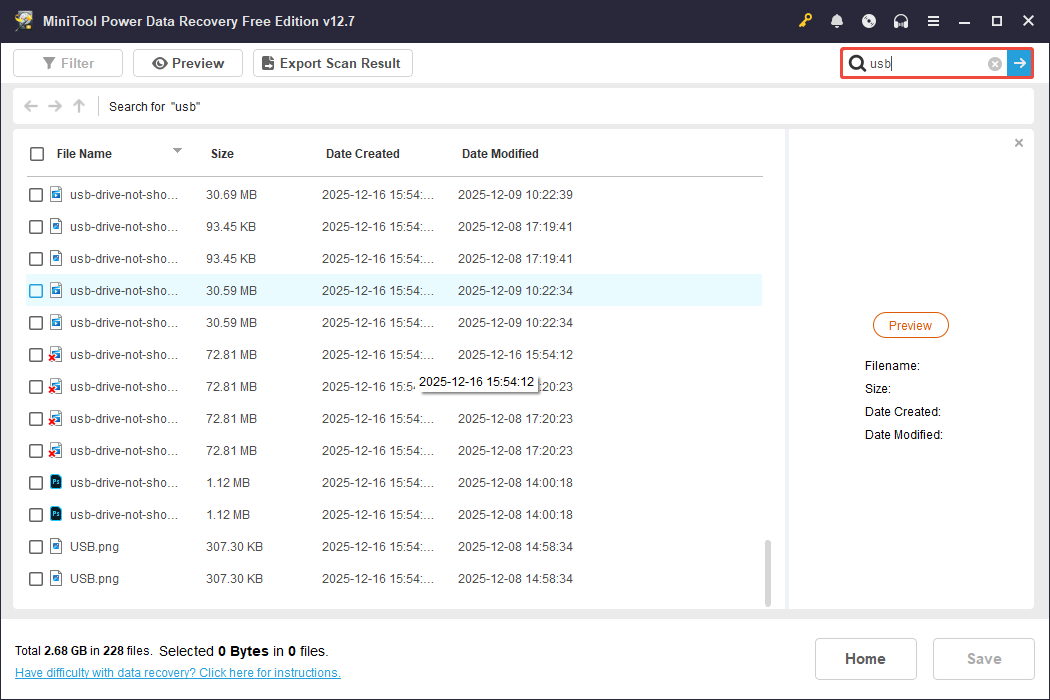
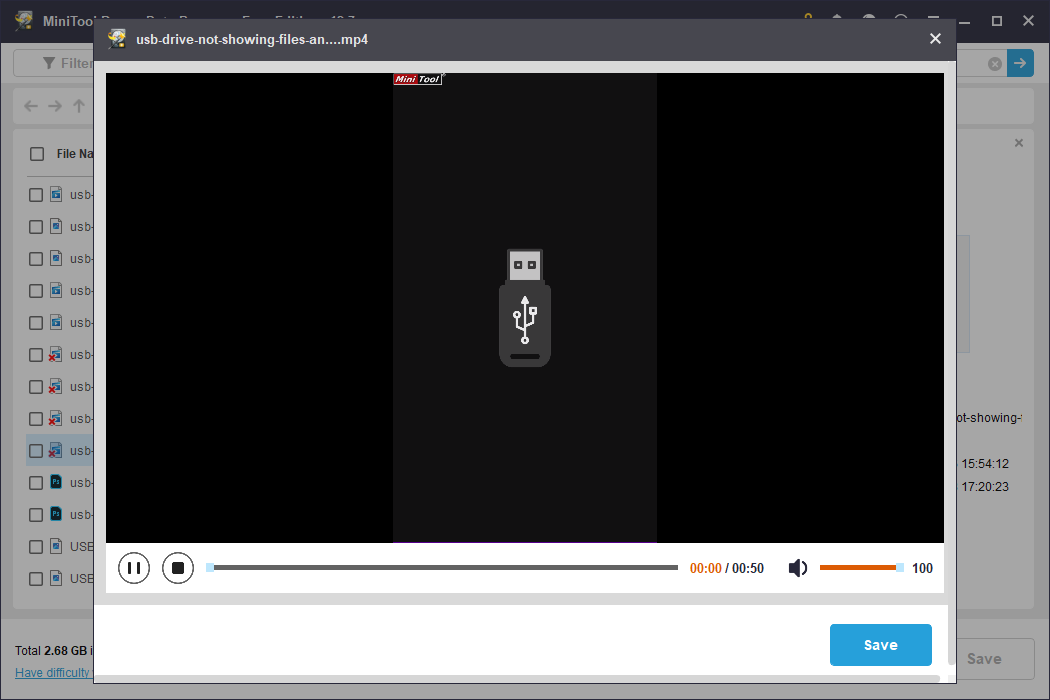
To view a file, double-click it or select it and click Preview.
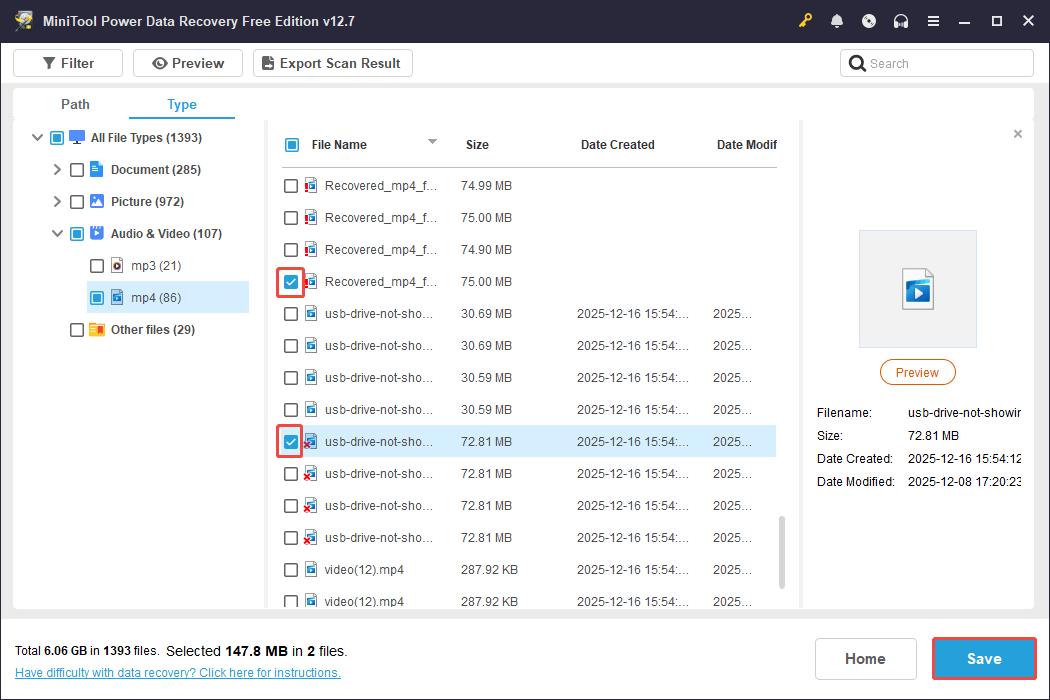
Step 3. Select desired files and click the Save button in the bottom right corner. Then, choose a secure location as directed and click OK.
How to Recover Deleted CapCut Videos on iPhone/Android
In this part, we will introduce how to recover deleted CapCut videos on the phone with four easy methods.
Follow the detailed instructions below to check the cloud, Trash, Recently Deleted folder, or use data recovery tools.
Solution 1. Check the Cloud
If you have turned on the cloud upload function in CapCut, you can recover your CapCut videos from the cloud.
Here’s the rundown of recovering videos from the cloud:
Step 1. Launch CapCut on your mobile device and tap the Cloud button located in the Project section.
Step 2. There are three sections to locate the wanted videos: All, Draft, and material. Browse through the file list to locate the videos you need and click on the three-dot icon to select Download.
Your video project will show up again in your CapCut library.
Solution 2. Check the Trash
If you deleted a CapCut video on your Android or iPhone within the CapCut app, it will be sent to Trash, similar to how it works on a computer.
In this case, you just need to recover it from there since Trash retains deleted items for 30 days.
Here’s the detailed instructions:
Step 1. Launch CapCut and navigate to the Library located at the bottom right.
Step 2. Scroll down and tap on More, then select Trash.
Step 3. Tap the three dots next to the project and opt for Restore.
Projects that have been restored will show up again in your main project list.
Solution 3. Check the Recently Deleted Folder
To recover exported CapCut videos, consider checking the Recently Deleted folder in the Photos app on your iPhone or the gallery on your Android device.
Follow these steps:
- For Android: Access the Photo app to find the Recycle Bin folder or other similar alternatives. If you locate the files you’re looking for, select them and choose Recover.
- For iPhone: Go to Photos > Utilities > Recently Deleted to locate the videos you need, then select them and tap Recover at the bottom right.
Solution 4. Use MiniTool Mobile Recovery for Android
If the previous three approaches are ineffective for you, consider using mobile phone recovery software to restore deleted CapCut videos.
MiniTooloffers a professional data recovery application for Android ‑‑ MiniTool Mobile Recovery for Android, allowing you to recover Android data, including CapCut videos.
Wrap Up
To sum up, we provide a comprehensive guide to recover deleted CapCut videos/projects on PCs or mobile phones.
To recover deleted projects in the CapCut app, the first place to look for is the Trash. If you use CapCut’s cloud feature, check the Space.
If you fail to rescue your projects in the app, consider checking the Recycle Bin and Windows backups features.
To recover deleted exported videos, try checking the Recycle Bin on your PC and Recently Deleted folder on your phone.
If you still don’t find deleted CapCut videos, use powerful data recovery software to rescue them immediately.
MiniTool Power Data Recovery and MiniTool Mobile Recovery for Android are worth trying.
If you encounter any problems while using MiniTool products, please do not hesitate to contact the support team directly via [email protected] to get help.
User Comments :