
You cannot truly unformat an SD card, but you can recover your data if it has not been formatted at a low level. Follow this MiniTool guide to recover your SD card data using robust data recovery software. Additionally, follow the bonus tips to protect your SD card from accidental formatting.
In modern digital life, SD cards have become essential as the primary storage option for cameras, smartphones, gaming consoles, and so on.
SD cards’ small size, large capacity, and low cost make them perfect for keeping important data, like photos, videos, gaming data, and more.
However, unintentional formatting is one of the most common reasons for SD card data loss.
Before starting the unformatting process, it’s important to comprehend what SD card unformatting is.
What Is SD Card Unformatting
When you accidentally format your SD card and lose files, you may want to unformat it to rescue your data.
However, unformatting an SD card does not actually reverse the formatting process; it refers to recovering lost data from a formatted SD card.
After learning about unformatting, read on to understand the causes for accidental formatting.
What Causes Accidental Formatting for an SD Card
Here are some common factors of accidental SD card formatting:
- Mistaken clicks on the device prompts: Sometimes, when you insert your SD card into your camera or computer, a prompt asking to format an unrecognized card appears, and you click Format.
- Improper ejection: If you eject your SD card incorrectly, it may lead to corruption that triggers a forced format.
- Human error: When you are managing the storage on a computer, you may mistakenly format your SD card.
Now, we will discuss the question that if it is possible to unformat an SD card in the next part. Keep reading to get more details.
Can You Unformat an SD Card
No device offers a specific “unformat” or “reverse format” feature. To unformat an SD card means to recover data from a formatted card.
The success of data recovery relies on multiple factors, including the method of formatting and the usage of the card after formatting.
There are three primary methods of formatting, and each significantly affects recovery possibilities:
Option 1. Quick Format
Instead of instantly erasing the data on the card, a quick format labels that data’s storage space as available for new writing.
In fact, the actual files remain stored on the card, inaccessible through File Explorer but retrievable with the right software.
The original data may be overwritten by any new files you save to your SD card, and become unrecoverable.
Option 2. Full Format
In contrast to quick formatting, full formatting thoroughly cleans your SD card by writing zeroes across the entire drive, effectively overwriting all stored data.
Furthermore, a full format checks for bad sectors that will be marked as unavailable for future storage.
When this occurs, your files are permanently deleted, making an SD card unformat impossible.
Option 3. Formatting with Third-Party Tools
When you opt to format your SD card using a third-party data formatter, the degree of data removal can differ.
Some tools perform a quick file removal, while others may destroy your data.
The most important things to do after accidentally formatting are to stop using the SD card immediately and use a professional data recovery tool.
Proceed to the next part to get the method to recover a formatted SD card on Windows.
How to Unformat an SD Card with MiniTool Power Data Recovery
In this part, we will talk about how to unformat an SD card on Windows 11/10 using data recovery software.
With numerous data recovery tools available on the market, MiniTool Power Data Recovery stands out as the ideal solution for unformatting SD cards.
Here’s why this free data recovery tool is the top choice for you:
#1. Exceptional Compatibility
MiniTool Power Data Recovery supports all major SD card types (SD, SDHC, SDXC, microSD) and works with brands like SanDisk and Kingston.
It is compatible with common file systems (FAT32, exFAT, NTFS) and runs on popular Windows editions (11, 10, 8, 8.1).
#2. User-Friendly Interface
The tool features an easy-to-use design that requires no technical skills, guiding you effortlessly through the recovery process with clear prompts.
#3. Risk-Free and Secure Data Recovery
It uses a read-only recovery method and doesn’t modify or overwrite data on the SD card, ensuring the original data remains intact.
#4. Wide Range of Supported File Types
With advanced scanning algorithms, it can recover over 2000 file types, including photos, videos, documents, audio files, and more.
#5. Free Edition Availability
A free edition allows you to recover up to 1GB of data, allowing you to test the tool’s effectiveness and preview scanned files before committing to purchase.
Now, click the button below to download and install MiniTool Power Data Recovery.
MiniTool Power Data Recovery FreeClick to Download100%Clean & Safe
After installing, follow the breakdown below to unformat your SD card on Windows.
Here’s a short video for formatted SD card data recovery:
Step 1. Scan the SD Card
Connect your SD card to your PC by using a card reader, and then launch MiniTool Power Data Recovery to enter its main interface.
By default, your SD card is displayed with a USB icon under the Logical Drives section. Select the SD card and click Scan.
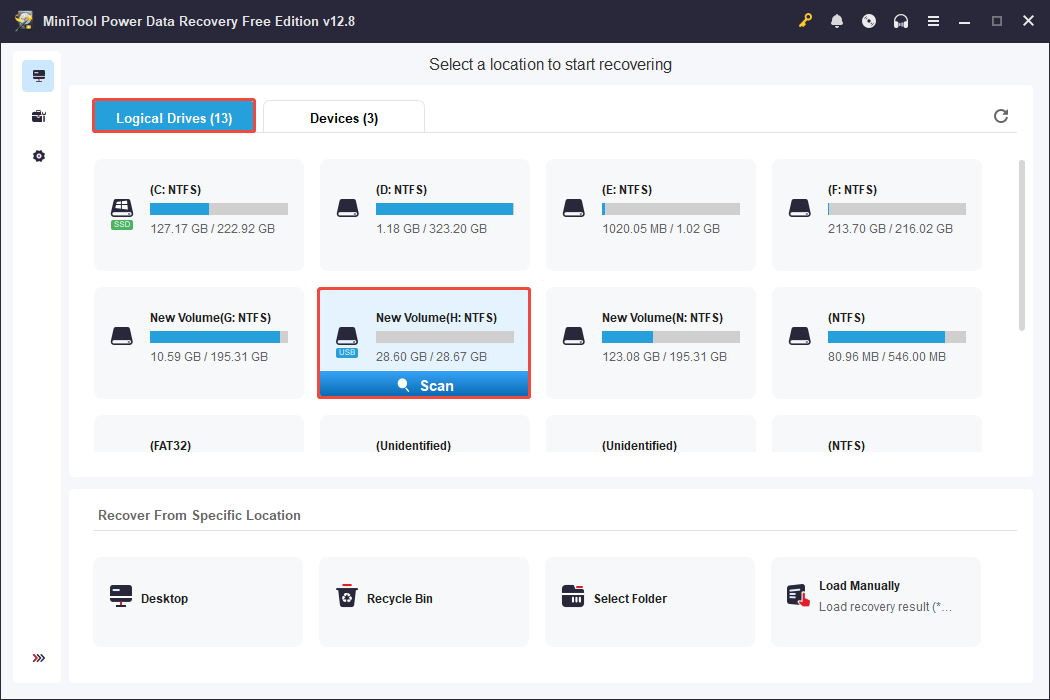
As the scan begins, detected files will gradually appear, and the scan percentage will be shown in the lower left corner.
Wait until the scan is complete for the most complete results.
Step 2. Locate and Preview Desired Files
After the scan finishes, you can expand the folders under the Path section to locate files in their original organization.
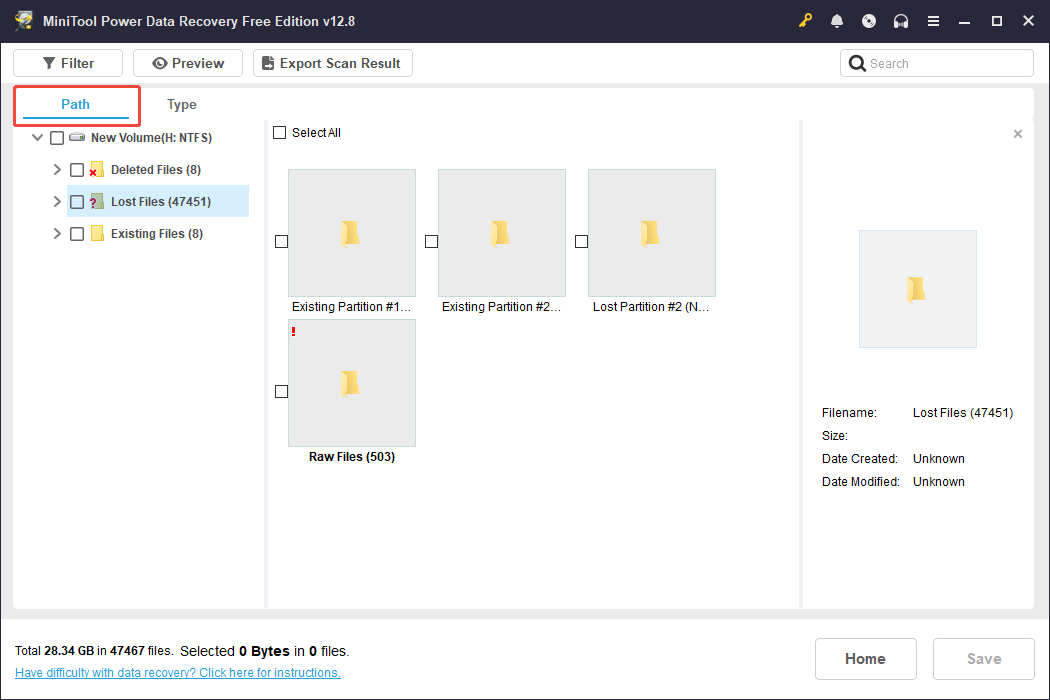
Additionally, this data recovery software provides four useful features to help you find the needed files easily:
- Type: This feature organizes files by their types, which helps in finding specific formats such as documents, pictures, audios, and videos.
- Filter: Use this feature to narrow down results based on criteria such as file type, modification date, file category, or file size, which makes it easier to locate specific files.
- Search: This function enables you to find files by typing keywords or extensions and pressing Enter.
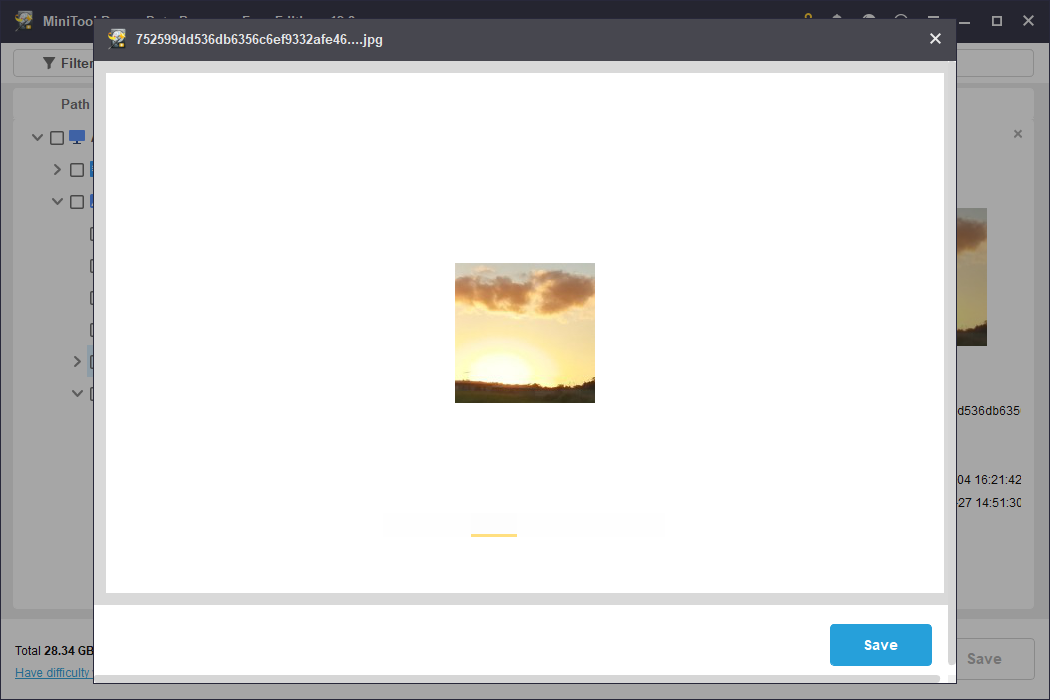
- Preview: It allows you to check files before recovery, facilitating selective recovery and helping you manage your free recovery capacity effectively. To preview a file, simply double-click the file.
Step 3. Recover Wanted Files
Once you have chosen the files you want, click Save in the bottom right corner.
In the pop-up window, select a directory other than the original SD card and click OK.
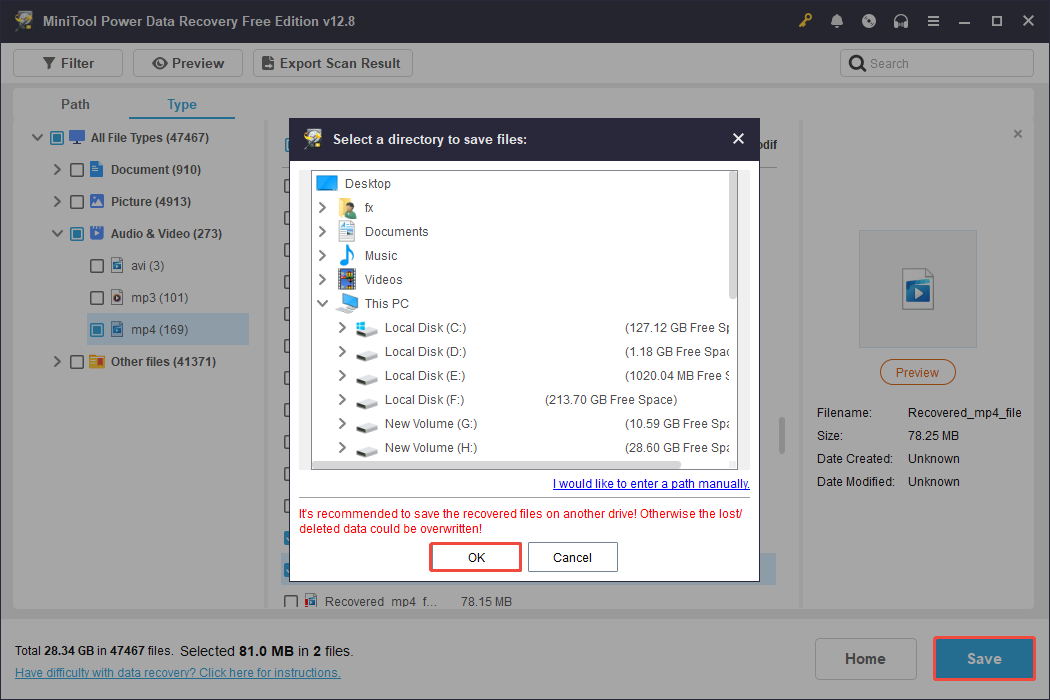
Afterwards, go to the save location to check your recovered SD card files and folders.
How to Unformat an SD Card with Stellar Data Recovery for Mac
To unformat an SD card on Mac, consider using Stellar Data Recovery for Mac, a robust data recovery tool specifically designed for Mac.
This software functions effectively with many data storage devices, including SD cards, and allows you to perform a deep scan on a formatted SD card to retrieve lost files.
To recover files from a formatted SD card on a Mac, this software is definitely worth considering.
Data Recovery for MacClick to Download100%Clean & Safe
Now, follow these steps to proceed with the recovery process:
Step 1. Connect the SD card to your Mac computer and launch Stellar Data Recovery for Mac to access the main interface.
Step 2. In the What To Recover section, select the type of file you need or check the Recover Everything option, then click Next.
Navigate to the Recover From tab, select your SD card under the Volumes or Disks section, and then click Scan.
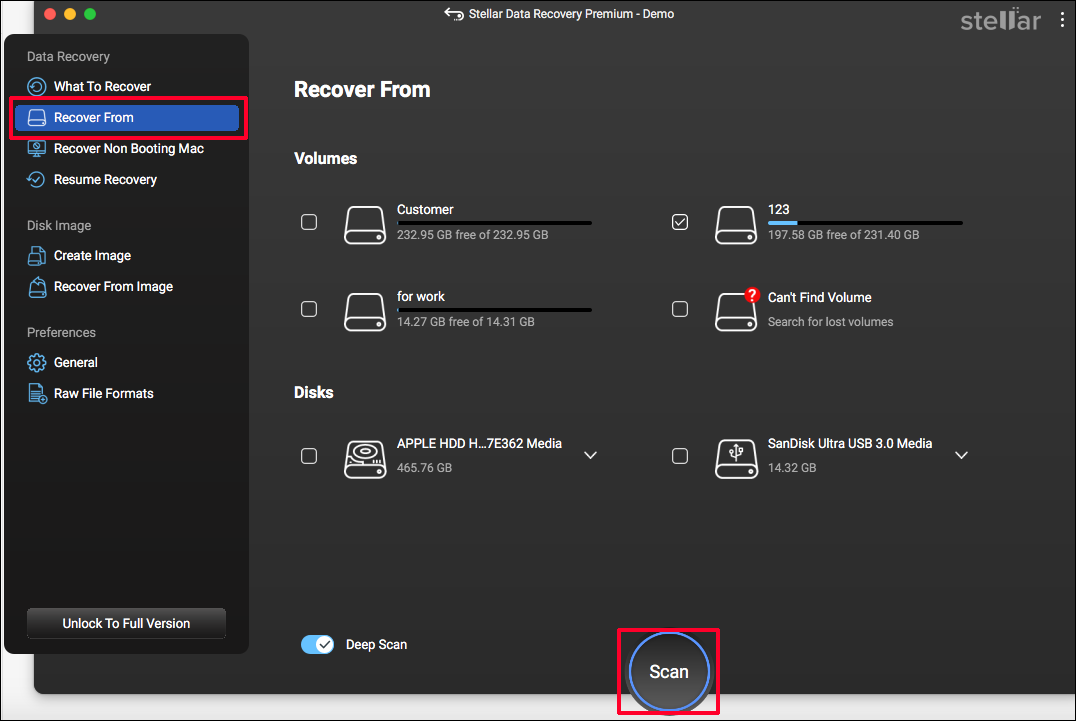
Step 3. After the scanning process is complete, the software will display files categorized by their types. Expand the relevant option to locate the wanted files.
Alternatively, you can enter the file name or file extension into the search box at the top right and press Enter to filter the results.
Step 4. Select the desired files and click Recover to specify a restoration path.
If you are using the free version, you will be prompted to upgrade to the registered version to finalize the data recovery process at this stage.
How to Avoid Accidental Formatting of an SD Card
To avoid losing vital data due to unintentional formatting on your SD card or other external storage devices, follow these straightforward suggestions:
- Verify Before Formatting: Always check the contents of the SD card before formatting and confirm that you have backed up all essential data.
- Update and Inspect Regularly: Keep your antivirus software current to mitigate malware risks. Use error-checking tools regularly to identify potential issues. Moreover, keep your SD card driver up to date to avoid some minor glitches.
- Act Cautiously: Be mindful when inserting or removing your SD card from devices. Safely eject it and try not to touch the contacts to lower the chance of static electricity damage.
- Use the Write-Protect Switch: Some SD cards have a write-protect switch. Activate it when you are not saving any new data to avoid accidental formatting or deletion.
- Backup Routinely: Consistently back up your critical data to another device or cloud storage. This guarantees that you have a copy in case your SD card is mistakenly formatted.
How to Back Up the SD Card with Third-Party Software
As the bonus tips suggest above, backing up files offers a safer and more efficient solution to recover lost data.
In addition to backing up data to the cloud or manually copying and saving data to external drives, using backup software proves to be the easiest method.
MiniTool ShadowMaker is a hassle-free backup service that enables you to back up files, directories, partitions, and entire disks.
It supports accurate and personalized backup tasks by offering different backup schemes, including Full Backup, Incremental Backup, and Differential Backup.
Meanwhile, it configures automatically daily, weekly, monthly, or on-event backup.
Download the trial version of this tool to explore its backup features free of charge for 30 days.
MiniTool ShadowMaker TrialClick to Download100%Clean & Safe
Here are the instructions to back up your SD card using it:
Step 1. Insert the SD card into your computer. Open the software and select Keep Trial to access its main interface.
Step 2. Navigate to the Backup tab on the left side pane.
Click on the SOURCE section to choose the SD card or the specific files or folders, then click OK.
Select the DESTINATION to designate a location for the backup files, then click OK.
Step 3. Click on the Options button to adjust the Backup Options, Backup Scheme, and Schedule Settings. After that, click OK to apply your changes.
Step 4. Click Back Up Now to initiate the process.
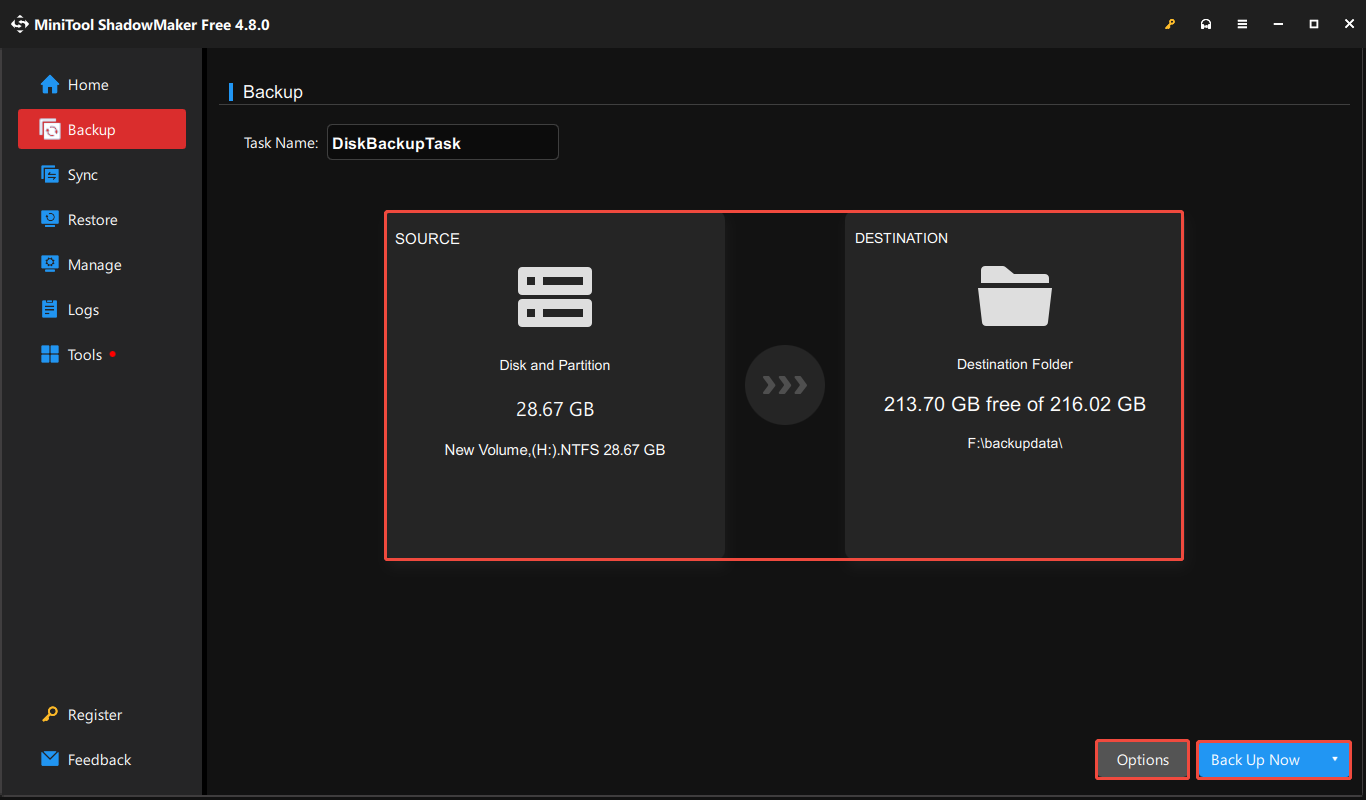
Wait for the backup process to complete, and then you can go to the destination to check your SD card backup.
Bottom Line
This post explores how to unformat an SD card on Windows and Mac. When you accidentally format your SD card, you need to know that unformatting is formatted data recovery.
After understanding the possibility of SD card unformatting, go to the relevant part to recover your data according to your operating system.
To recover formatted data from an SD card on Windows, MiniTool Power Data Recovery is a trusty choice for you.
For formatted SD card data recovery on Mac, consider using Stellar Data Recovery for Mac, the best data recovery tool for Mac.
Additionally, you should form a habit of backing up essential SD card data in time to prevent data loss.
Any puzzles in using MiniTool software are welcome to share with us via [email protected].
User Comments :