
Have you encountered the problem of the application icon not showing properly in search? This article in MiniTool will explore the possible causes of this problem and provide a series of effective solutions to help you restore normal icon display.
Application Icon Not Showing Properly in Search
Application icons not displaying correctly in search is a common problem for Windows users, usually manifested as blank or incorrect images when searching for an application. This not only affects the visual experience, but also may make you mistakenly believe that the application is not installed correctly or is missing.
This situation can be caused by several factors, including damaged icon cache, search index problems, abnormal scaling, or Windows application registration errors. Here are some detailed explanations.
- Damaged icon cache: Windows may not store the icon cache correctly, resulting in abnormal display.
- Taskbar thumbnail previews are not enabled: If the system does not save taskbar thumbnail previews, it may affect icon display.
- Icon scaling problem: Some users have found that adjusting the icon scaling (for example, changing it to 125%) can solve the problem.
- Windows search index problem: Rebuilding the search index may help restore correct icon display.
- Windows application is not registered correctly: Reregistering the Windows application may fix icon display problems.

How to Fix Icons Not Showing in Windows 10 Search
Fix 1: Enable Save Taskbar Thumbnail Previews
Sometimes the cache may become corrupted, causing thumbnail previews to not display correctly. At this time, you can try to enable or disable the Save taskbar thumbnail previews feature. Enabling it will allow Windows to cache the thumbnail previews on the taskbar so that they can load faster next time. Conversely, disabling it will make it load slower.
Step 1: Open the Run dialog, type sysdm.cpl in the Open box, and click OK.
Step 2: Switch to the Advanced tab and click Settings.
Step 3: In the Performance Options page, click Custom and tick the box for Save taskbar thumbnail previews.
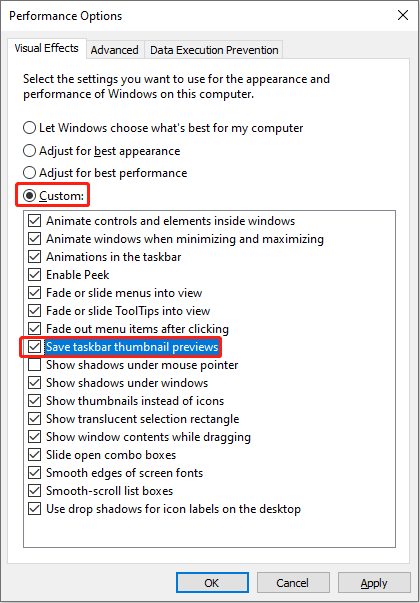
Step 4: Finally, click Apply > OK to confirm the change.
Fix 2: Change the Icon Scale
The problem of icons not showing correctly in Windows search is typically related to a corrupted icon cache or the system not saving taskbar thumbnail previews correctly. Changing the icon scale can help resolve this issue, as adjusting the scale may prompt Windows to reload the icons, thereby correcting the display error.
Step 1: Press the Win + I keys to open the Settings app.
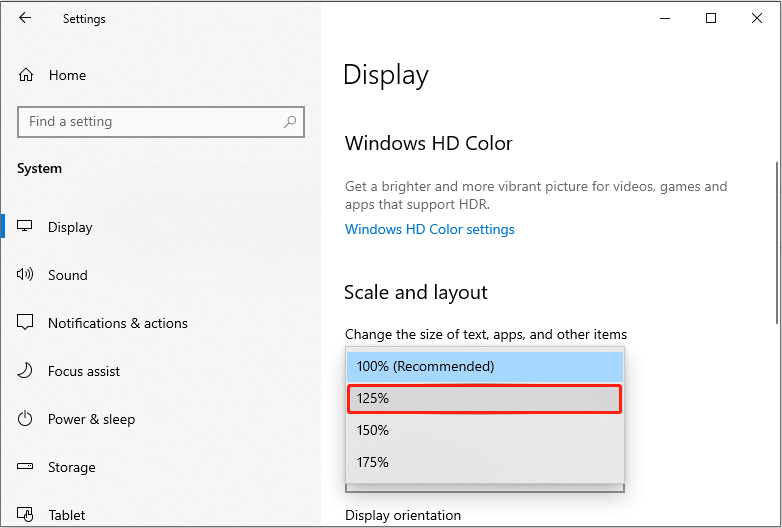
Step 2: Choose System > Display, and then find the Scale and layout section.
Step 3: Click Change the size of text, apps, and other items to open the menu.
Step 4: Choose 125% from the drop-down menu.
See Also: How to Rebuild Icon Cache Windows 11/10? – To Fix Icon Issues
Fix 3: Rebuild the Icon Cache by CMD
In some cases, Windows may not automatically update icons. Manually deleting cache files through CMD can ensure that the system reloads all icons.
Step 1: Type cmd in the Windows search box and press the Ctrl + Shift + Enter keys to open up an elevated Command Prompt.
Step 2: Click Yes in the UAC window to enter the next page.
Step 3: Input the following commands and press Enter after each one:
- ie4uinit.exe -show
- taskkill /IM explorer.exe /F
- DEL /A /Q “%localappdata%\IconCache.db”
- DEL /A /F /Q “%localappdata%\Microsoft\Windows\Explorer\iconcache*”
- shutdown /r /f /t 00
Fix 4: Check and Repair Corrupted System Files
Corrupted system files can be one of the causes of this problem. If the above methods still don’t restore the icon, you can try updating Windows or checking for corrupted system files. Here is how you can do it.
Step 1: Type Command Prompt in the Windows search box, right-click the best match, and choose Run as administrator.
Step 2: When asked by the UAC window, click Yes to continue.
Step 3: Type DISM.exe /Online /Cleanup-Image /Restorehealth and press Enter.
Step 4: Wait for the process to complete, and then type sfc /scannow and press Enter.
MiniTool Power Data Recovery FreeClick to Download100%Clean & Safe
Bottom Line
In general, icon display issues in Windows 10 Search are annoying, but they can usually be resolved by adjusting the icon scale, rebuilding the icon cache, and enabling taskbar thumbnail previews. Hopefully, this guide will help you resolve the issue and restore Windows Search to normal display.
User Comments :