
Do apps and programs automatically minimize without doing anything? In this post from MiniTool, we will show you how to stop Windows from minimizing automatically Windows 11/10 by performing some necessary steps.
Apps and Programs Automatically Minimize
Windows allows you to manually minimize a program that is running in full-screen mode and keep it running in the background. However, some users claim that their apps such as games keep minimizing without any actions.
Searching on Google, you will find that a lot of users are suffering from this frustrating problem. Here we will present you how to stop apps from minimizing.

How to Stop Windows From Minimizing Automatically Windows 11/10
Way 1. Disable the Tablet Mode
According to user experience, disabling the tablet mode is an effective way to the Windows keeps minimizing programs issue. Follow the instructions below to turn off the tablet mode.
Step 1. Press Windows + I key combination to open Windows Settings. Then select the System option.
Step 2. Move on to the Tablet mode tab, select the option of Use desktop mode under the When I sign in section, and select Don’t ask me and always switch, as shown in the figure below.
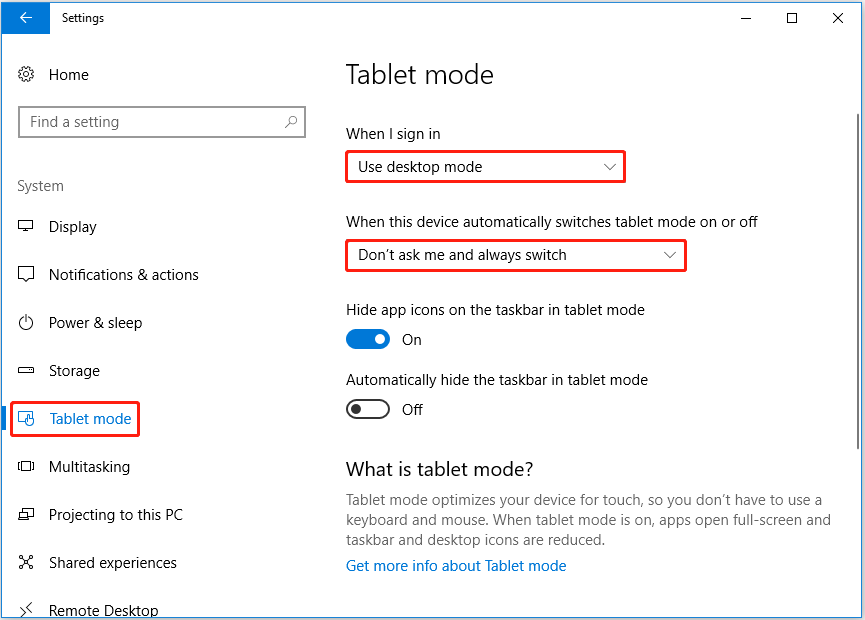
Now check if your apps and programs still minimize automatically. If yes, try the next way.
Way 2. Disable the Game Mode
Game Mode is a built-in feature in Windows that is primarily used to optimize PC gaming performance. However, it occasionally affects other programs, causing Windows to automatically minimize programs. How to stop auto minimize Windows 10/11 by disabling the Game Mode? Follow the following guide.
Step 1. Press the Windows + I keyboard shortcut to open Settings.
Step 2. In the new window, select Gaming, and move on to the Game Mode section in the left panel.
Step 3. In the right panel, switch the button of Game Mode to ON.
Way 3. Tweak the Registry
Windows registry is a collection of databases that are configured in the Microsoft Windows operating system. If the registry value is invalid or misconfigured, you may encounter the matter of “apps and programs automatically minimize”. Complete the steps below to tweak the registry.
MiniTool ShadowMaker TrialClick to Download100%Clean & Safe
Step 1. Right-click the Windows logo button to select Run. Then type regedit in the input box and press Enter.
Step 2. Select the Yes option when the UAC window appears.
Step 3. In the top address bar, navigate to the following location:
Computer\HKEY_CURRENT_USER\Control Panel\Desktop
Step 4. In the right panel, double-click ForegroundLockTimeout. In the pop-up window, set up the value data to 30d40, make sure to check the option of Hexadecimal, and click OK.
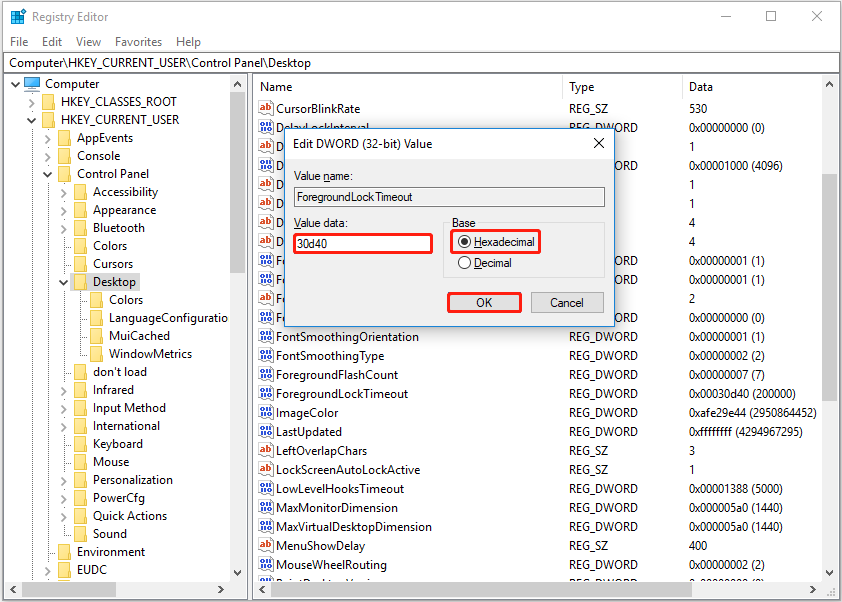
Step 5. Restart your PC and see if the problem is resolved.
Way 4. Run the System Maintenance Troubleshooter
Windows provides you with several troubleshooters to help you solve hardware or software related issues. When Windows keeps minimizing programs, try to run the System Maintenance troubleshooter to detect and fix errors.
Step 1. Open the Control Panel by using the Windows search box.
Step 2. Select Troubleshooting.
Step 3. In the left panel, select the option of View all to see all troubleshooters.
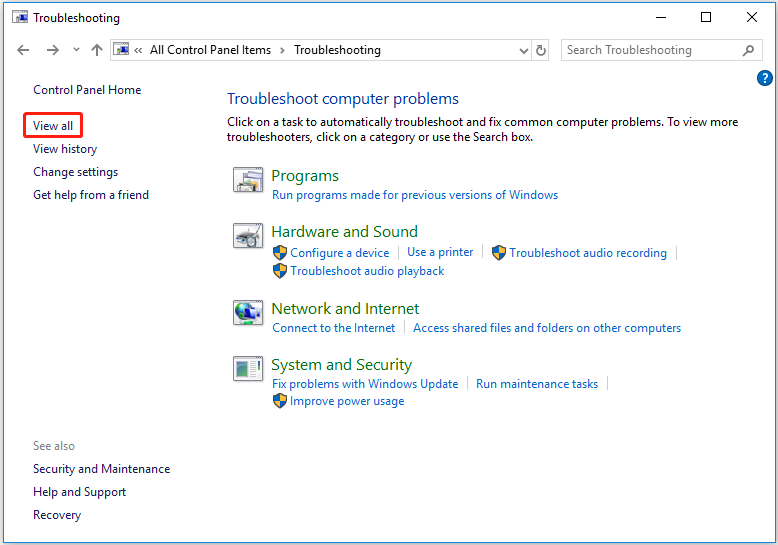
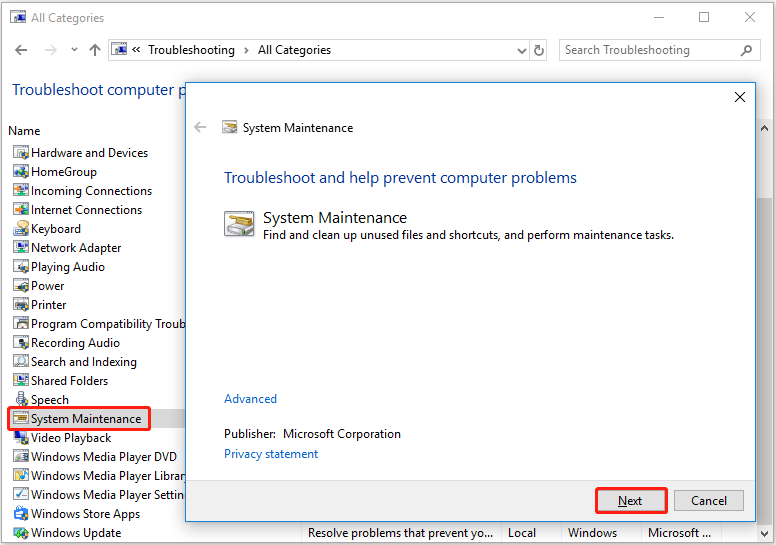
Step 4. Click System Maintenance. In the System Maintenance troubleshooting window, click Next. After that, the troubleshooter will start to detect related issues, please wait patiently until the process completes.

Way 5. Perform a SFC Scan
The last way to fix the trouble of “apps and programs automatically minimize” is to perform a System File Checker (SFC) scan. It helps detect and repair corrupted system files.
Step 1. Type cmd in the Windows search box and click Command Prompt.
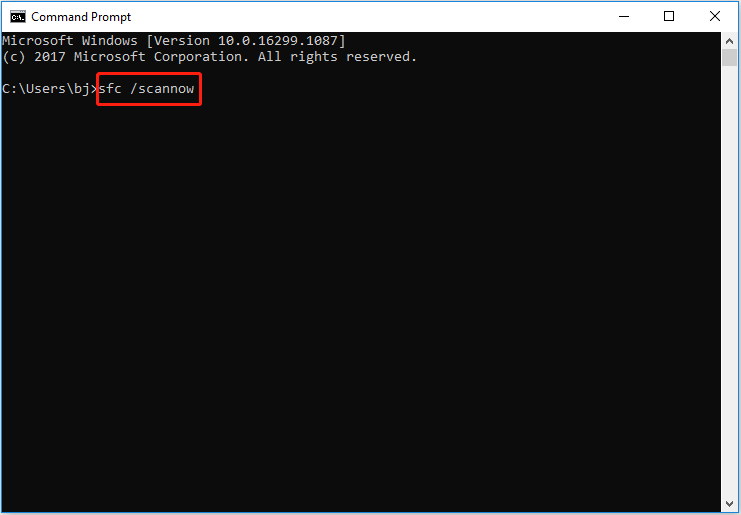
Step 2. In the command line window, type sfc /scannow and press Enter to execute this command.
Top Recommendation
In addition to “Windows keeps minimizing programs”, sometimes Windows deletes files automatically. To recover deleted files, you can use MiniTool Power Data Recovery.
MiniTool Power Data Recovery is effective in Word recent document recovery, Excel file recovery, downloads file recovery, Outlook email restoration, Windows Pictures folder recovery, and so on.
MiniTool Power Data Recovery FreeClick to Download100%Clean & Safe
Wrapping Things Up
To sum up, this article talks about how to stop auto minimize Windows 10/11.
Should you have any suggestions for this post, please feel free to let us know by leaving a message below.
About The Author

Position: Columnist
Shirley holds a bachelor’s degree in English and has been an editor at the MiniTool Team for many years. She specializes in IT-related content, with a focus on data recovery, file backup, disk management, and other technical topics. She is committed to delivering clear, accurate, and practical solutions to help users resolve common computer issues.
User Comments :