
When you discover that the camera stopped working after Windows 11 24H2 update, what are you gonna do? If you are helpless, this MiniTool post is a lifeline for you. It introduces why it stopped working and how to get it back to work.
Camera Stopped Working After Windows 11 24H2 Update
It’s confirmed that it happened because of the new rollout for 24H2, but since then, in our company, the camera stopped working for random people, and we have tried the steps below to troubleshoot, but it’s not working. Please recommend if there is any solution.answers.microsoft.com
Some users reported that their camera stopped working after Windows 11 24H2 update, which may be due to the following reasons:
- Driver compatibility issues: The camera driver of some devices may be incompatible with Windows 11 24H2, causing the camera not working on Windows 11.
- Privacy settings changes: After the update, Windows may adjust the privacy permissions of the camera, causing applications to be unable to access the camera.
- System security function impact: Some security features (such as memory integrity checks) may prevent the camera driver from running properly, causing the camera to be unusable.
- Application conflicts: Some applications running in the background may occupy camera resources, preventing other applications from using the camera.
- BIOS setting issues: Some devices may need to re-enable the camera function in the BIOS.

Method 1: Run the Camera Troubleshooter
When the camera gets something wrong, you can try running the troubleshooter first. The camera troubleshooter can detect and diagnose some existing and potential issues for your camera. Here are some steps.
Step 1: Right-click the Windows icon on the desktop and choose Settings.
Step 2: In the System tab, scroll down the list to find Troubleshoot.
Step 3: Click it and choose Other troubleshooters.
Step 4: Find and click the Camera option, and then click the Run button.
Wait for the detection process to complete. It will automatically fix the issues.
Method 2: Reset Your Camera
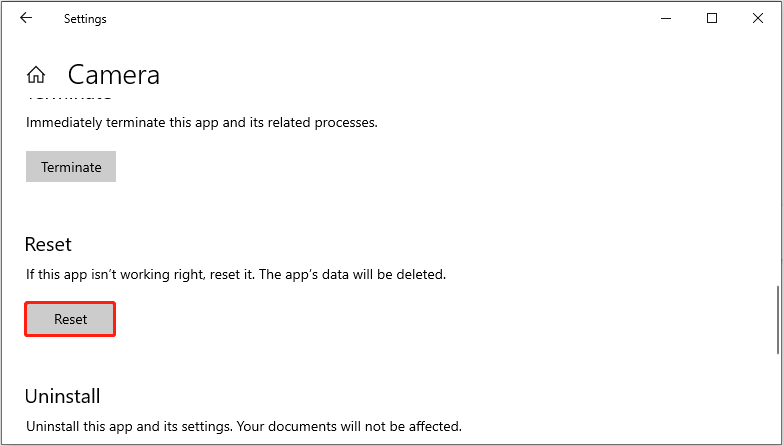
If the troubleshooter cannot find any problems, you can also reset your camera. This practice is capable of restoring this utility to the original state, which is beneficial for cleaning the faults. Here is how you can do it.
Step 1: Press the Win + I keys to open the Settings app.
Step 2: Click Apps, and then find Camera from the right pane.
Step 3: Click it and choose Advanced options.
Step 4: Scroll down the list until you find the Reset section.
Step 5: Click the Reset button. In the pop-up prompt, click on Reset to confirm the change.
Method 3: Update the Camera Driver
Driver compatibility issues, such as an outdated driver, can lead to this problem. In this case, you need to update the camera driver. The operations are as follows.
Step 1: Right-click the Start button and choose Device Manager.
Step 2: Click the small arrow in front of Cameras to expand it.
Step 3: Right-click Integrated Webcam and choose Properties.
Step 4: Switch to the Driver tab and click Update Driver.
Step 5: In the new window, click Browse my computer for drivers.
Step 6: Click Let me pick from a list of available drivers on my computer.
Step 7: Click the device driver you want to install for this hardware and click Next.
Wait for the installation process to complete.
Method 4: Turn on the Camera Access
If camera access is not enabled, the app will not be able to obtain images or videos, causing this problem. Enabling camera access allows apps (such as Zoom, Microsoft Teams, Skype, etc.) to use your camera to make video calls, record videos, or take photos.
Step 1: Open the Settings app and choose Privacy & security.
Step 2: In the right pane, scroll down the list to choose the Camera option.
Step 3: Turn on the Camera access button and the Let apps access your camera button.
Step 4: Finally, turn on the Let desktop apps access your camera button.
See Also: How to Use Canon Camera as Webcam? Here’re 2 Simple Ways
Method 5: Uninstall the Device
If none of the above methods are working, you should uninstall the camera device. This operation will install a new device on your computer, which may fix the problem.
Step 1: Type Device Manager in the Windows search box and press Enter.
Step 2: Expand Cameras and right-click Integrated Webcam to choose Properties.
Step 3: Go to the Driver tab and click Uninstall Device.
Step 4: In the pop-up prompt, click Uninstall to start this process.
MiniTool Power Data Recovery FreeClick to Download100%Clean & Safe
Final words
With these methods, you don’t have to worry about the camera not working after updating Windows 11 to version 24H2. I hope your camera can serve you efficiently.
User Comments :