
What is the Event ID 1014? This article develops around the Event ID 1014 that happened on Windows that hassles users a lot. We will display a series of useful methods and guide you to troubleshoot the issues one by one. For more details, you can refer to this post on MiniTool Website.
What Is the Event ID 1014?
What is the Event ID error 1014? It is reported that some users find the Internet is interrupted but the cable is well connected. The Event Viewer shows the Event ID 1014 error. So, how to fix the issue? Don’t worry. We have concluded some useful methods for you to try. Please go on with your reading.
A Full Guide to Fixing the Event ID 1014
Fix 1: Disable Energy-Saving Options
You can check if the power energy saving feature automatically interrupts the Internet connection. Go to disable the related options and then check if the DNS error ID 1014 can be gone.
Step 1: Right-click on the Windows icon on the taskbar and choose Device Manager.
Step 2: Expand Network adapters and double-click on your controller to open its Properties.
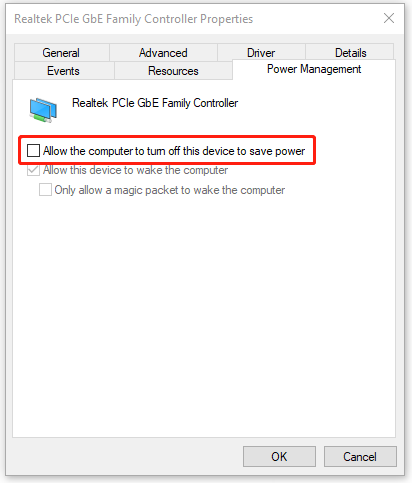
Step 3: Go to the Power Management tab and uncheck the option of Allow the computer to turn off this device to save power.
Step 4: In the Advanced tab, look through the related energy-saving options and choose to disable them. Then click OK to save your changes.
Fix 2: Use Network Troubleshooter
Network troubleshooter is an excellent utility to fix all kinds of network issues. You can remove some bugs or glitches by using this tool.
Step 1: Go to Start > Settings > Update & Security > Troubleshoot.
Step 2: Click Additional troubleshooters from the right panel and choose Internet Connection to click Run the troubleshooter.
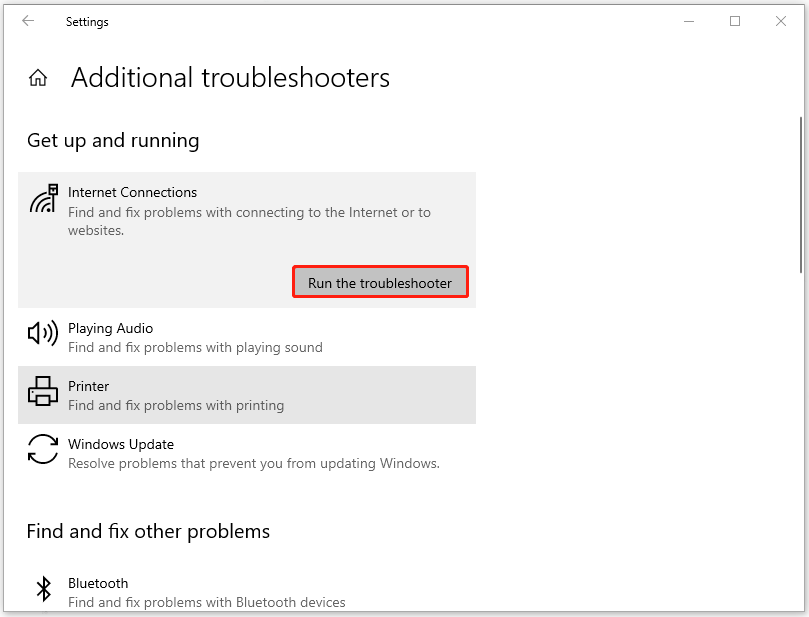
When it finishes, you can restart the computer to check if the connection restored.
Fix 3: Update Network Adapter Drivers
Another method to get rid of the Event ID 1014 is to update network adapter drivers. Specific steps are as follows.
Step 1: Open Device Manager and expand Network adapters.
Step 2: Locate the available devices and right-click on them to choose Update driver. Then click Search automatically for drivers.
Or, there is another method to update available drivers.
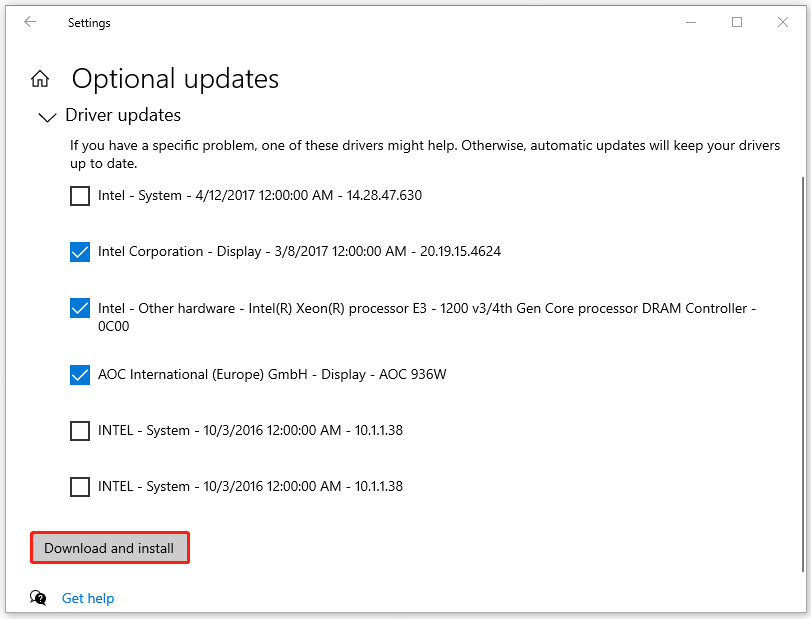
Step 1: Go to Start > Settings > Update & Security > Windows Update > View optional updates.
Step 2: Expand Driver updates and check the available driver updates to choose Download and install.
Fix 4: Uninstall the Latest Windows Update
If all the above methods have been proven useless for you and you have recently updated your Windows, you can try to uninstall the latest Windows installation.
But before you do that, notice that you should backup data in case anything goes wrong. Some new features and patches will be gone and data loss is a potential risk.
You can backup files, folders, systems, or partitions & disks with MiniTool ShadowMaker, this backup software free. Besides, you can also use it to perform a sector by sector cloning for a backup.
MiniTool ShadowMaker can do its best for your computer backup.
Download and install this program by clicking the following button and you can get a 30-day free trial version.
MiniTool ShadowMaker TrialClick to Download100%Clean & Safe
Step 1: Go to Windows Update in Settings and scroll down from the right panel to click View update history.
Step 2: Click Uninstall updates and click on the recent Windows update to choose Uninstall.
Bottom Line:
To fix the Event ID 1014, you need to check for your Internet connection first, like loose cable connections. Some easy tips can quickly fix the issue. All in all, backup is a good habit in this digital world and MiniTool software is worth trying!
User Comments :