
What Is the File System Error (-2144926975)?
The file system error (-2144926975) is a result of multiple reasons, such as system file corruptions, a conflict with system updates, and faulty application. Because of its complicated triggers, we have listed some methods to troubleshoot them one by one.
Suggestion: Back up You Data Regularly
It is highly recommended that you should backup data regularly because the file system errors can easily lead to data losses, or even system crashes.
Considering that, you can use MiniTool ShadowMaker, PC backup software, to backup system with a one-click solution. Files & folders and partitions & disks are also available.
Besides, you can make a scheduled backup daily, weekly, monthly, or on event. More features are designed for your better backup experience.
MiniTool ShadowMaker TrialClick to Download100%Clean & Safe
How to Fix the File System Error (-2144926975)?
Way 1: Run System File Checker
You can use SFC scan to repair your corrupted system files to exclude the possible culprit that results in the Windows 10 file system error (-2144926975).
Step 1: Input Command Prompt in Search and choose Run as administrator.
Step 2: After opening the window, you can copy and paste this command – sfc /scannow to press Enter.
After the verification is finished, you can close the window and restart your computer to check for the error.
Way 2: Reinstall the Problematic Application
Since the file system error 2144926975 can be related to some dedicated applications, you can uninstall the one you doubt and then reinstall it to fix the file system error.
Step 1: Go to Start > Settings > Apps > Apps & features.
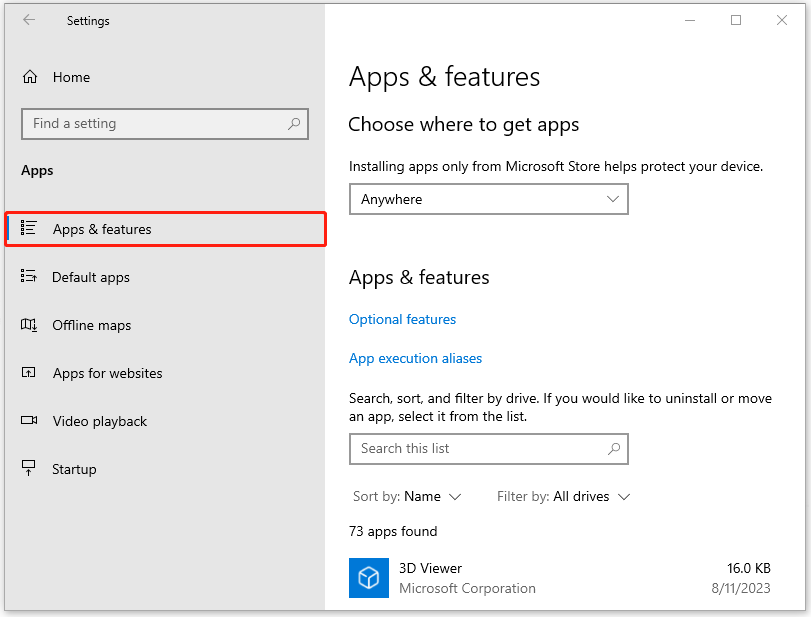
Step 2: Locate and click on the related application (you can take a notice of the application that you have installed recently) and then click Uninstall > Uninstall to remove the app.
Way 3: Perform Clean Boot
In case of the software conflicts, you can perform Clean Boot to see if the file system error (-2144926975) persists.
Step 1: Open Run by pressing Win + R and type msconfig to enter System Configuration.
Step 2: In the Services tab, check the option of Hide all Microsoft services and choose Disable all.
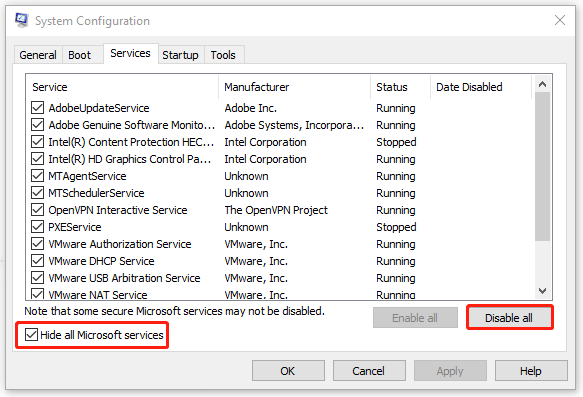
Step 3: In the Startup tab, click Open Task Manager and choose to disable those enabled startup programs. Then go back to the System Configuration tab and click Apply and OK.
Way 4: Reset Windows Store Cache
If you encountered the file system error (-2144926975) when you are prepared to download and install the program, clearing the Windows Store cache may be helpful.
Go to input wsreset.exe in Search and choose Run as administrator. Then you will see a prompt window pops up and the Windows Store will supersede to open. When the cache has been cleared, a confirmation message will notify you and then take you back to the Windows Store.
After that, you can check if the error has been fixed.
Way 5: Update Windows
It is necessary to keep your Windows up to date and some glitches and bugs can be fixed with that.
Step 1: Go to Start > Settings > Update & Security > Windows Update.
Step 2: Choose Check for updates from the right panel and wait until the Windows downloads and installs the pending updates for you.
Then you can restart the computer to see if the error persists.
Bottom Line:
Windows 10 file system error (-2144926975) can be fixed via the above methods and you can try them one by one for a try. For more related fixes about file system errors, you can go to MiniTool Website.
User Comments :