
This problem might happen when you are going to play a game, switch between apps, or do something else. When finding that the computer freezes but mouse still moves, most of you probably feel annoyed. This situation is common for Windows users:
Every now and then after I switch applications (frequently after alt + tabbing), my screen freezes and nothing responds. I am still able to move the cursor and continue speaking in voice chats as the screen is frozen. It sounds like still plays too. However, if I close my computer and re-open it, the screen goes back to normal. - MartinYang22answers.microsoft.com

How to Fix the Computer Freezes but Mouse Still Moves Problem
Method 1: Change the Screen Resolution
Screen resolution might cause no problem with daily computer use, but when your computer needs to fit certain graphics hardware requirements, it may lead to a screen crash. Then, you might find on your computer that the mouse moves but nothing else works. Follow the next steps to change the screen resolution.
Step 1: Press Win + I to open Windows Settings.
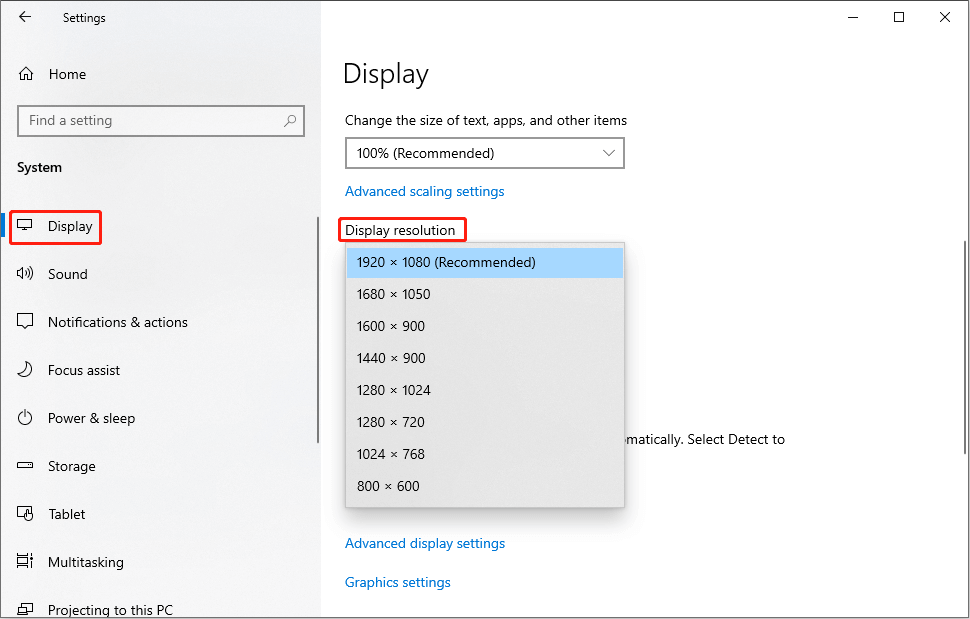
Step 2: Choose System > Display.
Step 3: Choose a lower resolution than the one you use now from the drop-down list of the Display resolution option.
Method 2: Update the GPU Driver
An outdated driver will have a negative impact on your computer performance. If the GPU drivers are incompatible, your computer might become frozen as well. This method tells you how to update the GPU drivers to solve this problem.
Step 1: Press Win + X and select Device Manager from the WinX menu.
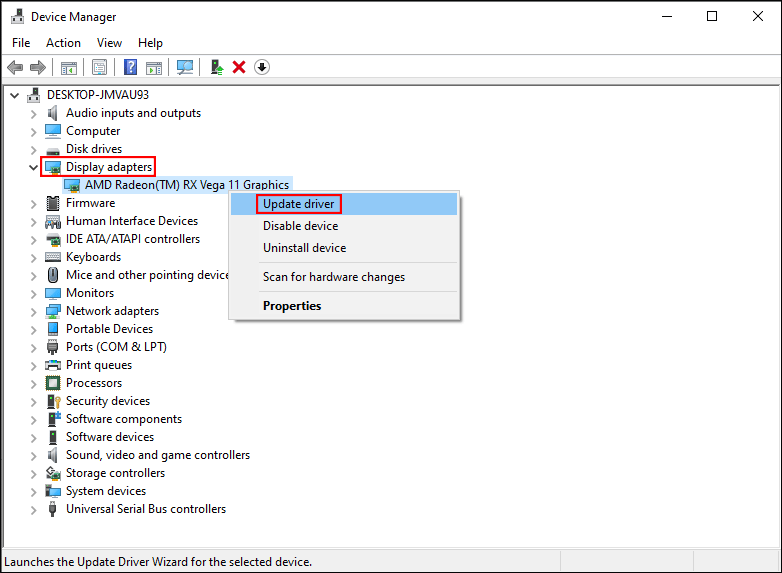
Step 2: Expand Display adapters and right-click on the GPU driver.
Step 3: Choose Update driver from the context menu.
Step 4: Select Search automatically for drivers in the prompt window.
Since the computer will find the latest compatible driver for your computer, this is a safe aid.
Method 3: Clear Temporary Files
As we use the computer day after day, the computer will accumulate numerous temporary files that let you load a page or an app quickly. However, once the temporary files are corrupted, your system is at risk of being frozen. Clearing temporary files can help you in some cases.

Step 1: Press Win + I to open the Settings window.
Step 2: Click on System > Storage.
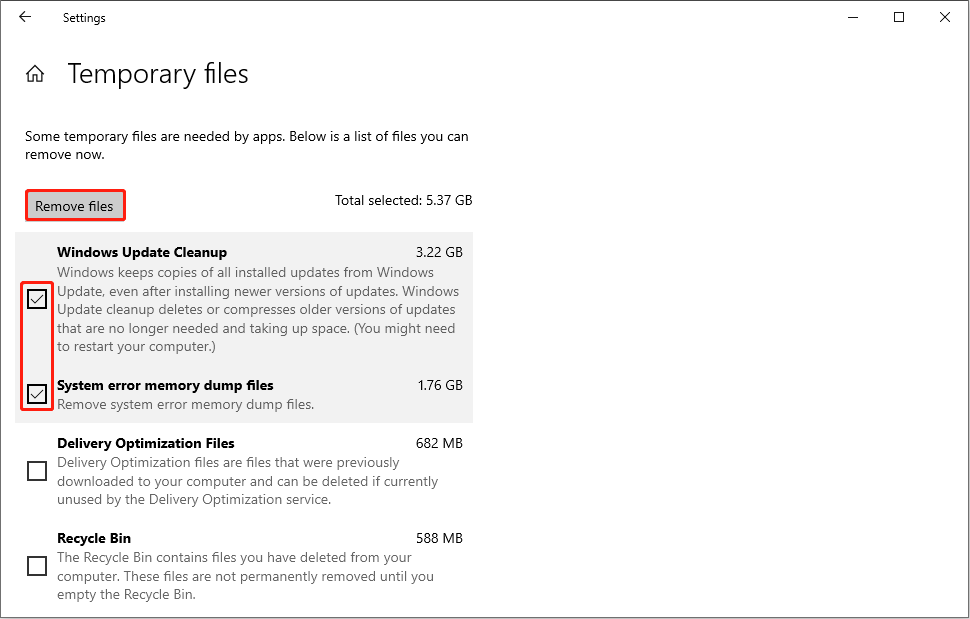
Step 3: You can find specific information about your disk space usage. Then, click on the Temporary files option. It will show you where these temporary files come from.
Step 4: Tickle the files you want to delete and click on the Remove files button.
You can also delete files manually by yourself, but it is possible to delete useful files by accident. You can restore them from the Recycle Bin. If you can’t find wanted files in the Recycle Bin, I recommend you try MiniTool Power Data Recovery.
This free file recovery software is able to perform external hard drive recovery, SD card recovery, USB drive recovery, etc. You can use it to recover deleted files, photos, videos, audio, and other types of files safely. As long as your data is not overwritten, MiniTool Power Data Recovery can find them back.
MiniTool Power Data Recovery FreeClick to Download100%Clean & Safe
Method 4: Check for RAM Issues
RAM is an abbreviation of random-access memory. As its name implies, this is the main and important memory for your computer that stores the currently used data and machine codes. If RAM doesn’t work properly, the Windows is probably frozen. Luckily, Windows has a tool to check its issues.
Step 1: Click on the search icon and type Windows Memory Diagnostic into the box.
Step 2: Hit Enter to open it.
Step 3: Click on Restart now and check for problems (recommended).
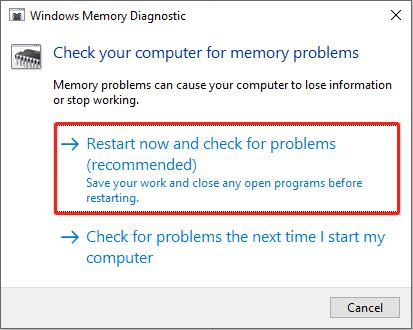
Your computer will detect the problems during the restart process and provide the result to you.

Method 5: Perform System Restore
When the above methods don’t fix your problem and you have created system restore points before this issue happens, you can perform a system restore. System restore will return your computer to the status of the restore point you choose. This can help you resolve problems when you don’t know the root reason. Do it with these steps.
Step 1: Press Win + S and type Recovery into the search box.
Step 2: Choose the best-matched option and press Enter to open the window.
Step 3: Click on Open System Restore, then click Next in the following window.
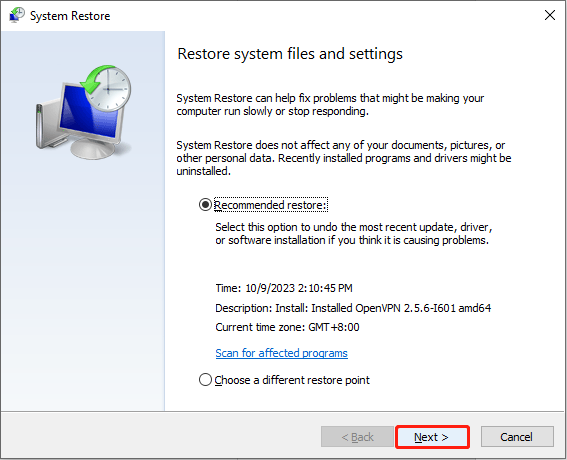
Step 4: You need to choose a proper restore point and click Next.
Step 5: Confirm all the information and click Finish to start the restore process.
Please note that once the process starts, you are unable to interrupt or suspend it. So you should be careful when checking the information.
If your files are lost after performing system restore, you can also use MiniTool Power Data Recovery to restore them. For specific steps about how to do it, please turn to this page: Recover Files After System Restore in Windows 11/10/8/7 Easily.
MiniTool Power Data Recovery FreeClick to Download100%Clean & Safe
Final Words
When the computer freezes but mouse still moves on your computer, try the methods shared in this post. Computer freeze can be caused by many reasons. Be calm when you are in such a situation and avoid frequently shutting down computers forcefully.
User Comments :