
Causes of “Printer Settings Could Not Be Saved”
People reported that when they attempt to connect the printer to the home network, the error message – Printer settings could not be saved this operation is not supported – will happen.
The major reasons that trigger the “Printer settings could not be saved” error are varied, such as incorrect printer settings, issues with Windows Registry, driver conflicts, or network issues.
For these factors, you can follow the solutions in the next part.
Fix: Printer Settings Could Not Be Saved
Fix 1: Run the Printer Troubleshooter
The Printer troubleshooter is a built-in utility designed to fix common printer problems on Windows 11/10. If you encounter the printer issues, you can do these steps.
Step 1: Go to Start > Settings > Update & Security > Troubleshoot > Additional troubleshooters.
Step 2: Then click Printer from the right window and click Run the troubleshooter.
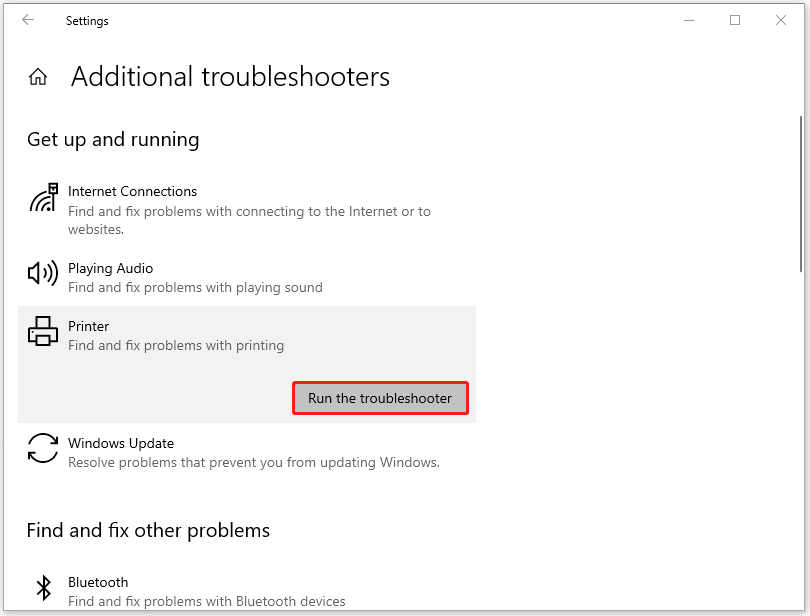
When it finishes, check if the “Printer settings could not be saved” error has been gone.
Fix 2: Restart Print Spooler
Another method is to reset the Print Spooler service. In this way, you will need to delete your pending files in the spool, so you’d better backup data first before you start the move.
You can use MiniTool ShadowMaker free to backup files, folders, partitions, disks, and systems. The backup steps are easy and quick. Its user-friendly interface can guide users to quickly access all the functions. To download and install this program, you can click the button below.
MiniTool ShadowMaker TrialClick to Download100%Clean & Safe
Then you can start resetting the service.
Step 1: Open Services by typing it in Search and scroll down to locate and double-click on Print Spooler. Click Stop to end the service.
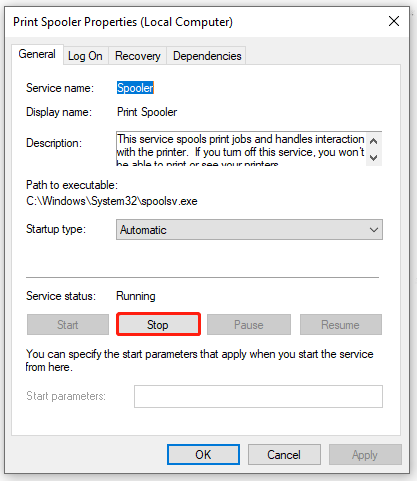
Step 2: You can click OK to save the changes. Then Open Run by pressing Win + R and type Spool to quickly open the C:\Windows\System32\spool folder. Now, open the PRINTERS folder.
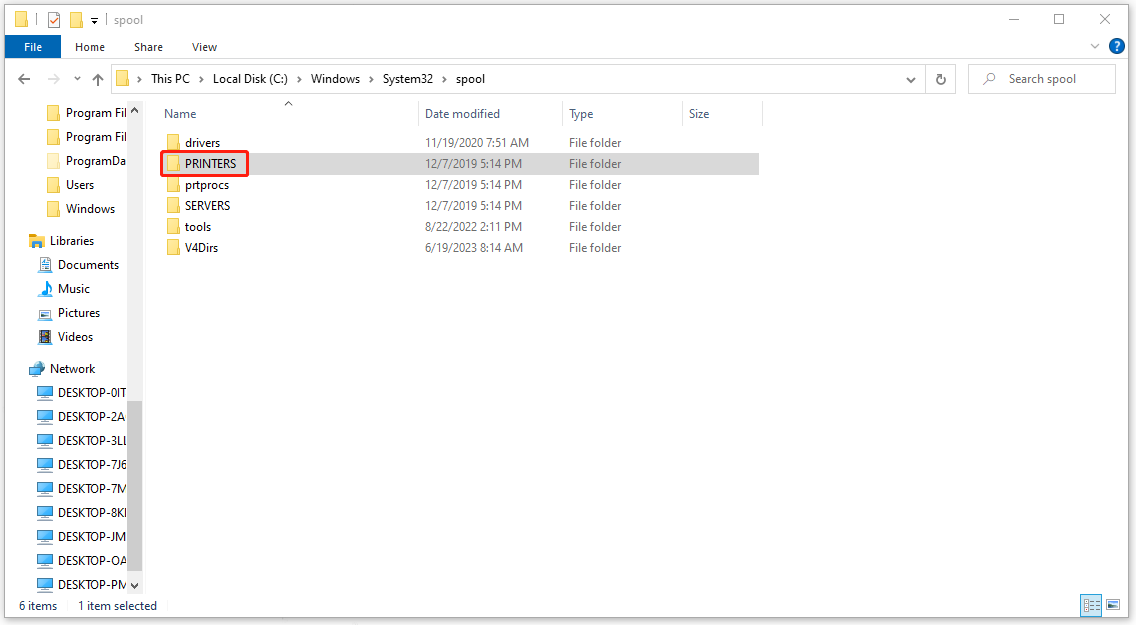
Step 3: When you see a print queue sub-folder, delete all the files in it and then get back to restart the Print Spooler service in the Services window.
Fix 3: Check the Related Sharing Settings
You need to make sure some sharing settings are enabled so that the printer can be accessed via a network. After the following steps, the “Printer settings could not be saved” error may be fixed.
Step 1: Open Control Panel and go to Network and Internet > Network and Sharing Center > Change advanced sharing settings.
Step 2: Under Guest or Public, check the options of Turn on network discovery and Turn on file and printer sharing. Check the box next to Turn on automatic setup of network connected devices.
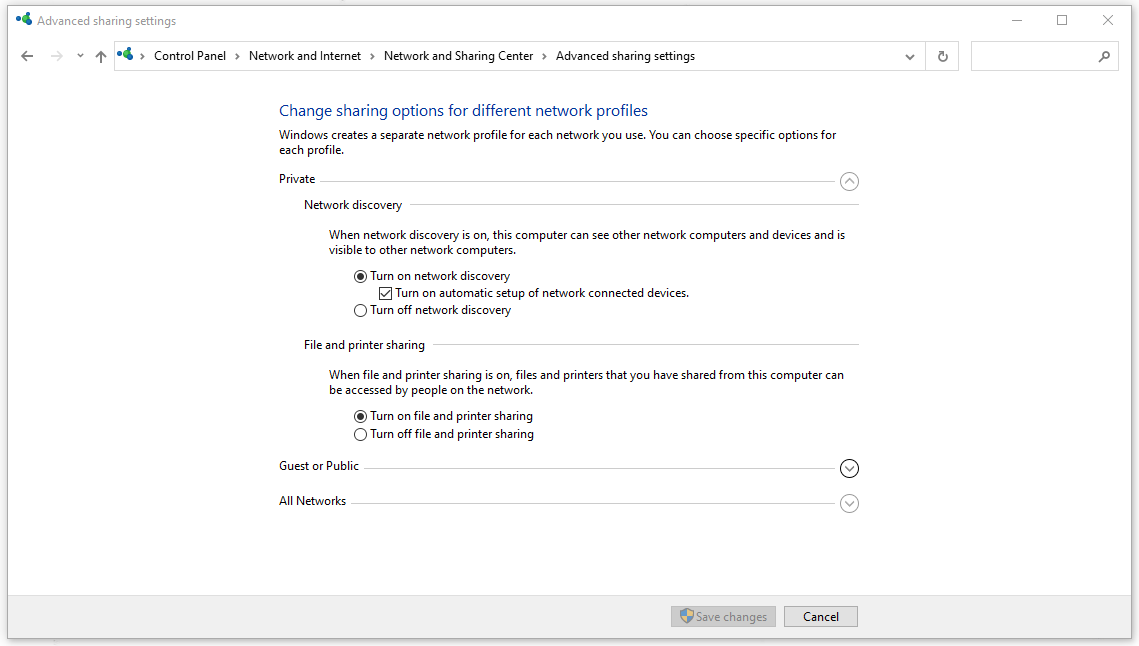
Then click Save changes to get the options applied.
When you settle down, go to see if you fixed “printer settings could not be saved”.
Fix 4: Check the Server Service Status
The Server service is responsible for sharing files and printers on your computer, so please make sure the service is working well.
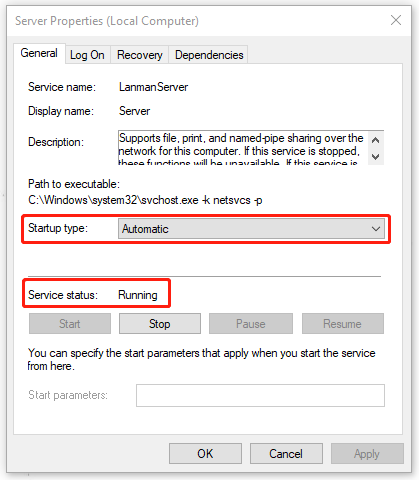
Step 1: Still, open the Services window and scroll down to locate Server.
Step 2: Double-click on it and make sure the Service status is Running and the Startup type is set to Automatic. If not, change the settings and click Apply > OK to save it.
Bottom Line:
To fix the “Printer settings could not be saved” issue, you can refer to these four methods for troubleshooting. Hope this post can be useful for you.
User Comments :