
This MiniTool guide compares SSD vs external hard drive in terms of speed, durability, capacity, cost, noise, and power consumption. It helps you understand which option fits different usage scenarios.
Understanding of SSD and External Hard Drive
What Is an SSD
SSDs use flash memory chips (integrated circuits) to store data instead of spinning platters in HDDs. Without moving parts, SSDs provide fast speeds, less noise, less power, and excellent durability.
SSDs utilize interfaces including SATA and PCIe/NVMe and come in various form factors.
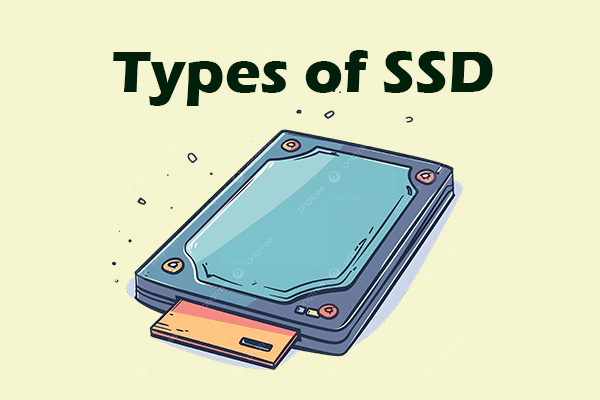
Inside desktops and laptops, 2.5-inch SSDs and M.2 SSDs are widely used. External SSDs, on the other hand, are suitable for portable, high-speed data storage, easy device sharing, and backups.
What Is an External Hard Drive
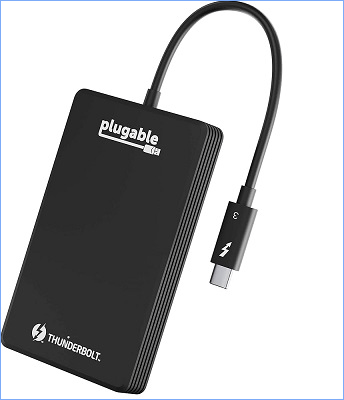
An external hard drive is a portable storage device that is plugged into a computer using cables like USB or Thunderbolt. It is designed to be small and light enough to carry anywhere.
External hard drives are available in two key types: HDDs and SSDs.
Compared to SSDs, HDDs (Hard Disk Drives) use rapidly spinning magnetic platters and read/write heads to store and retrieve data, making them slower and more fragile.
What is the difference between an external SSD and an external HDD? Learn details in the following part.
SSD vs External Hard Drive (HDD): What’s the Difference
External SSDs and HDDs differ in several aspects. Key differences include speed, capacity, cost, noise, durability, and power consumption.
Here is a detailed comparison.
#1. Speed
The difference in speed between external hard drive vs SSD is significant.
External HDD
External HDDs typically offer sequential read/write speeds ranging from 80 to 160 MB/s. If you transfer a 20GB video file, it may take 2 minutes or longer to complete.
The performance primarily depends on the RPM (Revolutions Per Minute) and the connection interface.
- 5400 RPM drives generally provide speeds in the range of 75 to 100 MB/s.
- 7200 RPM drives offer speeds of about 120-160 MB/s.
The connection interface can be USB 2.0, 3.0, 3.1, 3.2, or Thunderbolt, which offers different transfer speeds. Due to their mechanical nature, the speed of the fastest enterprise HDDs using the Thunderbolt cable can be limited to around 250 MB/s.
External SSD
The speeds of external SSDs vary widely, from about 500 MB/s (SATA SSDs) to over 2000 MB/s (NVMe SSDs). This means transferring a 20GB file may take 10 seconds on high-end NVMe SSDs.
Since SSDs don’t have moving parts, the speeds mainly lie in the controller (SATA or NVMe) and interface (USB 3.2, USB4, or Thunderbolt). Some high-end NVMe drives utilizing a Thunderbolt 3/4 or USB4 interface can even achieve speeds of around 2800 MB/s or more.
#2. Capacity and Cost
External hard disk drives have a distinct advantage in capacity and cost, providing more capacity for less money.
External HDD
In the market, the common capacities of a portable HDD are 1TB, 2TB, 3TB, 4TB, and 5TB. Some models can reach 20TB or larger. Importantly, the prices are lower per GB, allowing users to obtain a large space capacity affordably.
A 1TB external HDD can cost $50 to $80.
External SSD
Capacities of external SSDs commonly range from 500GB to 4TB, and 1TB & 2TB are popular choices. Some enterprise drives offer up to 8TB.
However, external SSDs are expensive, especially when compared to HDDs of the same size, primarily due to the manufacturing process of flash memory and market fluctuations.
A 1TB external SSD can cost $70 to $150.
#3. Noise
In terms of the difference in noise between SSD vs external hard drive, an SSD is the undisputed winner, as it is fundamentally silent in operation.
- SSD: There are no spinning platters, eliminating a constant whirring or humming sound. Additionally, the lack of moving heads avoids the clicking sounds during read/write operations.
- HDD: It produces noticeable noise. Its internal platters must spin constantly at high speeds, creating a whirring or buzzing sound. The read/write head moves back and forth to locate and access data, resulting in a clicking or grinding sound.
#4. Durability
External SSDs are more durable than HDDs because of the absence of moving parts, making them resistant to drops and shocks.
HDDs with spinning platters and heads are prone to damage from drops.
#5. Power Consumption
With regard to the difference in energy usage between an external SSD vs external HDD, an SSD is generally more power-efficient in both idle and active states due to having no mechanical components.
HDDs consume more power to spin platters, generating more heat.
To sum up, SSDs are fast, durable, and silent but expensive, while HDDs are affordable with large storage space but noisy and slow.
The following table summarizes the key differences between external SSDs and HDDs:
| Feature | External SSD | External HDD |
| Technology | Flash memory | Magnetic platters and a mechanical arm |
| Speed | Fast; 500-2000 MB/s, with almost no delay | Slow; typically, 80-160MB/s |
| Capacity | Commonly 500GB to 4TB | 1TB to 5TB, with high-end models exceeding 20TB |
| Price | Higher cost | Lower cost |
| Noise | Silent | Noisy |
| Power | Low | High |
| Durability | Robust and durable; shock and drop-resistant | Less durable; prone to damage from drops |
| Size and Weight | Compact and lightweight design | Large, thick, and heavy |
External HDD vs SSD: Application Scenarios
Once you understand the differences between external HDDs and SSDs, choosing the right hard drive becomes very simple.
When to Use an External HDD
Using an external HDD is smart in the following cases:
- Massive data archiving with low-speed requirements: Storing old project files and vast media files, including movies, photos, and music.
- Large-scale backups: Performing regular, massive backups of important data or a full system.
- High-capacity needs: Having a limited budget but needing a large space for storing documents, software packages, and other infrequently accessed data.
- Stationary storage: Fixed usage scenarios, for instance, expanding the computer storage.
When to Use an External SSD
SSDs excel in portable, high-performance tasks due to their rapid speeds and high durability.
- Creative professionals: Video editors, photographers, programmers, or designers require fast access and transfer speeds. Using an SSD can significantly improve work efficiency.
- Gamers: Running games directly from an external SSD can reduce loading times and provide a smooth gaming experience.
- Students and office workers: Durable, shock-resistant storage for important files is necessary in various mobile scenarios, protecting data during the move.
- Noise-sensitive users: Consider using an SSD in quiet environments such as meeting rooms and libraries.
How to Back Up Data to an External SSD or HDD
SSDs and external HDDs are common storage devices. If you need to backup data, saving backups to an external HDD or SSD is recommended.
For data backup, we highly recommend using the software such as MiniTool ShadowMaker. Additionally, it enables you to effectively create a system image and back up a disk and selected partitions.
This tool also automatically backs up your data if you set a schedule and creates incremental or differential backups for only the changed data.
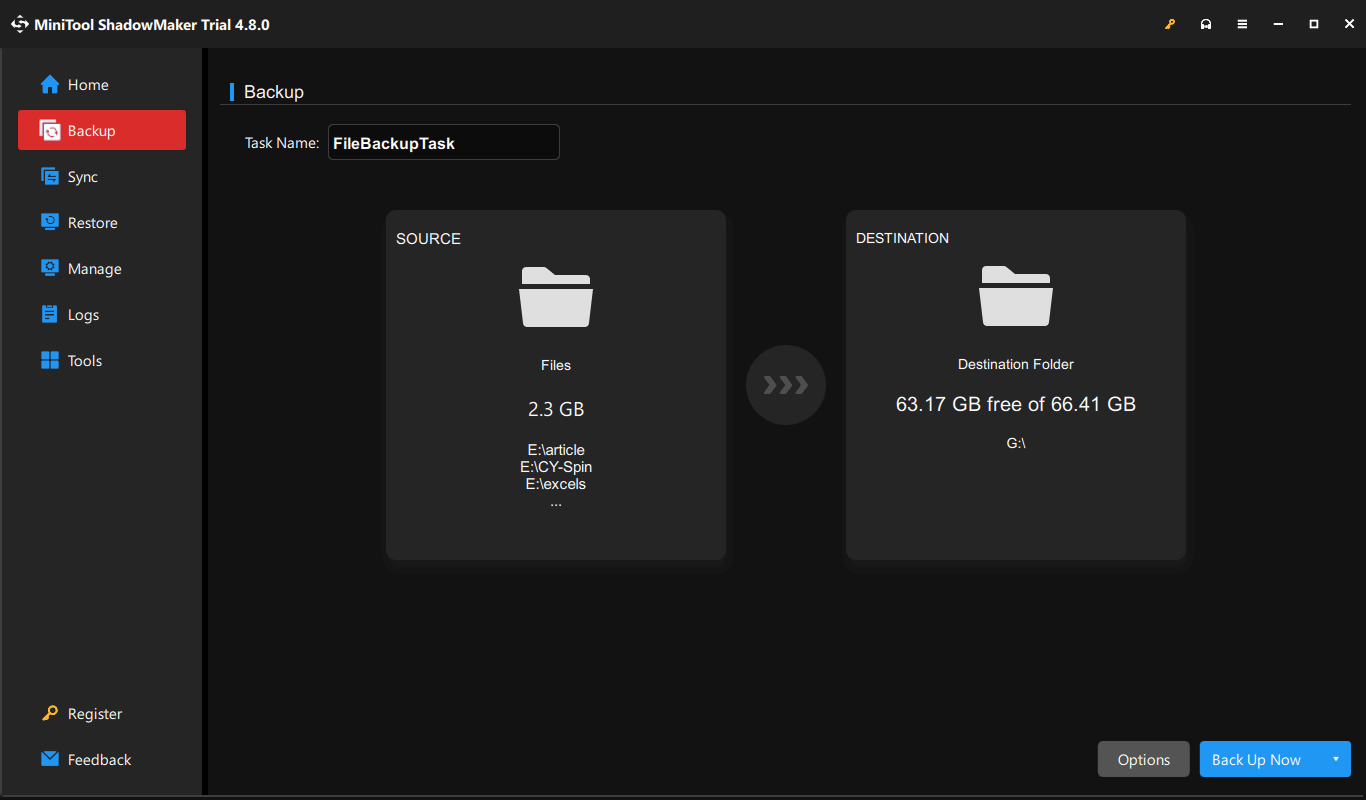
Follow the instructions to back up files to an external hard drive.
Step 1: Connect your external HDD or SSD to a computer.
Step 2: Download, install, and launch MiniTool ShadowMaker.
MiniTool ShadowMaker TrialClick to Download100%Clean & Safe
Step 3: On the Backup page, click SOURCE > Folders and Files > Computer, locate the files or folders you need to back up, and choose them.
Step 4: Select DESTINATION and choose the external drive to store backups.
Step 5: Click Back Up Now to implement the backup task.
Conclusion
The most fundamental difference between an external SSD and an external HDD lies in the internal storage method. This makes them exhibit completely different characteristics in speed, cost, noise, durability, and power. The guide covers detailed information.
Moreover, if you have some issues when backing up data to an external hard drive using MiniTool ShadowMaker, send an email to [email protected].
SSD vs External Hard Drive FAQ
1. Defragmentation
2. Running out of space
3. Disabling TRIM
4. Using for long-term, unpowered archive storage
5. Making SSDs overheated
6. Using unstable power
About The Author

Position: Columnist
Vera has been working at the MiniTool Team for over 10 years as a technical editor and content writer. She mainly focuses on disk and partition management, data recovery, Windows backup and restore, and PC troubleshooting. Through in-depth software testing and hands-on experience, she has helped users solve a wide range of computer problems and better protect their data on Windows devices.
User Comments :