
What Is Password Protected Sharing?
Password protected sharing in Windows is used to protect your data from being accessed by other people without your permission.
Normally, the feature remains turned on by default. With this protection, your shared files, the public folders, and attached printers can be accessed by those who have a local user account and password.
If you choose to turn off password protected sharing, anyone without an account and password on your computer can access your data in those files and folders.
Should You Turn off Password Protected Sharing?
Password protected sharing can play its role in protecting your data from accidental deletion and cyber-attacks. But it’s fine to temporarily turn it off if you need these files to turn open to all other users, no matter whether they have the password and account or not.
If you worry about data security, you can prepare a data backup to avoid data loss. MiniTool ShadowMaker is a free backup software that you can backup files & folders, partitions & disks, and systems. You can use it to perform an automatic backup and configure the backup settings to shorten the time.
Download and install this program by clicking the following button and you can get a free trial version.
MiniTool ShadowMaker TrialClick to Download100%Clean & Safe
How to Turn off Password Protected Sharing?
Method 1: Via Control Panel
You can turn off password protected sharing via the Control Panel which is designed to view and change system settings.
Step 1: Open Search and type Control Panel to open it.
Step 2: Choose Network and Internet > Network and Sharing Center and click Change advanced sharing settings from the left panel.
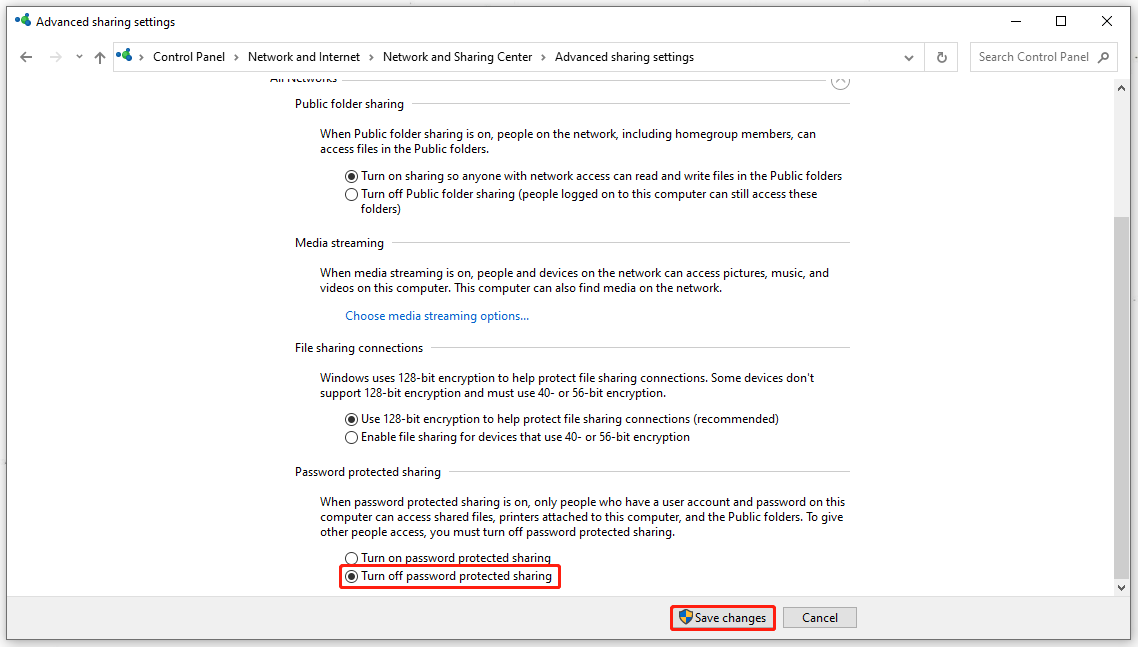
Step 3: Expand All Networks and scroll down to the bottom where you can locate and choose Turn off password protected sharing. Then click Save changes.
Method 2: Via Registry
You can turn off password protected sharing via Windows Registry. Windows Registry is a hierarchical database storing basic settings for a system and applications, helping manage and operate your computer.
Step 1: Open Run and type regedit to enter Windows Registry.
Step 2: Please copy and paste this location in the path bar and press Enter to locate it.
HKEY_LOCAL_MACHINE\SYSTEM\CurrentControlSet\Control\Lsa
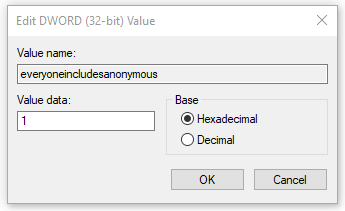
Step 3: From the right panel, locate and double-click on everyoneincludeanonymous and set its Value data to 1. Click OK to save it.
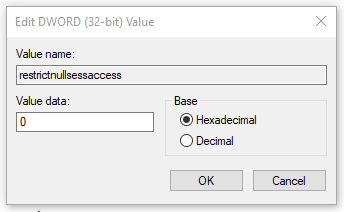
Step 4: Please go to the following location and locate this restrictnullsessaccess registry from the right panel.
Computer\HKEY_LOCAL_MACHINE\SYSTEM\CurrentControlSet\Services\LanmanServer\Parameters
Step 5: Double-click on the registry and set its Value data to 0. Click OK to save it.
Method 3: Via Local Users and Groups
You can turn off the feature via Local Users and Groups by removing the Guest account password.
Step 1: Open Run by pressing Win + R and type lusrmgr.msc to enter Local Users and Groups.
Step 2: Click Users from the left panel and right-click on Guest from the right section to choose Set Password….
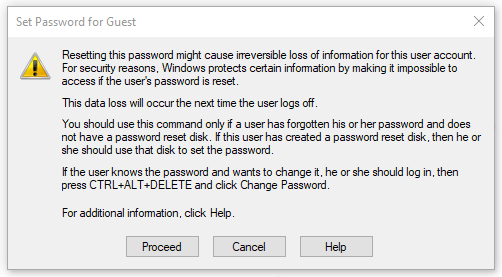
Notice that here you may see a notification that tells you resetting this password can lead to irreversible data loss, so it is necessary to remind you of the significance of data backup with MiniTool ShadowMaker. You can click Proceed to continue the move.
Step 3: In the next box, please don’t type anything as your new password; just leave them empty and click OK.
Bottom Line:
It is advised to keep the password protected sharing feature enabled so that your files and folders can be protected. Or you can use MiniTool ShadoowMaker to back up your data regularly.
User Comments :