
After upgrading to Windows 11, you might discover that you couldn’t find the Refresh button. Is the Refresh button missing in Windows 11? Not exactly. Where is the Refresh button in Windows 11? How to refresh in Windows 11? MiniTool Software will show you the related information in this post.
Where Is the Refresh Button in Windows 11?
Windows 11 is a new Windows version. There are many new features and changes in it. For example, the context menu in Windows 11 has been changed: some users find that the Refresh button is missing in Windows 11.
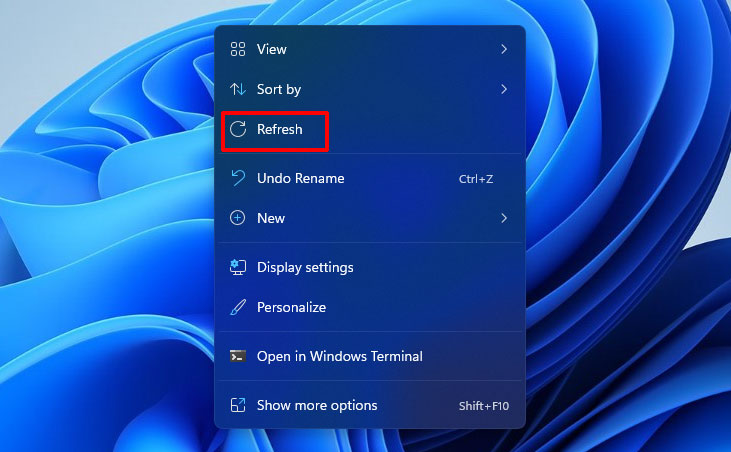
But the Refresh button is not removed in Windows 11. You couldn’t directly see it after right-clicking on the desktop or in File Explorer in the first Windows 11 Insider preview build 22000.51. It comes back soon in the second Windows 11 Insider preview build 22000.65: you could directly see it in the context menu after right-clicking the desktop.
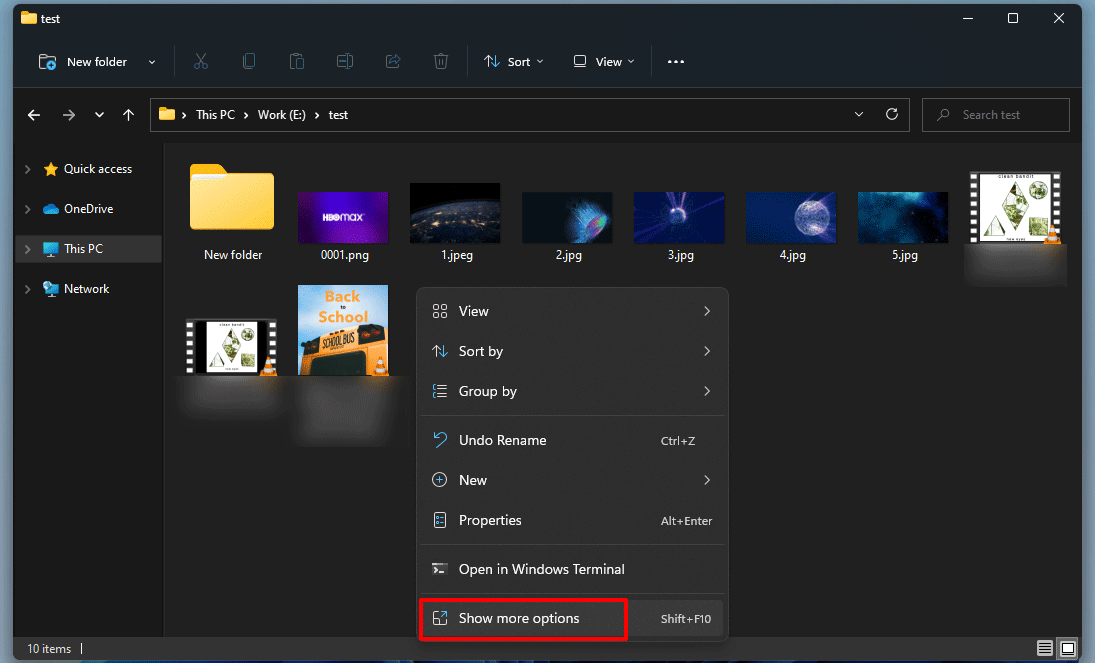
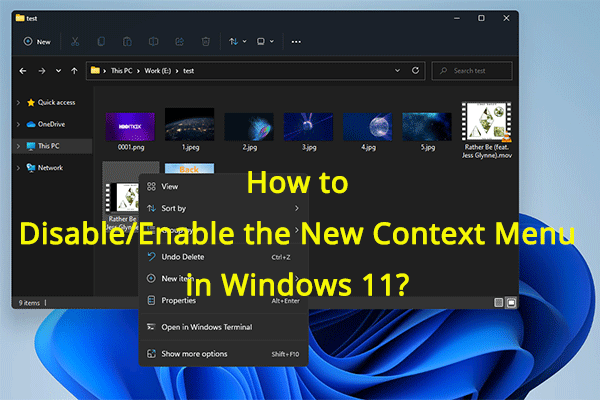
However, you might ask: where is the Refresh button in Windows 11 File Explorer? Or, how to find the Refresh button in Windows 11? It is quite easy to find it. You could right-click in File Explorer, select Show more options, and you could see the Refresh button.
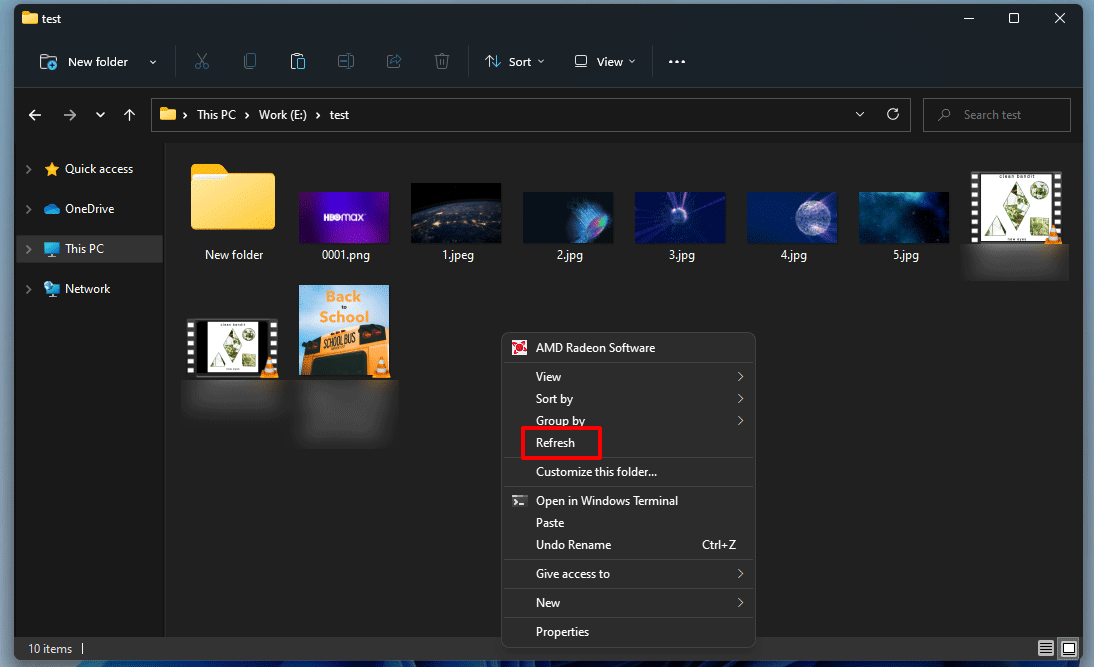
You see the context menu after clicking Show more options is similar to the one in Windows 10. Due to this, you could say that the Windows 10 context menu is not removed in Windows 11. It is just hidden in Show more options.
How to Refresh in Windows 11?
You could use multiple ways to refresh in Windows 11. Here, we will show you 3 easy methods.
Method 1: Use Context Menu
On the Desktop
If you want to refresh the desktop, you could right-click it and select Refresh to refresh it.
In File Explorer
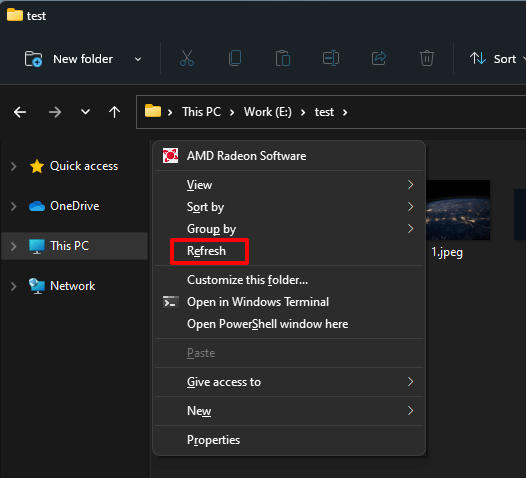
If you want to refresh in Windows File Explorer, you could right-click the empty space in File Explorer, select Show more options, and then select Refresh.
Method 2: Use Keyboard Shortcut
In File Explorer, you could press Shift + F10 to directly call out the old Windows 10 context menu and select Refresh to do the job.
Method 3: Use the F5 Key
The F5 key on the keyboard is used to perform a refresh function on your Windows computer. You could use it to refresh the desktop, refresh the File Explorer, or refresh a webpage on your Windows computer.
This method is very quick. You just need to click one key without doing other operations. If you couldn’t find the Refresh button or the Refresh button is missing, you could just press this key to refresh in Windows 11.
Besides, you could also press Ctrl + F5 at the same time to force reload in Windows 11.
How Can I Get back the Old Windows 10 Refresh Button in Windows 11?
As mentioned above, you could click Show more options after right-clicking on the desktop or in File Explorer to get the old Windows 10 Refresh button. Of course, you could also see the Windows 10-similar context menu.
Wrapping up
Where is the Refresh button in Windows 11? Is it possible to find it and how? After reading this post, you should know the answers. Should you have other issues related to Windows 11, you can let us know in the comments.
About The Author

Position: Columnist
Stella has been working in MiniTool Software as an English Editor for more than 8 years. Her articles mainly cover the fields of data recovery including storage media data recovery, phone data recovery, and photo recovery, videos download, partition management, and video & audio format conversions.
User Comments :