
If your Windows Recycle Bin is missing from the desktop, do you know why and how to get it back? In this post, MiniTool Software will show you the things you can do to get the disappeared Recycle Bin back. On the other hand, if you want to recover permanently deleted files, you can use MiniTool Power Data Recovery, a free file recovery tool.
Windows 10 Recycle Bin Is Missing!
Windows Recycle Bin is a Windows snap-in utility, which is pre-installed on the device. Usually, you can find its icon on the top left side of the screen. It is a location to save the files you have deleted from your computer (not permanently deleted files). If you delete some files by mistake, you can open Recycle Bin and then select your needed files to restore. It gives you the chance to restore deleted files. On the other hand, you can empty Recycle Bin to free up disk space on your computer.
Recycle Bin is an important element on a Windows 10 computer. You may feel worried if Windows 10 Recycle Bin is missing from your computer. Why does this issue happen? You can find the answer in the next part.
Reasons for Windows 10 Recycle Bin Disappeared
Many reasons can cause Windows 10 Recycle Bin missing from the desktop. We collect some main causes as follows:
- Recycle Bin is missing after Windows updates.
- You hide Recycle Bin by mistake.
- You are in the Tablet Mode.
Now, you know why Windows Recycle Bin is missing from your computer. Next, let’s talk about how to restore the Recycle Bin icon.
How to Get Recycle Bin Back on Desktop?
- Restart Your Computer
- Make Windows Show the Recycle Bin Icon
- Show Desktop Icons in Tablet Mode
Fix 1: Restart Your Computer
If the Recycle Bin icon is missing after you upgrade your Windows 10, you can simply reboot your device to see whether it is back. This method can fix the temporary errors that can cause this issue on your computer.
![[Solved!] Skip Recycle Bin for Deleting Files on Windows 10](https://images.minitool.com/minitool.com/images/uploads/2020/07/skip-the-recycle-bin-for-deleting-files-windows-10-thumbnail.jpg)
Fix 2: Make Windows Show the Recycle Bin Icon
When you can’t find Recycle Bin on the desktop, the first thing you should think about is whether it is hidden unexpectedly. You can follow this guide to make a confirmation:
1. Click Start.
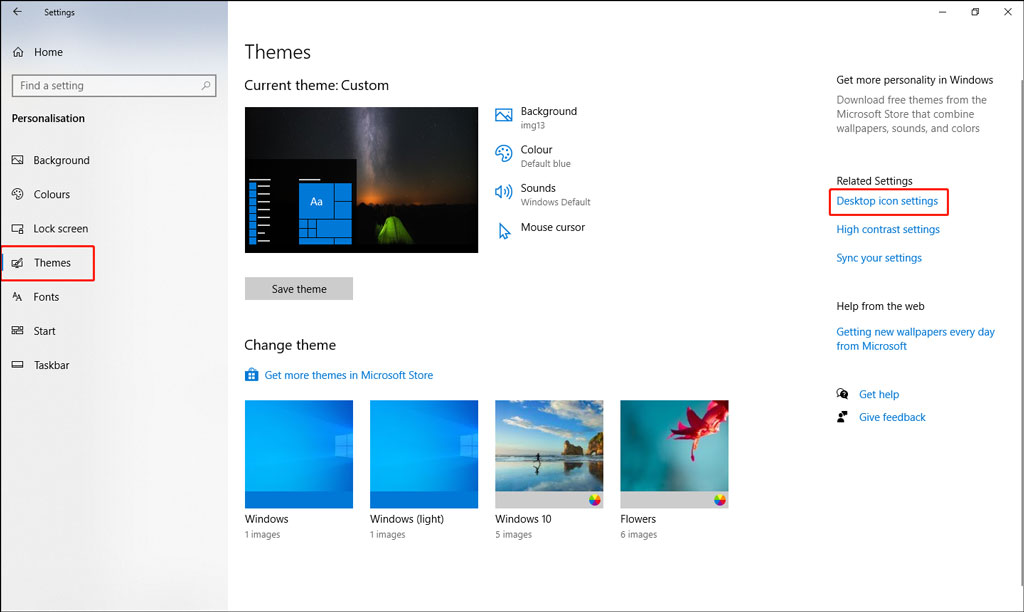
2. Go to Settings > Personalisation > Themes.
3. Click the Desktop icon settings link under Related Settings.
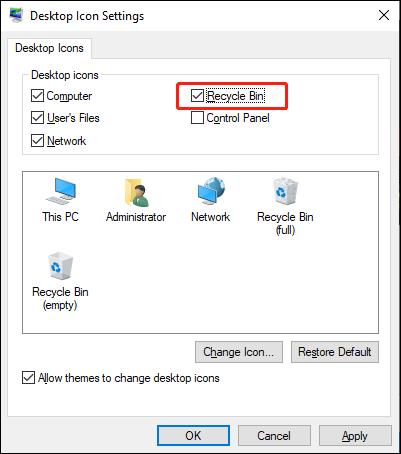
4. On the pop-up interface, you need to check whether Recycle Bin is checked. If not, you should check it.
5. Click Apply.
6. Click OK.
Fix 3: Show Desktop Icons in Tablet Mode
If you have turned on tablet mode on your Windows computer, the desktop icons are hidden by default. If you want to see Recycle Bin again, you need to turn off tablet mode.
1. Click Start.
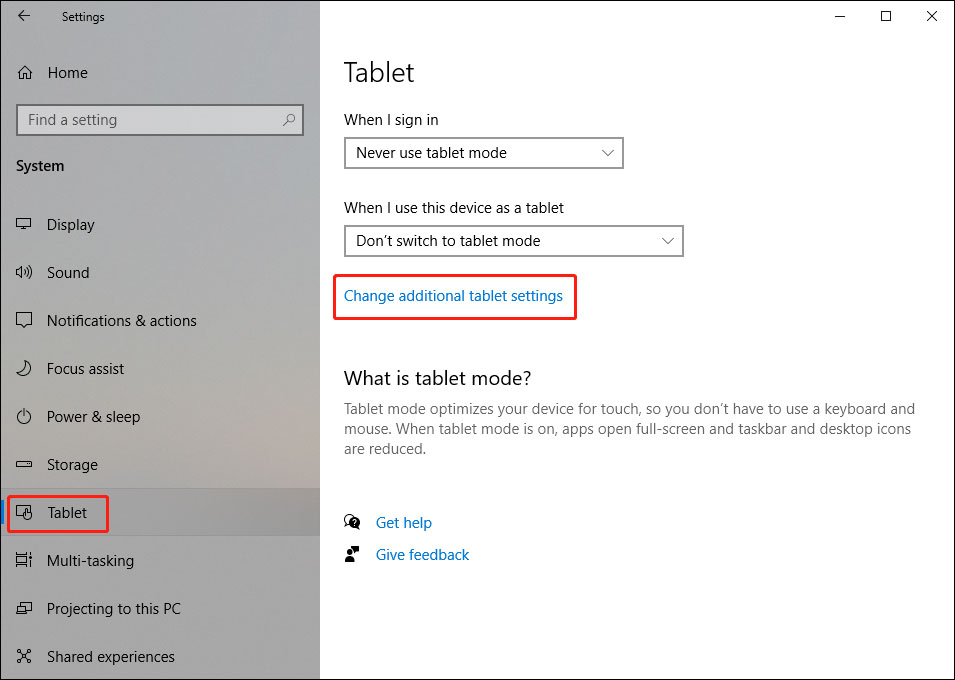
2. Go to Settings > System > Tablet.
3. Click the Change additional tablet settings
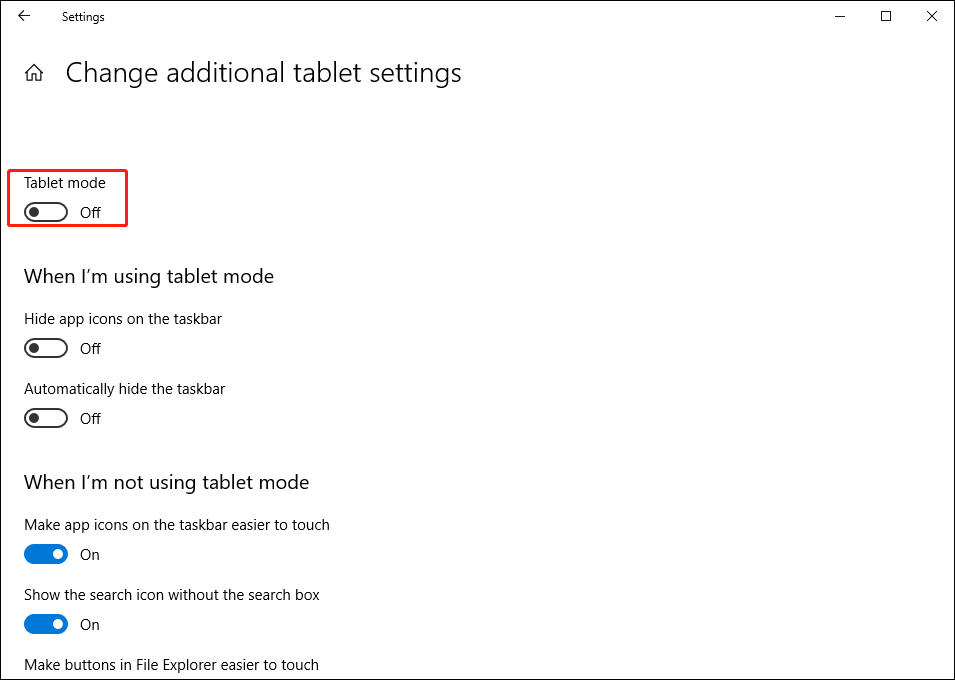
4. Turn off the button for Tablet mode to exit tablet mode.
After these steps, Windows Recycle Bin should be back.
How to Recover Permanently Deleted Files?
If you empty Recycle Bin, the deleted files are permanently deleted. After that, you can’t restore your files from Recycle Bin. To recover your files, you can use MiniTool Power Data Recovery, a professional data recovery software.
With the free edition of this software, you can scan the drive you want to recover data from and get the scan results. You can find your needed files from the scan results and then recover up to 1 GB of files.
MiniTool Power Data Recovery FreeClick to Download100%Clean & Safe
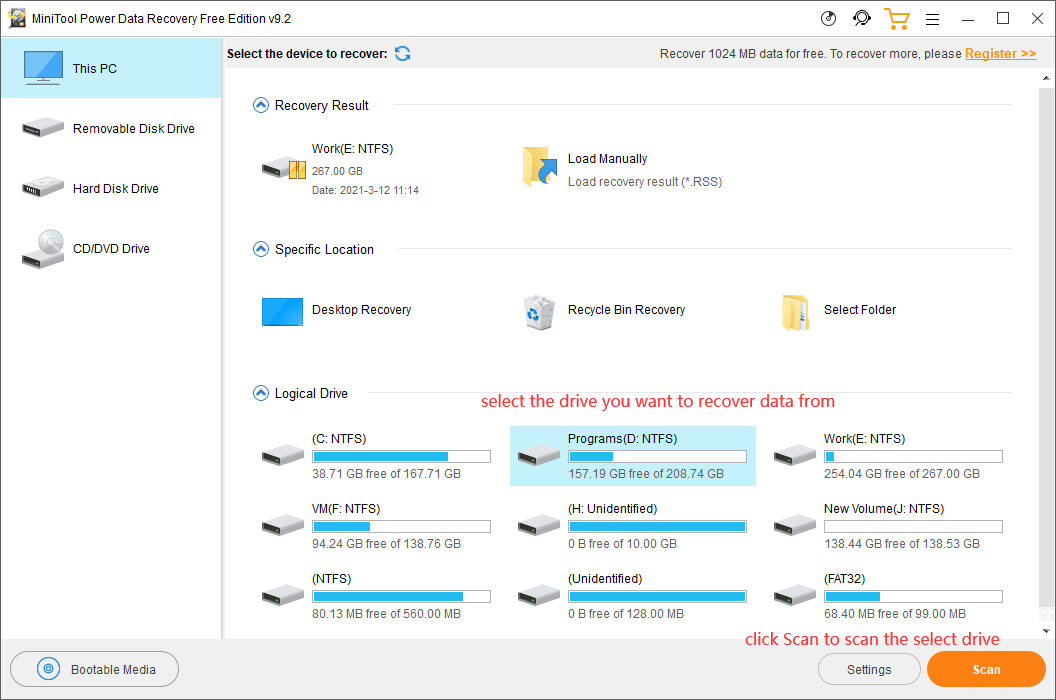
If you want to use this software to recover more files, you need to use a full edition.
Bottom Line
If your Windows 10 Recycle Bin is missing from the desktop, you can try the methods mentioned in this post to get it back. If you want to recover files that are not in Recycle Bin, you can use MiniTool Power Data Recovery.
If you encounter some other related issues, you can let us know in the comments.
About The Author

Position: Columnist
Stella has been working in MiniTool Software as an English Editor for more than 8 years. Her articles mainly cover the fields of data recovery including storage media data recovery, phone data recovery, and photo recovery, videos download, partition management, and video & audio format conversions.
User Comments :