
What Is the 0x0000004E Error Code?
What is the 0x0000004E error code? The error code often appears with a blue screen and a STOP message. It can happen when there are some problems with your system. For example,
- Malware and virus infiltration attack your system files or other configurations.
- Some third-party applications might be interfering with your system.
- Your hardware components get damaged.
- Corrupted or outdated system drivers can make the STOP error code 0x0000004E.

Back Up Your Files with MiniTool ShadowMaker
The 0x0000004E BSOD error can stop you from performing any operations in your system but show you a blue screen. Its varied triggers make the troubleshooting harder to specify and in some cases, you may be trapped in some unrecoverable results, such as data loss and unbootable issues.
In this way, we highly recommend you back up your files to an external hard drive so that you can immediately recover them. Data backup is quite important to prevent system failure or attack vectors.
With the target, MiniTool ShadowMaker, free backup software, can be your better choice for the next backup moves. Download and install the program to get the 30-day free trial version, connect your external hard drive, and click Keeps Trial to get in after opening the program.
MiniTool ShadowMaker TrialClick to Download100%Clean & Safe
Step 1: In the Backup tab, Choose the SOURCE section where you click Folders and Files to choose your wanted data.
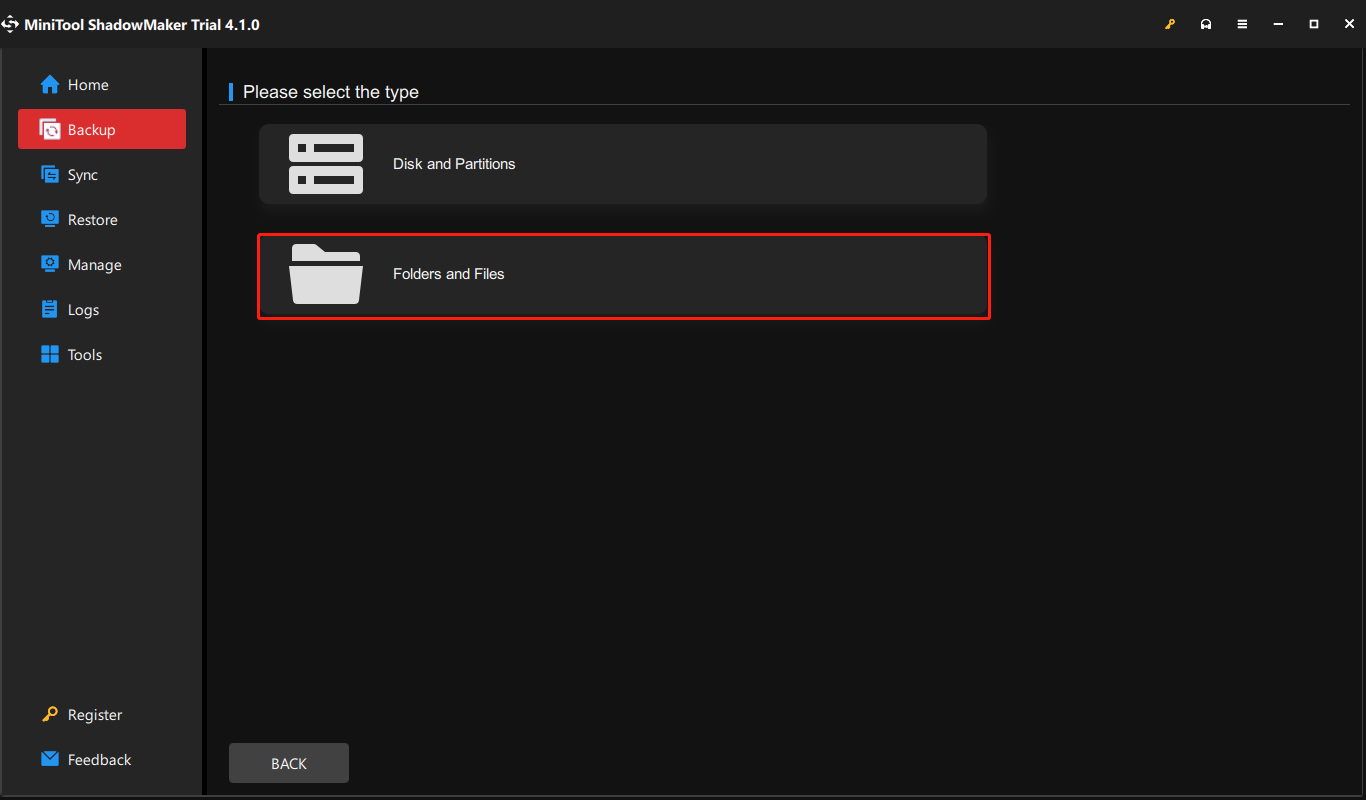
Step 2: Then go to the DESTINATION section to choose the external hard drive. Click Back Up Now to perform the task immediately.
To fix these mentioned situations, you can try the next methods one by one and one of them can help get rid of the 0x0000004E BSOD error.
How to Fix the STOP Error Code 0x0000004E?
Before you start the next method, you can restart the system to see if you can get into the system normally; if you can’t, please boot your system into Safe Mode and then perform the next troubleshooting.
Method 1: Check for System File Corruption
First of all, you can go use a Windows built-in tool – System File Checker – to scan for and restore corrupted Windows system files. Then, here is the way.
Step 1: Open Search by pressing Win + S and type Command Prompt to run it as an administrator.
Step 2: When the window opens, input sfc /scannow and press Enter to execute the command.
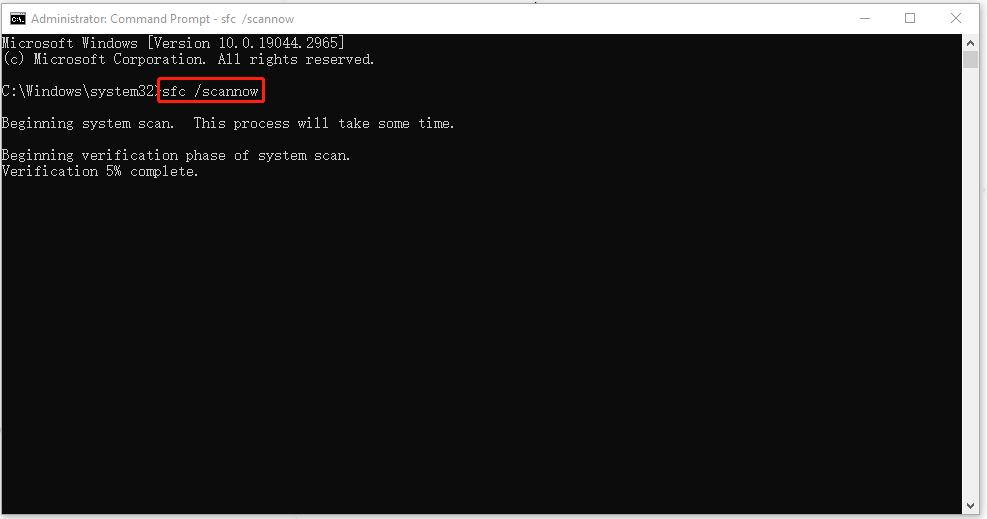
The scan process needs some time and when it finishes, you can close the window and restart to run Command Prompt as an administrator. Then type and execute this DISM command to further repair the file corruption – DISM /online /cleanup-image /restorehealth.
Method 2: Check the System for Viruses & Malware
One of the possible reasons that trigger the 0x0000004E error code is virus or malware infiltration. Even though you have fixed the corrupted system files, to avoid that happening again, please scan your system for possible viruses.
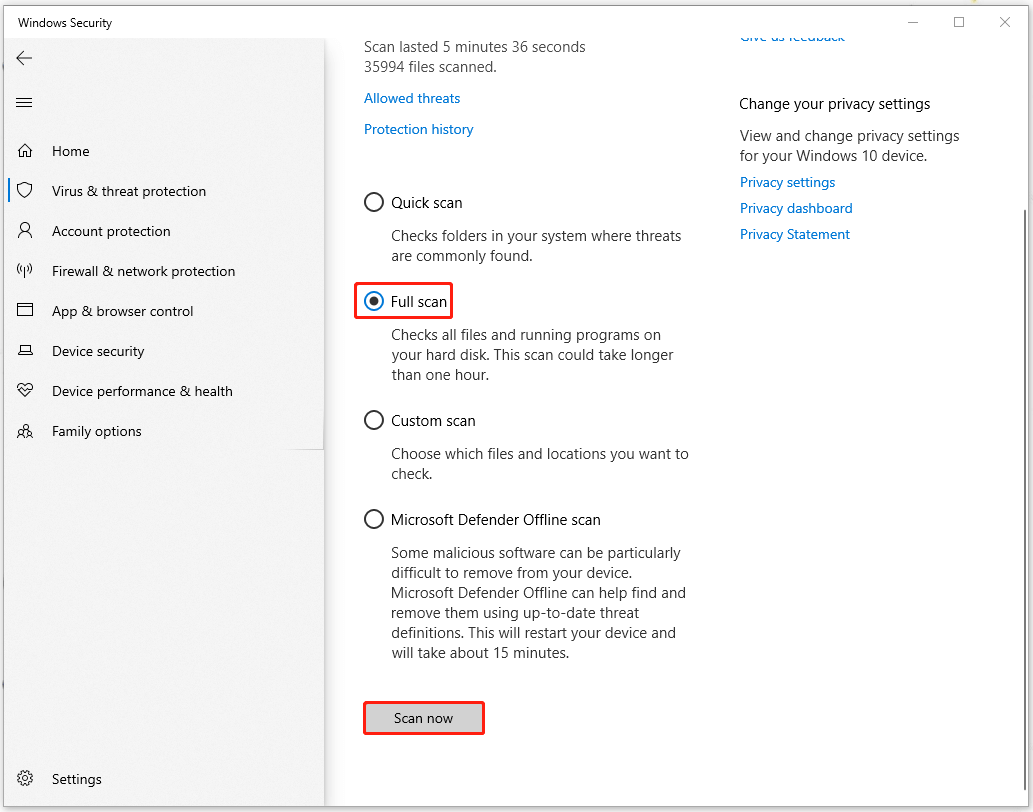
Step 1: Go to Start > Settings > Update & Security > Windows Security > Virus & threat protection.
Step 2: In the pop-up window, click Scan options to choose Full scan and then Scan now.

Method 3: Run Windows Memory Diagnostic
Sometimes, the memory issues can lead to 0x0000004E and you can run Windows Memory Diagnostic to test your computer’s RAM for problems.
Step 1: Open Search and input Windows Memory Diagnostic to open it.
Step 2: Then click Restart now and check for problems (recommended) on the next page.
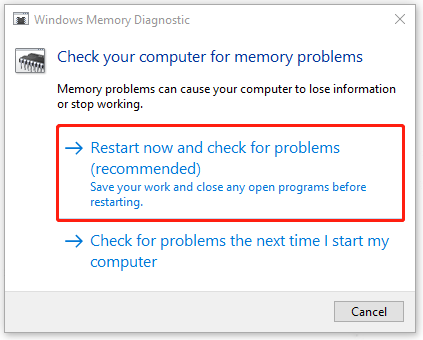
Then your computer will restart and the whole test will cost some time. Once it ends, you can see the results presented on the screen and it will automatically fix any errors found.
Related article: [Solved] Windows Memory Diagnostic Tool Stuck at 1%, 21%, or 99%
Method 4: Check for Your Hard Drive
If your hard drive is corrupted or damaged, you can check for the issues by the following steps.
Step 1: Open File Explorer by pressing Win + E and locate and right-click the C: drive in This PC.
Step 2: Choose Properties from the drop-down menu and go to the Tools tab when a new page pops up.
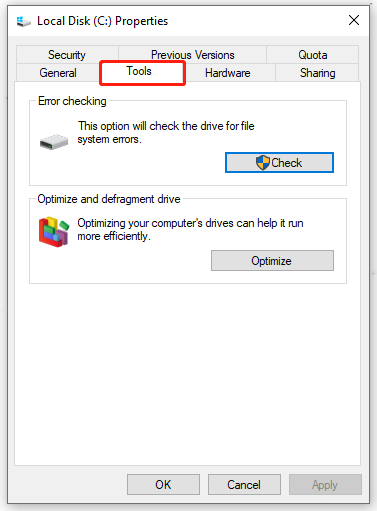
Step 3: Click Check under Error checking and then choose Scan drive.
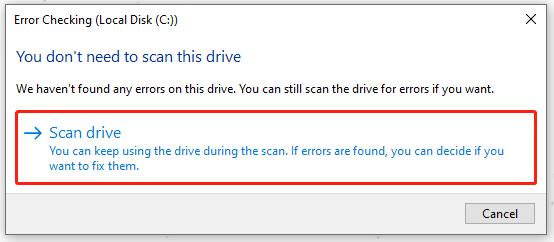
Then please follow the on-screen instruction to finish the work and restart your system to check if the error has been gone.
Related post: [Solved] Error Occurred! A Driver Can’t Load on This Device
Method 5: Update Drivers
You need to keep your drivers up to date. Outdated drivers can make compatibility issues with your system, causing system crashes, such as 0x0000004E.
Step 1: Type update the Windows search bar and open Check for updates.
Step 2: Choose View optional updates and check all the available updates listed to click Download and install.
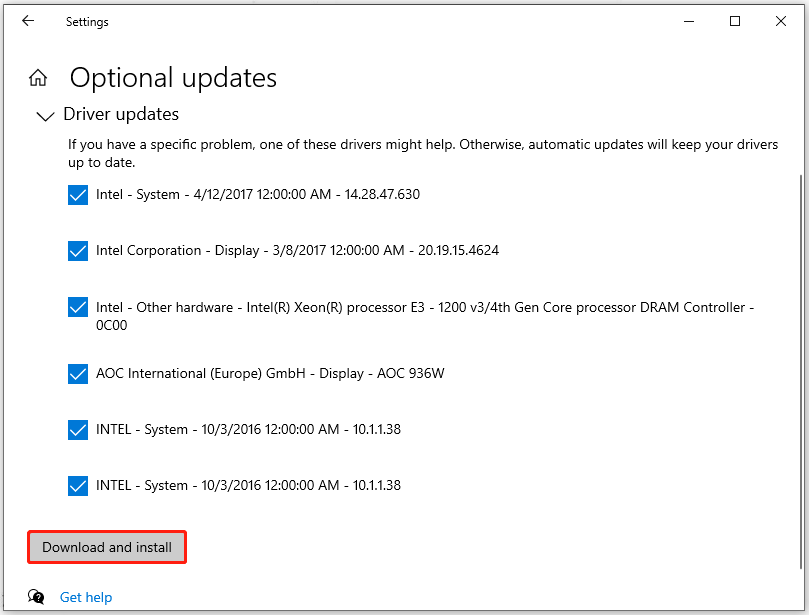
Then reboot your system to see if the 0x0000004E error code persists.
Method 6: Use System Restore
The last method is available for those who have created a system restore point. It can help you turn your system back to the normal state when the point was created.
Step 1: Type control panel in Search and open it.
Step 2: Type recovery in the Control Panel search box and choose Recovery from the results.
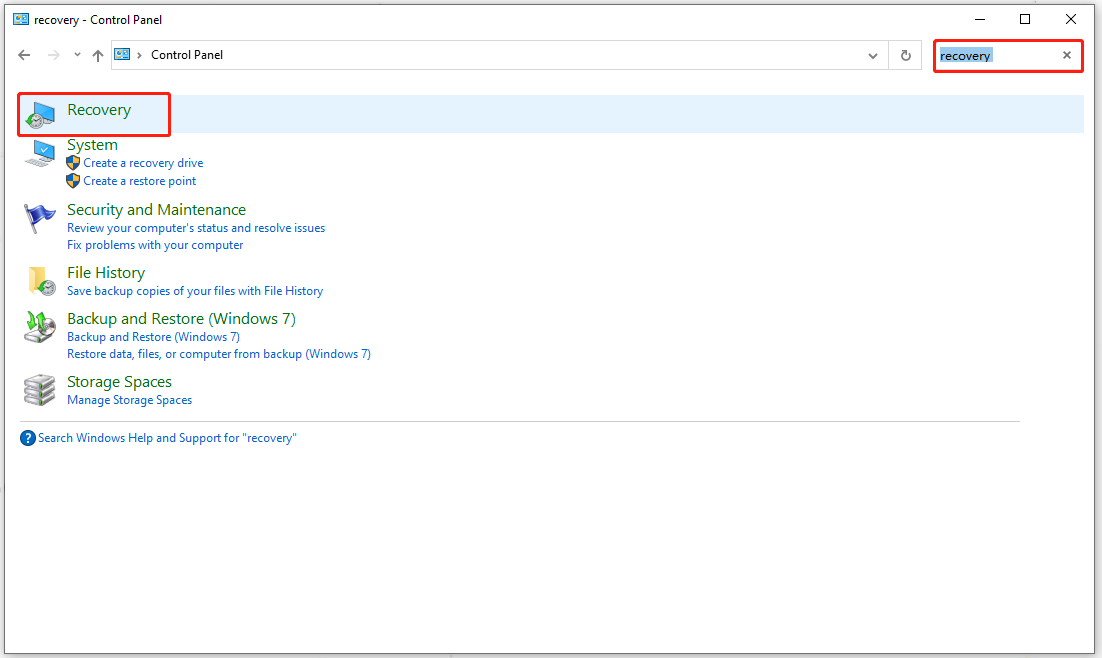
Step 3: Click Open System Restore > Next; then choose the restore point you want to use and follow the on-screen instructions to recover the system.
If you have never created a restore point, another solution is to reinstall Windows. But remember, before you start the reinstallation, please back up your important data in advance, because the process will erase all your existing data in the system.
MiniTool ShadowMaker TrialClick to Download100%Clean & Safe
Bottom Line:
This blue screen issue with 0x0000004E may trouble users a lot. But now, don’t worry. You can follow the above methods to troubleshoot the issue.
If you need any help with this issue, you can leave your message below or contact us via [email protected], and we will try our best to answer that.
User Comments :