
DRIVER PNP WATCHDOG is a blue screen error that can be triggered by corrupted/outdated drivers and other reasons. To fix it, try the methods offered by MiniTool, such as running DISM/SFC/CHKDSK, updating drivers, reinstalling Windows, and other methods.
What Is DRIVER PNP WATCHDOG
The DRIVER PNP WATCHDOG error indicates a critical driver failure and often occurs during startup or updates when a Plug and Play (PnP) device driver misses a deadline.
To be specific, a driver doesn’t respond in time for the PnP operation, causing the watchdog to reboot the system to maintain stability.
What Causes DRIVER PNP WATCHDOG Windows 11/10
This error can arise from various reasons, including:
- Outdated, Incompatible, or Corrupt Drivers: Faulty drivers related to storage (such as Intel RST/Optane), network, or other devices can result in Blue Screen of Death (BSOD) errors.
- Outdated Operating System: An outdated OS may lack compatibility with newer hardware or necessary security updates, leading to blue screen errors.
- Problematic Windows Updates: Recent updates might introduce conflicts or issues with drivers, which can trigger the DRIVER PNP WATCHDOG error.
- Corrupt Windows Installation: A corrupted Windows installation can cause frequent blue screen and startup failure.
- Hardware Conflicts or Issues: Faulty RAM, hard drives, or peripherals can cause conflicts. Newly connected devices may also conflict with existing hardware or the Windows OS.
- Corrupted System Files: Key files necessary for Windows operations may become corrupted.
- Disk Corruption: When there are errors in the file system on the disk, Windows will be unable to read or write critical system files, leading to a blue screen error.
- Incorrect SATA Controller Settings: Windows loads specific storage drivers during boot. If the SATA controller settings are incorrect, it may create a mismatch, preventing Windows from finding the boot drive and resulting in a blue screen error.
- Viruses or Malware Infection: Viruses and malware lead to BSODs by corrupting system files, overloading resources, and interfering with processes or drivers.
- Antivirus and Firewall Issues: Conflicts between antivirus programs or firewalls and the operating system or software may easily result in BSODs.
- Volume Shadow Copy Service Issue: If this service isn’t functioning correctly, it can cause the DRIVER PNP WATCHDOG error.
- Faulty System Services: Faulty system services are essential Windows processes that handle hardware and software interactions. Corrupted services can cause unrecoverable errors, such as the blue screen of death.
- RAM Issues: Faulty or incompatible RAM can lead to data corruption and system instability.
Addressing these issues can help resolve the DRIVER PNP WATCHDOG error, ensuring the system runs more smoothly.
Preparation: Back Up Important Data
Blue screen often signifies a severe system error that can cause system instability, data corruption, or prevent Windows from starting. Therefore, you need to back up your data immediately when you encounter the BSOD error on your PC.
To do that, it is highly recommended to use MiniTool ShadowMaker. It is a professional backup tool that can help you perform data backup and recovery with ease.
If you fail to boot Windows normally, follow these steps to back up your important files.:
# 1. Create MiniTool Bootable Media
Step 1. Connect a USB flash drive to a working Windows computer. Then, download and install MiniTool ShadowMaker on this PC.
MiniTool ShadowMaker TrialClick to Download100%Clean & Safe
Step 2. Open this software and use a license key to upgrade to Pro or higher.
Step 3. Select Tools from the left panel and choose Media Builder.

Step 4. Click WinPE-based media with MiniTool plug-in in the prompted window.
Step 5. Select USB Flash Disk from the list and click Yes to confirm to create a bootable USB drive.

Step 6. Once the creation process is complete, click Finish.
# 2. Boot with the Created USB Bootable Drive
Step 1. Connect the newly created MiniTool USB bootable drive to the problematic computer.
Step 2. Boot your PC into the BIOS menu.
Step 3. Set the boot order to start Windows from the bootable USB drive.
Step 4. In the MiniTool recovery environment, follow the instructions to launch MiniTool ShadowMaker.

# 3. Back up Important Data
Step 1. In the main interface, select Backup.
Step 2. Go to SOURCE andselect Folders and Files. Then, choose the files that you want to back up and click OK.
Step 3. Access to DESTINATION, select a target location to save the backup files, and then click OK.
Step 4. Click Back Up Now and OK sequentially to confirm to execute the backup operation.

Once done, all the selected important data is backed up successfully.
How to Fix DRIVER PNP WATCHDOG Windows 11/10
To remove DRIVER PNP WATCHDOG from Windows 10/11, try booting into Safe Mode, running DISM/SFC/CHKDSK, updating/rolling back drivers, performing System Restore, reinstalling Windows, and other methods.
Boot into Automatic Repair/Safe Mode
If your computer cannot access the Windows desktop because of the DRIVER PNP WATCHDOG blue screen error, it is necessary to boot into Safe Mode. Here are the detailed steps:
Step 1. Start your computer. As soon as the Windows logo appears, press and hold the power button to force a shutdown. Repeat this step two or more times.
Step 2. On the third restart, Windows should boot into the Automatic Repair screen.
Step 3. Select Advanced options > Troubleshoot > Advanced options > Startup Settings and click Restart.

Step 4. Press the 5 or F5 key for Safe Mode with Networking.
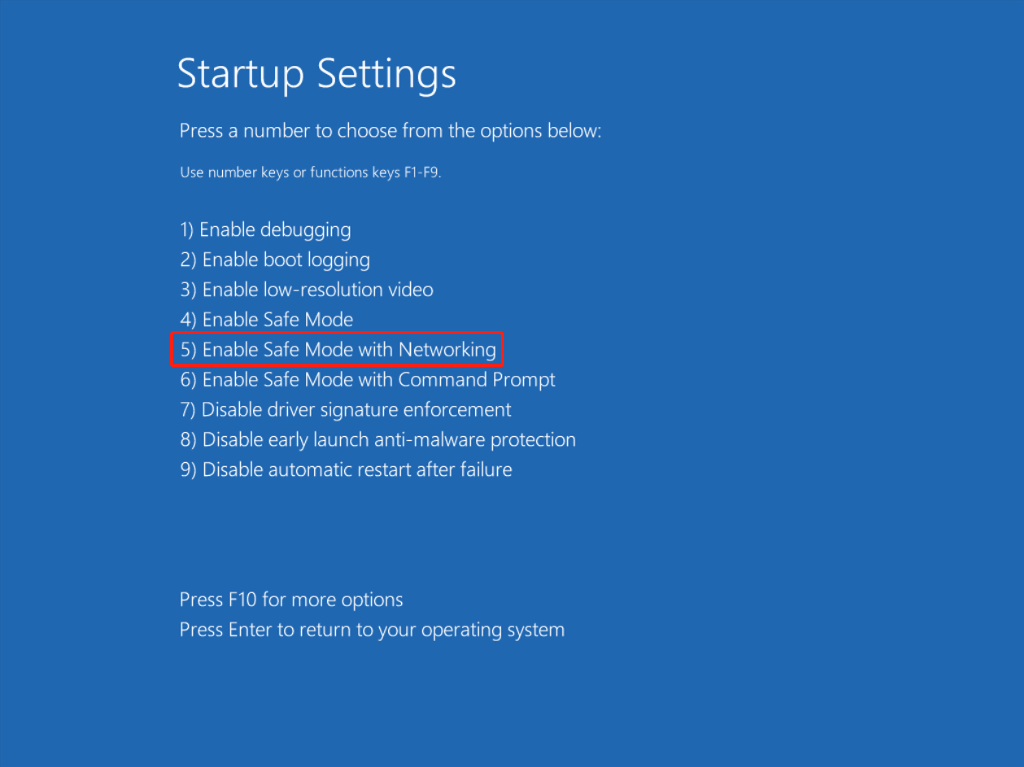
Then, take some troubleshooting steps, such as running DISM & SFC scans, checking disk errors, updating drivers, and so on.
If Windows Won’t Boot, Try:
# 1. Run DISM and SFC
Corrupted system files can lead to various problems, including slow performance, application crashes, freezing, and severe issues, such as the DRIVER PNP WATCHDOG BSOD error.
SFC and DISM are built-in Windows command-line tools that repair corrupted or missing system files, enhancing system stability.
Hence, try performing DISM and SFC to troubleshoot the error with the following steps:
Step 1. Press Win + S to open the Search window.
Step 2. Type cmd, right-click Command Prompt, and then select Run as administrator.
Step 3. In the elevated Command Prompt window, start a DISM scan by executing the commands one by one below:
- DISM.exe /Online /Cleanup-Image /ScanHealth
- DISM.exe /Online /Cleanup-Image /CheckHealth
- DISM.exe /Online /Cleanup-Image /RestoreHealth

Step 3. Once the process is complete, type sfc /scannow and press Enter.

# 2. Run CHKDSK
File system errors on the disk can cause inaccessible drives, corrupted files, slow performance, application crashes, data loss, and even system instability, such as the DRIVER_PNP_WATCHDOG error.
In this case, perform the CHKDSK command to scan hard drives for logical file system errors and bad sectors. Here’s the guide:
Step 1. Run Command Prompt as administrator.
Step 2. Type chkdsk /f /r and press Enter.
- /f: This parameter fixes errors on the disk.
- /r: This parameter locates bad sectors on the hard disk and recovers any readable information, which is good for fixing drive errors causing BSODs.

Step 3. Type Y and press Enter to confirm that you’d like to perform the disk check next time you restart your computer.
Step 4. Restart your PC, and the disk check will start.
Step 5. Once the process is completed, check if the BSOD error has been resolved.
# 3. Update/Rollback Drivers
If the BSOD error appears after connecting a new device, check its compatibility with the Windows system. Here’s the guide on updating drivers and rolling back drivers:
Step 1. Press Win + X to open Quick Link and select Device Manager from the menu.
Step 2. Expand one category that contains the outdated/incompatible driver.
Update Driver:
- Right-click the outdated driver.
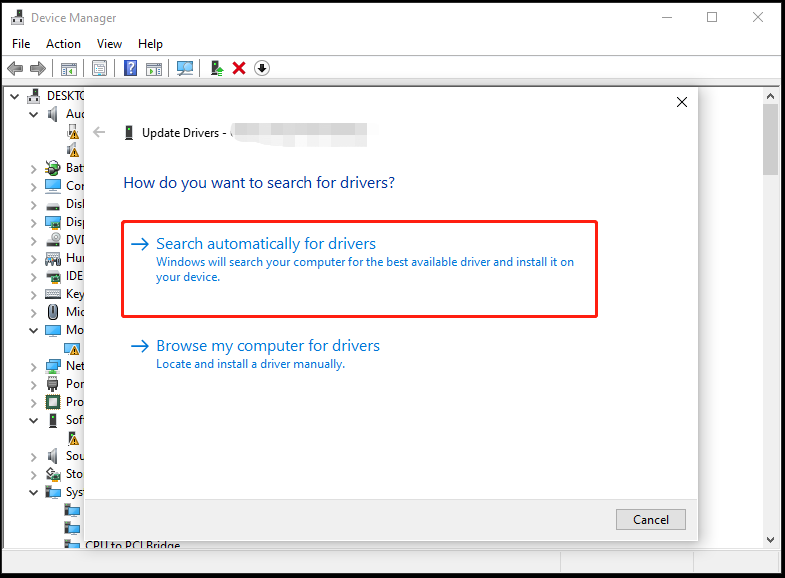
- Select Update driver.
- Choose Search automatically for drivers.
- Follow the on-screen guide to complete the process.
Roll Back Driver:
- Right-click the incompatible driver.
- Select Properties.
- Go to the Driver tab.
- Click Roll Back Driver.
- Follow the on-screen instructions to complete the process.
# 4. Uninstall Malicious Apps and Updates
If the DRIVER PNP WATCHDOG boot loop occurs after installing certain applications or a recent Windows update, uninstall the app or update.
Uninstall Windows Updates:
Step 1. Open the Search window, type control panel, and press Enter.
Step 2. In Control Panel, set View by to Large icons, and select Programs and Features from the list.

Step 3. Click the View installed updates link from the left panel.
Step 4. Find the latest installed Windows update from the list, click Uninstall next to the latest update, and then follow the on-screen guide to complete the process.

Uninstall Apps:
Step 1. Open Control Panel and enter the Programs and Features page.
Step 2. Select the app you believe may be malicious.
Step 3. Right-click it and choose Uninstall.
Step 4. Follow the on-screen instructions to complete the process.
# 5. Check/Change SATA Mode
The stop code DRIVER PNP WATCHDOG is also related to incorrect SATA controller settings in BIOS. To resolve the issue, change the SATA controller settings in BIOS with the following steps:
- Boot your PC into the BIOS menu.
- Enter the Advanced or Main tab.
- Find an option like Storage Configuration, IDE Configuration, or Drive Configuration.
- Select it and press Enter.
- Locate and select an option like Configure SATA, SATA Mode, or SATA Configuration. Then, press Enter.
- Change that option to IDE.
- Save changes and exit BIOS.
# 6. Reset BIOS/UEFI Settings
Some people report that resetting BIOS/UEFI settings helps them fix the DRIVER PNP WATCHDOG error in Windows 11/10 successfully. If you want to have a try, please follow:
- Boot the computer to the BIOS menu.
- Look for an option like Load Setup Defaults, Restore Settings, or Load Optimized Defaults.
- Select it and confirm the operation.
# 7. Perform a System Restore
System Restore reverts your computer’s system files, installed applications, registry, and settings to an earlier point in time.
If you have created restore points before you experience the blue screen error, try performing a system restore to fix it. Here’s how to do that:
- Enter Safe Mode.
- Press Win + R keys to open Run.
- Type rstrui.exe in the box and press Enter.
- Click Next, and you can find all the restore points you have created on your computer.
- Select one restore point and click Next.
- Follow the on-screen instructions to complete the restore process.
# 8. Reset/Reinstall Windows
If there are damaged, missing, or altered essential system files or settings on your PC, it’s easy to encounter the DRIVER PNP WATCHDOG error. In this case, restore the system to its factory settings.
To do that, there are two options: One is Reset PC, and the other is Reinstall Windows.
If Windows Can Boot, Try:
# 1. Perform Full Virus Scan
Malware or viruses can also trigger the stop code DRIVER PNP WATCHDOG. In this circumstance, try performing a complete scan via Windows Security to fix the error. Here’s the tutorial:
Step 1. Open the Search window, type windows security, and press Enter.
Step 2. Select Virus & threat protection in the prompted window. Then, click Scan options.

Step 3. In the Scan options page, select Full scan and click Scan now.

Step 4. Once the virus scanning process is complete, enter the Protection history page to choose a proper action for the found threats.
# 2. Check Volume Shadow Copy Service
The Volume Shadow Copy service is responsible for managing and implementing Volume Shadow Copies, which is used for backup and other purposes. If this service is not functioning properly, it can lead to significant issues, such as the DRIVER_PNP_WATCHDOG BSOD error.
In this case, check and reset the Volume Shadow Copy service with the following steps:
Step 1. Open Run, type services.msc, and click OK.
Step 2. Find Volume Shadow Copy from the services list and double-click it.
Step 3. Set Startup type to Automatic, and ensure the Service status is Running. Then click Apply and OK to save your changes.

# 3. Adjust System Services
When a system service is faulty, the DRIVER PNP WATCHDOG BSOD error can occur. In this situation, try adjusting the system services with the following steps:
Step 1. Run Command Prompt as an administrator.
Step 2. In the elevated Command Prompt window, type the commands below in turn and press Enter.
- net stop wuauserv
- net stop cryptSvc
- net stop bits
- net stop appIDsvc
Step 3. Once the process is complete, close the window.
Step 4. Press Win + E to open File Explorer and navigate to this path: This PC > Local Disk (C:) > Windows > System32 > Catroot2.
Step 5. Right-click on Catroot2 and rename it to Catroot2.old.
Step 6. Run the following commands:
- net start wuauserv
- net start cryptSvc
- net start bits
- net start msiserver
- net start appIDsvc
Step 7. Exit the window. Then, press Win + X to open Quick Link and select Terminal (Admin).
Step 8. Type wuauclt.exe /updatenow and press Enter.
To Sum Up
We list the possible reasons for the DRIVER PNP WATCHDOG error and provide some helpful methods to troubleshoot it. If you encounter such a blue screen error in Windows 10/11, follow the above methods to address it.
Moreover, if you have some issues when backing up data using MiniTool ShadowMaker, send an email to [email protected].
DRIVER PNP WATCHDOG FAQ
This allows the system to easily adapt to new hardware and manage resources like memory and IRQs, simplifying the installation process.
About The Author

Position: Columnist
Charlotte is a technology columnist with a strong focus on the Windows operating system, specializing in disk management, backup, and data recovery. She is passionate about analyzing computer errors, identifying root causes, and delivering practical solutions. In her free time, she stays updated on the latest developments in computer systems and hardware while continuously learning new technologies to broaden her expertise. Her writing style is clear and easy to understand, making complex technical topics accessible even to users with limited computer knowledge.
User Comments :