
An old laptop running slow is a common issue. This guide covers 9 effective ways to make an old laptop faster, including uninstalling unnecessary apps, running Disk Cleanup, and upgrading to an SSD. These practical fixes can improve laptop performance and reduce lag.
Quick Answer: How to Speed up an Old Laptop
If your old laptop is running slowly, try these effective ways to speed it up:
- Uninstall unused programs
- Stop startup applications
- Delete unnecessary files
- Run Disk Cleanup
- Defragment your hard drive
- Disable graphics and animations
- Scan for viruses and malware
- Upgrade HDD to SSD
- Add more RAM to the laptop
It is easy to improve laptop performance by 30% to 70% without purchasing a new device. If your budget allows for a hardware upgrade, switching to an SSD will deliver the most noticeable performance boost.
Why Is Your Old Laptop Running Slow?
Before attempting to make an old laptop faster, understanding the causes of laptop running slow is essential.
| Symptom | Possible cause |
| Slow boot times | Too many startup programs |
| Slow loading speeds | Using an HDD or low storage space |
| Poor multitasking or frequent freezing | Insufficient RAM |
| Sluggish performance, weird pop-ups, or sudden crashes | Malware or viruses |
| Overheating | Dust buildup |
| Slow browser performance | Excessive tabs or extensions |
How to Speed Up an Old Laptop
Quick Comparison of Laptop Speed-Up Methods
| Method | Cost | Difficulty | Best for | Performance gain |
| Uninstall unnecessary programs | Free | Easy | Low disk space and high CPU/RAM usage | Medium |
| Disable startup applications | Free | Easy | Slow startup times | Medium |
| Delete unnecessary files | Free | Easy | Nearly full drives | Medium |
| Run Disk Cleanup | Free | Easy | Temporary files | Low to Medium |
| Defragment a hard drive | Free | Easy | HDD-based laptops | Low to Medium |
| Disable graphics and animations | Free | Easy | Older hardware | Low to Medium |
| Scan for viruses and malware | Free | Easy | Unexpected slowdowns or suspicious activity | High |
| Upgrade HDD to SSD | Moderate | Medium | Laptops still using an HDD | Very high |
| Add more RAM | Moderate | Medium | Heavy multitasking and low memory | High |
Now go through these methods in detail, and apply the ones that match your specific situation to improve laptop performance.
Here is a quick video guide:
#1. Uninstall Unused Programs
Recommended for: Laptops with limited storage space or too many installed applications.
On the laptop, there may be many programs to be installed but not be used frequently. These apps can slow down the machine and even use previous system resources. Even sometimes they run quietly in the background.
To speed up your laptop, go to uninstall these unnecessary programs. Here take Windows 10 as an example.
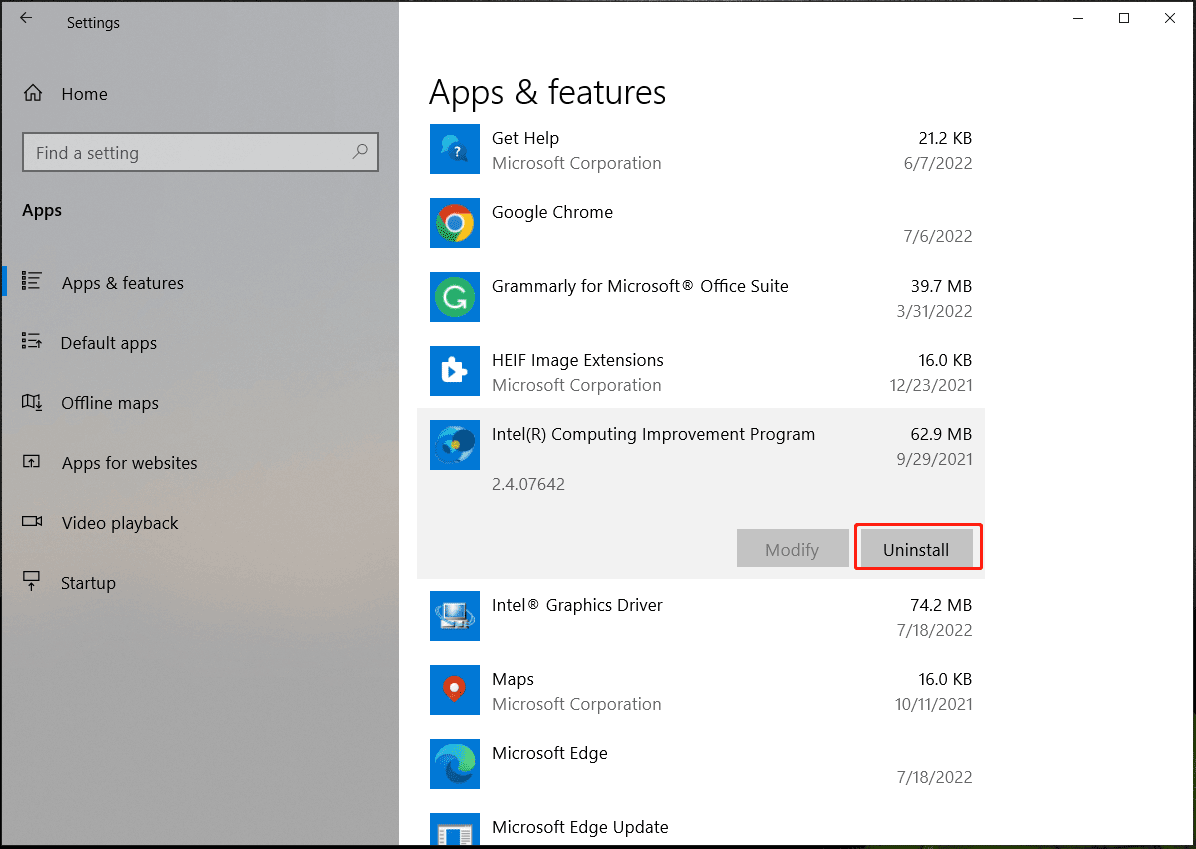
Step 1: Click the Start icon and go to Settings > Apps.
Step 2: In the Apps & features tab, you can view a list of the applications you have installed. Just locate the one you don’t use and click the Uninstall button to remove it. Repeat this step to remove all the unused programs.
#2. Stop Programs Running at Startup
Recommended for: Laptops that take a long time to boot or load the desktop.
Many programs are designed to launch by itself when the laptop starts up, which can slow down your PC. The laptop may take much time to boot to the desktop. Some programs may be the ones you want to run during startup like antivirus, but some are not necessary. So, you need to prevent programs from opening at startup.
Here is how to speed up an old laptop in this way.
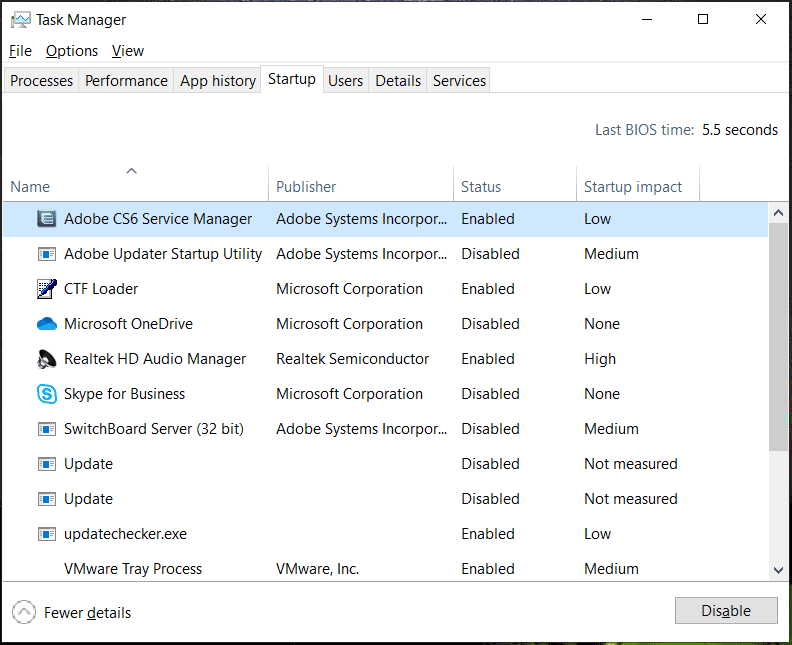
Step 1: Right-click on the Taskbar and select Task Manager in Windows 10.
Step 2: In the Startup tab, locate the one that has been enabled at startup and click Disable. Do this for many programs.
#3. Delete Unnecessary Files
Recommended for: Laptops with low available disk space.
If there are many unnecessary files but you don’t remove them, your PC may get cluttered, causing the PC performance to be poor, especially when you dela with large files like high-resolution images, videos and audio files. To make an old laptop faster, delete some unnecessary files. Besides, empty Recycle Bin to free up disk space.
Additionally, remove duplicate files from your laptop to free up space. MiniTool Partition Wizard, a professional partition manager, offers the Duplicate Cleaner feature to delete duplicate files.
#4. Run Disk Cleanup
Recommended for: Laptops with a large number of temporary files.
In Windows, there is a tool called Disk Cleanup that can be used to remove some junk files and temporary files which may accumulate over time. If your laptop runs at a slow speed, you can run Disk Cleanup to remove junks. See how to speed up an old laptop in this way:
Step 1: Type Disk Cleanup to the search box and click it to open this app.Step 2: Choose the drive you want to clean up and here we choose C, then click OK.
Step 3: Click Clean up system files and check the files to delete.
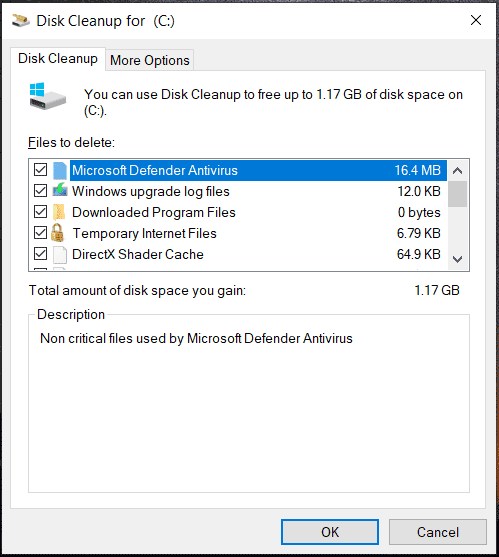
Step 4: Click OK > Delete Files.
#5. Defragment Your Hard Drive
Recommended for: Laptops using a traditional HDD with more than 10% fragmentation.
Files on your hard drive may become fragmented as time goes on. This can cause the laptop to slow down since it needs to check for the debris in multiple places. To speed up this machine, disk defragmentation is necessary since it can put those pieces together to let the system run efficiently.
You only need to defragment your traditional hard drive. If your laptop uses an SSD, skip this tip.
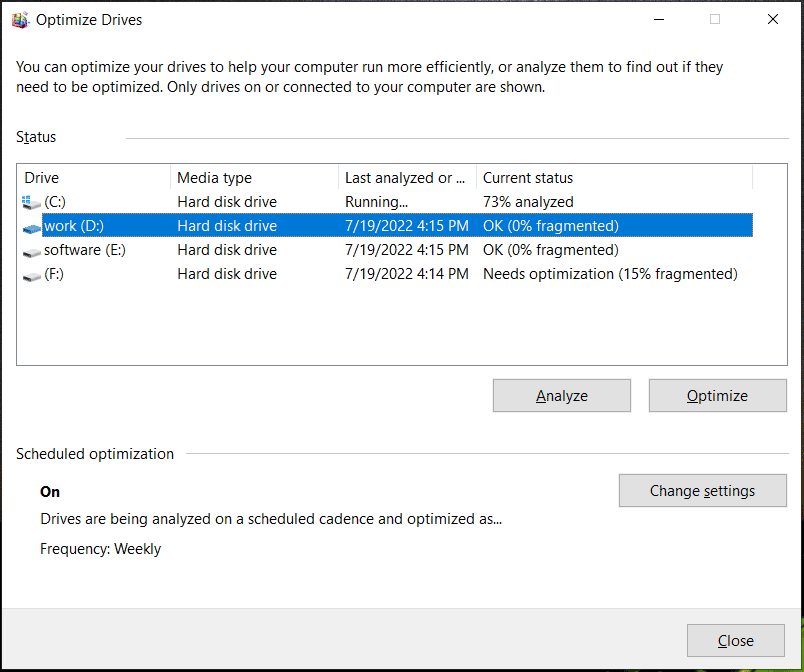
Step 1: Type defrag to the search box in Windows 10 and click Defragment and Optimize Drives.
Step 2: In the Optimize Drives window, select a drive and click the Optimize button to start the defrag operation. Do this thing for all the drives.
#6. Disable Graphics and Animations
Recommended for: Older laptops with limited RAM or entry-level processors.
Some animations are offered in some versions of Windows to give you a cool user experience. However, they may take up many resources in your laptop and make it slow. So, disable them via the following guide:
Step 1: Launch Control Panel and click System and Security > System > Advanced system settings to open the System Properties window.
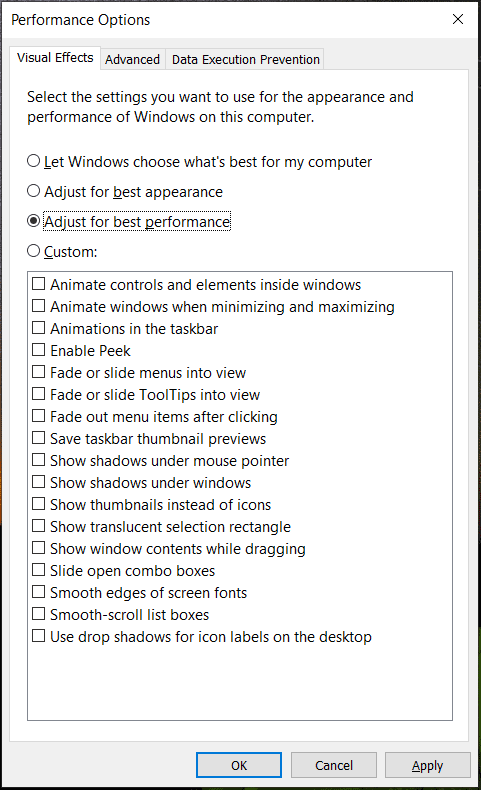
Step 2: Click on the Settings button from Performance to open the Visual Effects tab.
Step 3: Check the option of Adjust for best performance.
Step 4: Save the change by hitting Apply > OK.
#7. Scan for Viruses and Malware
Recommended for: Laptops that suddenly become sluggish or show unusual behavior.
Some viruses and malicious software may damage your PC but some can slow down your device. Thus, we recommend running antivirus software regularly to scan for the system and remove these threats.
In Windows 10, the built-in antivirus program is Windows Security and let’s see how to speed up an older laptop by running the tool to remove viruses and malware.
Step 1: Go to Settings > Update & Security > Windows Security > Open Windows Security.
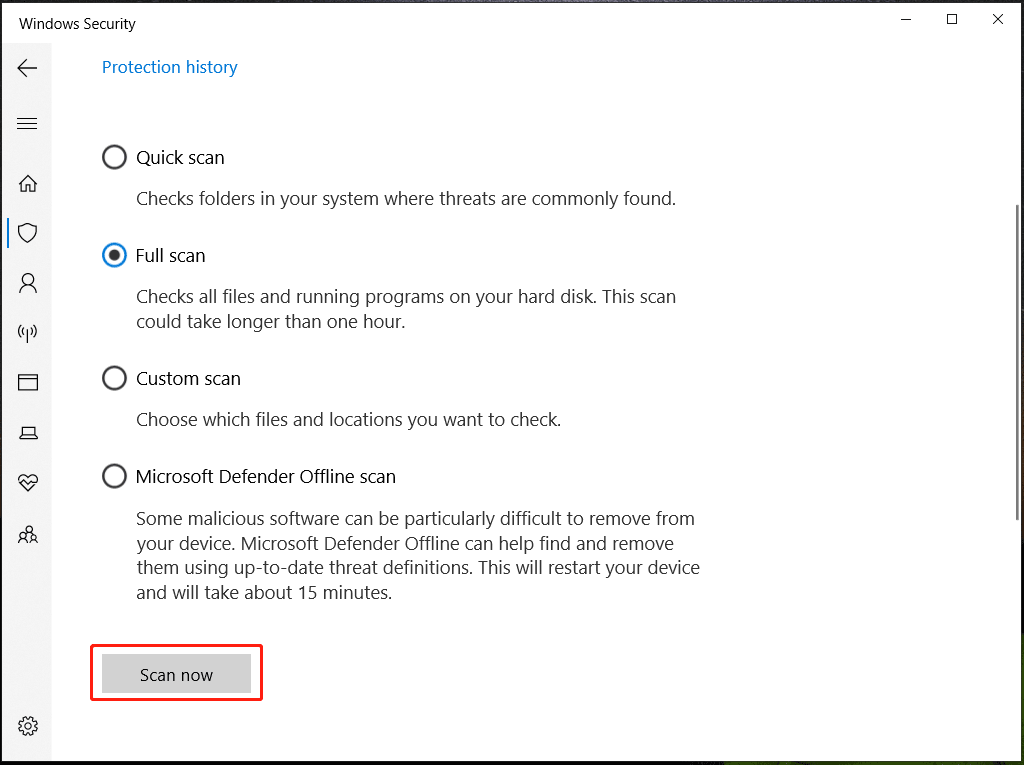
Step 2: Click Virus & threat protection > Scan options, select a scan method and click Scan now to begin the scan.
Sometimes you run into the error “Threat service has stopped. Restart it now” in the Virus & threat protection section. To find solutions, refer to our previous post – How to Fix Threat Service Has Stopped Restart It Now in Win10/11.
Other Software Tweaks
How to make old laptop faster or how to make an old laptop like new? In addition to the above software tweaks, there are some other tips you can try:
- Extend the Laptop’s Life
- Update Device Drivers
- Clear Browser’s Cache
- Adjust Your Power Options
- Find Programs That Eat up Resources and Close Them
- Close System Tray Programs
- Reinstall Windows
If you decide to reinstall Windows, we recommend using free backup software – MiniTool ShadowMaker to back up your important files to avoid data loss.
In addition to these tips to make your laptop faster, you can upgrade some computer components to speed up the older laptop and the common two operations are using an SSD and RAM upgrade. In the following, we will show you some details.
#8. Upgrade to an SSD
Recommended for: Laptops still running on a traditional hard drive.
Upgrading an HDD to an SSD is often the most effective way to speed up an old laptop.
Compared to an HDD, an SSD delivers fast speeds, helping boot the device in seconds and load apps without any delay. During video/photo editing or games, you can have a smooth experience.
Check the comparison table of HDD vs SSD:
| Feature | HDD | SSD |
| Boot speed | Slow | Very fast |
| App launch | Slow | Fast |
| Reliability | Lower | Higher |
| Noise | Audible | Silent |
| Durability | Fragile | Highly durable |
For an SSD upgrade, the effective option is to clone an HDD to an SSD.
This can help to migrate all the data including Windows files, personal data, settings, etc. from the original disk to an SSD and you can continue using the same system with the same settings.
MiniTool ShadowMaker can be a professional hard drive cloning software. Its Clone Disk feature supports cloning a hard drive to an SSD/HDD without reinstalling the operating system.
MiniTool ShadowMaker TrialClick to Download100%Clean & Safe
Step 1: Connect your SSD to the laptop via an adapter or enclosure.
Step 2: Install and launch MiniTool ShadowMaker on your laptop.
Step 3: Navigate to the Tools tab and choose Clone Disk.
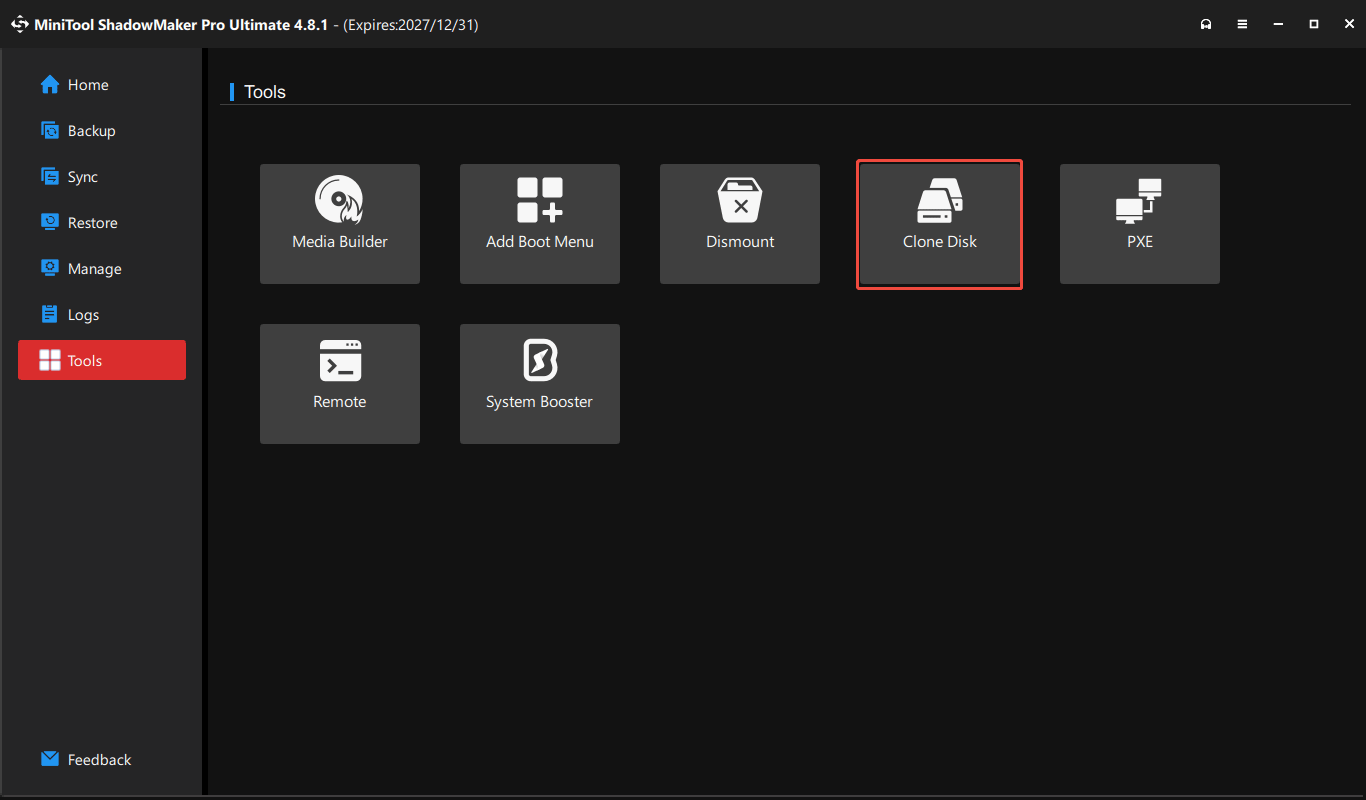
Step 4: Select the HDD as the source drive and use the connected SSD as the target drive.
Step 5: Begin the cloning process.
Once completed, shut down your laptop, open its back side, remove the HDD, and put the SSD back in its original place.
Then, you can boot the laptop from the SSD with improved speed and performance.
#9. Add More RAM to Your Laptop
Recommended for: Users who frequently multitask or run memory-intensive applications.
How to speed up an old laptop or how to make old laptop faster? Adding more memory to the machine is a good tip you can try.
The old laptop may have limited memory that cannot meet the demands of modern apps. Besides, if you run many apps at the same time but the RAM is not enough, your PC cannot finish tasks. Adding more RAM can boost it to some extent.
SSD vs RAM: Which Should You Upgrade First?
In most cases, upgrading from an HDD to an SSD should be the priority, especially when the device takes a long time to boot or load apps.
If you frequently run multiple programs at the same time or perform memory-intensive tasks, a RAM upgrade is more beneficial.
Should You Upgrade or Replace Your Laptop?
When to Upgrade a Laptop?
A laptop upgrade can significantly improve laptop performance at a relatively low cost. Consider upgrading storage or memory in these cases:
- The device can meet daily computing needs.
- It uses an HDD rather than an SSD.
- RAM can be expanded to 8GB or 16GB.
- The system is still slow after optimization.
When to Replace a Laptop?
In these cases, replacing the laptop may be a better option:
- RAM cannot be upgraded.
- The device doesn’t have a slot for SSD installation.
- Hardware components are faulty.
- Modern software no longer runs properly.
- Performance remains poor after SSD or RAM upgrades.
Upgrade vs Replace: Quick Comparison
Upgrade vs Replace: Quick Comparison
| Situation | Upgrade | Replace |
| HDD laptops with 4GB RAM | Recommended | Not recommended |
| SSD and RAM upgrades supported | Recommended | Not recommended |
| Performance issues mainly caused by storage or memory limitations | Recommended | Not recommended |
| CPU older than 10 years | Not recommended | Recommended |
| Motherboard problems | Not recommended | Recommended |
| Hardware upgrade not supported | Not recommended | Recommended |
| Repair or upgrade costs higher than the price of a new laptop | Not recommended | Recommended |
Bottom Line
Now you know how to speed up an old laptop using 9 practical methods. Start with the free optimization tips, and consider hardware upgrades if necessary. With the right approach, an older laptop can remain fast and productive for years to come.
If you encounter issues when using MiniTool ShadowMaker to clone an HDD to an SSD, contact [email protected] to ask for help.
How to Speed Up an Old Laptop FAQ
About The Author

Position: Columnist
Vera has been working at the MiniTool Team for over 10 years as a technical editor and content writer. She mainly focuses on disk and partition management, data recovery, Windows backup and restore, and PC troubleshooting. Through in-depth software testing and hands-on experience, she has helped users solve a wide range of computer problems and better protect their data on Windows devices.
User Comments :