
An MSI laptop stuck on the logo screen is usually caused by boot errors, corrupted system files, or hardware issues. This MiniTool guide provides step-by-step solutions—including hard resets, BIOS resets, and Startup Repair—to get your PC booting normally again.
An MSI laptop or desktop stuck on the MSI screen often indicates a startup failure caused by corrupted system files, boot errors, incorrect BIOS settings, failed updates, or hardware issues. Many issues can be fixed without reinstalling Windows.
This guide explains why MSI gets stuck on MSI screen and provides step-by-step solutions to help it boot normally again.
Quick Answer
If your MSI computer is stuck on the MSI logo screen and Windows won’t load, try these fixes in order:
| Problem | Recommended Fix |
| MSI stuck on logo screen after update | Run Startup Repair |
| MSI freezes during startup | Perform a hard reset |
| MSI won’t boot past logo screen | Repair boot records |
| MSI stuck after BIOS changes | Reset BIOS settings |
| MSI enters boot loop | Perform System Restore |
| MSI cannot start Windows | Reset or reinstall Windows |
Why Is My MSI Stuck on the MSI Screen
An MSI computer may become stuck on the MSI logo screen for several reasons. Common causes include:
- Corrupted Windows system files
- Failed Windows updates
- Outdated or buggy BIOS
- Damaged boot configuration data (BCD)
- Faulty or corrupted storage drive
- Loose or faulty RAM
- Hardware conflicts or failure
- Incorrect boot order
- Corrupted drivers
- Unexpected power interruptions
Common Symptoms of MSI Stuck on MSI Screen
When your MSI freezes on startup, you may encounter one or more of the following symptoms:
- The system hangs on the MSI startup screen and does not proceed further.
- The spinning loading indicator stops moving during boot.
- The computer enters a continuous reboot loop.
- The Windows sign-in screen never appears.
- The display turns black after the MSI logo disappears.
- Windows is unable to launch the Automatic Repair environment.
- Input devices such as the keyboard and mouse stop responding during startup.
MiniTool ShadowMaker TrialClick to Download100%Clean & Safe

How to Fix MSI Stuck on MSI Screen Windows 11/10
Follow these troubleshooting steps one by one until your computer starts successfully.
Fix 1. Disconnect External Devices
Best For: MSI stuck on the logo screen after connecting new peripherals.
Success Rate: High
Sometimes, external devices can interfere with the boot process, resulting in the MSI getting stuck on the logo screen.
Step 1. Turn off the computer completely.
Step 2. Disconnect all external devices, including:
- USB flash drives
- External hard drives
- Printers
- Webcams
- SD cards
- Docking stations
Step 3. Restart the MSI computer and check if the issue has been resolved.
If Windows loads successfully, reconnect devices one at a time to identify the problematic hardware.
Fix 2. Perform a Hard Reset
Best For: Temporary firmware or power-related issues.
Success Rate: High
A hard reset clears residual power and resets hardware components, which can help resolve hardware and power glitches.
For MSI laptops:
- Turn off the laptop and disconnect the charger.
- Press and hold the Power button for 15–20 seconds.
- Reconnect the charger and power on the laptop.
For MSI desktops:
- Shut down the PC and unplug the power cable.
- Hold the Power button for 15 seconds.
- Reconnect the power and restart the computer.
Fix 3. Check the Battery Health
Best For: MSI laptops that became stuck on the MSI screen after a sudden shutdown, power interruption, or suspected battery issue.
Success Rate: Low to Moderate
If you are using an MSI laptop, this issue might be connected to the battery. If the battery is corrupted or the power supply is not sufficient, MSI stuck on MSI screen performs as inbuilt protection to prevent further battery discharge. Therefore, it is recommended to test the battery health of your computer to see if you need to change to a new one.
Step 1. Press Win + R to evoke the Run dialog.
Step 2. Type cmd and press Ctrl + Shift + Enter to run Command Prompt with administrative rights.
Step 3. In the command window, type powercfg /batteryhealth and tap on Enter.
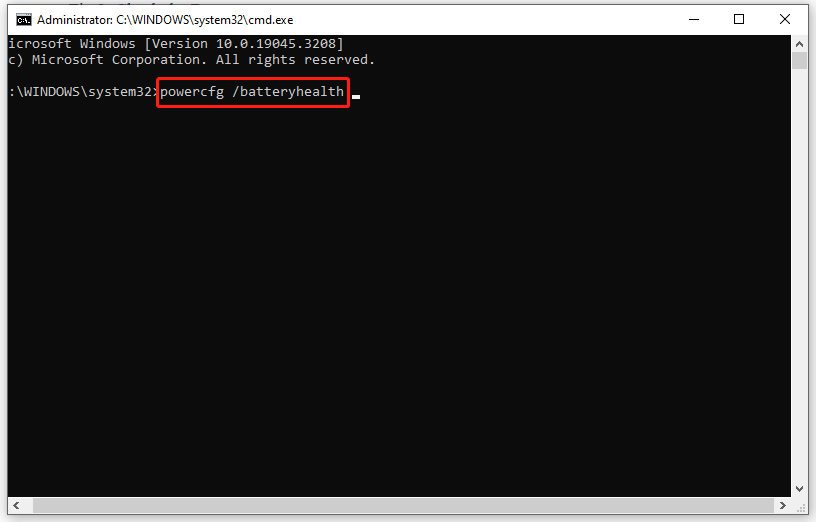
Step 4. Then, Command Prompt will inform you that a battery life report was saved to the user folder. Open the folder and navigate to the Battery life estimates section to check the health and performance of the battery of your computer.
Fix 4. Reset BIOS to Default
Best For: MSI stuck on the logo screen after BIOS changes or overclocking.
Success Rate: Medium
When you fail to boot into your operating system and struggle with MSI stuck on MSI screen, chances are that the BIOS might be configured incorrectly. In this case, you had better reset the BIOS on the MSI motherboard to revert all the BIOS configurations to their default state. To do so:
Step 1. Press the Delete key repeatedly to enter BIOS.
Step 2. Press the arrow keys and the Enter key to go to Settings > Save & Exit > Restore Defaults.
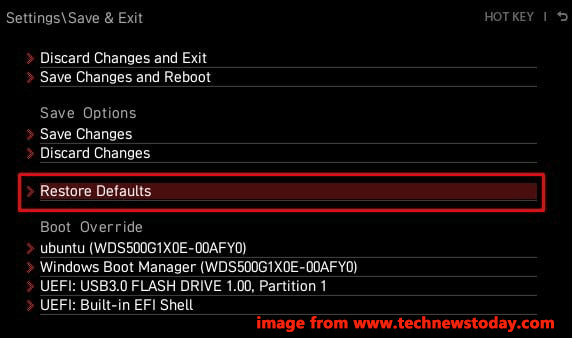
Step 3. Select Yes when prompted by confirmation.
Step 4. Choose Save Changes and Reboot and then your computer will boot with the default BIOS configuration.
Fix 5. Perform Automatic Repair
Best For: MSI PCs stuck on the MSI logo screen because of startup-related errors or failed Windows updates.
Success Rate: High
When you run into any boot issues with your computer like MSI stuck on MSI screen, you can consider troubleshooting with the inbuilt feature – Automatic Repair (also known as Startup Repair). If your MSI machine fails to boot, enabling this feature will automatically scan system files, registry settings, configuration settings, and more. Here’s how to do it:
Step 1. Shut down your computer and then reboot it. When you see the MSI logo on the screen, press F3 or F11 repeatedly until you enter Windows Recovery Environment.
Step 2. Go to Troubleshoot > Advanced options > Automatic/Startup Repair.
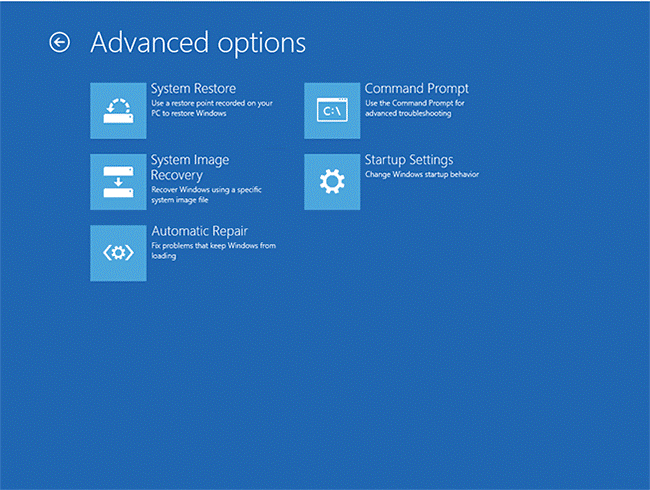
Step 3. Choose your account > enter the password > hit Continue to start the automatic repair.
Fix 6. Run Startup Repair
Best For: MSI stuck on the MSI screen after a Windows update or system crash.
Success Rate: Very High
Startup Repair can automatically detect and fix common boot issues.
- Enter Windows Recovery Environment.
- Select Troubleshoot > Advanced Options > Startup Repair.
- Select the operating system.
- Wait for the repair process to finish.
- Restart the computer after the repair is complete.
Fix 7. Boot MSI into Safe Mode
To troubleshoot hardware and software issues like MSI stuck on MSI screen, entering Safe Mode is also a good choice. Safe Mode only allows basic system programs and services to run at startup so that you can detect and repair computer system errors easily. Here’s the detailed tutorial:
Step 1. Repeat the first step in Fix 4 to enter Windows Recovery Environment.
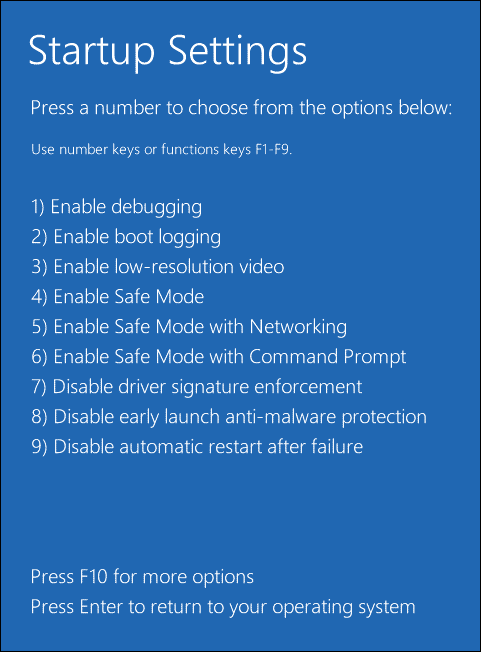
Step 2. Go to Advanced options > Troubleshoot > Advanced options > Startup Settings > Restart.
Step 3. Then, your computer will restart automatically. When you see the Startup Settings screen, Press F4, F5, or F6 to enable Safe Mode.
In Safe Mode, you can download & install a third-party antivirus program to scan for viruses or malware infection. Afterward, you need to remove them with the antivirus program you installed and uninstall the suspicious programs.
Fix 8. Check SSD and RAM
Best For: Persistent boot failures after trying software fixes.
Success Rate: Medium
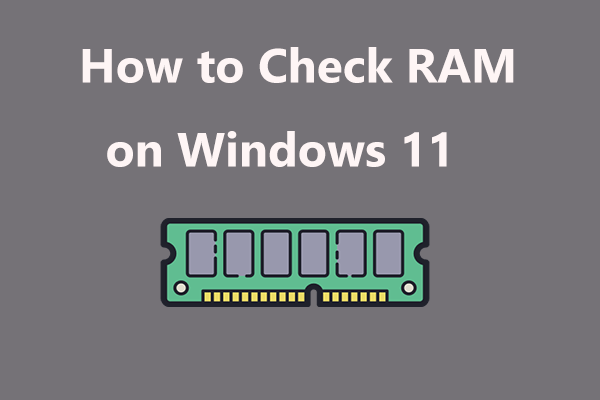
The Windows 10/11 stuck on MSI screen issue is often rooted in faulty hardware. Check the following parts for proper connection and functionality:
- Storage drives (SSD/HDD)
- RAM sticks
- Power and data cables
- Mainboard links
Fix 7: Factory Reset Your MSI
Best For: MSI laptops that remain stuck on the MSI screen after multiple failed startup attempts, corrupted system files, or when other repair methods do not work.
Success Rate: Very High
A factory reset restores your MSI laptop to its original factory state and can help fix the MSI stuck on MSI screen issue when other methods fail. However, it will erase all personal files, settings, and installed applications.
- Enter Windows Recovery Environment (WinRE).
- Go to Troubleshoot > Restore MSI Factory Settings > System Partition Recovery.
- Confirm the warning that all data will be erased, then click Yes.
- Wait for the reset process to complete.
- Click OK and restart your computer.
Suggestion: Back up Your MSI with MiniTool ShadowMaker
Although you might succeed in fixing MSI stuck on MSI screen or MSI freezing on startup at the moment, some similar computer boot issues like, ASUS stuck on ASUS screen, Acer laptop stuck on Acer screen, and more might occur at any time and any space. What’s worse, when such issues crop up, it will take quite a long time to figure out the accurate reason, let alone handle them.
Luckily, there is a quick disaster recovery plan for you – back up your computer beforehand. To do this work, MiniTool ShadowMaker is a top choice for you. This is an all-in-one PC backup software that allows you to create a backup for your files, folders, systems, partitions, and disks on Windows 11/10/8/7. Also, this freeware supports file sync and disk clone.
You can back up your MSI with just a few clicks, here’s how to do it:
Step 1. Download and install MiniTool ShadowMaker Trial Edition.
MiniTool ShadowMaker TrialClick to Download100%Clean & Safe
Step 2. In the Backup page, you can see the system is selected as the backup source by default, so you only need to choose a storage path for the system image in DESTINATION.
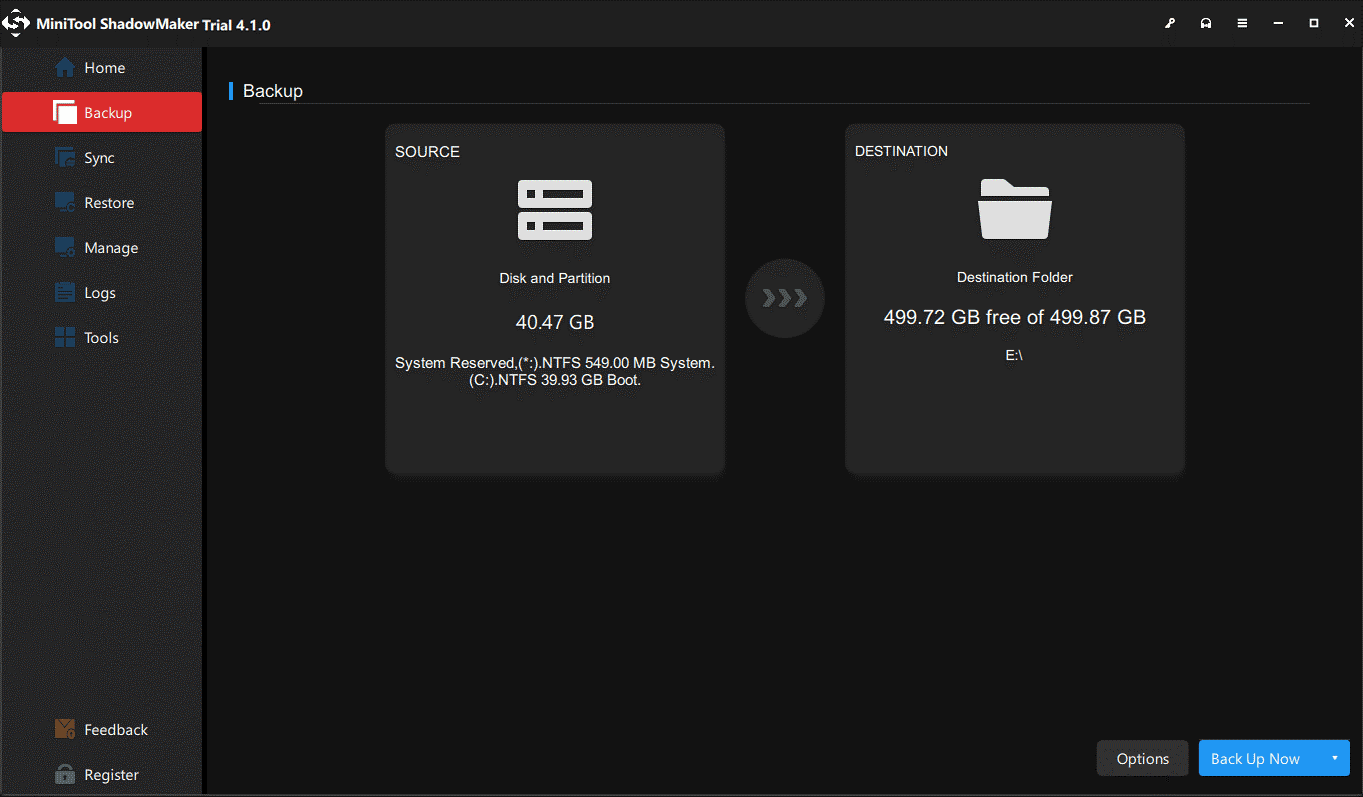
Step 3. Click on Back Up Now to start the process right now.
# Create a Bootable Flash Drive
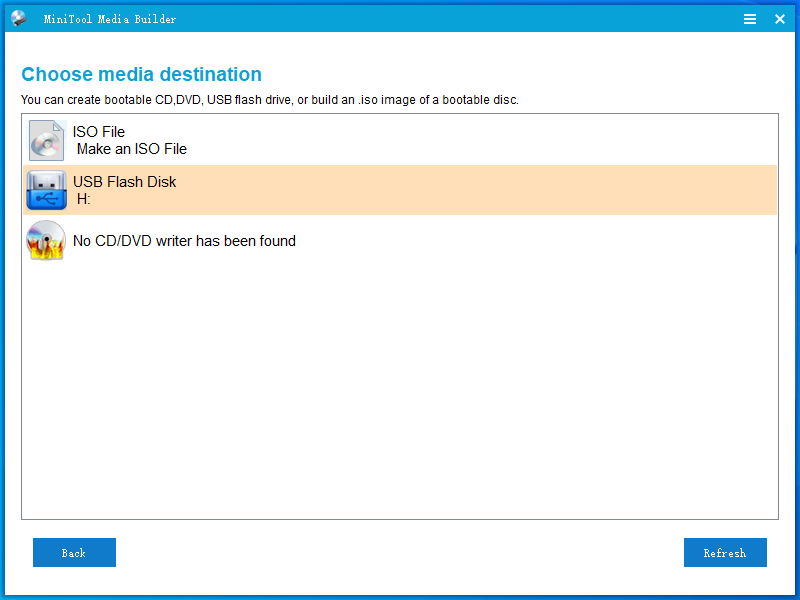
After creating a system image, you need to create a bootable USB flash drive with MiniTool ShadowMaker: go to the Tools page > click on Media Builder > select WinPE-based media with MiniTool Plug-in > select a USB flash drive as a media destination. When you suffer from PC boot issues, you can boot your computer from this bootable drive and perform system recovery with it.
MSI Stuck on MSI Screen FAQ
If the keyboard is unresponsive due to a hard freeze, unplug the PC, remove the motherboard's CMOS battery for five minutes to force a BIOS reset, and try booting again.
If the drive is damaged, data recovery software (like MiniTool Power Data Recovery) or professional services may be required.
If the laptop is more than three to four years old, the high cost of a motherboard repair makes purchasing a new device the more practical and cost-effective choice.
Final Thoughts
An MSI computer stuck on the MSI screen is usually caused by system file corruption, boot issues, BIOS errors, failed updates, or hardware faults. It can often be fixed by removing external devices, resetting BIOS, running Startup Repair, rebuilding boot records, or restoring Windows.
If the issue persists, check hardware or reinstall Windows. For data safety, MiniTool ShadowMaker is recommended for easy backup and recovery. Additionally, if you encounter issues while using MiniTool software, contact [email protected].
About The Author

Position: Columnist
Charlotte is a technology columnist with a strong focus on the Windows operating system, specializing in disk management, backup, and data recovery. She is passionate about analyzing computer errors, identifying root causes, and delivering practical solutions. In her free time, she stays updated on the latest developments in computer systems and hardware while continuously learning new technologies to broaden her expertise. Her writing style is clear and easy to understand, making complex technical topics accessible even to users with limited computer knowledge.
User Comments :