
What Causes the Uplay Is Unable to Start Your Download Error
Various reasons may cause the Uplay installation error. They are:
- Permissions Problems: The client does not have permission to write to the installation folder.
- Conflicting Software: Antivirus, firewall, or other background applications may block the connection.
- Corrupted Client/Files: Ubisoft Connect files or game data that are outdated or damaged.
- Network Issues: There are DNS errors or general connection problems on the PC.
- Service Outages: The offline Ubisoft servers could cause the error.
- Background Processes: Running game or launcher processes might be causing interference.
- Insufficient Space: There is not enough disk space for the update or game installation.
- Installation Folder Issues: Uplay might have trouble installing the game in the selected directory.
How to Fix Uplay Is Unable to Start Your Download Error
To fix Uplay is unable to start your download, start with some basic checks, such as checking internet connection, maintenance, storage space, or running as an administrator. If these tips don’t work, try updating/reinstalling Ubisoft Connect, verifying game files, and other methods.
Here’s the detailed breakdown:
Perform Some Basic Checks
Before trying advanced methods, follow these basic checks to fix the error first:
Approach 1. Check Internet Connection
An internet connection issue is one of the reasons that may cause Ubisoft Connect unable to start download error. In this case, check your internet connection carefully. Here are some tips for improving the internet connection:
- Switch Wi-Fi to Ethernet, or vice versa
- Move the router closer to your computer
Approach 2. Run Ubisoft Connect as Administrator
If the Uplay client on your PC lacks administrator permission, Ubisoft Connect unable to start download error can occur as well. In this case, try running Ubisoft Connect as administrator.
To do that, just right-click the Ubisoft Connect icon on your desktop and select Run as administrator. Then, check if the error is fixed.
Additionally, modifying the compatibility properties of the Uplay Client may also fix this error. Here’s how to do that:
- Right-click the Uplay shortcut icon on your desktop and select Open file location.
- Locate the Uplay.exe file, right-click it, and choose Properties.
- Navigate to the Compatibility tab.
- Check the box next to the Run this program in compatibility mode for option.
- Choose Windows 7 from the drop-down menu.
- Under the Settings section, check the box next to Run this program as an administrator.
- Click Apply and OK to execute all the changes.
Approach 3. Check Storage Space
If there is not enough storage space for updates or game installation, it’s easy to run into the Ubisoft Connect unable to start download error. In this circumstance, search for the game’s minimum system requirements and get more free storage space to fix the error.
Approach 4. Check for Maintenance
If Ubisoft’s services are undergoing maintenance, the Uplay installation error may occur. In this case, find information about planned and ongoing maintenance or issues in the Live Feed Update section at the top of the Ubisoft Help website.
Try Advanced Troubleshooting Methods
If the Uplay installation error persists after completing the basic checks above, continue with the advanced approaches to resolve it.
Approach 1. Switch to the Preview Version of Uplay
Some people report that switching to the preview version of the Uplay client helped them fix the error. If you want to have a try, please follow the processes:
Step 1. Launch the Uplay client to enter its main interface.
Step 2. Choose the Settings option from the left panel.
Step 3. In the General tab, check the box next to Try out Preview Versions.
Step 4. Reopen it and check if the Uplay is unable to start your download error appears again.
Approach 2. Disable Antivirus
Antivirus software may be blocking the download when you update or download games and then results in Ubisoft Connect being unable to start the download. In this situation, try disabling antivirus software to fix the error. Here are the detailed steps:
Step 1. Press Win + S to open the Search window, type virus & threat protection in the search box, and press Enter.
Step 2. Click Manage settings under the Virus &threat protection settings section.
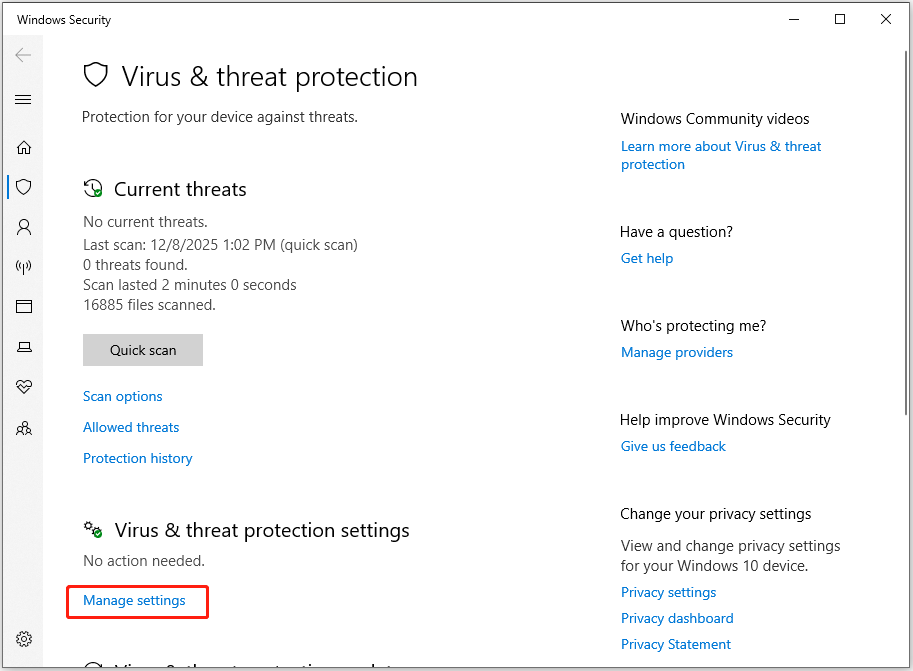
Step 3. Toggle off the following switches: (If a UAC window pops up, click Yes to move on.)
- Real-time protection
- Cloud-delivered protection
- Automatic sample submission
- Tamper Protection
Step 4. Once finished, check if the error has been resolved.
Approach 3. Verify Game Files
A damaged Ubisoft Connect installation or game files can cause Ubisoft Connect unable to start download error easily. In this circumstance, verify game files to fix the error. Here’s how to do that:
- Launch the Uplay client on your PC.
- Go to Games and choose a game that you want to verify.
- Select Properties.
- Under Local Files, click Verify Files.
Once done, check if the error is fixed.
Approach 4. Use Google’s DNS Address
Changing the DNS settings from the default address to Google may also help fix the unable to detect Uplay installation error. Do that by taking the actions listed below:
Step 1. Press Win + S to open the Search window, type control panel, and press Enter.
Step 2. Set View by to Large icons, find and select Network and Sharing Center.
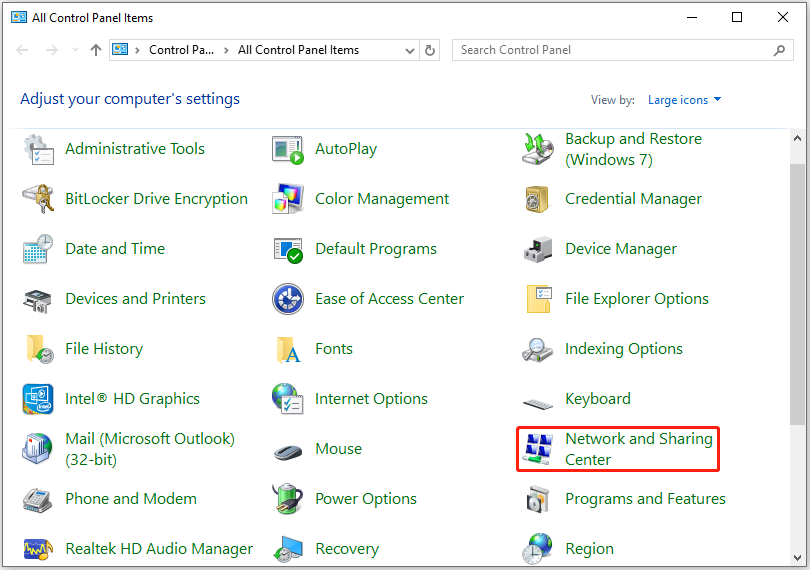
Step 3. Click Change adapter settings from the left panel.
Step 4. Right-click the network adapter that you are using and click Properties.
Step 5. Under This connection uses the following items section, select Internet Protocol Version 4 (TCP/Pv4).
Step 6. Select Use the following DNS server addresses, and then set Preferred DNS server to 8.8.8.8and the Alternative DNS server to 8.8.4.4.
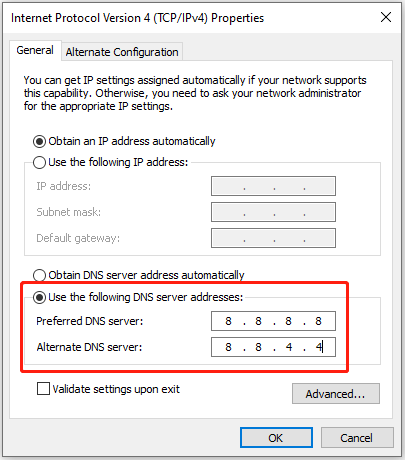
Step 7. Check the box of Validate settings upon the exit and click OK.
Step 8. Now, reopen the Uplay client and check if the error has been resolved.
Approach 5. Flush DNS and Reset TCP/IP
If changing your DNS settings from the default address to Google doesn’t help you fix the error, try flushing DNS and resetting TCP/IP. Here’s the process:
Step 1. Open the Search window, type cmd in the search box. Then, right-click Command Prompt under Best Match and select Run as administrator.
Step 2. Type ipconfig /flushdns in the elevated Command Prompt window and press Enter.

Step 3. Type netsh int ip reset and press Enter.
Step 4. Once the process is complete, check if the Uplay is unable to start your download error persists.
Approach 6. Delete a Certain Folder
The cache for the Uplay client is stored in a folder within the AppData directory. To resolve any errors without having to reinstall the application or risk losing your game files, try deleting this folder. Here’s the tutorial:
Step 1. Press Win + E to open File Explorer.
Step 2. Go to This PC, open the C drive, and access the Users folder.Then, find the username folder.
Step 3. Find and double-click the AppData folder to open it.
Step 4. Open the Roaming folder, right-click Ubisoft, and select Delete.
Now, check if the error is solved. If not, proceed and try other approaches.
Approach 7. Change Installation Directory
A possible reason for the Uplay installation error could be the installation folder you’re using. The folder might lack the necessary permissions, or the Uplay client may not be allowed to write to it. Try changing the default installation folder to resolve this issue. Here’s the guide:
Step 1. Open the Uplay client on your computer.
Step 2. Click the menu button and select Settings from the left panel.
Step 3. Find the Download section and click Change under the Default game installation location.
Step 4. Set a different location here. Now, check if the error has been resolved.
Approach 8. Rename the Folder of the Problematic Game
Renaming the folder of the problematic game helps some people fix the error. To do that, please do the following steps:
Step 1. Press Ctrl + Shift + Esc to open Task Manager.
Step 2. Navigate to the Details tab, find the Uplay.exe entry, right-click it, and select End task.
Step 3. Press Win + E to open File Explorer and navigate to the game’s installation folder, such as:
C:\Program Files (x86)\Ubisoft\Ubisoft Game Launcher\games
Step 4. Right-click the game folder, select Rename, and then change the name.
Step 5. Open Uplay to redownload the game, give it a new name, and click the Download button.
Approach 9. Reinstall Ubisoft Connect
Reinstalling software can fix bugs, reset settings, and make sure that you are running the latest version. Therefore, try reinstalling Ubisoft Connect to troubleshoot the error. Here’s how to do that:
Step 1. Get the newest installer from Ubisoft Connect’s official website.
Step 2. Right-click the downloaded installer and select Run as administrator.
Step 3. Accept the license agreement, specify an installation path, and click Install.
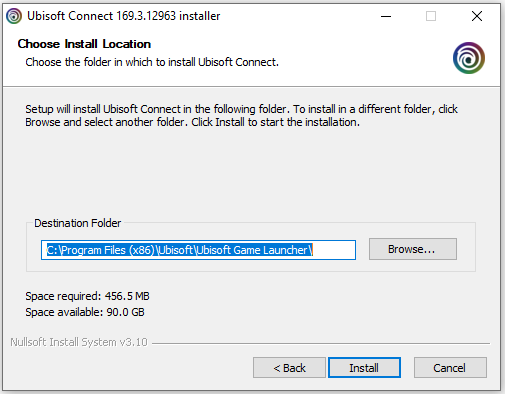
Step 4. After the installation process is complete, sign in with your account and check if the error has been resolved.
Approach 10. Contact support
If none of the above approaches can help you get rid of the Uplay is unable to start your download error, contact support from Ubisoft. They may offer some further help for you to solve the error.
Bonus Tip: Back Up Your Important Data to Avoid Data Loss
While you use a computer for work, study, or games, various problems may occur, leading to data loss. To avoid that, it is recommended to use a powerful data backup tool to secure the data.
MiniTool ShadowMaker is such a wonderful PC backup software that offers the Backup feature to help you perform data backup, file backup, system backup, and server backup.
Here’s how to use it:
Step 1. Download and install MiniTool ShadowMaker on your computer.
MiniTool ShadowMaker TrialClick to Download100%Clean & Safe
Step 2. Launch this software to enter its main interface.
Step 3. Select Backup from the left panel.
Step 4. Go to SOURCE and click Folders and Files.
Step 5. Check the files that you want to back up and click OK.
Step 6. Go to DESTINATION, select a target location, and click OK.
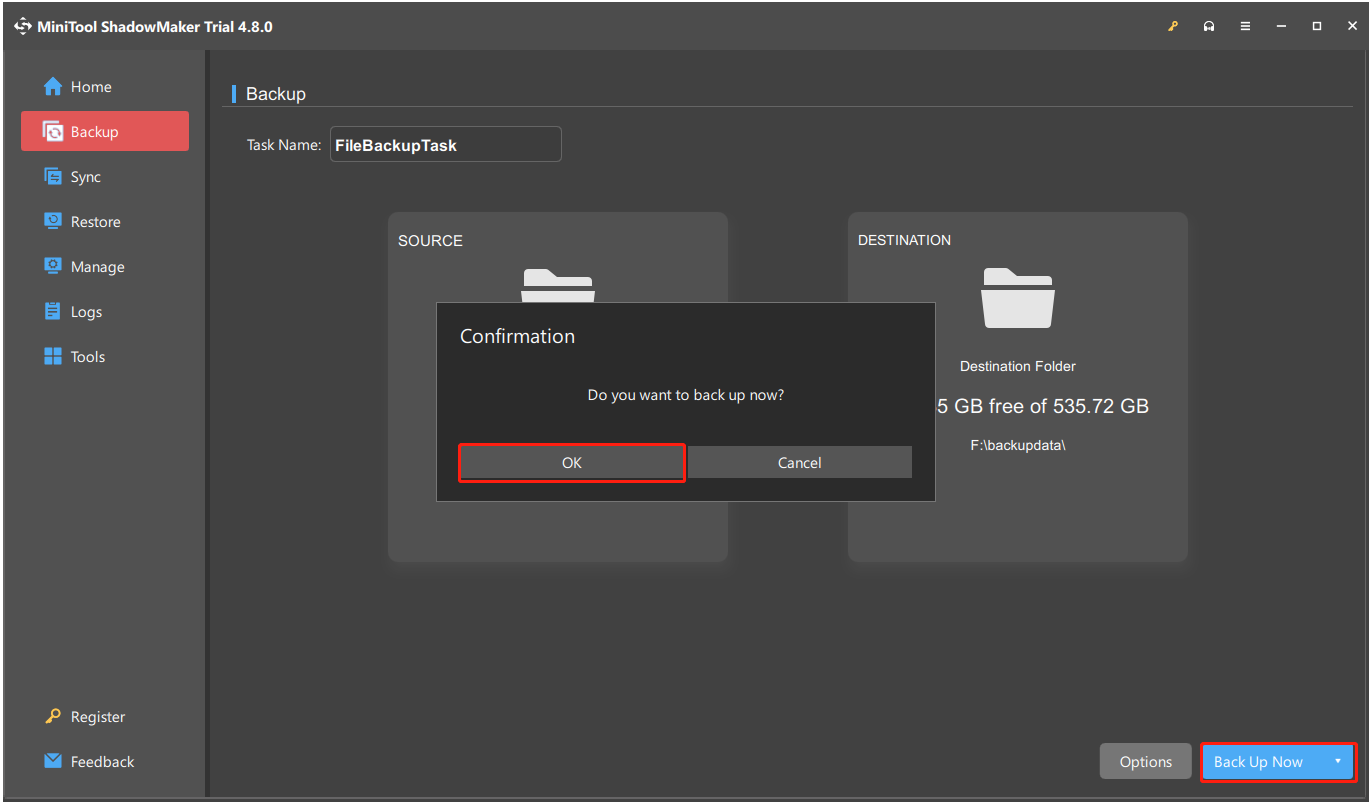
Step 7. Click Back Up Now and click OK. Once the process is completed, all selected files are backed up successfully.
Final Words
This post analyzes what causes the Uplay is unable to start your download error and offers some helpful solutions. If you encounter the same error on your PC, follow the listed methods to fix the error.
Additionally, if you worry about data loss in the future, use MiniTool ShadowMaker to make a backup of your important files or system.
What’s more, if you encounter issues while using MiniTool Software, please contact us by sending an email to [email protected].
Uplay Is Unable to Start Your Download FAQ
A Ubisoft service is unavailable.
Ubisoft Connect has detected an unrecoverable error and must shutdown.
Error code 17003.
Game linked to different account.
General connection problems.
If these steps fail, try updating drivers, checking for interfering software, ending background EA processes, and even reinstalling the game/app as a last resort.
After the login, go to Library, find the game, and click Download.
About The Author

Position: Columnist
Charlotte is a technology columnist with a strong focus on the Windows operating system, specializing in disk management, backup, and data recovery. She is passionate about analyzing computer errors, identifying root causes, and delivering practical solutions. In her free time, she stays updated on the latest developments in computer systems and hardware while continuously learning new technologies to broaden her expertise. Her writing style is clear and easy to understand, making complex technical topics accessible even to users with limited computer knowledge.
User Comments :