
To thoroughly and safely recover deleted files from HP laptop, it is crucial to use professional HP laptop data recovery software. In this MiniTool guide, I’ve gathered several trustworthy HP laptop data recovery software and ways to help you restore your files easily and effectively.
In today’s digital world, many laptop users have faced issues with data loss due to various reasons. HP laptop owners constitute a significant portion of these users. Have you ever found yourself in a similar predicament? The truth is, in most situations, it is possible to recover deleted files from HP laptop.
I have compiled an all-inclusive guide for free HP laptop data recovery. Regardless of how your files were removed, this article will offer you straightforward instructions. Continue reading to find more detailed information.
Different Scenarios for HP Laptop Data Recovery
While HP laptops offer convenience and security, their data can still be vulnerable to corruption or loss like any other computer. As more users use HP laptops, the demand for HP laptop data recovery services is also on the rise. Before exploring specific data recovery methods, it’s helpful to understand some common situations that can lead to data loss.
1. File Deletion
The most common situation is that files are deleted due to keyboard issues or human errors. The file system marks them as deleted but doesn’t erase the actual data. In this case, it is simple to recover deleted files from HP laptop in its Recycle Bin.
2. Hard Disk Failures
The most frequent reason for data loss is disk drive failure. The hard drive serves as a crucial component of a system. Usually, hard disk failure happens because of overheating, abrupt power outages, liquid damage, mechanical wear, human operation errors, virus attacks, etc., which may cause the disk data to be inaccessible or even lost.
3. File Corruption
Files may become corrupt due to interference from another program while a task is being carried out or due to any kind of issue that disrupts the functioning of the computer, such as power outages or system crashes.
4. Malware Infection
Numerous new viruses target laptops and PCs daily. Viruses can impact operational software, harm saved data, or exploit the internet connection, leading to data loss.
Some Simple Steps to Maximize HP Laptop Recovery Success Rate
To enhance the likelihood of recovering deleted or lost files from your HP laptop, keep these important points in mind:
- Stop using your HP laptop: Storing new photos, videos, or other files on the HP laptop will occupy the available space, thereby overwriting the deleted files. Once files are overwritten, they cannot be recovered by any file restoration software.
- Recover Deleted Files from HP laptop immediately: Utilizing professional and secure data recovery services as soon as possible helps you recover lost files from HP laptop and prevents unforeseen situations.
If you follow these guidelines, I believe you will have a high chance of retrieving your files. How can you recover deleted files from HP laptop? Adhere to the instructions below.
How to Recover Deleted Files from HP Laptop
In this part, I will discuss several feasible and effective ways to recover permanently deleted or lost files from HP laptop.
Way 1. Recover Deleted Files from HP Laptop via Recycle Bin
Even a computer novice may know where files that have been deleted end up on an HP laptop – Recycle Bin. Are they gone forever? Absolutely not, the storage area of the Recycle Bin will hold recently deleted files for 30 days. If you change your mind about deleting, the first place to check and get your deleted files back is the Windows Recycle Bin.
Step 1. Double-click the Recycle Bin icon on your desktop.
Step 2. In the pop-up window, you can select the files you wish to restore. If your Recycle Bin is cluttered with many files, finding the specific one may be challenging. In this situation, you can utilize the search box located at the top right corner to help locate it.
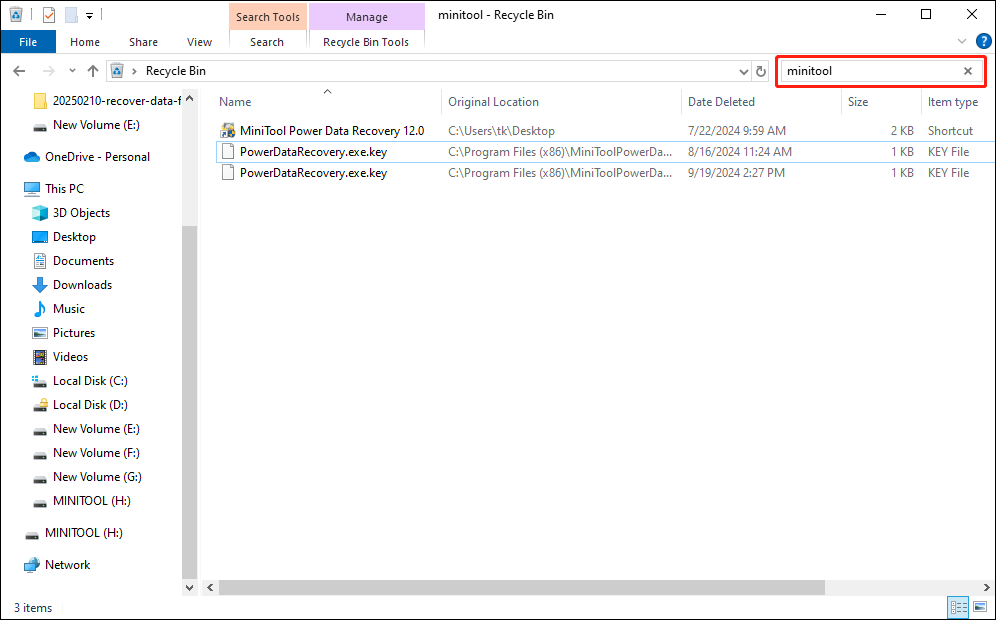
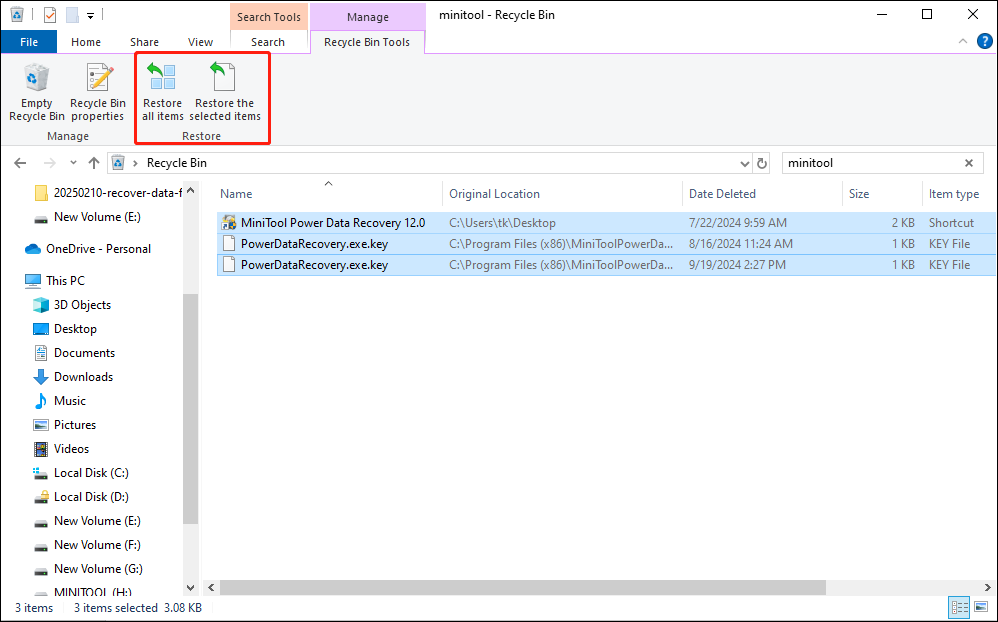
Step 3. Once you find the correct file, right-click on it and select Restore. Alternatively, you can use the Recycle Bin controls at the top of the window to restore a specific file or to recover all selected files.
Way 2. Recover Deleted Files from HP Laptop using Windows backup
You may note that there are many cases where files are not placed in the Recycle Bin. However, it does not indicate that the files are permanently lost. If you have created backups of your files, whether using File History, a cloud backup service, or third-party data backup software, you can recover deleted or lost files straight from the backup.
>> For Cloud Backup Services:
- To access your files stored in cloud services like OneDrive or Google Drive, the first step is to sign in to your account.
- Go to the backup storage location, choose the particular files or folders you wish to recover, and start the restoration process by clicking the Restore/Download button or the similar option.
>> For Third-party Data Backup Software (e.g. MiniTool ShadowMaker):
- Launch MiniTool ShadowMaker, go to the Restore tab, select the file backup image you want to restore, and click the Restore button. If your desired files are not listed, you can click the Add Backup button at the top right corner to select the file backup image manually.
- Next, select the file restore version and click the Next button.
- Select the files or folders you want to recover, and then click Next.
- Click Browse to select a location where you want the recovered files to be saved. Afterward, click Start to initiate the process. MiniTool ShadowMaker will swiftly execute the file image restoration and display the outcome.

MiniTool ShadowMaker TrialClick to Download100%Clean & Safe
>> For File History:
- Press Win + I to open Windows Settings and go to Update & Security.
- Navigate to the Files backup tab in the left panel and click More option under the File History backup section.
- Then, scroll down and click Restore files from a current backup.
- In the pop-up window, choose the files you wish to restore and press the green Restore button.
Way 3. Recover Deleted Files via HP Recovery Manager
HP laptops provide a complimentary application that enables you to back up and restore your files – HP Recovery Manager. If you have previously backed up files using this HP laptop data recovery tool, you can restore them by following the steps outlined below.
>> Full System Recovery:
Step 1. Open the search field, type HP Recovery Manager in the box, and press Enter.
Step 2. In the pop-up windows, choose HP recovery environment and click OK to continue.
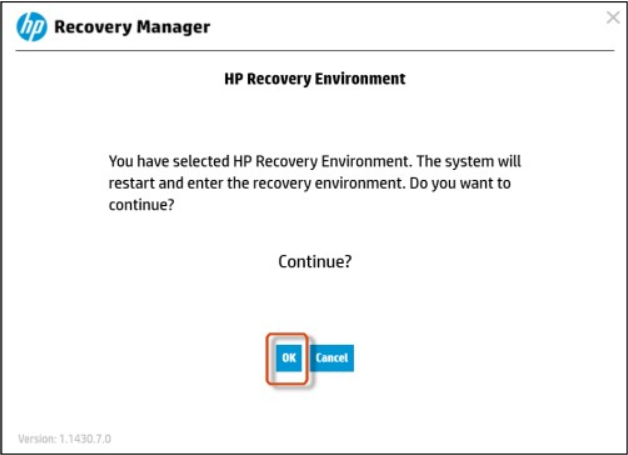
Step 3. Click OK to confirm the action and your PC will reboot in the Windows Recovery Environment.
Step 4. Select the Troubleshoot option and then click Recovery Manager.
Step 5. Choose the file types you wish to recover and then click Next. If you have backed up your files before, check the Recover without backing up your files. If you have not backed up the files you want to keep, follow the instructions:
- Check the Back up your files first (recommended) option and click the Next button.
- In the following window, select Auto Selection or User Selection and click Next. The Auto Selection option will automatically select files to back up by category. The User Selection option allows you to manually select files to back up.
- Select the files and folders you want to back up and click Next.
- Plug a USB flash drive or a writable CD/DVD into your PC, select the drive you just inserted, and click Next.
- Hit Next to start the backup process.
- Remove your USB/CD/DVD and click Next. By default, you will return to the Recovery Manager window. Then, you can choose Recover without backing up your files and click Next.
Step 6. In the System Recovery interface, please read the information carefully and decide whether to continue. If yes, click the Next button
Step 7. Please wait patiently until the recovery preparations are complete. Then, click Continue. After the computer restarts, follow any on-screen instructions to finish the recovery process.
>> Deleted File Recovery:
Step 1. Locate and open the backup folder on your laptop. Then, double-click the executable file called Restore.exe, which is created during the backup process.
Step 2. Grant permission for the program to modify system settings by clicking Yes.
Step 3. Once the program opens, click Next.
Step 4. Choose the file types you wish to recover and then click Next.
Step 5. A message will inform you where the recovery files are located: C:\System Recovery Files. Then, click Next.
Step 6. Wait for the completion of the process. Then, click Finish to exit the program.
Way 4. Recover Deleted Files with HP Laptop Data Recovery Software (The Best Alternative)
After reading the instructions on the usage of HP Recovery Manager or operating the HP Recovery Manager, you may find some limitations of this tool as below:
- Limited recovery options: It offers few recovery options; specialized software may be needed for specific files or folders.
- Dependency on HP hardware: It only works on HP computers and is not usable if you switch brands.
- High resource usage: It can consume significant system resources, potentially slowing down your computer, especially with other programs running.
- Limited compatibility: This tool may not work with all Windows versions, requiring updates if you upgrade your OS.
So, what is the best alternative for the HP Recovery Manager? Is there any professional Data Recovery tool that can promise 100% safety? The answer is MiniTool Power Data Recovery. Why does this tool stand out among many data recovery software and is it worth using? Here are the main reasons:
- Excellent adaptability: It effectively performs data recovery on a variety of storage devices, including HDDs, SSDs, USB flash drives, SD cards, CDs/DVDs, and more. It is adept at addressing various scenarios of data loss, such as formatted disks, lost disk partitions, unreadable SD cards, and files deleted by viruses.
- Smooth and secure data recovery: All types of files, including documents, videos, photos, audio, emails, and archives are eligible for recovery. The read-only capabilities enable file restoration without creating new data on the disk, protecting the inaccessible disk and its files.
- User-friendly interface and straightforward recovery process: The interface is user-friendly and straightforward, with key functions prominently displayed. In addition, the steps for recovery are simple and clear, making it easy to complete the HP laptop data recovery process without a complex learning curve.
- Various software editions available: This tool offers multiple software editions, ranging from free versions to business and personal editions. It caters to your data recovery requirements across different situations. Notably, it includes a bootable edition designed to assist in recovering files from an unbootable computer.
- Dedicated customer support: It provides 24/7 customer support to ensure you receive timely and professional assistance during the software download, registration, and utilization processes.
Now, download and install MiniTool Power Data Recovery Free on your computer, and follow the instructions to recover deleted files from HP laptop without any further ado.
MiniTool Power Data Recovery FreeClick to Download100%Clean & Safe
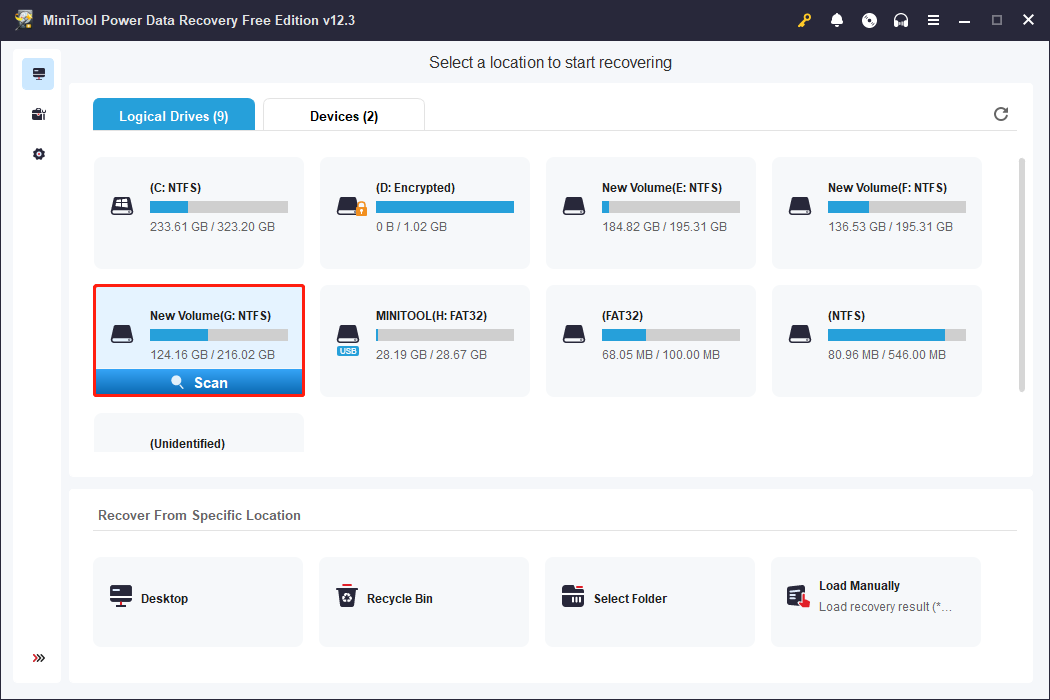
Step 1. Choose the target partition/device/location to scan.
Launch MiniTool Power Data Recovery to enter its main interface. It provides three modules to scan your deleted files from your HP laptop:
- Logical Drives: In this section, you will find all the partitions on your internal and external drives, including existing partitions, lost partitions, and unallocated partitions. Usually, these partitions are presented with details such as volume size, drive letter, file system, and other disk specifications.
- Devices: By navigating to this section, you will view all the complete disks that are connected to your computer.
- Recover From Specific Location: This area offers you three quick scanning and recovery choices, which include Desktop, Recycle Bin, and Select Folder.
Choose a location by moving your mouse to the target one and click Scan. As the duration of scanning may be long, please wait patiently until the process is complete. Here, I choose to scan a target partition for your reference.
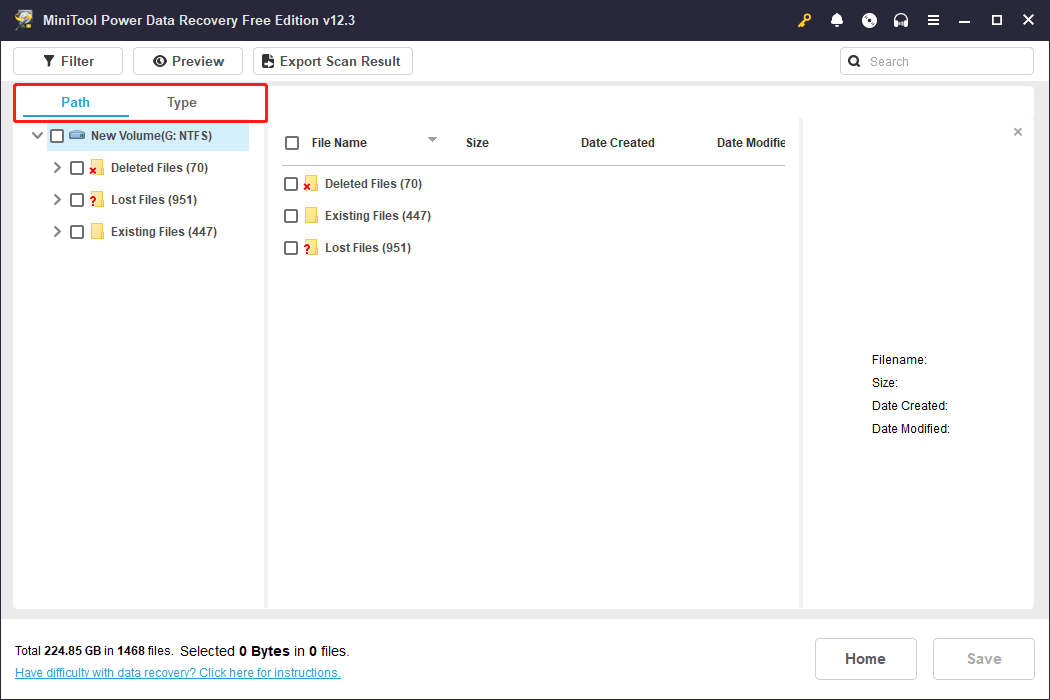
Step 2. Locate the desired files using the Path, Type, Search, and Filter features.
After scanning, there are two sections to categorize found files: Path and Type. You can choose the one that best fits your actual requirements.
- Path: This section shows all items located on the chosen partition by default. All files are organized by their file paths and displayed in various tree structures. To locate the files you need, you’ll have to gradually expand a folder along with its subfolders. It is a good option when you need to recover files with the original folder structure.
- Type: In this tab, all files are categorized by their type and format rather than their original organization. This is ideal if you’re looking to recover a specific type of file.
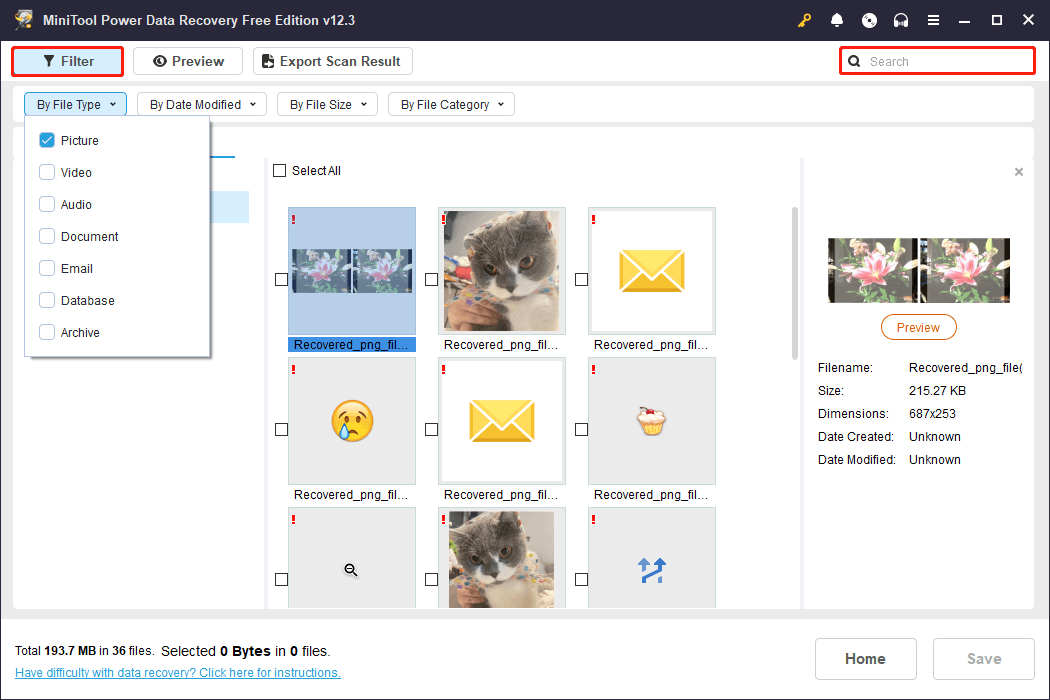
If you’re finding it challenging to locate specific files among a vast collection, you can utilize the Filter and Search features to narrow down the file range.
- Filter: This function is intended to filter out undesired files based on criteria such as File Type, Date Modified, File Size, and File Category. You can apply multiple filter options simultaneously.
- Search: This feature enables you to perform a precise search. Type a partial or full file name in the search field located in the upper right corner and hit Enter; you will receive exact search results.
Step 3. Preview the target files and save them.
It is important to preview the selected files for verification, then check the box next to each file name to get ready for recovery. To view a file, simply double-click on it.
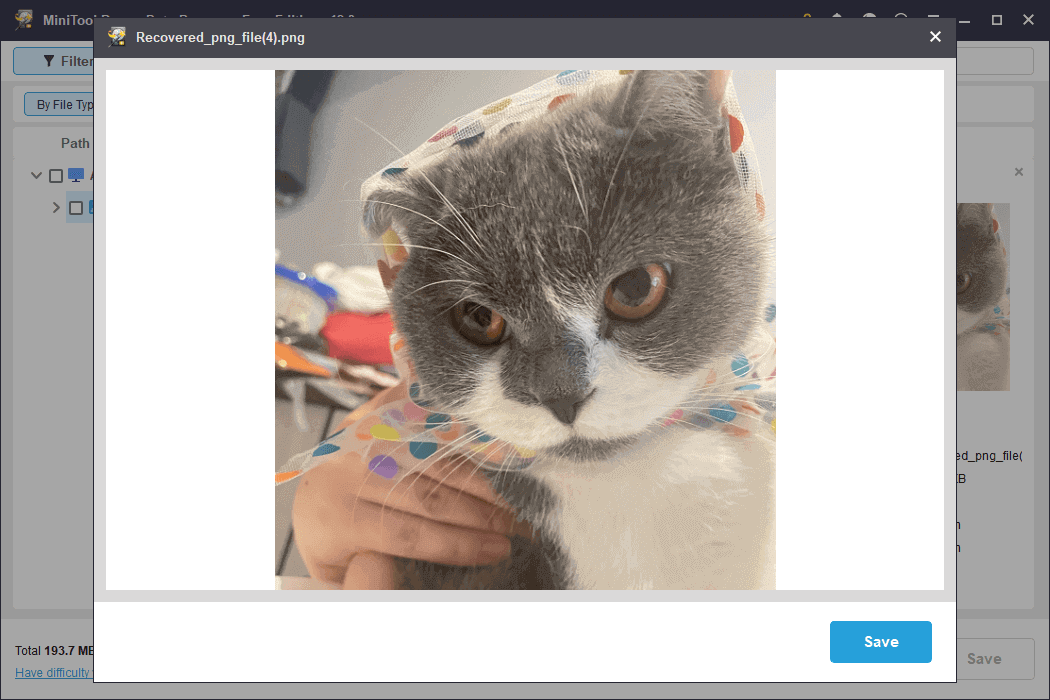
Ensure that you have selected all the files you wish to recover. If you have, click the Save button in the window of scan results, and then select a destination for the recovered files. The chosen destination should not be the original folder where the data loss occurred, as this could lead to data being overwritten.
If your HP laptop has some logical problem that causes the PC to not boot, this robust data recovery tool can also allow you to recover data from the unbootable PC.

Closing Words
How can you recover deleted files from HP laptop? Start by checking the Recycle Bin and any backup files. If that doesn’t work, utilize MiniTool Power Data Recovery to recover your files. After restoring the files, implement some preventive steps to safeguard your data, like using MiniTool ShadowMaker.
If you encounter any issues while using MiniTool products, please feel free to reach out to the support team at [email protected].
User Comments :