
“Reset this PC” is a useful feature in Windows that allows you to restore your computer to its factory state. It is helpful when you encounter system errors, performance issues, or simply want to clean your computer.
This feature can be accessed from both Settings and the Windows Recovery Environment (WinRE). It provides a comprehensive PC reset solution, whether your system can boot into the desktop or not.
However, sometimes this feature fails to work, which may manifest in the following forms:
- The system reinstall process gets stuck at a specific percentage, such as 34% or 61%.
- A blue screen appears, prompting that there was a problem resetting your PC.
- After clicking Reset this PC, no further options appear to continue the process.
- …
These issues prevent you from performing a factory reset without installation media. Read on to learn why this problem may occur and how to fix it.
Why Is “Reset This PC” Not Working in Windows 10/11
Common causes include corrupted system files, damaged system components, or a problematic recovery image.
In addition, interference from third-party software, such as antivirus programs, or an accumulation of cache files can also cause this problem.
After understanding the potential causes of a failed factory reset, proceed with the following methods to resolve the issue.
How to Fix Reset This PC Not Working in Windows 11/10
When Reset this PC is not working, start with several built-in safe troubleshooting options that won’t affect your personal files or disk partitions.
These include repairing damaged system files, addressing software conflicts, clearing old temporary files, or factory resetting your computer from WinRE.
If these approaches do not resolve the issue, the last resort is to use USB installation media to do a clean installation.
Continue reading for step-by-step instructions.
Fix 1. Use “Fix Problems Using Windows Update” (for Windows 11)
“Fix problems using Windows Update” is a built-in feature in Windows 11 designed to reinstall the current version of Windows on your computer.
During the process, it repairs system files and components while preserving your files and programs.
If Reset this PC is not working, try running this tool first.
Follow the steps below to use the “Fix problems using Windows Update” tool on Windows 11.
Step 1. Press Windows + I on your keyboard to open Settings.
Step 2. Select System > Recovery.
Step 3. Find the Fix problems using Windows Update option and click Reinstall now.
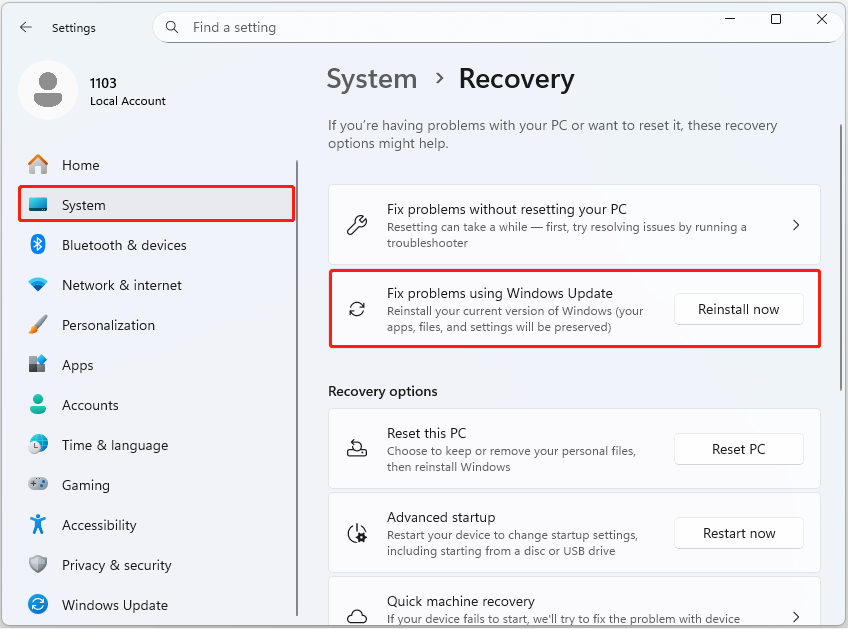
Step 4. Follow the on-screen prompts to enter your PIN or password.
Step 5. Review the notifications on the screen and click OK.
Step 6. Click Restart now to reinstall the current system. Once it is finished, try factory resetting your computer again and verify if it succeeds.
Fix 2. Delete Old Files and Programs
Abnormal system update cache files, temporary files, and programs can also interfere with the factory reset process and cause it to fail. Deleting them may help eliminate the conflicts.
You can use the Disk Cleanup tool to remove unnecessary files.
Step 1. Open the Disk Cleanup tool by using the Windows search box.
Step 2. Select the drive you want to clean up and click OK.
Step 3. Select the files you want to delete, such as downloaded program files and temporary Internet files, then click OK.
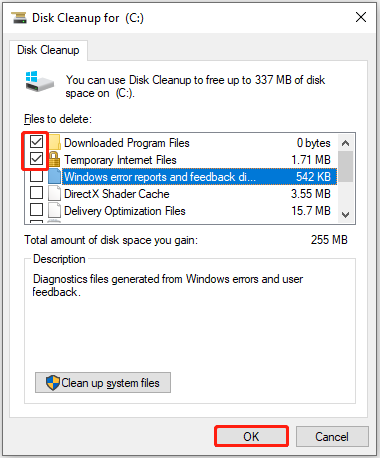
Step 4. Click Delete Files to confirm.
To uninstall a program:
Step 1. Open the Control Panel and make sure the items are displayed in the category view.
Step 2. Click Uninstall a program under Programs.
Step 3. Right-click the target program and click Uninstall.
After removing the unnecessary files and programs, check if the “Reset this PC” option is working.
Fix 3. Run DISM and SFC
DISM and SFC are built-in command-line tools in Windows used to scan for damaged system files and restore damaged Windows components.
It is helpful when Windows features, such as Reset this PC, are not functioning properly.
Step 1. Type Command Prompt in the Windows search box, right-click it, and click Run as administrator.
Step 2. Type DISM.exe /Online /Cleanup-image /Restorehealth and press Enter.
Step 3. Once the DISM restore operation is completed, type sfc /scannow and press Enter.
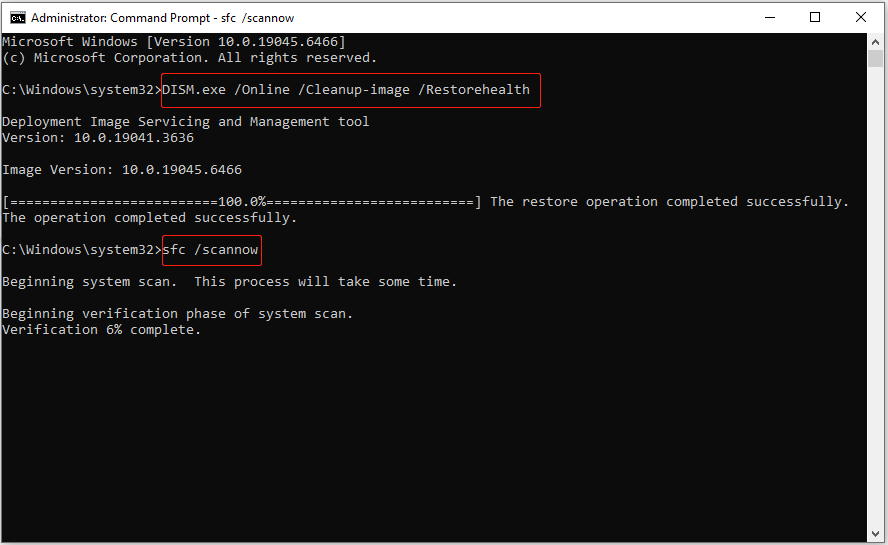
If DISM and SFC fail to restore the functionality of the Reset this PC feature, continue with the following solutions.
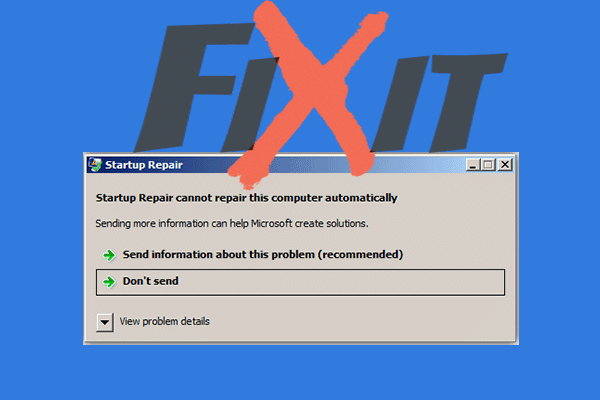
Fix 4. Run Startup Repair
Startup Repair is a tool in WinRE used to fix system issues that may affect the normal functioning of your system.
It can also help repair missing or damaged system files, as well as fix incompatible drivers or registry errors.
Step 1. Access the Windows Recovery Environment.
- In Windows 10 Settings, select Update & Security > Recovery. Then click Restart now under the Advanced startup section.
- In Windows 11 Settings, click System > Recovery. Then click Restart now next to Advanced startup.
Step 2. In WinRE, click Troubleshoot > Advanced options > Startup Repair.
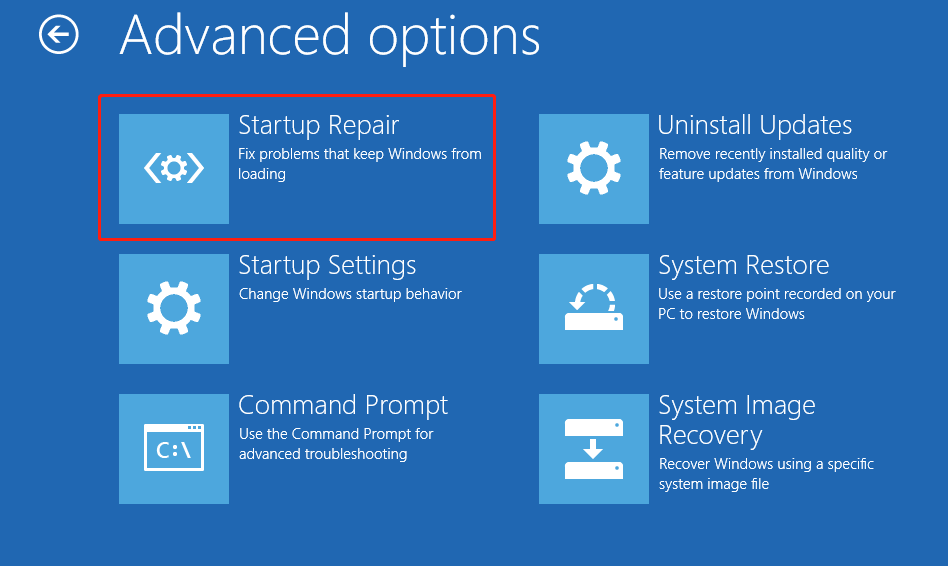
Step 3. After repairing, try resetting your PC again.
Fix 5. Reset Your PC From WinRE
When you reset your PC while Windows is running, there may be conflicts with system files, software, or other components of the operating system.
WinRE offers a minimal environment with only essential features enabled. Performing a factory reset from this environment bypasses the current operating system, which may help successfully complete the reset process.
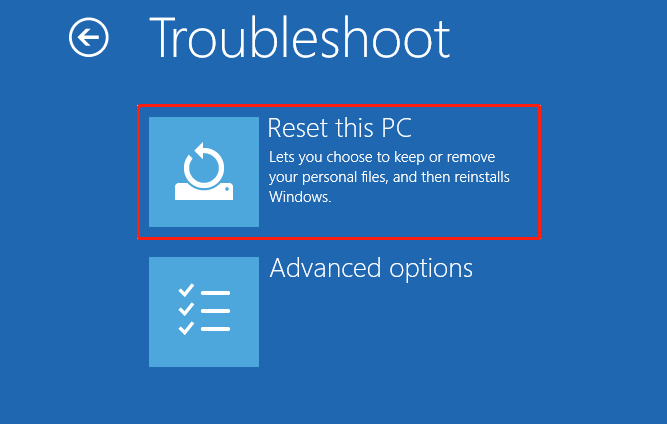
Step 1. Access the WinRE.
Step 2. In the Choose an option window, click Troubleshoot. Then select Reset this PC and follow the on-screen instructions to complete the factory reset process.
Fix 6. Perform a Clean Installation
If, unfortunately, all the solutions above fail to restore the Reset this PC feature, you may consider performing a clean installation.
Unlike Reset this PC, a clean installation removes all your files, programs, and settings from the system drive and reinstalls Windows from scratch.
This process requires creating installation media on a USB drive. If your computer is unable to boot, you will need another working computer to create the installation media.
Case 1. When Your PC Is Bootable
Back up all important files on your computer before reinstalling Windows. If needed, you can use professional data backup software such as MiniTool ShadowMaker, which is free for 30 days.
MiniTool ShadowMaker TrialClick to Download100%Clean & Safe
Case 2. When Your PC Is Unbootable
To avoid data loss, it is recommended to recover files from the unbootable device before performing a clean installation.
MiniTool Power Data Recovery Bootable Edition provides a Bootable Media Builder, which allows you to create a data recovery USB drive. You can then use this drive to start the computer and access your files without loading Windows.
This ensures that your data can be rescued before proceeding with the reinstallation.
- Create a bootable data recovery drive.
- Boot your computer from the burned USB drive.
- Recover files when Windows won’t boot.
Follow the steps below to do a fresh installation:
Step 1. Plug a blank USB drive (8 GB+) into the functioning computer. Then download the Windows Media Creation Tool.
- Windows 11: https://www.microsoft.com/en-us/software-download/windows11
- Windows 10: https://www.microsoft.com/en-us/software-download/windows10
Step 2. Launch the tool and follow the instructions to create Windows installation media.
Step 3. Insert the USB drive into the problematic computer.
Step 4. Restart the computer. During startup, press the designated BIOS/UEFI access key, such as F2, F8, F12, or Esc, to enter the firmware settings. Then go to the Boot tab and set the USB drive as the primary boot device.
Step 5. On the Windows Setup page, set up the language, time, and keyboard preferences. Finally, follow the prompts on your screen to complete the installation.
Bottom Line
When you encounter the “Windows Reset this PC not working” issue, try checking and repairing system files and the Windows image. If the problem persists, eliminate potential conflicts caused by old files, programs, or drivers.
If all the approaches fail, back up or recover your files, and then perform a clean installation.
If you have any questions about MiniTool products, please contact the customer support team at [email protected].
Reset This PC Not Working FAQ
Turn on the computer. When the manufacturer logo appears, press and hold the Power button to force a shutdown. Repeat this process three times until “Preparing Automatic Repair” appears. Then select Advanced options > Troubleshoot > Reset this PC to proceed.
A soft brick typically occurs when your PC fails to boot into the desktop and displays a blue screen or black screen with error messages.
A hard brick refers to a state where the device shows no signs of life, even when connected to power or when the Power button is pressed.
However, these symptoms alone are not sufficient to confirm that a device is bricked. It is recommended to send it to a repair center for further diagnosis.
However, in rare situations, advanced threats, such as persistent rootkits, can infect the BIOS or firmware. A factory reset alone may not fully eliminate them.
To ensure no malware remains, the most reliable approach is to do a clean installation of the operating system on a new disk.
The total amount of data that needs to be removed from the disk can also affect how long the reset takes.
About The Author

Position: Columnist
Shirley holds a bachelor’s degree in English and has been an editor at the MiniTool Team for many years. She specializes in IT-related content, with a focus on data recovery, file backup, disk management, and other technical topics. She is committed to delivering clear, accurate, and practical solutions to help users resolve common computer issues.
User Comments :