
Cfgmgr32.dll missing errors often happen to annoy people a lot and leave some more severe issues in your Windows. So, what should you do when you run into the Cfgmgr32.dll not found issue? This post on MiniTool Website will tell you some methods.
DLL files play important roles in sustaining the normal functioning of the system and Windows programs. So, if you, unfortunately, get this related error, such as the “cfgmgr32.dll not found” error, you need to fix it as soon as possible.

Cfgmgr32.dll Not Found
People may run into the cfgmgr32.dll not found issue because of many possible reasons. For example, the cfgmgr32.dll file may get lost or corrupted for virus or malware infiltration or mistaken deletion. Sometimes, third-party software can lead to conflicts with Windows components.
Besides, more than the cfgmgr32.dll not found error, for different situations, you can meet varied error message that notifies you of the cfgmgr32.dll error, such as,
Suggestion: Back up Your Data Regularly
We highly advised that you should back up your data regularly after you have successfully fixed this cfgmgr32.dll not found error. DLL is an important component in your system, possibly leading to system crashes and causing data loss.
Only with a backup plan, your data or system can be directly recovered. In this way, you can use MiniTool ShadowMaker, a free backup software, used to back up systems, partitions & disks, and files & folders. You can also use it to prepare a backup plan with a settled schedule and scheme. Try this program via the button!
MiniTool ShadowMaker TrialClick to Download100%Clean & Safe
Fix: Cfgmgr32.dll Not Found
After figuring out the possible reasons, now you can troubleshoot them via the following methods.
Fix 1: Run SFC and DISM Scans
It is important to make sure your system files are preserved well and everything runs well. You can use SFC and DISM utilities to check and repair the issue. Then check if the cfgmgr32.dll missing error has been fixed.
Step 1: Open Search and type Command Prompt to choose Run as administrator.
Step 2: Copy and paste sfc /scannow to press Enter to execute the command.
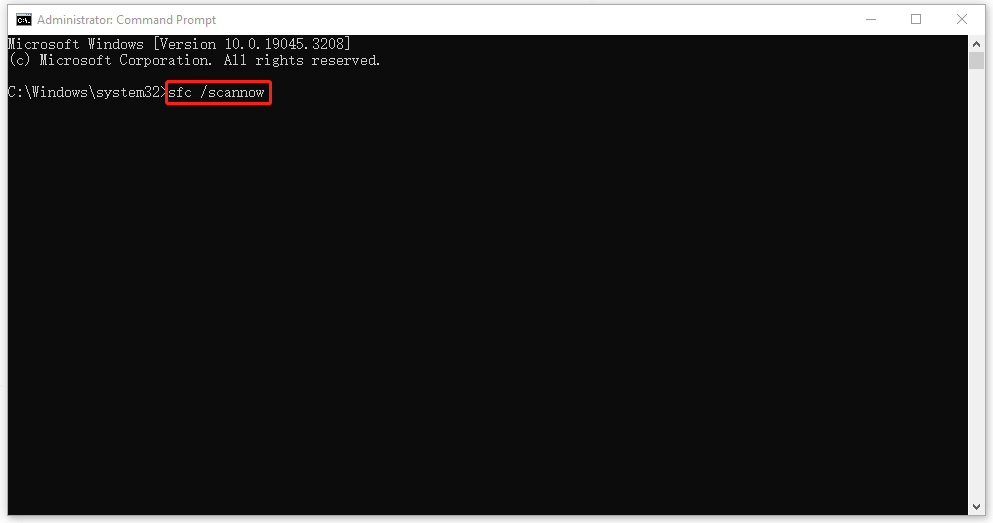
Step 3: When the verification finishes, you need to perform DISM scans for a further check – copy and paste Dism /Online /Cleanup-Image /RestoreHealth and press Enter.
Then restart your computer to check the error.

Fix 2: Use Clean Boot
In case software conflicts cause the cfgmgr32.dll not found issue, you can perform Clean Boot to check for the result.
Step 1: Open Run by pressing Win + R and type msconfig to enter.
Step 2: In the Services tab, check the option of Hide all Microsoft services and click Disable all.
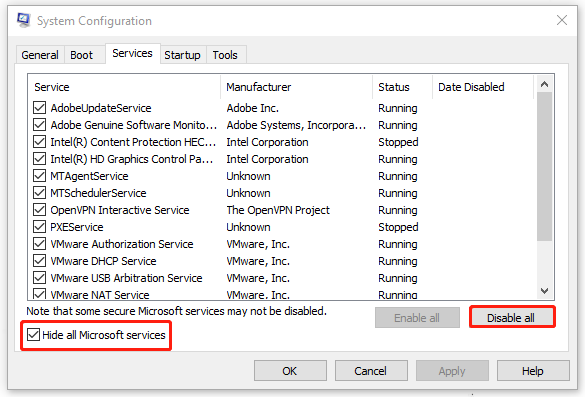
Step 3: In the Startup tab, click Open Task Manager and choose to disable the enabled startup programs.
Then go back to the System Configuration window and click Apply and OK.
Fix 3: Update Windows
You should make sure your Windows has been up to date so that some system bugs or glitches can be repaired by new patches and then the cfgmgr32.dll not found issue can be fixed.
Step 1: Go to Start > Settings > Update & Security > Windows Update.
Step 2: Click Check for updates from the right panel and your Windows will start scanning for available updates for downloading and installation.
Fix 4: Use System Restore
The last method is for those who have created a system restore point before when your Windows goes well. You can revert the condition to a well-functioning state.
Step 1: Open Control Panel and search Control Panel for Recovery and open it.
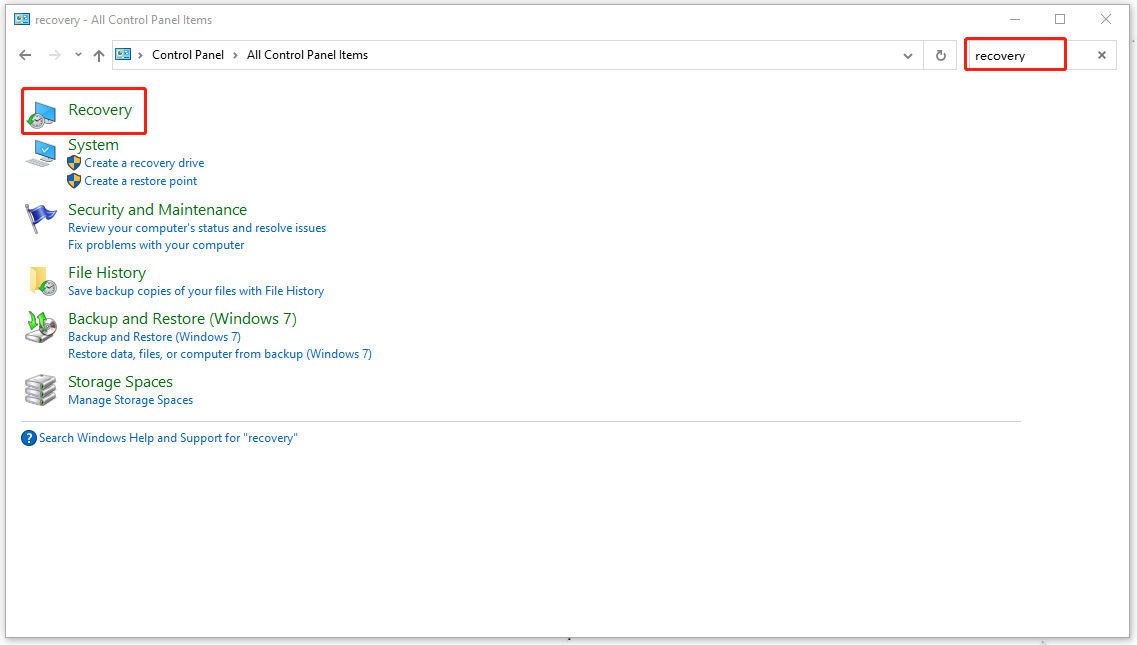
Step 2: Then choose Open System Restore > Next. Choose the point you want to choose and go to Next > Finish.
Bottom Line:
Now, you have learned varieties of useful methods to get rid of the cfgmgr32.dll not found issue. Hope this article is useful for you.
User Comments :