
Are you encountering the issue of “create new text document missing”? Do you know how to add a new text document to the right-click menu in Windows 10? This post on MiniTool describes the detailed steps to help you achieve this goal.
When you right-click any blank area on your desktop or in the File Explorer, you should see the option of New > Text Document. This option allows you to create a text file directly which is very convenient. However, according to the Internet, many users are troubled by the “no create new text document option” problem. And here you can see a true example:
As a totally-blind user, I have relied heavily on the "Create Text File" option in the “New” submenu for an easy way to create a batch file, playlist, and other pure text files in Notepad. Sadly, this option is GONE!
answers.microsoft.com
As you can see, “create new text document missing” is an annoying issue that needs to be solved. But how to add a new text document to the right-click menu? Please keep reading.
How to Fix Create New Text Document Missing
Windows Registry Editor is the way to view and make changes to the registry. In the previous post, we discussed how to add the Permanently delete option to the context menu using it. Now you can see how to fix new text document missing in Windows 10 with this graphical tool.
Note: You need to notice that any wrong operations to the Windows registry may cause data loss or even computer failure. Therefore, it is highly recommended to back up the registry before doing the following operations so that you can restore it if something goes wrong.
Step 1. Press Windows + R key combinations to open the Run window.
Step 2. Type regedit in the pop-up window and click OK or press the Enter key on your keyboard.
Step 3. Click Yes in the User Account Control window.
Step 4. Copy and paste the following location path in the address bar and press Enter:
HKEY_CLASSES_ROOT\Directory\Background\shellex\ContextMenuHandlers
Step 5. If you can see a folder named New under the ContextMenuHandlers folder, you need to click New. Then double-click the Default string in the right panel and set the value data to: {D969A300-E7FF-11d0-A93B-00A0C90F2719}. Finally, click OK to save all the changes.
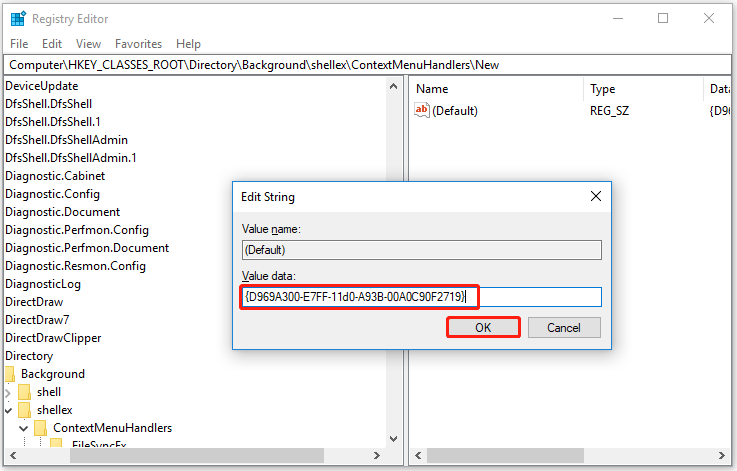
If you cannot see the “New” folder, first, you need to right-click the ContextMenuHandllers folder and select New > Key.
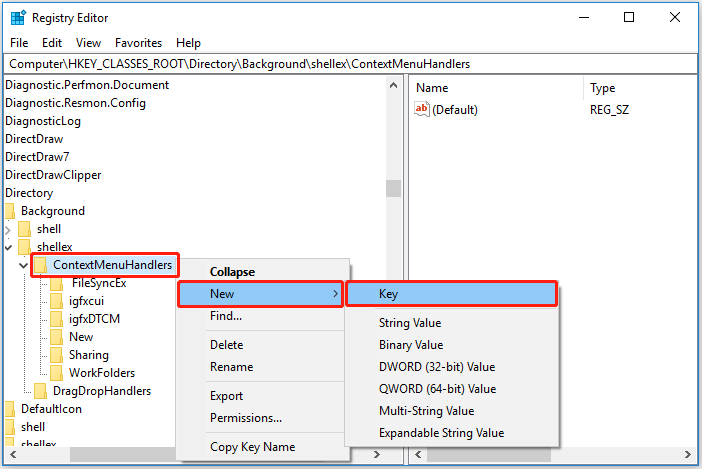
Second, set up the name of the new key as New.
Third, select the “New” folder and right-click the Default string in the right panel, and set its value data as {D969A300-E7FF-11d0-A93B-00A0C90F2719}.
Finally, click OK.
Now all work has been done, then you can restart your computer and check whether the create new text document missing issue has been resolved.
How to Recover Accidentally Lost Text Files
Some users are worrying about how to recover lost or unsaved text files. Here the best data recovery software – MiniTool Power Data Recovery is highly recommended. It is an all-in-one file restore tool designed for recovering many types of files including documents, pictures, emails, videos, and other files such as HTM/HTML, TXT, XML, HLP, CHM, PZF, ICC, MHT, QPW, QXP, QPT, VEG, etc.
It is fully compatible with Windows 11, Windows 10, Windows 8, and Windows 7. What’s more, the free edition of MiniTool Power Data Recovery supports scanning and displaying all found files on your devices, allowing 1 GB of data recovery for free. The full edition like MiniTool Power Data Recovery Personal can help you recover lost files when your PC won’t boot.
Here you can download the free edition to have a try.
MiniTool Power Data Recovery FreeClick to Download100%Clean & Safe
For detailed steps to recover text files, you can refer to this article: 4 Ways to Recover Notepad Files on Win 10 Quickly.
Tip: To prevent data loss, you can use the professional data backup tool – MiniTool ShadowMaker to back up your files regularly.
MiniTool ShadowMaker TrialClick to Download100%Clean & Safe
Wrapping Things Up
Now you should know how to deal with the issue of “create new text document missing”. If you are still facing this matter, just try the steps listed above.
If you want to recover lost text or other files, you can try MiniTool Power Data Recovery.
About The Author

Position: Columnist
Shirley holds a bachelor’s degree in English and has been an editor at the MiniTool Team for many years. She specializes in IT-related content, with a focus on data recovery, file backup, disk management, and other technical topics. She is committed to delivering clear, accurate, and practical solutions to help users resolve common computer issues.
User Comments :