
Klif.sys Blue Screen Windows 11/10
Blue screen of death (BSOD) is one of the most annoying issues that prevents you from booting Windows and accessing your files successfully. Generally, there will be some error messages along with the blue screen, such as EM INITIALIZATION FAILURE, BAD SYSTEM CONFIG INFO, SYSTEM THREAD EXCEPTION NOT HANDLED, and so on.
Today we are going to talk about another blue screen error: klif.sys BSOD. This blue screen is generally accompanied by the error message PAGE_FAULT_IN_NONPAGED_AREA, which is associated with the Kaspersky antivirus.
Now you can implement the following solutions to get rid of the klif.sys blue screen.

How to Fix Klif.sys BSOD Windows 11/10
Fix 1. Restart Your Computer
When you see a blue screen, you can wait patiently until Microsoft finishes collecting error information and restarts your computer. After the computer restarts, you can try the following methods to troubleshoot the blue screen. If your computer is stuck in a blue screen loop, you need to enter safe mode to perform the following operations.
MiniTool Power Data Recovery FreeClick to Download100%Clean & Safe
Fix 2. Delete Klif.sys Files
Klif.sys is not essential for Windows and will often cause problems such as the blue screen. So, you can follow the steps below to remove this file.
Step 1. Press the Windows + R key combination to awaken the run window. Next, type C:\Windows\System32\drivers in the text box and press Enter or click OK.
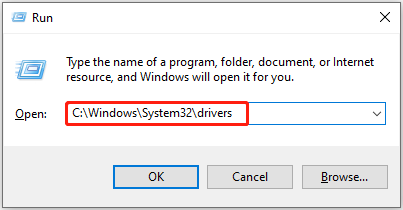
Step 2. In File Explorer, scroll down to find and right-click the klif.sys file and delete it.
Step 3. Navigate to this location: C:\Windows\System32\DriverStore. Then find and delete the klif.sys file.
Fix 3. Uninstall Kaspersky Antivirus
According to user experience, the Kaspersky antivirus is the culprit of the klif.sys BSOD. Therefore, to get rid of the trouble, you can uninstall Kaspersky.
You may not be able to remove Kaspersky from the Control Panel like uninstalling other software. You need to download and use the Kavremover tool to remove Kaspersky. For the detailed steps, you can refer to Kaspersky’s official guide: How to remove a Kaspersky application.

Fix 4. Run DISM and SFC Scan
If the blue screen error persists after deleting the klif.sys file and uninstalling Kaspersky, there may be some corrupted system files. To repair them, you can run DISM and SFC scans.
Step 1. Open Command Prompt as administrator.
Step 2. In the new window, type the following command line and press Enter:
DISM.exe /Online /Cleanup-image /Restorehealth
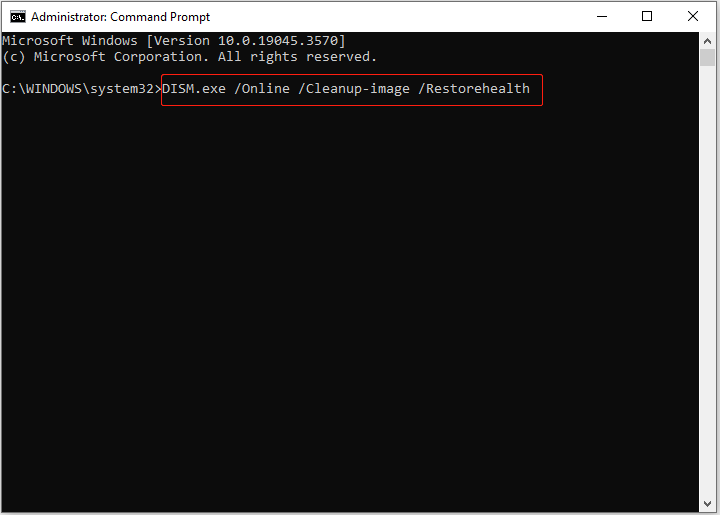
Step 3. Wait patiently until the whole process ends. After that, type sfc /scannow and press Enter.
Fix 5. Perform System Restore
If the problem still exists after trying all the above solutions, you may need to restore your system to a previous version where the blue screen issue did not occur. You can accomplish this task via System Restore.
You can boot into the Windows Recovery Environment and choose Troubleshoot > Advanced options > System Restore. Then complete the necessary actions according to the on-screen instructions.
Wrapping Things Up
In a word, this post describes how to fix the klif.sys blue screen, including deleting the klif.sys file, uninstalling Kaspersky, running DISM and SFC to repair corrupted system files, and performing System Restore.
Besides, if you have the demand for deleted file recovery, you can seek help from MiniTool Power Data Recovery Free.
MiniTool Power Data Recovery FreeClick to Download100%Clean & Safe
If you have found other feasible fixes for this issue, welcome to send an email to [email protected].
About The Author

Position: Columnist
Shirley holds a bachelor’s degree in English and has been an editor at the MiniTool Team for many years. She specializes in IT-related content, with a focus on data recovery, file backup, disk management, and other technical topics. She is committed to delivering clear, accurate, and practical solutions to help users resolve common computer issues.
User Comments :