
NETwlv64.sys Error Windows 10/11
NETwlv64.sys is a file that belongs to Intel Wireless Wi-Fi Link Driver and most issues regarding .sys files involve blue screen errors, for example, xhunter1.sys BSOD, NETwsw02.sys error, amdkmpfd.sys BSOD, Netwbw02.sys blue screen, etc.
And you may be plagued by NETwlv64.sys error. On the computer screen, the message DRIVER_IRQL_NOT_LESS_OR_EQUAL may appear as the prefix of NETwlv64.sys. Sometimes the PC can load normally to the desktop after the blue screen but you will encounter this BSOD issue again at intervals。
The reasons for this may be device driver issues, system file malfunction, software conflict, etc. To get rid of the trouble, go on to read and find useful and effective troubleshooting tips.
How to Fix NETwlv64.sys Blue Screen
Update Device Driver
Windows 10 NETwlv64.sys error may be triggered by the device driver issue. So, to fix this blue screen issue, go to find out the problematic driver and update it.
Step 1: Press Win + X and click Device Manager from the list of options.
Step 2: Click View and choose Show hidden devices.
Step 3: Click the tiny arrow mark before each device to expand it and check if any device has a yellow warning mark. If yes, this device may cause NETwlv64.sys blue screen in Windows 10/11. You can try to update it.
Step 4: Right-click on the problematic device and choose Update driver.
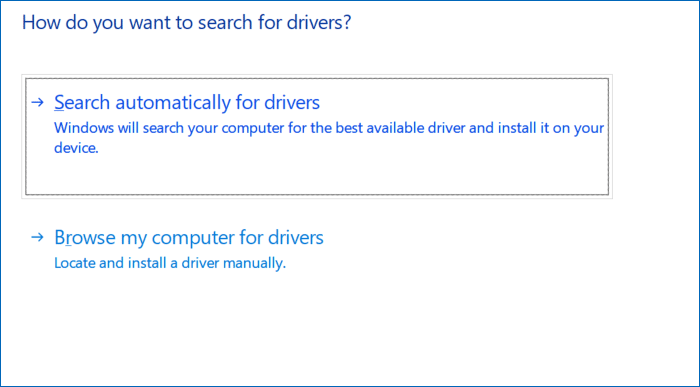
Step 5: Choose one option to go on. Here, we tap the first one to let Windows automatically search the PC for the best available driver and install it on your PC.

Run System Restore
System Restore is a good feature that can help restore your PC to an earlier state using a restore point. If your PC has some restore points created before NETwlv64.sys blue screen, use the latest one to perform a system restore.
Step 1: Type restore point into the search box and click Create a restore point.
Step 2: Go to tap System Restore to continue.
Step 3: The System Restore feature helps you choose a recommendable restore point and just click Next. Or, you can manually choose a restore point.
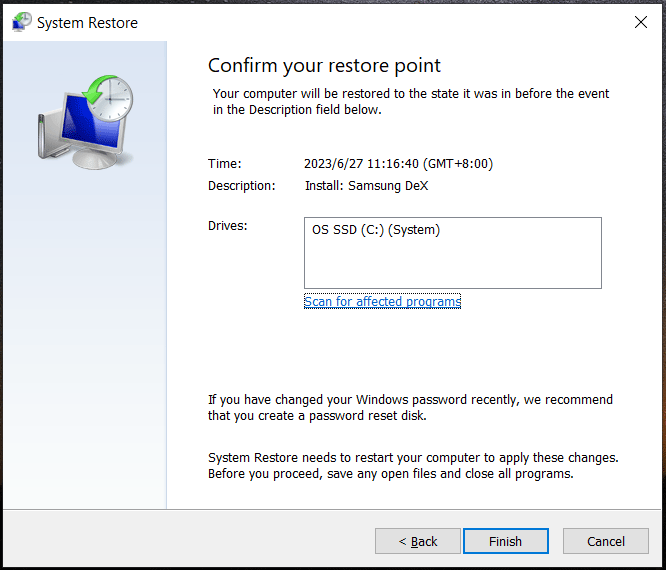
Step 4: Confirm the restore point and click Finish to start the restoration process.
If you want to know more details about System Restore and how to restore your system when the PC fails to boot, refer to our previous post - What’s Windows 11/10 System Restore & How to Enable/Create/Use.
Run an SFC Scan
NETwlv64.sys blue screen error may happen in Windows 10/11 because of corrupted system files and performing an SFC scan may help solve this issue. So, have a try.
Step 1: Press Win + R, type cmd into the text box and press Ctrl + Shift + Enter to run Command Prompt with admin rights.
Step 2: Type sfc /scannow and press Enter.

Uninstall Recently Installed Software
Windows 10/11 NETwlv64.sys error may appear if there is a program conflict with the system. You can fix this issue by uninstalling the recently installed program. Just go to Settings > Apps > Apps & features. Find the target app and click Uninstall.
Final Words
That’s the information on how to fix NETwlv64.sys blue screen in Windows 10/11. If you are bothered by this annoying issue, try these given methods.
Besides, you may notice that blue screen errors always happen randomly and seriously the PC files are lost & system fails to boot eventually. To quickly revert the PC to a normal state or get lost data backup, you had better have a habit of backing up your PC. In case of PC accidents, the backup can do this work.
To back up the machine, we recommend using MiniTool ShadowMaker, professional PC backup software for Windows 11/10/8/7. Get it and follow the guide to start a backup – How to Back up Windows 11 (Focuses on Files & System).
About The Author

Position: Columnist
Vera has been working at the MiniTool Team for over 10 years as a technical editor and content writer. She mainly focuses on disk and partition management, data recovery, Windows backup and restore, and PC troubleshooting. Through in-depth software testing and hands-on experience, she has helped users solve a wide range of computer problems and better protect their data on Windows devices.
User Comments :