
Roblox Has Crashed. Please Perform a Windows Clean Boot
Roblox is one of the largest game platforms that has millions of users. However, people are always confronted with various Roblox errors, such as crashing because of incompatible software, missing critical system files, and other issues. The Roblox Windows clean boot error is another tricky issue that troubles people for days.
The error message “Roblox has crashed. Please perform a Windows clean boot.” appears when trying to launch Roblox, which blocks people from starting a game. Here are some possible solutions for the problem. Keep reading and give them a try to tackle it.
Way 1. Try Windows Clean Boot
As the error message “Roblox crashed. Try performing a Windows clean boot” indicates, you can first try a Windows clean boot to see if the problem can be handled.
Step 1. Press Win + R to launch the Run window.
Step 2. Type msconfig into the Run box and hit Enter to open the System Configuration window.
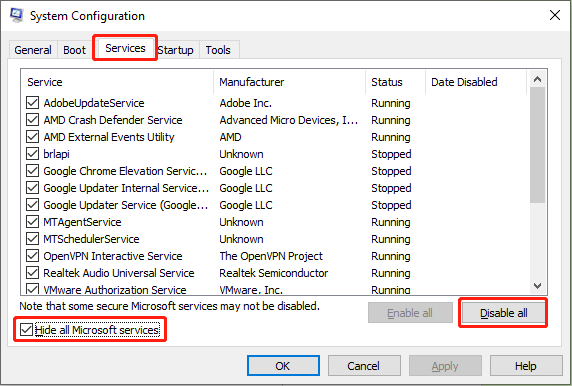
Step 3. Change to the Services tab and tick Hide all Microsoft services. Then, click Disable all.
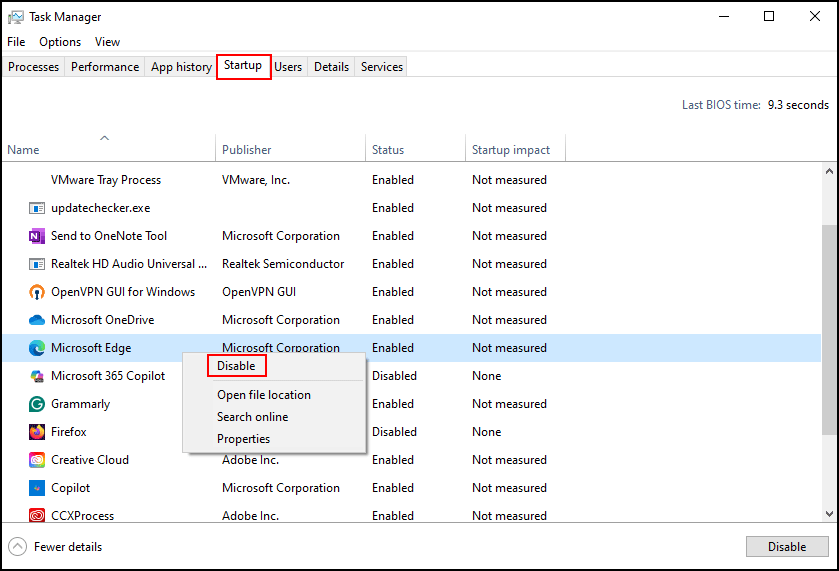
Step 4. Change to the Startup tab and click Open Task Manager.
Step 5. In the following window, you need to disable all the startup processes by right-clicking on them and choosing Disable.
Afterward, close all the open windows and restart your computer. Try to relaunch Roblox to see if the Roblox Windows clean boot error has disappeared. If yes, it means the problem happens because of the incompatibility between the programs and services. You need to enable those disabled services one by one to figure out the culprit.
On the other hand, if the problem is still here, it indicates that there is no problem between the applications. You can move on to try other methods.
Way 2. Disable Optimizations for Windowed Games
According to some people, they fix Roblox crashing error by disabling the Optimization for windowed games option on their computer.
Step 1. Press Win + I to open Windows Settings.
Step 2. Head to System > Display > Graphics > Change default graphics settings. Find the Optimizations for windowed games option and turn it off.
If you just want to disable this feature for Roblox or another program only, you can head to this Microsoft support website for more specific information.
Way 3. Turn off Cheat Engine
Some of you may use Cheat Engine to modify games according to your preference. However, this tool may also result in the Roblox Windows clean boot error, reported by some Roblox users.
Therefore, you can also try to handle this problem by turning off Cheat Engine on your computer or uninstalling it. Additionally, if you are using other tools for higher framerates or game performance, you can also try to disable them to see if this operation can work.
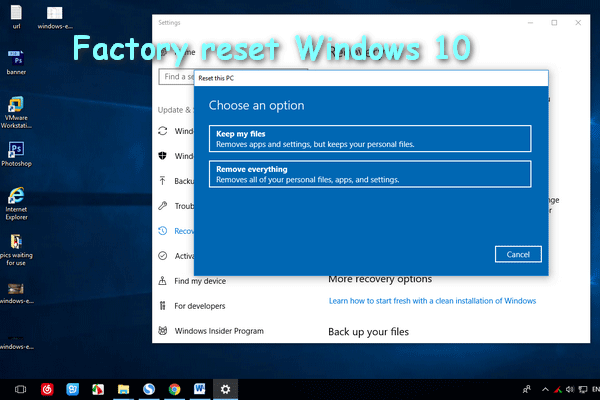
Apart from the above solutions, you can also try to uninstall and reinstall Roblox or reset your Windows system. However, resetting the Windows operating system will remove all the installed applications. Think twice before doing this.
If you decide to reset the PC, you are advised to back up all your crucial files to avoid unexpected data loss. MiniTool ShadowMaker is able to back up the computer easily within a few clicks. You can get this tool by clicking the download button below if needed.
MiniTool ShadowMaker TrialClick to Download100%Clean & Safe
Final Words
This is all about how to handle the Roblox Windows clean boot. This error happens because of different errors; thus, you can give every possible solution a try. Hope this post provides you some useful information.
User Comments :