
Webcam Camera Error Code 0xA00F4289
A webcam is a device used for video calls, live streaming, monitoring, or content creation. It can be built into a laptop or connected to a computer as a standalone device. When users try to access the laptop’s webcam through the built-in Camera app in Windows 10, error code 0xA00F4289 may appear. This error code usually means that Windows cannot find your camera, which may be caused by the following reasons:
- Camera is not enabled: In Windows Privacy settings, if you do not allow applications to access the camera, this error may occur.
- Driver problem: The camera driver may be damaged or outdated, affecting the normal operation of the camera.
- Security software interference: Some antivirus software may block camera access.
- Windows Camera Frame Server is not running: If the service is not enabled in the Service Manager, the camera may not be recognized.
- Video conferencing software conflict: Some applications (such as Skype) may affect the normal operation of the camera.
Follow the specific methods below to fix webcam error code 0xA00F4289 now!
Fixes for Webcam Camera Error Code 0xA00F4289 Windows 10
Method 1: Check the Privacy Settings for the Webcam
If privacy settings block webcam access, it may not start. Checking your Webcam privacy settings can ensure that the application can access your webcam properly.
Step 1: Press the Win + I keys to open the Settings app.
Step 2: Choose Privacy. Then, go to the Camera tab from the left pane.
Step 3: Turn on the Camera access or Allow apps to access your camera option.
Browse the list and make sure the camera access is turned on for all apps that require a webcam.
Method 2: Run the Windows Devices Troubleshooter
A problem with your camera may also cause this error code. Running the Windows Devices Troubleshooter can help you automatically detect and fix hardware-related problems.
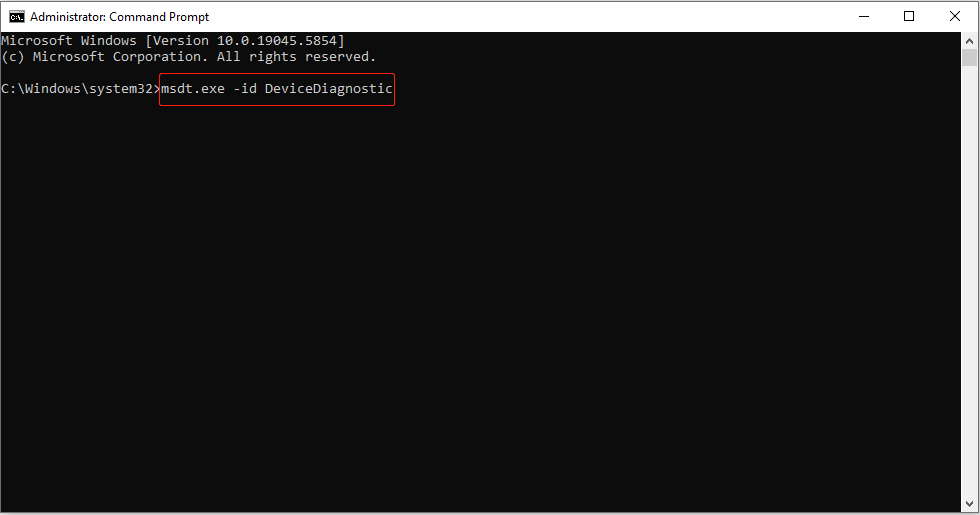
Step 1: Type Command Prompt in the Windows search box, right-click the best match, choose Run as administrator.
Step 2: When prompted by UAC, click Yes to continue.
Step 3: Type the following command and press Enter to open the Hardware and Devices troubleshooter:
msdt.exe -id DeviceDiagnostic
Step 4: In the new window, click Next to start the troubleshooter’s scanning.
Step 5: Click Apply this fix to perform the operation.

Method 3: Start the Windows Camera Frame Server Service
Many applications (such as Zoom, Skype, and Windows Camera) rely on the Windows Camera Frame Server service to access the camera. If the service is not running, the camera may not start, or errors may occur. Starting the Windows Camera Frame Server Service ensures that the camera can run normally and support access by various applications.
Step 1: Type services in the Windows search box and press Enter.
Step 2: Find and right-click the Windows Camera Frame Server service to choose Properties.
Step 3: Click the Startup type box and choose Automatic.
Step 4: Hit the Start button, and then click Apply > OK to make the change take effect.
Method 4: Update the Webcam Driver
Webcam drivers also play an important role in the operation of the camera. Updating the driver can ensure that the camera operates properly and optimizes performance.
Step 1: Right-click the Start button and choose Settings.
Step 2: Choose Update & Security > Windows Update.
Step 3: Click View optional updates.
Step 4: Click Driver updates to expand the list.
Step 5: Select the available camera driver and click the Download and Install button.
Step 6: Finally, restart your PC.
Method 5: Disable webcam protection in third-party antivirus software
Some third-party antivirus tools include webcam protection that blocks camera access. Check your third-party antivirus settings tab to find and turn off the setting in the antivirus utility that disables camera access for all apps. If your antivirus software has a firewall, choose to temporarily disable that webcam protection. Then try using the camera again.

MiniTool Power Data Recovery FreeClick to Download100%Clean & Safe
Bottom Line
When you encounter the webcam camera error code 0xA00F4289, try the above methods, such as checking the Privacy settings, running the Windows Devices troubleshooter, updating driver, and so on. Hope they can work for you.
User Comments :