
Does Windows Defender conflict with Avast? How do I fix Windows Defender blocking Avast in Windows 10/11? From this post, you can find the corresponding answers to these questions, and let’s go to see the details offered by MiniTool.
Windows Defender blocking Avast Antivirus
As is well known, Windows Defender or Windows Security is the inbuilt antivirus software that can effectively safeguard your PC and prevent viruses & malicious programs from infecting your PC. However, when using Windows Defender in Windows 10/11, some issues often happen, for example, Windows Defender keeps turning off, Windows Defender not working, error 0x80073afc, 0x800b0100, 0x800704ec, etc.
Besides, there is a common complaint – Windows Defender blocking Avast. You should know, Windows Defender cannot work with other antivirus software that has a firewall feature on it like Avast Antivirus. Avast and Windows Defender conflict, as a result, Windows Defender blocks Avast.
In addition to the conflict issue, if Windows Defender detects damaged Avast installation files, this tool could stop Avast from working. Also, the version of Avast is outdated. Regardless of the factor, you can take measures to try to fix the issue of Windows Defender blocking antivirus.

What If Windows Defender Blocking Avast
Uninstall Avast and Delete All Related Files
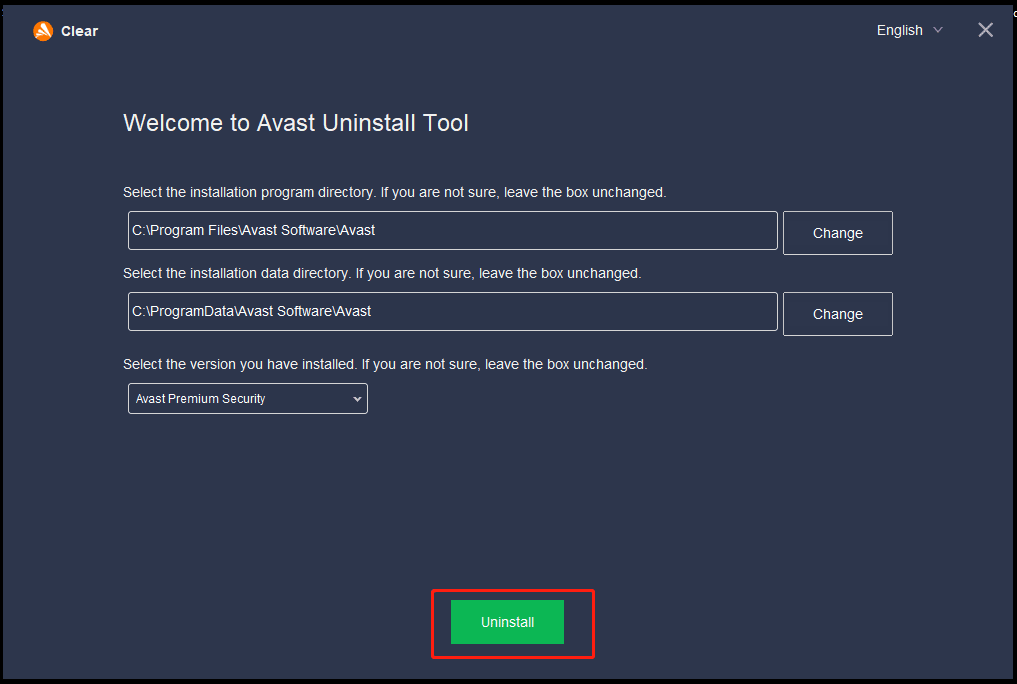
As mentioned above, the main reason for Windows Defender blocking Avast is that Windows Defender conflicts with Avast. So, the best way is to uninstall Avast and remove all the remaining files from your Windows 11/10. See how to do this task:
Step 1: Visit the official website of Avast (https://www.avast.com/en-us/uninstall-utility) to download the uninstall utility – avastclear.exe.
Step 2: Press Win + R, type msconfig and click OK. Then, choose Safe boot under the Boot tab, click OK, and restart the PC to Safe Mode.
Step 3: Right-click on the .exe file you have downloaded and choose Run as administrator.
Step 4: Choose your Avast product, click the Uninstall button to uninstall Avast and clear all the files.
If you install Avast to another folder, go to choose the folder containing your Avast program files and choose the antivirus to uninstall.
After the uninstallation, you can also choose to reinstall the latest version of Avast and see if Windows Security still blocks it.
Disable Windows Defender
When Windows Defender conflicts with Avast, it may block Avast from functioning properly. You can try to disable Windows Defender to fix this issue in Windows 10/11.
Step 1: Type Windows Security into the Windows search bar and open this antivirus program.
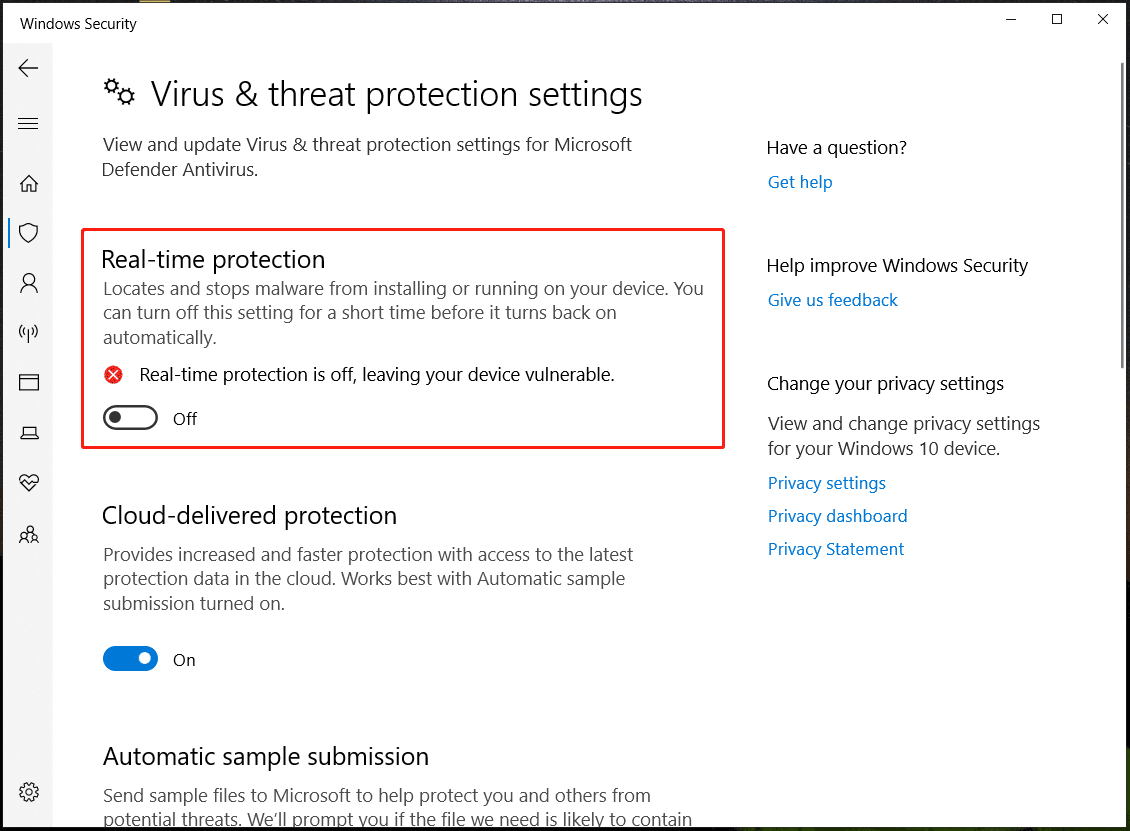
Step 2: Click Virus & threat protection > Manage settings.
Step 3: Under the Real-time protection section, disable this feature. If asked by User Account Control, click Yes.
Stop Insider Builds Program
Sometimes the issue of Windows Defender blocking Avast only happens on the system running Insider Builds due to the instability. To fix this issue, you can try to stop Insider Preview builds.
Step 1: Type Win + R, type ms-settings:windowsinsider into the dialog box, and click OK to open the Windows Insider Program window.
Step 2: Click the Stop Insider Preview builds button and click Yes to confirm.
Step 3: Choose Roll me back to the last Windows release.
Step 4: Restart the PC and revert it to the latest stable build.
Back up Files
No matter which antivirus program you are running, you can easily keep the PC from viruses attacks and threats. However, only running antivirus software is not enough to safeguard your important data. This is because some obstinate viruses or malicious programs cannot be detected by Windows Security or Avast, leading to data loss. So, you had better back up your important data regularly.
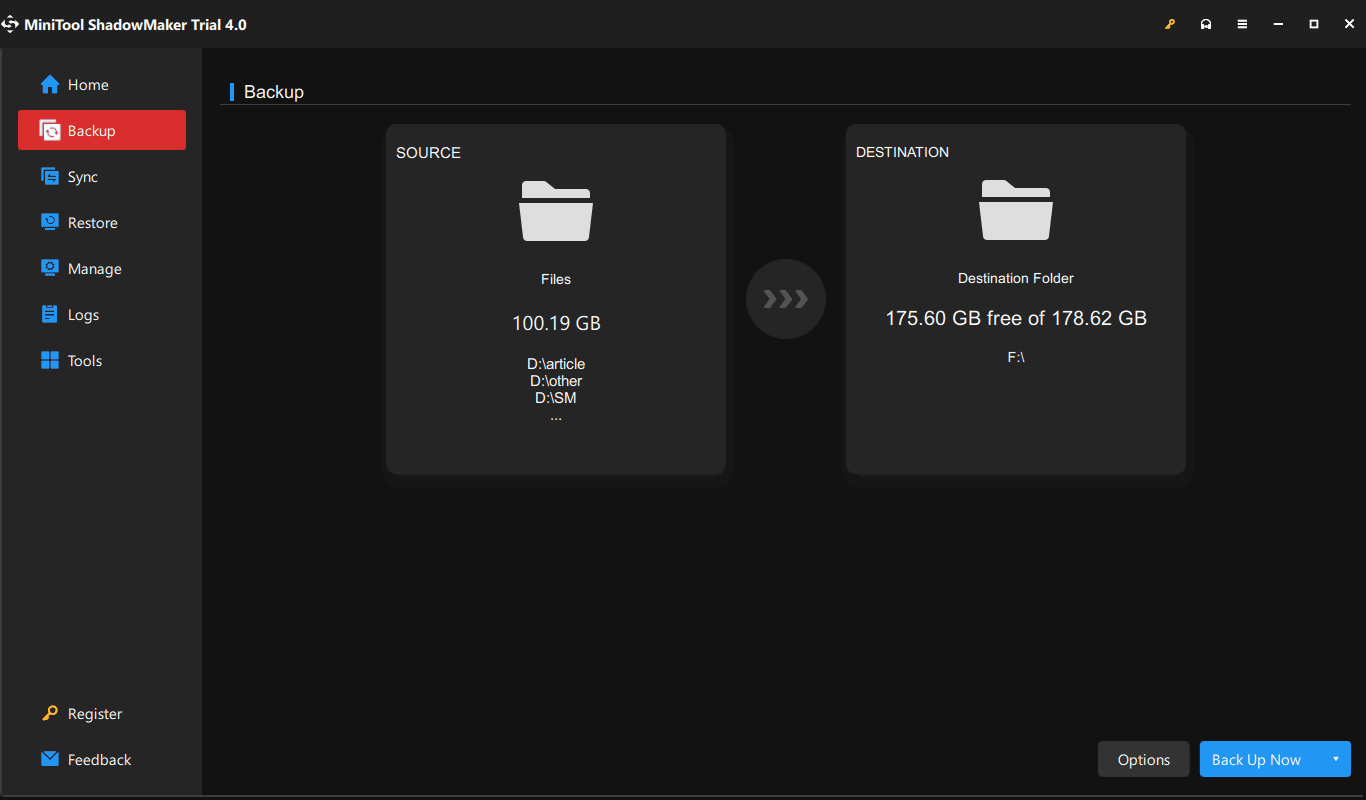
To do this thing, MiniTool ShadowMaker can be a good option. As a free backup software, it is professional in backing up files, folders, the system, a disk, and partitions. Scheduled backups and differential/incremental backups are supported. Just download this software to have a try.
MiniTool ShadowMaker TrialClick to Download100%Clean & Safe
To know how to back up files automatically, refer to our previous posts:
- How to Backup Only New or Changed Files in Windows 11/10? 2 Ways
- 3 Ways to Create Automatic File Backup in Windows 10/11 Easily
Final Words
Will Avast and Windows Defender conflict? The answer is yes and you may often encounter the issue of Windows Defender blocking Avast in Windows 10/11. After reading this post, you know some methods and just try them to get rid of trouble.
About The Author

Position: Columnist
Vera has been working at the MiniTool Team for over 10 years as a technical editor and content writer. She mainly focuses on disk and partition management, data recovery, Windows backup and restore, and PC troubleshooting. Through in-depth software testing and hands-on experience, she has helped users solve a wide range of computer problems and better protect their data on Windows devices.
User Comments :