
What is zlib1.dll? Some people encountered the “zlib1.dll is missing” error or zlib1.dll not found error when they attempt to open an application that includes zlib1.dll. To fix these related errors, this article on MiniTool Website can give you some information.
What Is Zlib1.dll?
What is zlib1.dll? The zlib1.dll is a DLL file used to help applications compress and decompress data without any loss of data in the process in Windows. It is quite useful in data compression as the main task of the file on Windows PCs.
Related articles:
- What Is Atidxx64.dll? How to Fix the Atidxx64.dll Crash Error?
- How to Fix the Libxml2.dll Is Missing or Not Found Error?
- Fix Ftd2xx.dll Not Found or Missing Error – What Is Ftd2xx.dll?
This kind of error can occur on any data compression-related programs using this zlib1.dll when zlib1.dll gets missing or corrupted. There are some factors that can make the issue.
- The incomparability issue with outdated drivers
- Corrupted files caused by malware or virus infiltration
- Accidental deletion of the zlib1.dll file
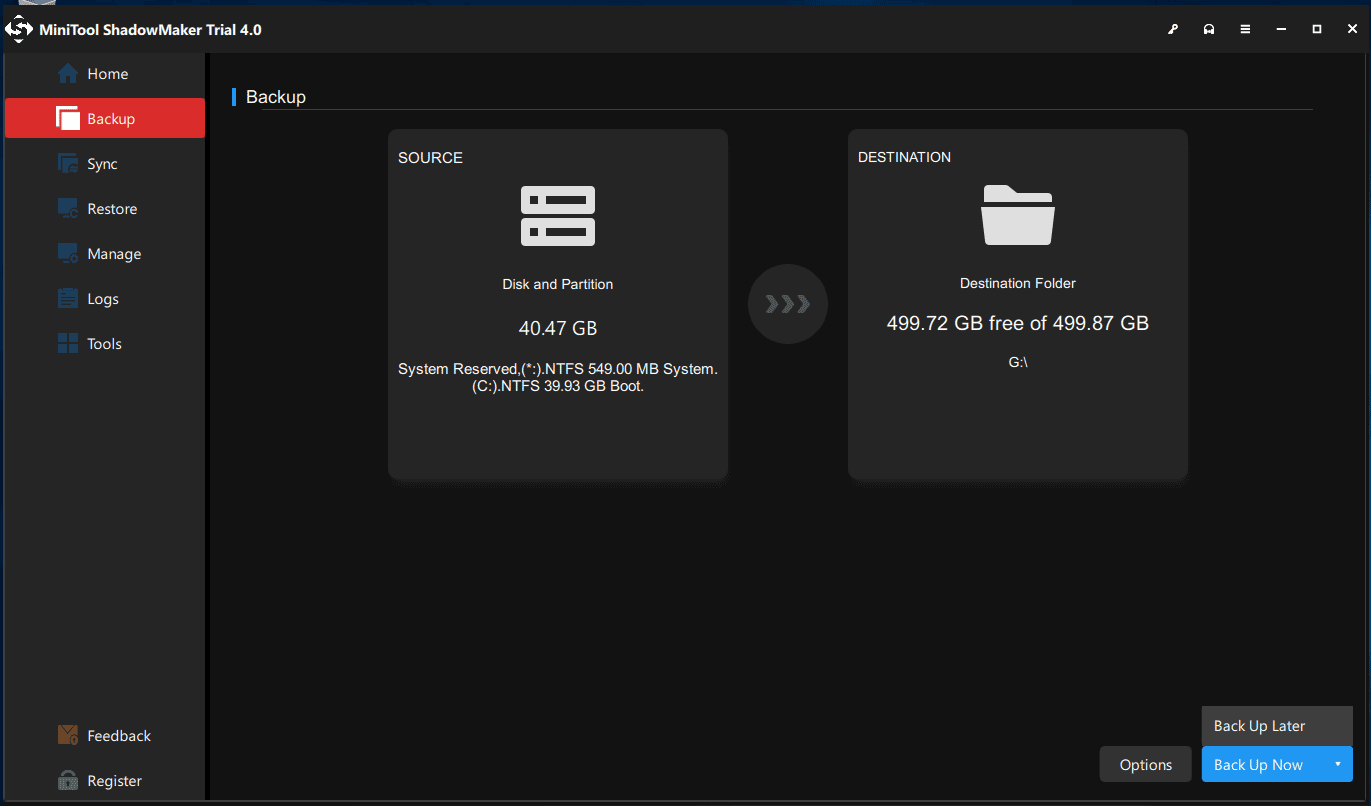
In some cases, it is hard to recover the lost DLL files, and the compressed data in the data compression app is unavailable once the zlib1.dll not found error occurs. Therefore, we highly recommend you back up your important data in advance to prevent data loss as a double guarantee.
MiniTool ShadowMaker is committed to developing the backup feature, accompanied by the sync and disk clone functions. This free software also offers backup schemes and backup schedules to improve the backup experience.
A 30-day free trial version will be presented after downloading and installing the program.
MiniTool ShadowMaker TrialClick to Download100%Clean & Safe
How to Fix Zlib1.dll Missing or Not Found Errors?
Fix 1: Run a Virus Scan for Your System
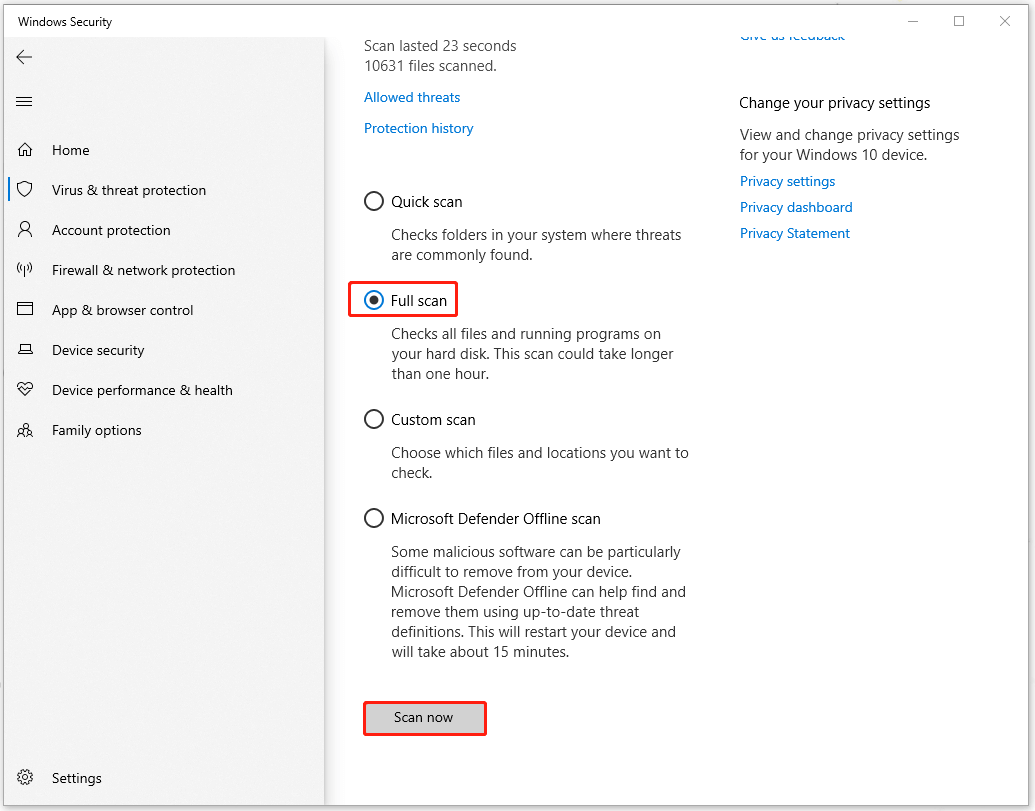
In case of any malware or virus infiltrations in your system, you can run a full scan for your system by doing the following steps.
Step 1: Go to Start > Settings > Update & Security > Windows Security > Virus & threat protection.
Step 2: Click the Scan options link and then Full scan. Choose Scan now to start the scan.
When that finishes, you can restart your computer and try the application again to check if the error persists.
Fix 2: Update Related Drivers
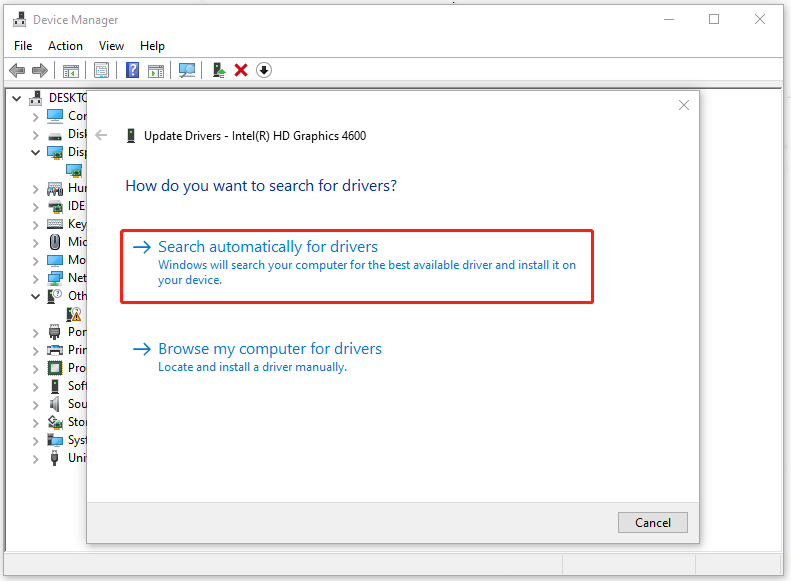
If you have a long time ignoring the pending updates for your drivers, you can go check for that.
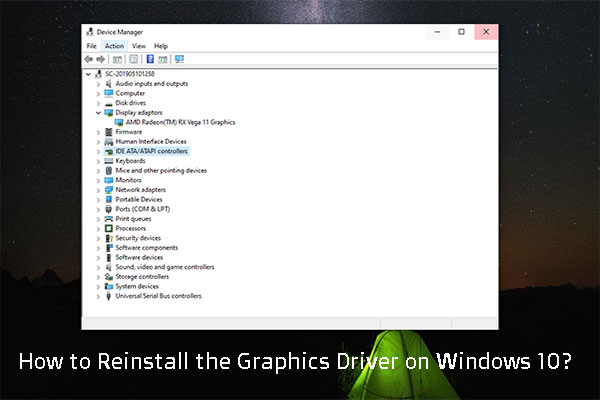
Step 1: Right-click on the Start icon and choose Device Manager from the quick menu.
Step 2: Expand Display adapters and right-click the related driver to choose Update driver. Then choose Search automatically for drivers.
Fix 3: Reinstall the Application That Uses zlib1.dll
If you find this “zlib1.dll is missing” error when you try to open or are using a program, you can try to reinstall the application and the corrupted or missing file will be replaced with the new one.
Just type the application name in Search and choose Uninstall from its expanded panel. When you finish the on-screen instructions and uninstall the program, you can go to the official source to download and install it.
Fix 4: Use System Restore
If all the above methods can’t resolve your issues, you can use system restore to return your Windows to the normal state if you have created a restore point before.
You can open System Properties by inputting create a restore point in Search and opening it. Under System Protection, click System Restore… and then follow the onscreen instructions to choose the point you want to restore.
When all of that succeeds, you can check if the error has been gone.
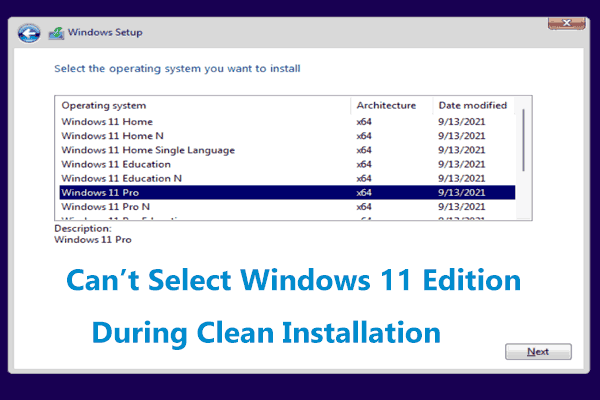
If you are not qualified to use system restore, you can directly try clean install your Windows. However, this method will erase everything from the hard drive and install a fresh copy of Windows, so you’d better have a backup of your important data.
MiniTool ShadowMaker TrialClick to Download100%Clean & Safe
Wrapping It Up
Since the zlib1.dll file plays an important role in your system and the missing error commonly happens on DLL files, you should back up those necessary files in case of crashes. The hope this article is useful for you.
User Comments :