
If your Toshiba hard drive is not showing up, not working, or not recognized on your Windows computer, you can use the methods in this article to recover data from the hard drive and repair the drive without losing data.
Toshiba Hard Drive Not Working/Showing up/Recognized
In today’s digital age, data is the lifeblood of our personal and professional lives. Losing access to critical data due to a malfunctioning hard drive can be a nightmare. Toshiba hard drives are known for their reliability, but like any other storage device, they can encounter issues, whether you are using an internal or external hard drive.
The issues can be divided into the following situations:
- Toshiba internal hard drive not working/recognized/showing up
- Toshiba external hard drive not working/recognized/showing up
If you’ve found yourself in a situation where your Toshiba hard drive is not working and you’re worried about losing important data, fear not. In this article, MiniTool Software will explore common reasons behind Toshiba hard drive failures, how to recover data using MiniTool Power Data Recovery, and various troubleshooting steps to fix the issue.
MiniTool Power Data Recovery FreeClick to Download100%Clean & Safe
Main Reasons Behind Toshiba Hard Drive Not Recognized/Working/Showing Up
Before we delve into the solution, it’s important to understand why your Toshiba hard drive may have stopped working. Several factors can contribute to hard drive issues:
- Physical Damage: Drops, bumps, or shocks can physically damage the hard drive, causing it to stop functioning. In such cases, you may hear unusual clicking or grinding sounds.
- File System Corruption: If the file system on your Toshiba hard drive becomes corrupted due to sudden power loss or improper ejection, it can render the drive inaccessible.
- Bad Sectors: Over time, hard drives may develop bad sectors, making it difficult to read or write data. This can lead to data loss and drive instability.
- Virus or Malware Attacks: Malicious software can infect your hard drive and disrupt its normal operation, making it appear as if the Toshiba hard drive is not recognized/working/showing up.
- Outdated or Incompatible Drivers: If your computer’s operating system doesn’t have the necessary drivers or the existing drivers are outdated, it can lead to compatibility issues with your Toshiba hard drive.
- Firmware Problems: Firmware updates are essential for hard drive performance. Outdated or corrupted firmware can result in operational failures.
Now that we have a better understanding of why your Toshiba hard drive might not be working, let’s explore the methods to fix this hard drive failure issue.
How to Fix Toshiba Hard Drive Not Showing up/Working/Recognized?
If there is no serious physical damage to your Toshiba hard drive, there are usually ways to repair the drive. For example, you can run CHKDSK to check the file system and file system metadata of the drive for logical and physical errors and fix any errors found by using specific parameters.
Alternatively, you can use antivirus software to scan your drive for viruses, spyware, and malware. If your hard drive’s driver is outdated, you can also update Windows or directly update the hard drive driver in Device Manager to restore normal functionality to your Toshiba hard drive.
Formatting can also be a helpful way to repair a failed hard drive in most cases if other methods don’t work for you. However, please be aware that this method will remove all files from the hard drive. Therefore, if you have important files on your Toshiba hard drive, you should use a professional file recovery tool to rescue them first.
Note: Regardless of the method you choose, we strongly recommend using MiniTool Power Data Recovery (the best free data recovery software for Windows) to recover data from the drive before fixing the problem to prevent data loss.
Move 1: Recover Data from the Failed Toshiba Hard Drive
MiniTool Power Data Recovery is a versatile and user-friendly data recovery tool that can help you retrieve lost or inaccessible data from your Toshiba hard drive. This software has a free edition, which allows you to scan your drive and recover up to 1GB of files without paying any cent.
How to Recover Data from a Non-Working Toshiba Hard Drive Using MiniTool Power Data Recovery
If your Toshiba external hard drive is not working or the failed drive is not the system drive, you can follow these steps to use MiniTool Power Data Recovery effectively.
1: Download and Install MiniTool Power Data Recovery on your device.
MiniTool Power Data Recovery FreeClick to Download100%Clean & Safe
2: Make sure the Toshiba hard drive is connected to your PC.
3: Launch MiniTool Power Data Recovery, then you can see all detected drives under the Logical Drives tab by default. Find and select the target drive, then click the Scan button to start scanning that drive.
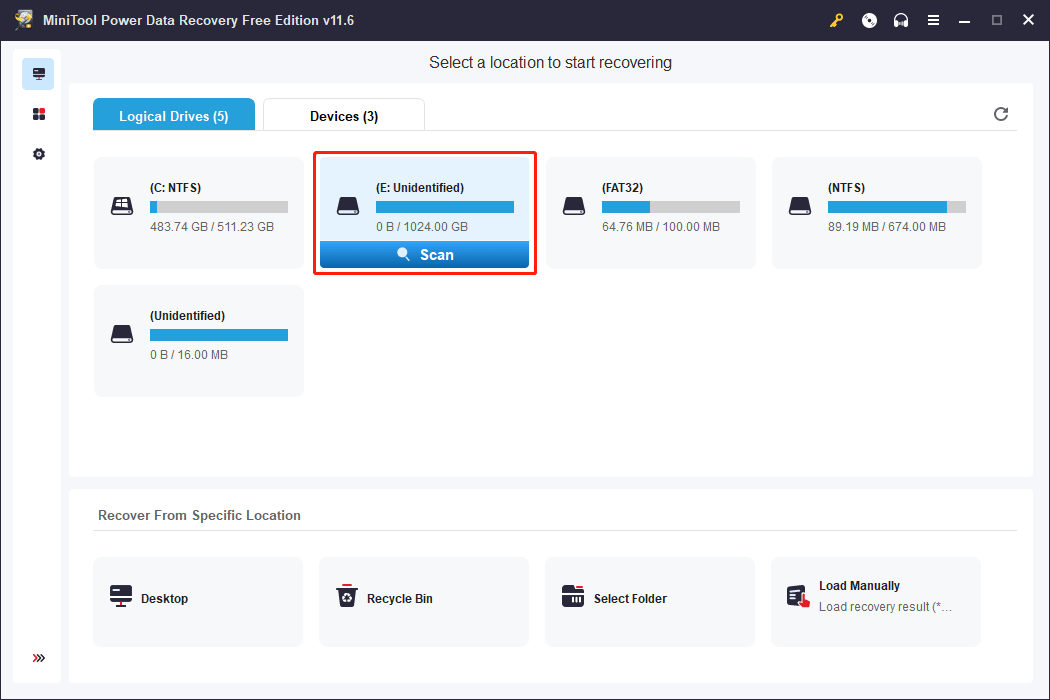
However, if you have partitioned that Toshiba hard drive into multiple drives, you will need to switch to the Devices tab and select the whole disk to scan.
4: When the scanning process ends completely, you will see all the found files and folders that are listed under Path by default. You can open each folder to find the files and folders you want to recover, and then select them.
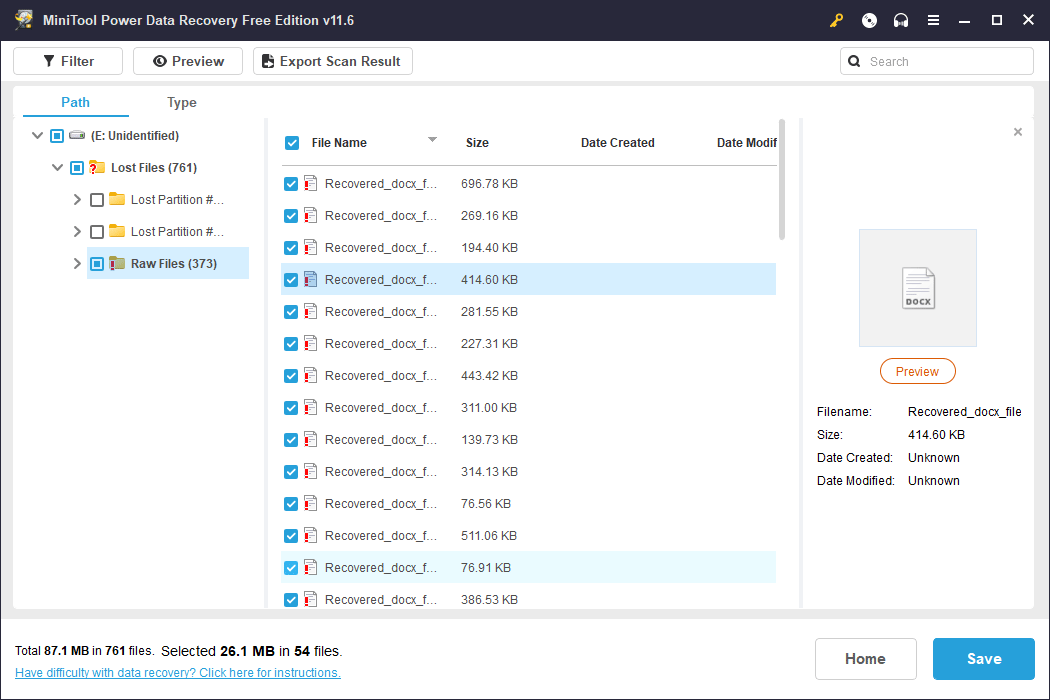
5: After selecting all the needed files, you can click the Save button. Then, you need to choose a suitable location from the pop-up interface to store the selected files.
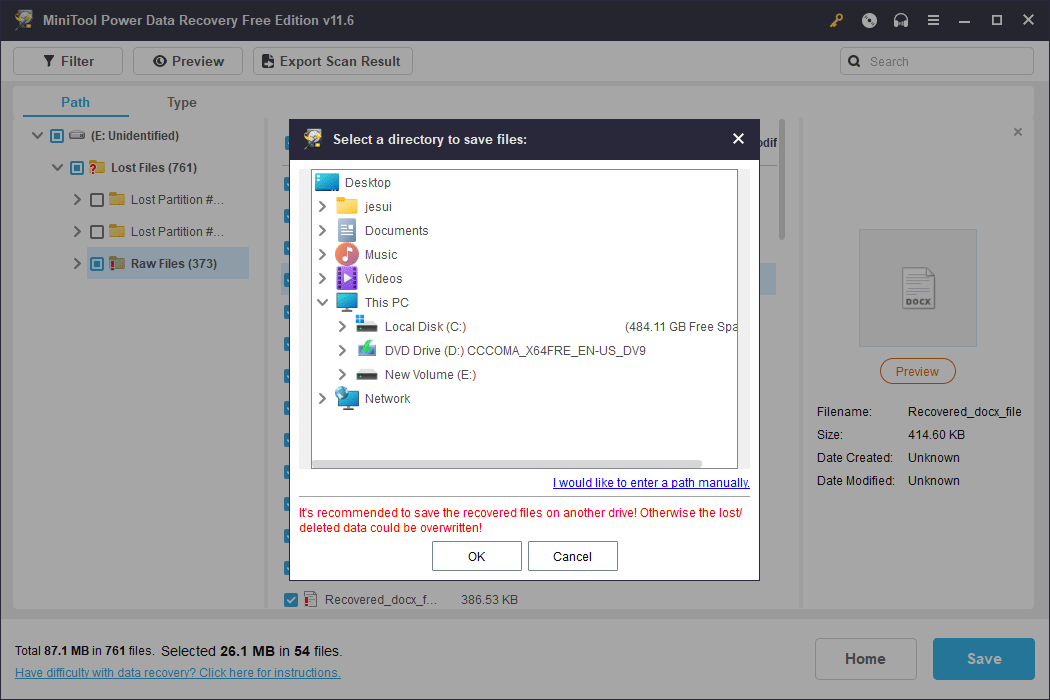
Once done, you can access the storage folder to verify that the recovered files are intact and accessible.
What if the Toshiba Internal Hard Drive Is Not Recognized
If you use a Toshiba hard drive as an internal hard drive and it is not recognized in BIOS, you will be unable to boot the computer successfully. In a situation like this, here are two ways to recover data from the Toshiba:
- You can use MiniTool Power Data Recovery Boot Disk to recover data on an unbootable computer.
- You can remove the internal drive from your computer, connect it to a working computer, and then use MiniTool Power Data Recovery to recover data.
After rescuing your files, you can fix the hard drive using the methods in this post: Is Boot Drive Not Showing Up in BIOS? Fix It with This Guide.
More Information about MiniTool Power Data Recovery
MiniTool Power Data Recovery is specially designed to recover almost all kinds of files from different types of data storage devices.
To be specific, it can recover data like photos, videos, audio files, documents, e-mails, databases, and other files from both internal and external hard drives, SSDs, USB flash drives, pen drives, memory cards, SD cards, CD/DVD, and other types of devices.
This software can work under different situations:
- File Deletion: Swiftly recover deleted files, ensuring data retrieval in accidental deletion cases.
- Drive Formatting: Effortlessly restore data from formatted drives, preserving your valuable information.
- Virus Attack: Recover files deleted by virus attack, ensuring data integrity.
- Hard Drive Failure: Overcome hard drive failures, retrieving critical data effectively.
- Partition Loss: Seamlessly recover data from lost partitions if you accidentally delete some partitions.
- RAW Partition: Handle RAW partition issues, recovering data from these challenging situations.
- OS Crashing: Retrieve data even after an operating system crash, minimizing data loss.
- And More: Adapt to a wide array of data loss scenarios with our comprehensive recovery solutions.
Move 2: Troubleshoot Toshiba Hard Drive Not Working
Now that you’ve recovered your important data, it’s time to address the issue causing your Toshiba hard drive not to work. Here are some troubleshooting steps to help you get your hard drive back in working order:
Some Simple Fixes:
- Check Physical Connections: Ensure that all cables and connections between the hard drive and your computer are secure. Loose connections can lead to connection problems.
- Test on Another Computer: To rule out potential computer-related issues, connect your Toshiba hard drive to another computer to see if it works. If it does, the problem may be with your original computer.
- Add a drive letter: If your Toshiba hard drive lacks a drive letter, it won’t appear in File Explorer. Simply assigning a drive letter to it will make it visible and accessible.
If the methods mentioned above cannot resolve the Toshiba hard drive not working issue, you can proceed to try the following methods:
Way 1: Run CHKDSK
In Windows, you can run the built-in error checking utility (chkdsk) to scan and repair file system errors.
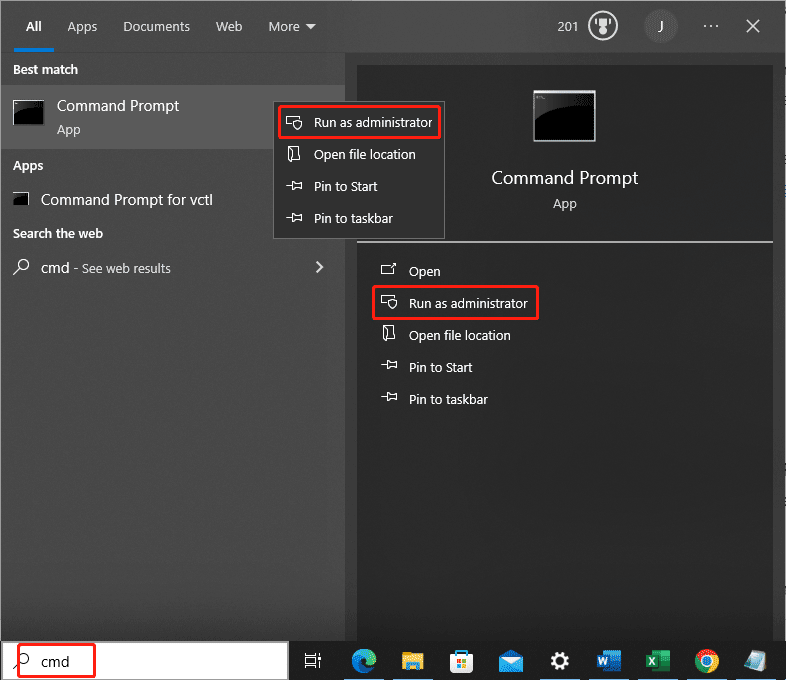
Step 1: Type cmd into the Windows Search box. Command Prompt should be the first search result. You need to right-click it and select Run as administrator from the context menu. Or you can directly select Run as administrator from the right panel.
Step 2: Type chkdsk /f followed by the drive letter (e.g., chkdsk /f D:) into Command Prompt and press Enter. This tool will begin to scan and repair the found errors. You should wait until the whole process ends.
However, if you see the message: CHKDSK is not available for RAW drives, you can skip to way 5 to format the drive to normal.
Way 2: Update or Reinstall Drivers
Ensure that your Toshiba hard drive has the latest drivers installed. You can visit Toshiba’s official website to download and install any necessary driver updates.
See how to check if drivers are up to date.
You can also refer to these two articles to update or install drivers for your Toshiba hard drive:
Way 3: Check for Firmware Updates
Toshiba often releases firmware updates for their hard drives. Check the Toshiba support website for any available firmware updates for your specific model.
Way 4: Scan for Viruses, Spyware, and Malware
Perform a thorough malware scan using reliable antivirus software. For instance, you can use the Windows built-in antivirus tool, Virus & threat protection in Windows Security, to scan your computer for threats.
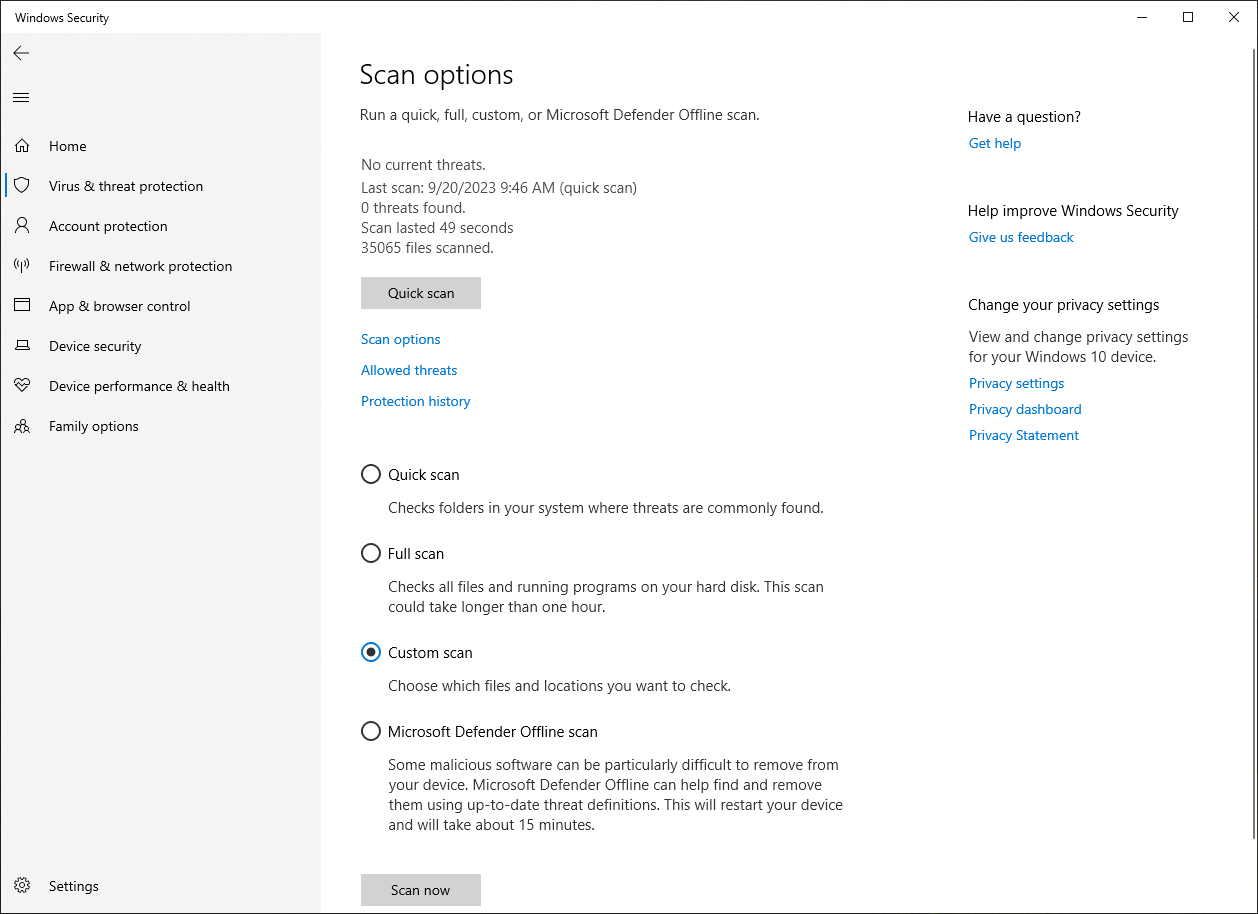
Additionally, you can use third-party antivirus software to scan the hard drive for threats. Bitdefender Antivirus, McAfee AntiVirus, or Norton AntiVirus are good choices.
Way 5: Format Toshiba Hard Drive to Normal
If all else fails, and you’ve successfully recovered your data, consider formatting the Toshiba hard drive. This should erase any file system corruption or bad sectors that were causing issues. Be sure to recover your data using MiniTool Power Data Recovery before doing this.
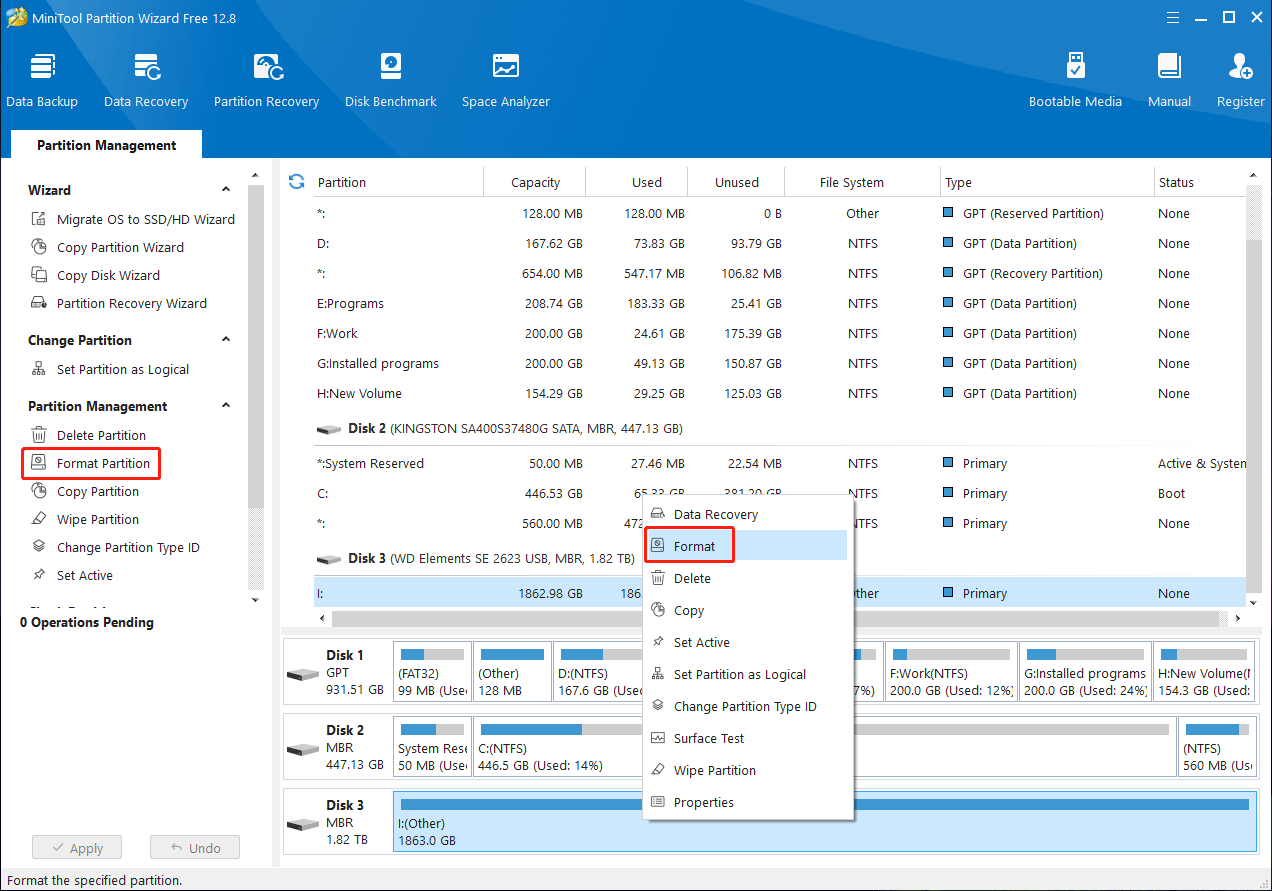
Here, the Format Partition feature in MiniTool Partition Wizard can easily restore the hard drive to its normal state.
MiniTool Partition Wizard FreeClick to Download100%Clean & Safe
Way 6: Replace the Failed Hard Drive with a New One
If none of the above methods work, it may indicate a hardware failure within the hard drive. In such cases, you might need to replace the hard drive with a new one.
Conclusion
A Toshiba hard drive not working can be a distressing situation. But with the right tools and techniques, you can recover your valuable data and potentially fix the issue. Remember to prioritize data recovery first by using MiniTool Power Data Recovery if necessary.
Once your data is safe, proceed with troubleshooting steps to address the underlying problem with your Toshiba hard drive. In many cases, these issues can be resolved, allowing you to continue using your hard drive without further data loss.
If you encounter any issues while using MiniTool software, please feel free to contact us at [email protected].
About The Author

Position: Columnist
Stella has been working in MiniTool Software as an English Editor for more than 8 years. Her articles mainly cover the fields of data recovery including storage media data recovery, phone data recovery, and photo recovery, videos download, partition management, and video & audio format conversions.
User Comments :