
Photos disappeared from iPhone? Now read this post to learn several useful ways to recover pictures from iPhone effectively, including using the best free iOS data recovery software.
My Photo Has Disappeared From My iPhone
Recently, many iPhone users have complained that their photos disappeared from iPhone after updating iOS or without doing anything. A user has described his problem as follows.
Hi, so 3 days ago I opened my Photos, and I saw that I only had 800 photos. I used to have 2,500 photos. I also lost some of my contacts, although I restored those. How can I get my pictures back? They're not in my deleted folder. And I already checked on iCloud and they're not there.discussions.apple.com
If you also suffer from such an annoying issue, take it easy. Find the reasons and then you will know how to get these precious pictures back.
Main Reasons for the iPhone Photos Disappeared Issue
- The photos are deleted by mistake.
- The photos are hidden.
- You are signed into a different iCloud account or the iCloud Photos option is disabled.
- After updating iOS, the system is unstable, resulting in photos disappearing from iPhone.
- Mistaken settings, such as turning off Photo Stream, can cause iPhone photos to disappear from the Camera Roll.
- A large number of apps, videos, photos, and other data occupy the internal memory of your iPhone, causing iPhone to be unable to show up photos.
Now you can take the following steps to get your missing photos back.
How to Fix Photos Missing From iPhone
Way 1. Restart Your iPhone
Sometimes a simple restart can help to solve the trouble of “photos disappeared from iPhone”. Try to reboot your iPhone by following the guide below.
Step 1. Press and hold both the Volume Down button and the Side button until the power-off slider appears.
Step 2. Drag the slider and wait tens of seconds for your device to turn off.
Step 3. To turn your device back on, press and hold the Side button until you see the Apple logo.
After the restart, check whether the missing photos are back on your iPhone.

Way 2. Check the Recently Deleted Folder
If the restart fails to retrieve your disappeared photos, you can check whether the photos were deleted by mistake and stored in the Recently Deleted folder.
For newer iOS versions, there is a built-in folder namely Recently Deleted on your iPhone. This folder helps to store files deleted from iCloud Drive or the Files app for 30 days. Thus, the missing photos in Camera Roll may be saved in the Recently Deleted album.
On your iPhone, tap Photos > Albums. Under Utilities, tap Recently Deleted.
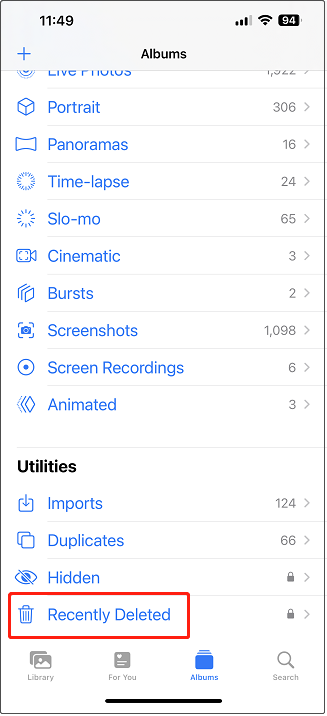
If you find the missing photos, tap Select, choose all needed pictures, and tap the Recover button to recover deleted photos on your iPhone.
Way 3. Unhide Photos
As mentioned before, if you hide the pictures saved on your iPhone, you can only see them in the Hidden album, so it seems that the hidden photos are missing. In this case, follow the instructions below to unhide those photos.
- Open the Photos app, then go to the Albums tab.
- Tap Hidden under Utilities.
- Select the photo you want to unhide.
- Click on More > Unhide to get back pictures missing from iPhone.
Way 4. Check If iCloud Photos Is Enabled
In iOS devices, there is a feature called iCloud Photos, which helps you store all the photos and videos in your photo library to iCloud, so you can access them from your Mac, PC, iPhone, or iPad.
If the photos disappeared from iPhone, iCloud Photos is likely disabled. In this situation, you need to turn it on.
Navigate to Settings > [your name] > iCloud > Photos, then enable iCloud Photos by switching the button to ON.
After turning on iCloud Photos, connect your iPhone to power source and Wi-Fi and wait for a few minutes. Then you can check whether the missing photos are back.
Way 5. Check iCloud Account
iCloud photos might occasionally vanish from your iPhone due to being logged into an alternate Apple account that differs from the one in which the photos are stored.
In this case, go to the Settings tab and check whether the account is correct. If wrong, sign out and log into your right iCloud account. Then you should be able to get back your photos missing from iPhone.
Way 6. Restore Disappeared Photos From iTunes Backups
As we all know, iTunes is a piece of reliable media management software that enables you to sync your music files, photos, and videos with your iOS devices. Therefore, lots of users choose to back up their iPhone photos to iTunes to avoid data loss.
If you also have backed up pictures in advance, you can recover all missing photos from the iTunes backup when pictures missing from iPhone.
Step 1. Connect your iPhone to your computer where you have installed iTunes.
Step 2. Open iTunes to go to its main interface. If you receive a message prompting you to Trust This Computer, just follow the on-screen instructions to complete the necessary actions.
Step 3. Click on the Device button and navigate to the Summary tab, then click the Restore Backup option.
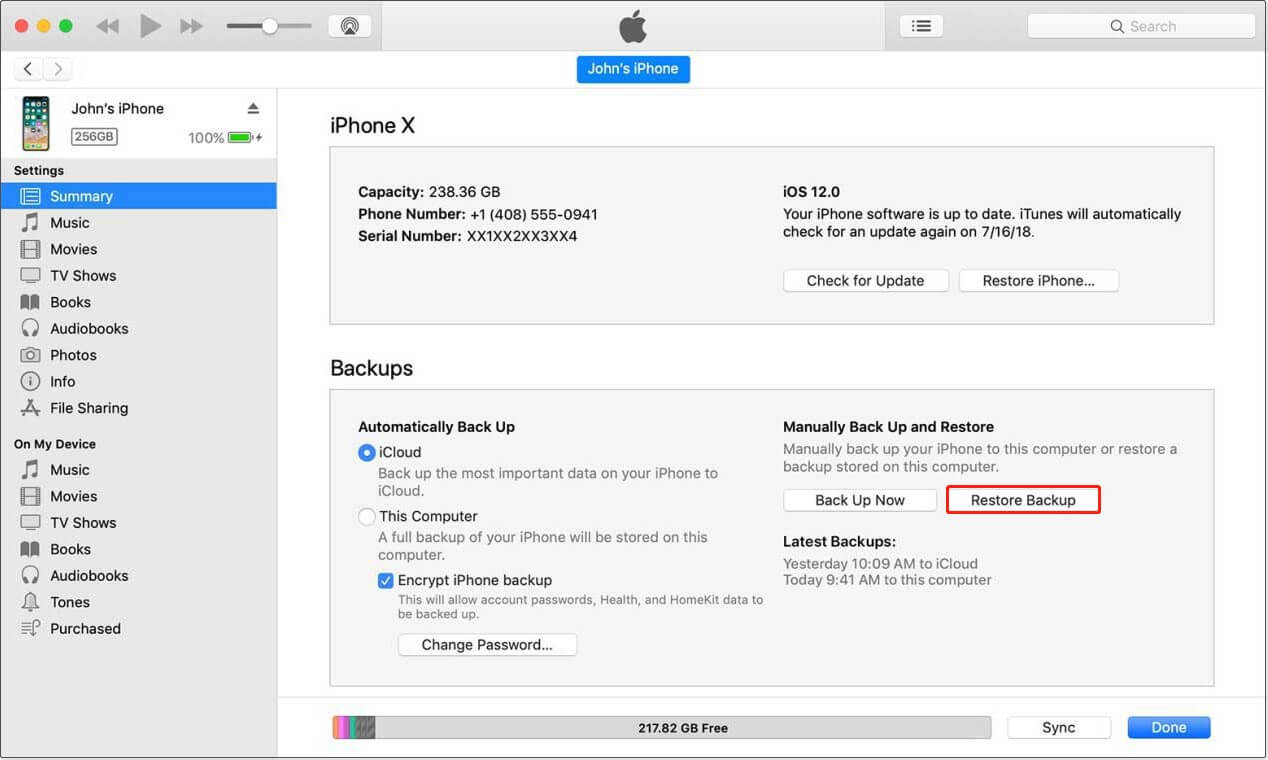
Step 4. Choose the most relevant backup file depending on the date and size of each backup file. Then click the Restore button to perform the iPhone photo recovery. Wait patiently until all selected files are restored to your iPhone successfully.
Throughout the procedure, it’s important to keep your iPhone connected to iTunes without interruption.

Way 7. Recover Deleted Photos iPhone With Data Recovery Software
If you have permanently deleted photos from your iPhone, you can use PhoneRescue for iOS to scan your iPhone directly and look for recoverable photos.
This iPhone data recovery software supports all iOS devices with iOS version 5 and above and can help recover photos, photo videos, voice memos, contacts, and app data.
In addition, PhoneRescue for iOS allows you to scan your iTunes or iCloud backup file and recover only the pictures you need without overwriting your current iPhone data.
Option 1. Recover Deleted Photos Directly from iPhone
PhoneRescue for iOS analyzes your device storage and searches for deleted photos that have not yet been overwritten by new data.
Step 1. Connect your iPhone and choose device recovery mode
Connect your iPhone to the computer with a USB cable. Get and launch PhoneRescue for iOS on your computer.
Phone Rescue for iOS (Windows)Click to Download100%Clean & Safe
Phone Rescue for iOS (Mac)Click to Download100%Clean & Safe
From the main interface of the software, select Recover from iOS Device and click the Arrow button to continue.
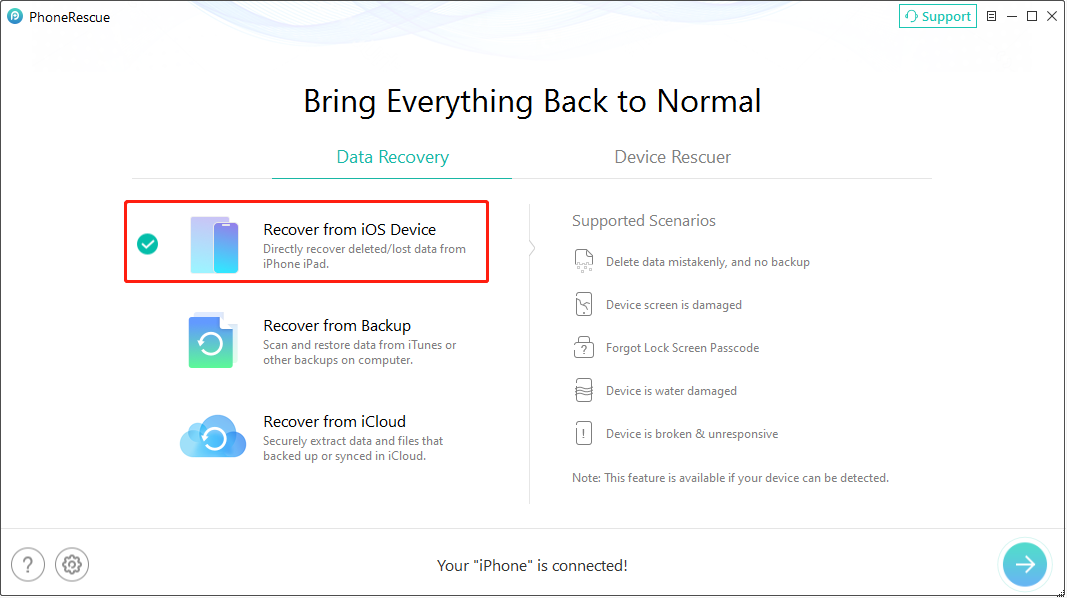
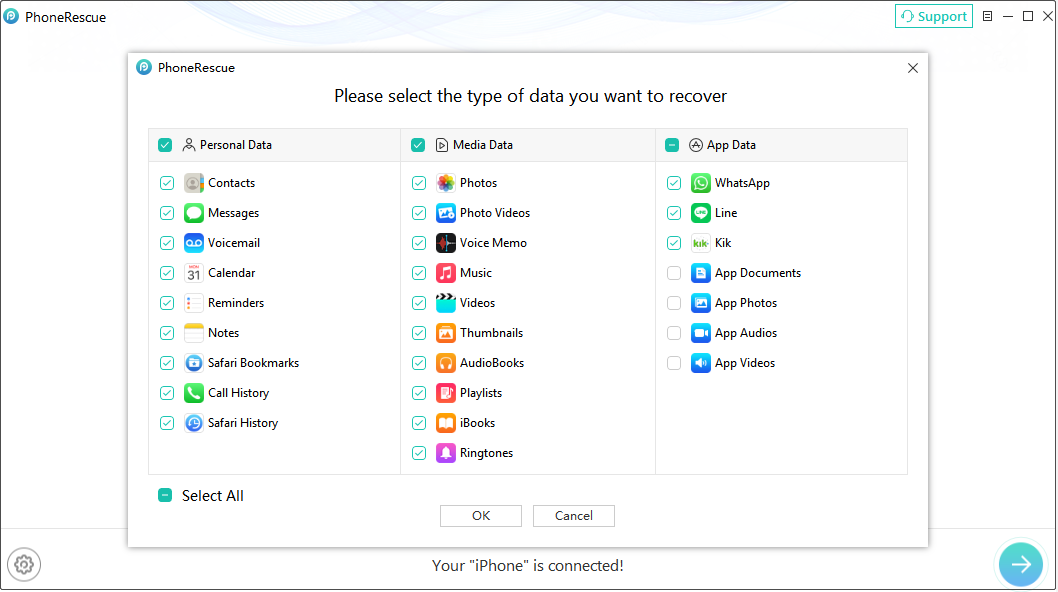
Step 2. Select Photos and start scanning
In the data selection window, uncheck Select All, and select Photos (or other photo-related categories if needed), then click OK.
PhoneRescue for iOS will analyze your iPhone and scan the device for deleted or lost photos.
Step 3. Preview and recover deleted photos
After the scan is complete, browse the detected photos and preview the items available for recovery.
Select the photos you want to restore, then choose whether to save them to your computer or restore them back to your iPhone.
Option 2. Recover Deleted Photos from an iTunes Backup
If you previously backed up your iPhone with iTunes and the deleted photos were included in the backup, PhoneRescue for iOS can extract photos from the backup without restoring the entire backup to your device.
Step 1. Choose iTunes backup recovery mode
On the main interface of the software, select Recover from Backup and continue.
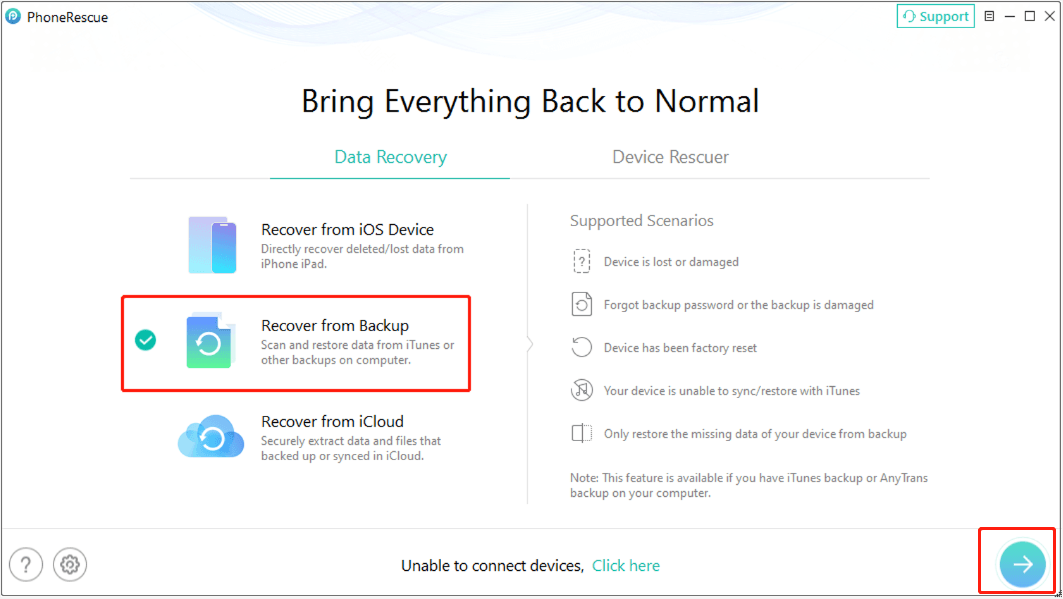
Step 2. Select an iTunes backup file
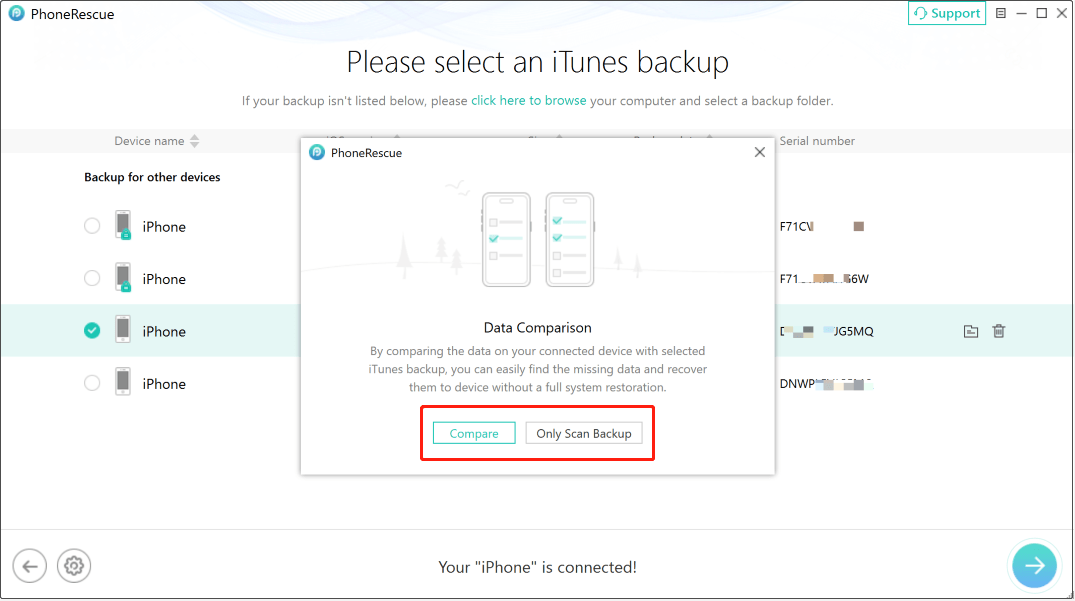
PhoneRescue will automatically detect available iTunes backups stored on your computer. Choose the backup created before your photos were deleted and continue.
When prompted, select Compare or Only Scan Backup based on your needs.
- Only Scan Backup: Scans and displays all recoverable data stored in the selected backup.
- Compare: Compares the backup data with your iPhone and only shows data that is missing from your device.
Step 3. Scan and recover photos
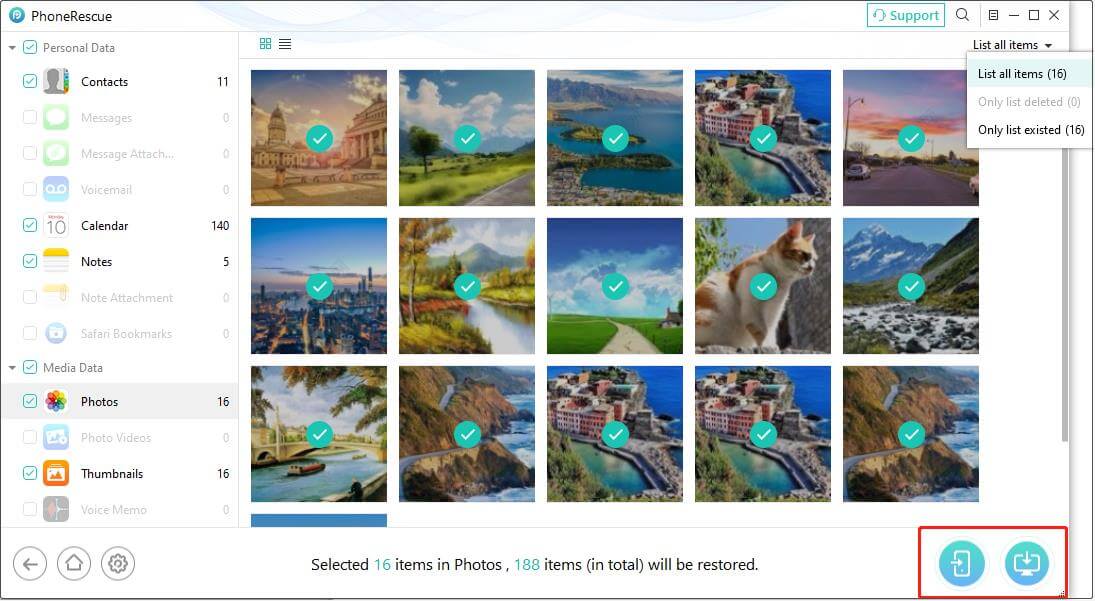
Select Photos from the data categories and start scanning the backup.
After scanning, preview the recovered photos, select the pictures you need, and save them to your computer or iPhone.
Option 3. Recover Deleted Photos from an iCloud Backup
If your missing photos were stored in an iCloud backup, you can use PhoneRescue for iOS to extract photos without erasing your phone.
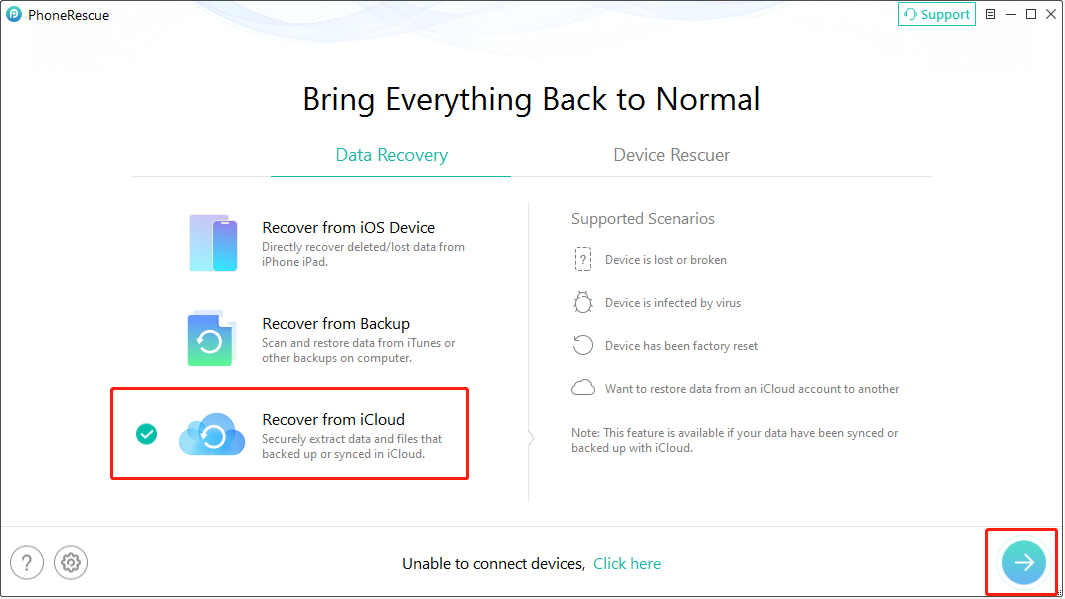
Step 1. Select iCloud recovery mode
Open PhoneRescue for iOS and choose Recover from iCloud.
Step 2. Sign in and scan iCloud backup
Sign in with the Apple ID linked to your iCloud backup.
Select the iCloud backup that may contain your deleted photos and download the backup data.
Step 3. Restore deleted photos
Choose Photos from the available data types and start scanning.
Once the scan is finished, preview the recovered photos and export the selected pictures.
Bottom Line
In this post, we introduced several useful solutions to help you find photos disappeared from iPhone as well as a free mobile data recovery software – PhoneRescue for iOS to recover deleted photos on iPhone.
Photos Disappeared From iPhone FAQ
1. Download, install, and launch PhoneRescue for iOS.
2. Select the data recovery module.
3. Follow the on-screen instructions to scan your files.
4. Preview and save the required photos.
About The Author

Position: Columnist
Shirley holds a bachelor’s degree in English and has been an editor at the MiniTool Team for many years. She specializes in IT-related content, with a focus on data recovery, file backup, disk management, and other technical topics. She is committed to delivering clear, accurate, and practical solutions to help users resolve common computer issues.
User Comments :