
Windows Freezing When Pressing Print Screen in Windows 10/11? Is Windows + Shift + S freezing your computer? Now in this post from MiniTool, we are going to tell you how to address it.
Windows Freezing When Pressing Print Screen
Computer freezing is a common and annoying issue, such as the computer freezing when trying to print, or the computer keeps freezing when USB is plugged in, and so on.
Today we will walk you through how to fix the problem of “Windows freezing when pressing Print Screen”. The “computer stuck in screenshot mode” issue is usually caused by the misconfigured debug mode and corrupted graphics driver or keyboard. Also, corrupted system files can be responsible for this matter.
Now, you can try the methods listed below to fix the computer stuck in screenshot mode issue.
Solutions to Windows Freezing When Pressing Print Screen
Solution 1. Disable the Debug Mode
As mentioned previously, if your system is configured to boot into debug mode, Windows will freeze when you press the Print Screen button. Therefore, to fix the computer freezing issue, you can follow the steps below to disable the debug mode.
Step 1. Open System Configuration by using the Windows search box.
Step 2. In the pop-up window, move on to the Boot section, then click Advanced options.
Step 3. Uncheck the Debug option and then click the OK button to make it take effect.
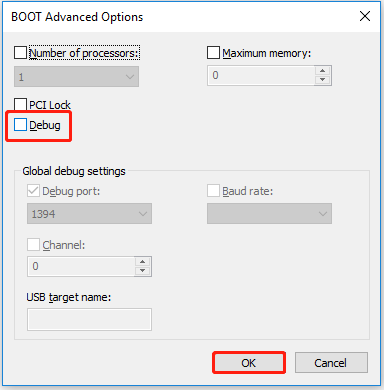
Step 4. After that, reboot your computer and try to press the Print Screen button again to check whether you can make screenshots normally without freezing.

Solution 2. Update or Reinstall the Graphic and Keyboard Drivers
Corrupted keyboard or graphics drivers can cause a host of issues like keyboard types in all caps or keyboard not working in Chrome. Here to fix the matter of “Windows freezing when pressing Print Screen”, you are supposed to update the keyboard or graphics drivers first. If this does not work, you need to reinstall these drivers.
Warning: Before doing the following things, you need to disable any PINs or passwords you have, as uninstalling the keyboard driver from your PC will render your keyboard device inoperable.
Step 1. Right-click the Windows logo button to select Device Manager.
Step 2. Expand Keyboards and right-click the target keyboard driver to choose Uninstall device. Then follow the instructions on your screen to complete this task.
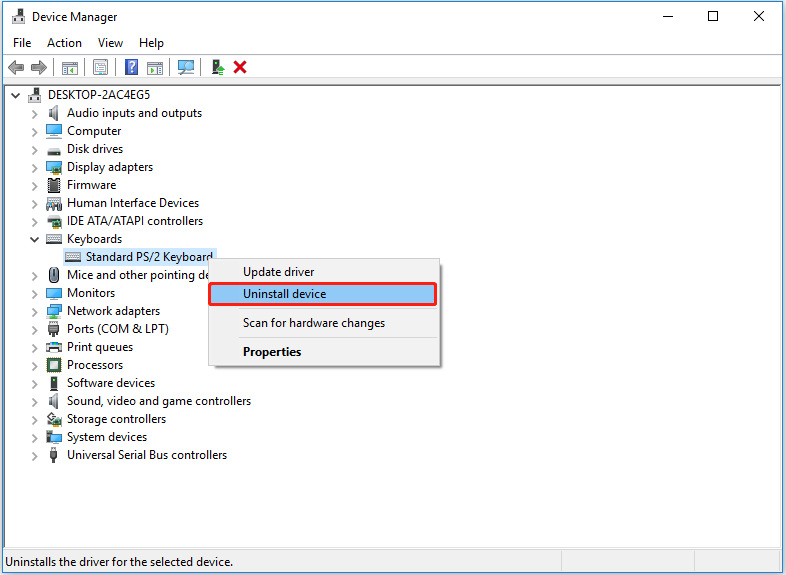
Step 3. Repeat the same steps to uninstall the graphics driver. Next, restart your PC and Windows will automatically re-install the latest version of the graphics driver on your computer.
After doing these steps, check if the Print Screen button or Snipping Tool freezes Windows 11/10 issue has gone.
Solution 3. Run DISM and SFC Scan
Windows offers you lots of built-in troubleshooting utilities to help you get rid of some general computer issues. For example, you can run the program compatibility troubleshooter to fix application compatibility problems.
Here, to deal with the problem of “Windows freezing when pressing Print Screen”, you can perform a DISM and SFC scan to detect and fix corrupted system files.
Step 1. Run Command Prompt as administrator.
Step 2. Type the following command line in the new window and press Enter on your keyboard:
DISM.exe /Online /Cleanup-image /Restorehealth
Step 3. Then type sfc /scannow in the command window and press Enter.
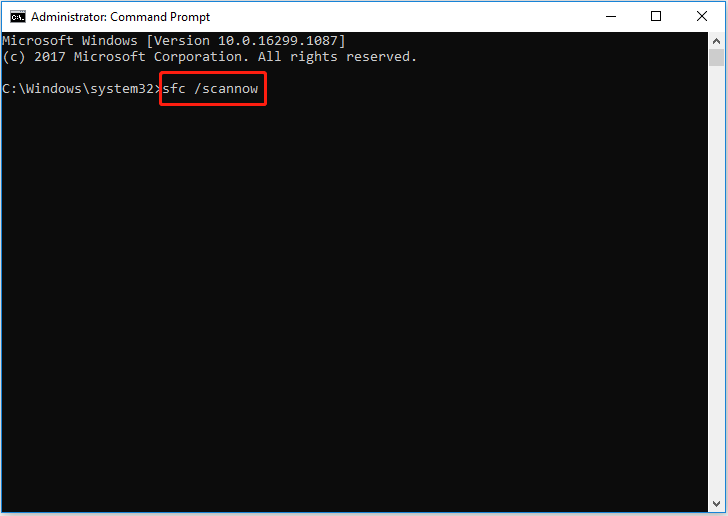
Step 4. Wait for the process to finish and then check whether the issue has been addressed.
For a more detailed guide to running DISM and SFC, you can refer to this post: Use the System File Checker tool to repair missing or corrupted system files.

Top Recommendation
If your files are lost on your computer, you can use MiniTool Power Data Recovery to get them back. It can help to recover the missing Windows Pictures folder, the screenshots folder, the missing Users folder, etc., and Office files, videos, audio, emails, and so on.
MiniTool Power Data Recovery FreeClick to Download100%Clean & Safe
Bottom Line
If the problem of “Windows freezing when pressing Print Screen” occurs, you can try the methods mentioned above to fix it.
If you have come across other good solutions to this error, welcome to tell us in the following comment zone. Thank you in advance.
About The Author

Position: Columnist
Shirley holds a bachelor’s degree in English and has been an editor at the MiniTool Team for many years. She specializes in IT-related content, with a focus on data recovery, file backup, disk management, and other technical topics. She is committed to delivering clear, accurate, and practical solutions to help users resolve common computer issues.
User Comments :